- Knowledge Base
- All Months
- How to import payroll for the entire company
- How to add a run
- How to edit a run
- How to mark a run as complete
- How to archive a run
- How to delete a run
- How to change the assignee
- How to add a result in a checklist run
- How to add bulk results in a checklist run
- How to share run tasks with external participants
- How to generate an Excel or PDF report from a checklist run
- How to filter the run tasks view
- What is an office asset
- How to create a new asset
- How to manage an asset
- How to move an asset
- How to dispose of an asset
- How to transfer (in) an asset
- How to transfer (out) an asset
- How to log a sighting of an asset
- How to log an inspection of an asset
- How to log maintenance on an asset
- How to export a record of an asset
- How to print asset labels
- Introduction
- Admissions
- Assets
- Bank Accounts
- Boards
- Business Trips
- Candidates
- Checklists
- Clients
- Companies
- Consents
- Contacts
- Contracts
- Custom Forms
- Departments
- Documents
- Evaluations
- Employee Performance
- GL Accounts
- Incoming Center
- Integrations/External Systems
- Invoices
- Job Management
- Key Dates
- Months
- Offices
- Personnel
- Polls
- Project Management
- Project Status
- Purchase Orders
- Schedule
- Shared Spaces
- Teams
- Time Off
- Time Tracking
- Transactions
- Vendors
- Mobile Application
- What is a personnel asset
- How to create a new asset
- How to manage an asset
- How to move an asset
- How to log inspection on an asset
- How to log maintenance on an asset
- How to dispose of an asset
- How to transfer (out) an asset
- How to transfer (in) an asset
- How to log a sighting on an asset
- How to print asset labels
- How to export a record of an asset
- What is a project asset
- How to create a new asset
- How to manage an asset
- How to move an asset
- How to log inspection on an asset
- How to log maintenance on an asset
- How to dispose of an asset
- How to transfer (out) an asset
- How to transfer (in) an asset
- How to log a sighting of an asset
- How to print asset labels
- How to export a record of an asset
- Project transactions
- How to record an estimate
- How to create a budget
- How to submit transaction items for approval
- How to approve or deny budgeting items from the transactions grid
- How to create a purchase order from approved estimates
- How to link approved estimates to approved budgets
- How to cancel a transaction
- How to deactivate a transaction
- How to edit a transaction
- How to re-submit a denied transaction
How to import payroll for the entire company
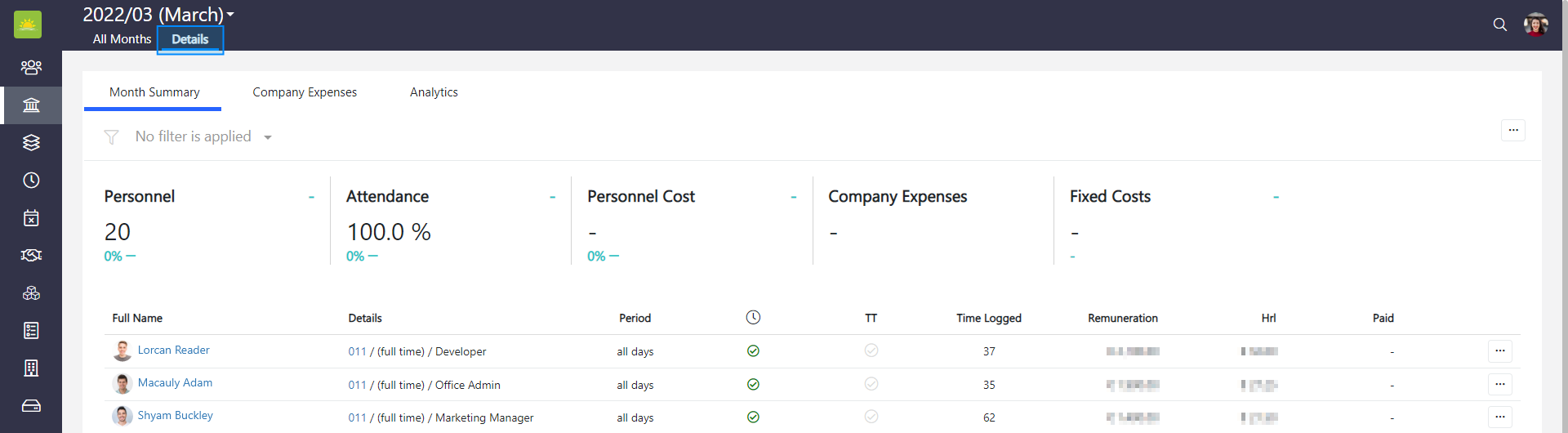
To import payroll for the whole company, go to the All Months module and click the Details tab inside a specific month.
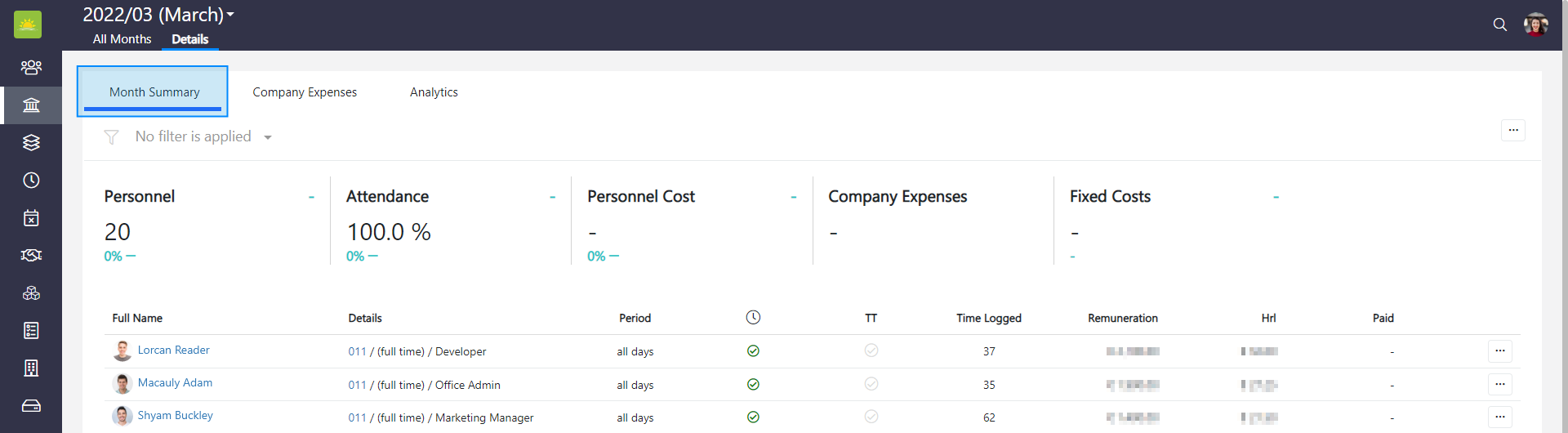
Click the Month Summary tab.
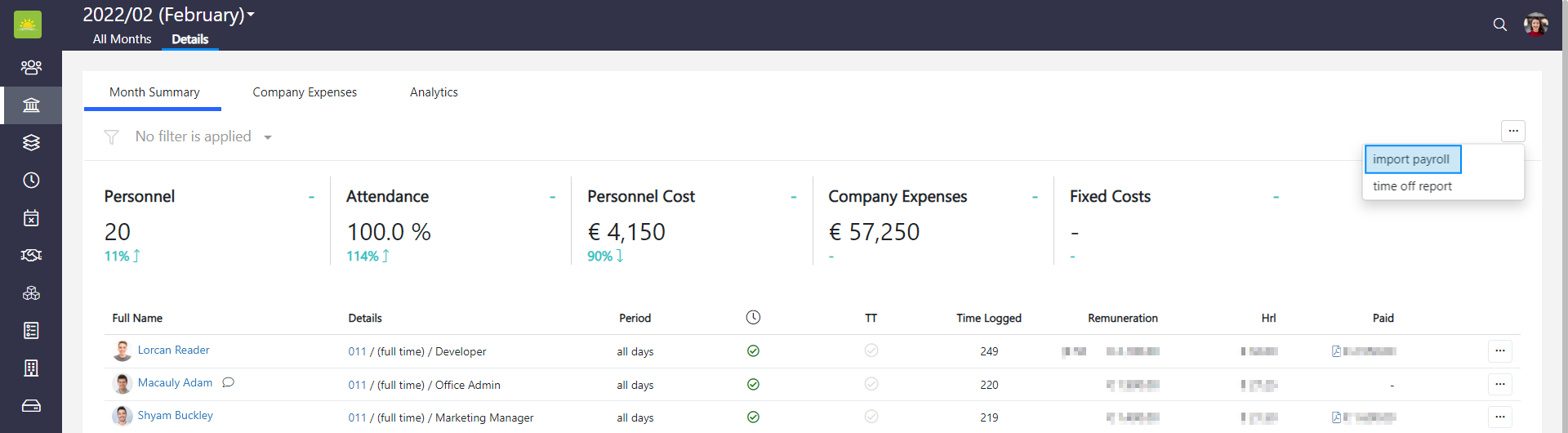
Click … in the top right corner and click import payroll. The payroll can only be added to months in the past, not to current or future months.
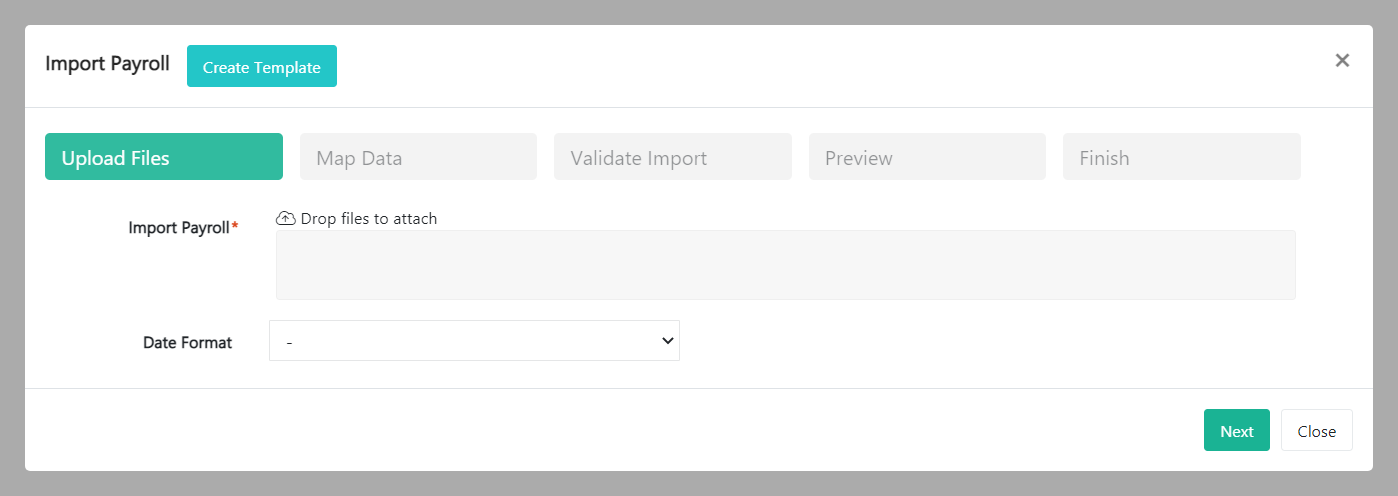
An Import Payroll modal window pops up. You can upload your document containing payroll data or use the downloadable template by clicking Create Template in the top left corner. Fill in the data and upload a PDF or Excel format by clicking on the grey Import Payroll field. If you're using a template, fill out the columns in the excel sheet that are applicable to your company. The columns you don't use you can leave empty. Choose the correct date format corresponding to the one you used in the Excel Template file for the Payment Date column and click Next.
Another modal window pops up.
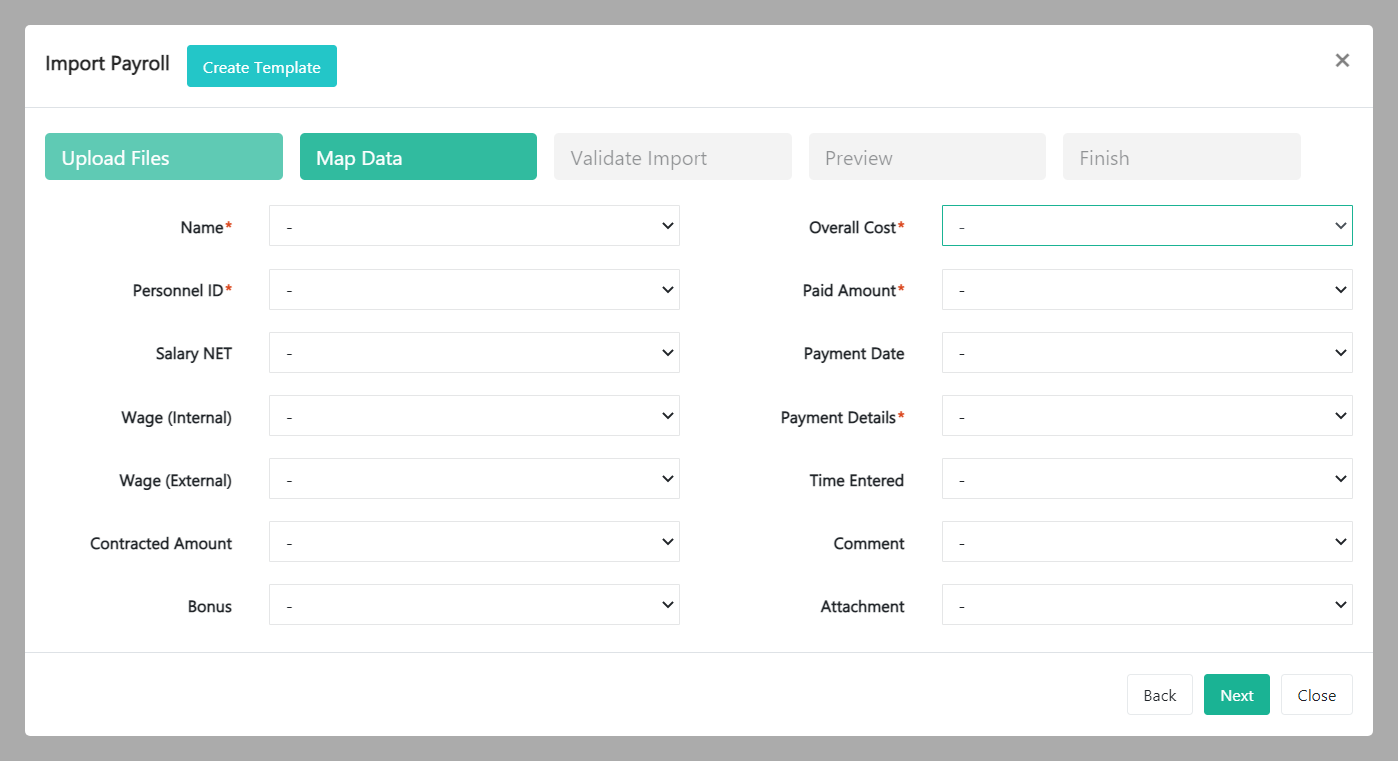
Match your table headings with the fields on the screen and click Next. For more information on the meaning of each field, see the list below:
- Name – First and last name of the employee.
- Personnel ID – The internal ID number of the employee.
- Salary NET – The agreed net salary for that specific month.
- Wage Internal – The amount of money the company paid for that human resource.
- Wage External – The amount of money the company charges for the resource to a client for billable projects.
- Contracted Amount – The salary listed in the contract.
- Bonus – If there are any bonuses the personnel should receive for that specific month.
- Overall Cost – How much the personnel cost the company overall. This is gross pay plus employer’s taxes and contributions.
- Paid Amount – The net amount paid to the personnel each month.
- Payment Date – The date when the salary was sent.
- Payment Details – The user can specify the payment.
- Time Entered – The number of hours worked if the employee isn’t tracking time through Vault Synapse. Mostly applicable for work as you go contracts.
- Comment – The user can add any additional comments here.
- Attachment – Attach any files here.
Click Validate Import and check the data has been uploaded to the correct place. Click Finish and your data has been uploaded.
Note! Vault Synapse is a highly customizable tool meaning certain parts and functionalities can be additionally customized based on your business needs and preferences.
Was this article helpful?
Didn’t find what you were looking for?
Contact us and we’ll build the right solution for you. Vault Synapse can be fully customized based on your business needs.