What is an assets list
Fixed assets are long-term economic resources (such as software, equipment, and buildings) which are expected to provide benefits to the company. Fixed assets lose their value in proportion to their useful life in a process known as depreciation.
The assets list provides comprehensive information about the company’s assets. The clear structure enables you to view the following attributes:
- Acquisition Date
- Asset Kit
- Asset Model
- Asset Status
- Asset Type
- Assignee
- Checklists
- Events
- External Id
- Labels
- Last Change
- Last Seen
- Location
- Notes
- Owned By
- PO Number
- Purchase Date
- S/N
- State
- Tag#
- Remaining Useful Life
- Vendor
- Warranty Till
Elements you can view on the screen can be customized according to what information you want to view. Additionally, a user’s rights will determine their visibility and access to files and data in order to protect confidential information.
To see the assets list, go to the Assets module and click on the Assets tab. You will be presented with all the information you need. Color-coding provides fast visual information about the assets' Asset Type, Status and State. Your organization administrator will assign colors to items where applicable. You can also create a new asset directly from this page.
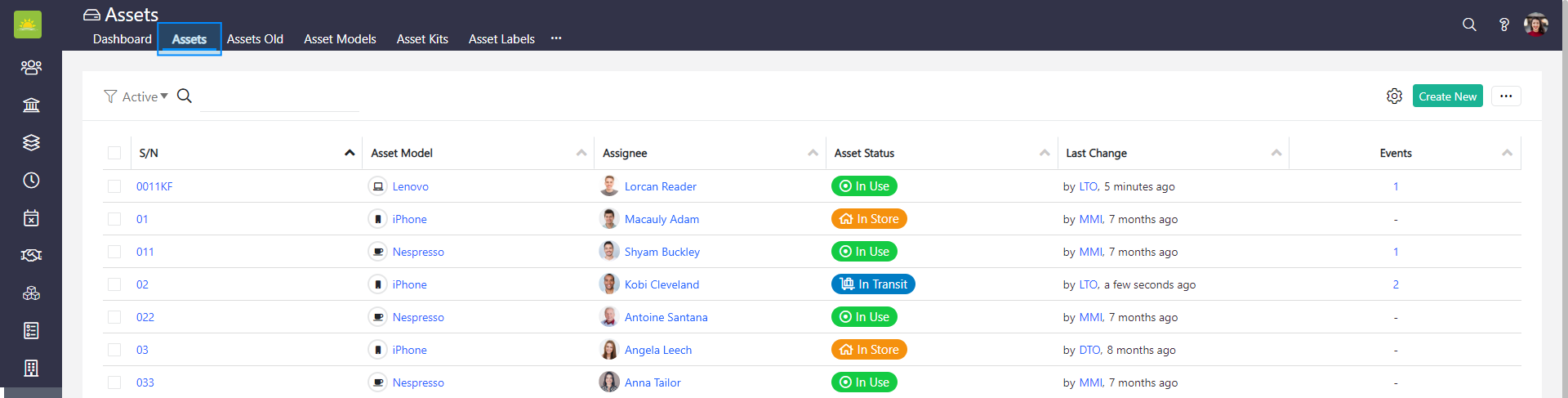
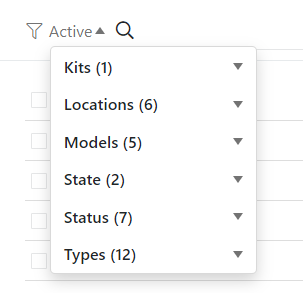
You can filter the grid. You can use the following filters to narrow down your search: Kits, Locations, Models, State, Status and Types. Start typing into the search field to quickly find an asset.
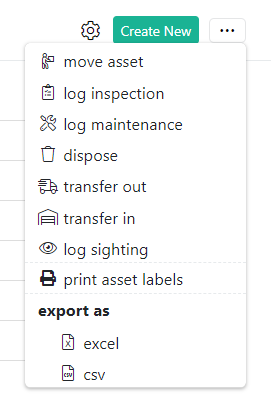
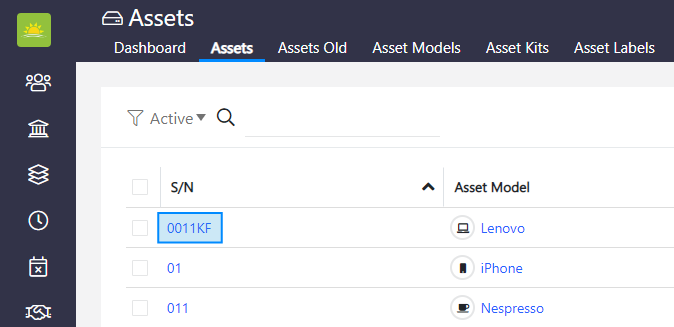
In the Assets list, you can change and save the width of the columns in the grid. Click on  to save the changes.
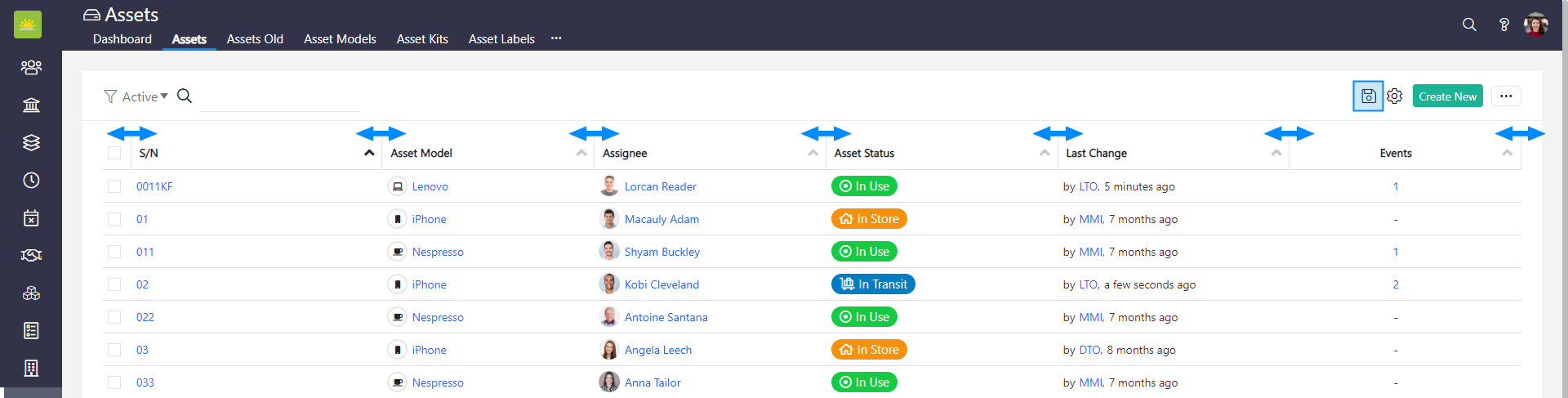
In the columns, the grids are optional and are based on your configuration. Click on the  settings icon to customize the assets list view. Click the link to find out how to customize the view.
In the list view, you can see the information below. However, take note that some of the columns will only be populated if additional Vault Synapse modules are purchased, such as Checklists or Vendors.
- Acquisition Date – The acquisition date is the date on which the asset was acquired. The acquisition date can be before or after the closing date and requires custom third-party integration.
- Asset Kit – If the asset is a part of an asset kit, this column will show it.
- Asset Model – This column shows the asset model (for example: Lenovo laptop, Acer laptop).
- Asset Status – Shows the current asset’s status. It can be one of the following: Disposal, External, In Store, In Transit, In Use, Out Of Service, and Unknown.
- Asset Type – Shows the type of asset (for example: laptop, camera cable, monitor, mouse, router, etc).
- Assignee – Assign the asset to yourself, another user, or an entity.
- Checklists – A graphic bar represents the status of task completion in distinct colors. It can be one of the following: passed, not applicable, on hold, failed and unanswered. Next to the bar, the percentage of passed tasks is displayed.
- Events – Records the number of events during the asset's life. Click on the value to open the asset events page and view events (for example: Maintenance Log, Disposal, Transfer, etc.).
- External Id – A unique record identifier from a system outside of Vault Synapse.
- Labels – Asset labels are used to group multiple assets.
- Last Change – Hover the mouse over by and initials to view the full name of who made the last change and when.
- Last Seen – Hover the mouse over by and initials to view the last seen status of the asset.
- Location – The last known location of the asset.
- Notes – Show notes related to the asset. The quick notes are color-coded (for example, red for criticality).
- Owned By – The name of the personnel, company, project, or office that owns the asset.
- PO Number – The number of the purchase order. The purchase order can be defined in the Purchase Order module.
- Purchase Date – The date when the asset was purchased.
- S/N – The serial number of the asset.
- State – The state of the asset (Active or Inactive).
- Tag# – The asset tag number. This enables a fast search when you are attempting to locate the asset. This tag is auto generated by Vault Synapse.
- Remaining Useful Life – This is calculated based on the Purchase Date, Life of Asset, and actual date. It shows the remaining useful life of an asset in months.
- Vendor – Shows the product supplier, the vendor from which the asset was purchased.
- Warranty Till – The warranty of the asset issued by the manufacturer.
Note! Vault Synapse is a highly customizable tool, meaning certain parts and functionalities of the application can be additionally built-in or customized based on your business needs and preferences.
Didn’t find what you were looking for?
Contact us and we’ll build the right solution for you. Vault Synapse can be fully customized based on your business needs.