What is personnel basic info
All personnel have a special place where their basic information is stored and summarized for an easier overview. Basic information about the personnel contains data like the name of the personnel, gender, age, job position, date hired, termination reason, allocation this month, and other significant data. If you need to make changes to the basic info form, add or change phone numbers or social media providers, etc. simply open the form, and edit and save your changes any time you need to.
To view information about personnel, go to the Personnel module and click the Basic Info tab inside a personnel's page.
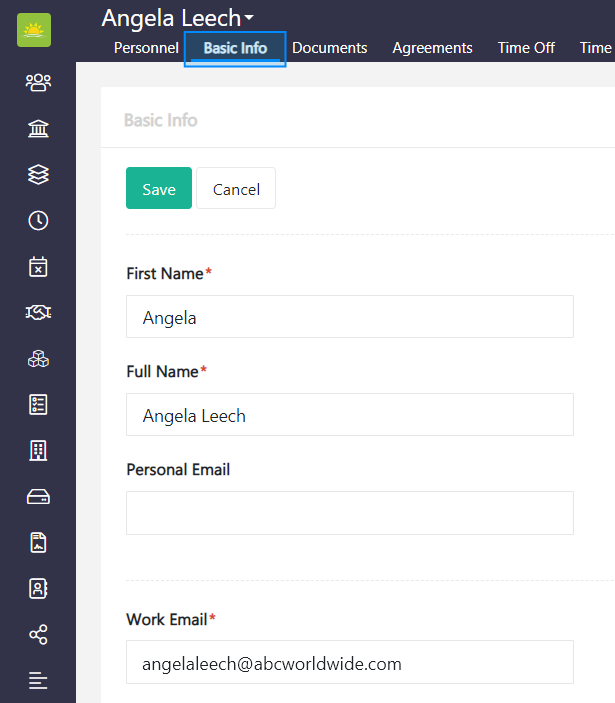
The Basic Info form contains the following:
- User – Select a New or Existing user. Note! A new personnel can become a new user or be linked to an existing user. If you want to learn more about users click on the Users module.
- First Name – The first name of the personnel.
- Last Name – The last name of the personnel.
- Full Name – The full name of the personnel.
- Profile Image – Upload an image of the personnel.
- Date of Birth – The personnel’s date of birth.
- Personal Email – This is the private email address of the personnel.
- Gender – The personnel’s gender.
- Work Email – This is the official email address of the personnel.
- Agreement Type – The agreement type that fits the type of contract the personnel has signed. Agreement types can be defined in the Organization Configuration by an administrator.
- Phone Number – This is the phone number of the personnel.
- Agreement Length – Specify how many hours a day the personnel will be working. This will determine whether the contract will be a full-time, part time or work as you go contract, where no working hours per day are set. The latter does not require time tracking. The agreement length can be defined in the Organization Configuration by an administrator.
- Personnel ID – This is the internal ID in company’s accountancy.
- Office – The office that the personnel belongs to. Office names can be defined in the Office module.
- Company Name – The company the personnel belongs to. Companies can be defined in the Organization Configuration by an administrator.
- Position – The position the personnel holds. Position types can be defined in the Organization Configuration by an administrator.
- Reports To – Who the personnel reports to. You must have at least one active personnel entry in the Users module for this list to populate.
- Currency – The currency the personnel is associated with. Choose the currency from the dropdown menu.
- Date Hired (First) – The date of the first working day of the personnel.
- Time Zone – The time zone the personnel is associated with. Choose the applicable time zone from the dropdown menu.
- Date Trial End – The end date of the trial period.
- Date Terminated – This is the date when the personnel stopped working for the company or the contract termination date.
- Security Level – Choose the relevant access level from the dropdown menu. It can be anything from no access, read only, full access, super admin, and more.
- Last Security Review On – The date of the last conducted security review.
- Last HR Review On – The date of the last conducted HR review.
- Termination Reason – Select from the dropdown menu Bad Attrition (good performer), Good Attrition (voluntary), Good Attrition (dismissal) or Neutral (other). Termination reason types are defined by the system.
- Social Providers – Press the … icon to view a bar of shortcuts of the most common social providers networks. Add any social media providers that the personnel has.
- Password – Create a new password so that new personnel can log into Vault Synapse. Note! This field appears only when you are creating a new user.
- Confirm Password – Repeat created password here.
- Is Featured in System – If the checkbox is ticked, it means that the personnel can use time tracking and time off modules.
- Comment – Additional information that’s important and related to the personnel.
- Profile Image – The personnel’s profile picture.
Note! Vault Synapse is a highly customizable tool meaning certain fields can be additionally customized based on your business needs and preferences.
Note! A user can access the personnel information only with the relevant permissions/access rights given by the administrator.
Didn’t find what you were looking for?
Contact us and we’ll build the right solution for you. Vault Synapse can be fully customized based on your business needs.