What is a task subsection in a checklist run
A complex checklist run may require a more defined structure to monitor the completion of a diverse array of tasks within the checklist run.
A subsection is a subordinate division of a section that allows you to further structure the section related tasks. You can add as many subsections to a section as necessary to better organize tasks.
How to add a subsection
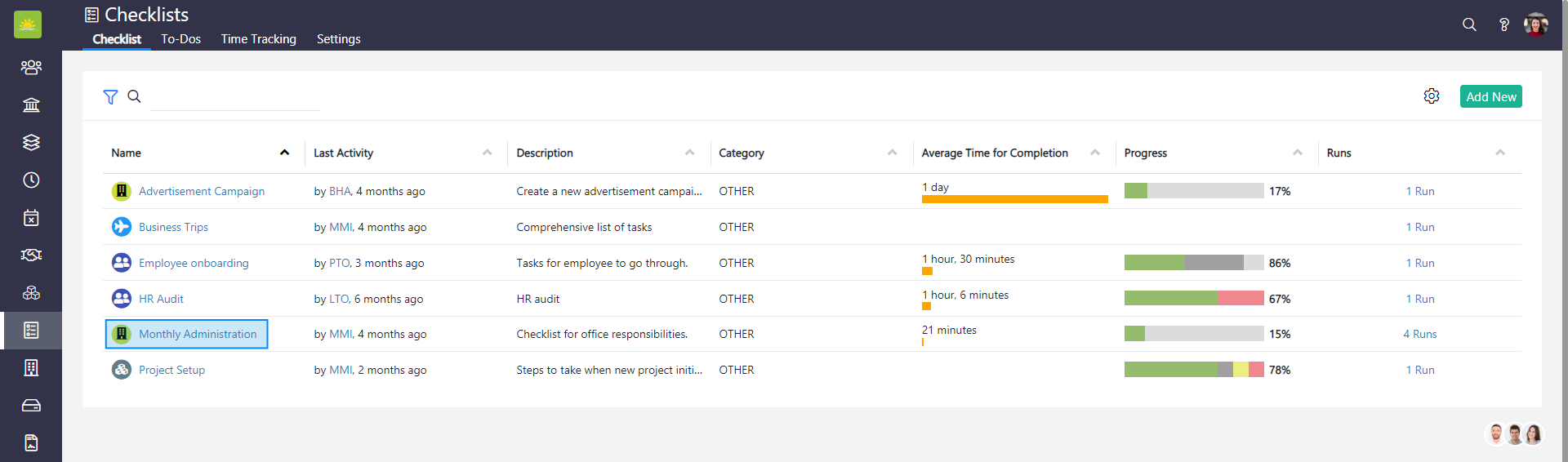
To add a new task subsection, go to the Checklists module and click on the specific checklist you would like to add a task subsection to.
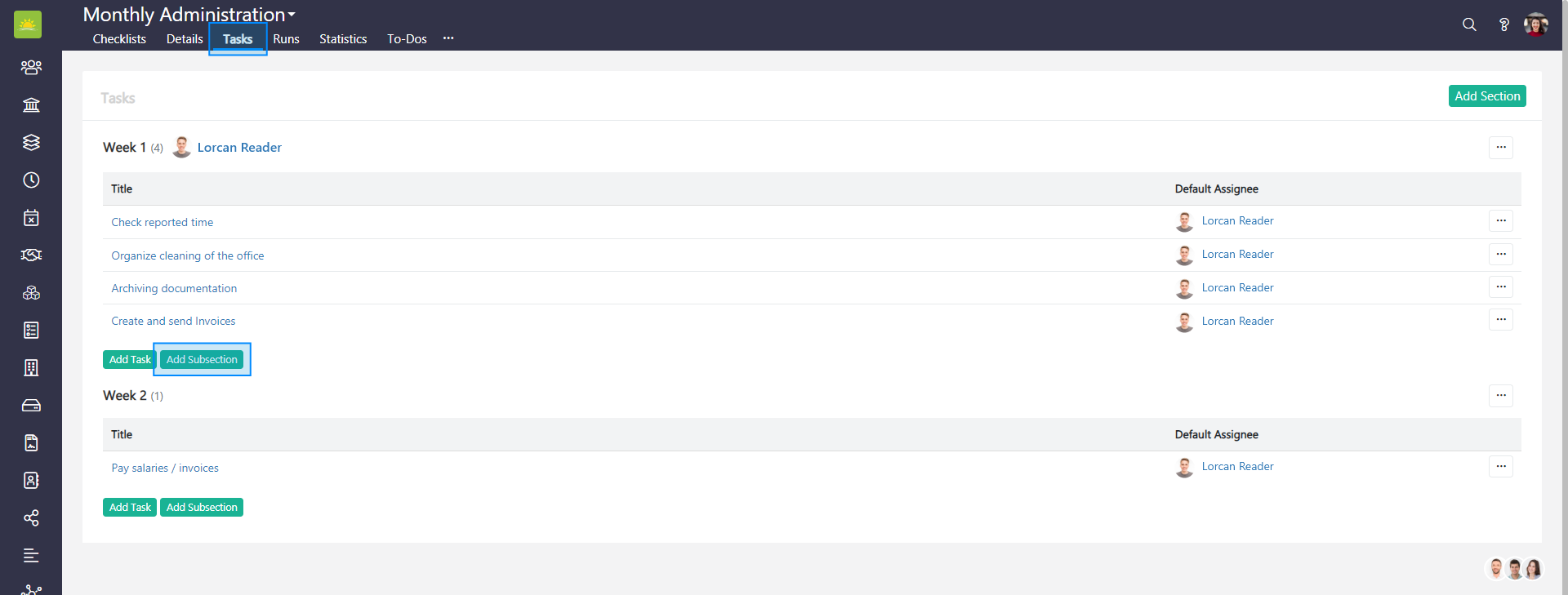
Select the section you want to add a subsection to and click Add Subsection.
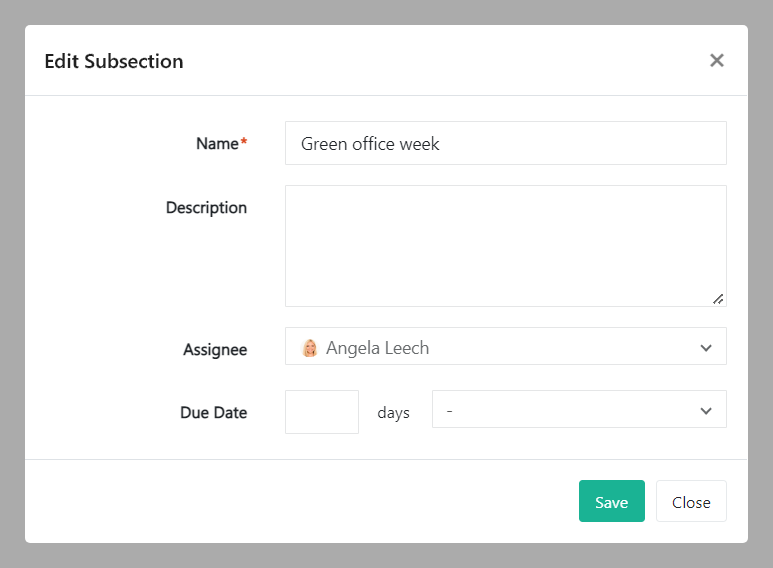
A modal window will pop up.
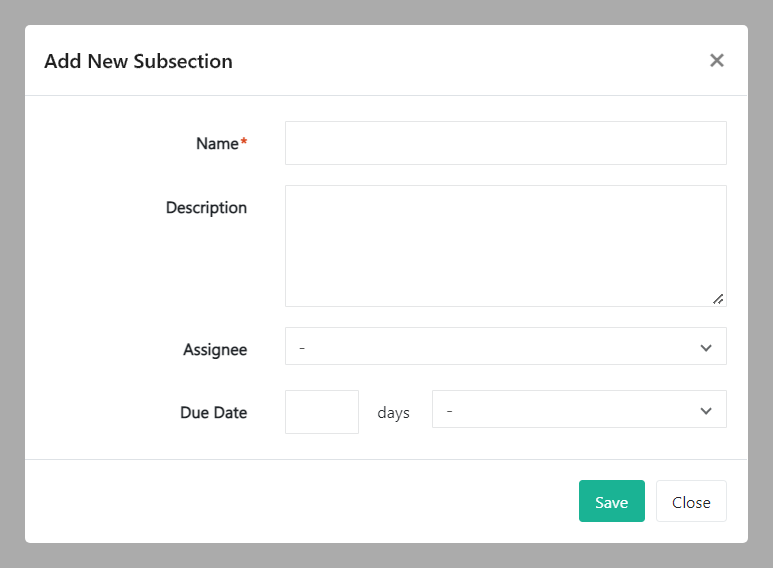
Fill out the following fields:
- Name - Give the subsection a name.
- Description - Add more details about the subsection.
- Assignee - Start typing into this field to quickly find the assignee in the dropdown list.
- Due Date - This consists of two fields. Enter the number of days into the first field, (or use the counter) which will relate to one of the options in the second days field: after run created date, after run due date, after section due date, before run created date, before run due date, before section due date, or start of the month.
When finished, click Save. The section will now be displayed as subsection on the task list. To abort the action, click Close.
How to edit a subsection
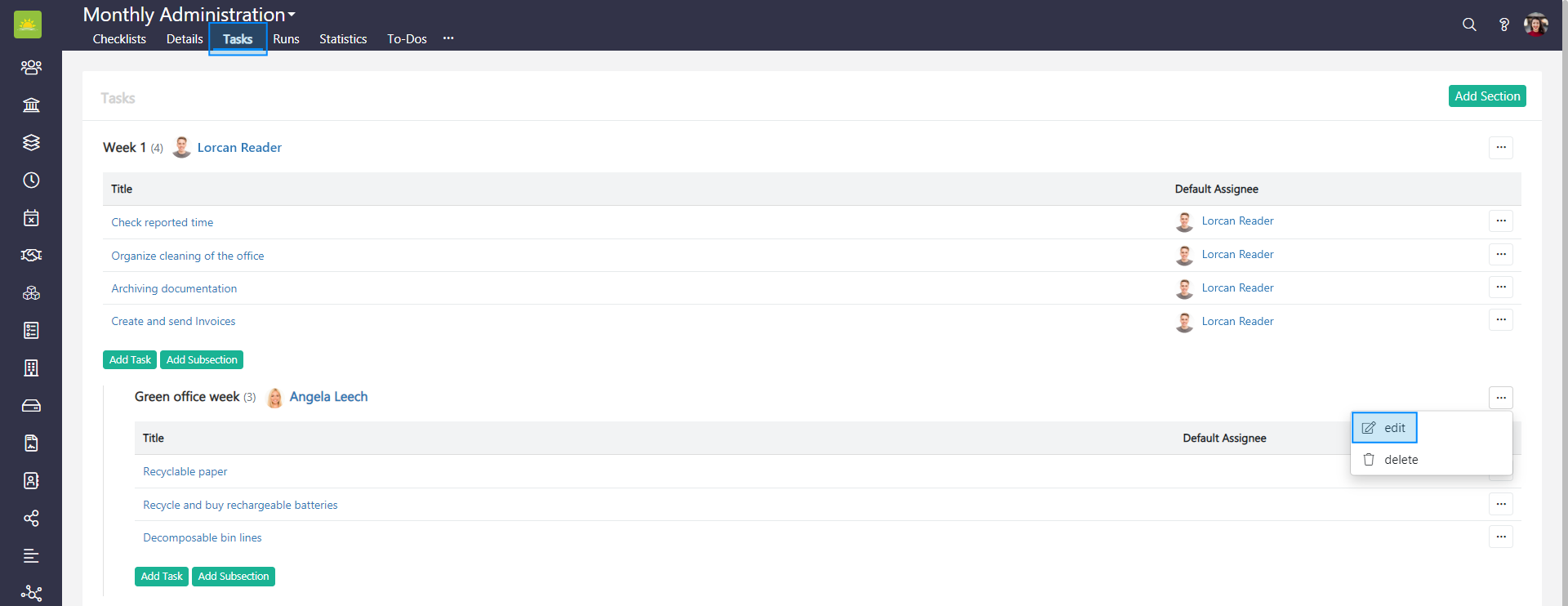
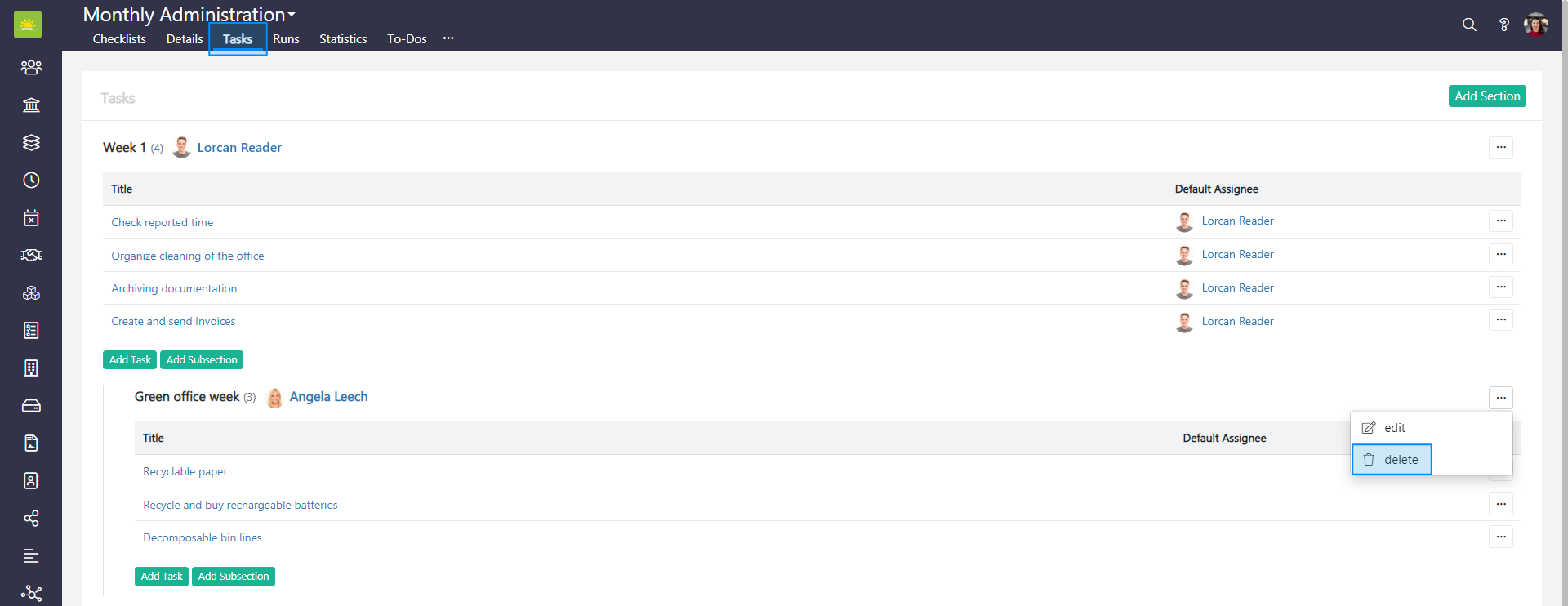
Select the subsection you want to edit and press the ... at the end of the row. Click edit.
How to delete a subsection
How to add a task to a subsection
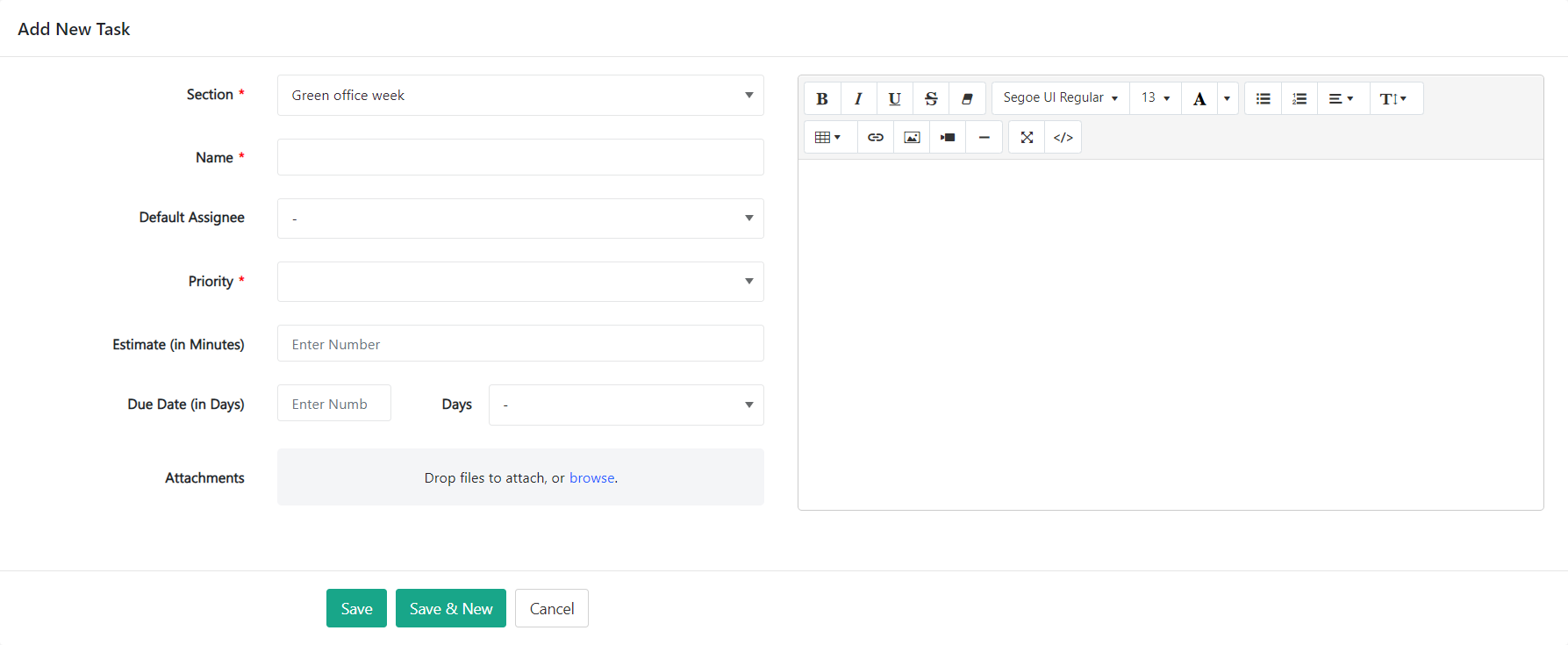
- Section - The selected section will be populated by default, but you can choose any section from the dropdown list that has been created for the checklist.
- Name - Give the task a name.
- Default Assignee - Select a default assignee from the dropdown list. You will see the Users option or Teams.
- Priority - Choose one of the following: Critical, High, Low or Normal.
- Estimate (in Minutes) - Enter an estimate in minutes into this field or use the counter to define the value.
- Due Date (in Days) - This consists of two fields. Enter the number of days into the first field (or use the counter), which will relate to one of the options in the second days field: after run created date, after run due date, after section due date, before run created date, before run due date, before section due date, or start of the month.
- Attachment - Attach files here if applicable.
- Body of the task - Video files, weblinks, tables, text and instructions describing the task can be inserted into this box.
How to edit a task in a subsection
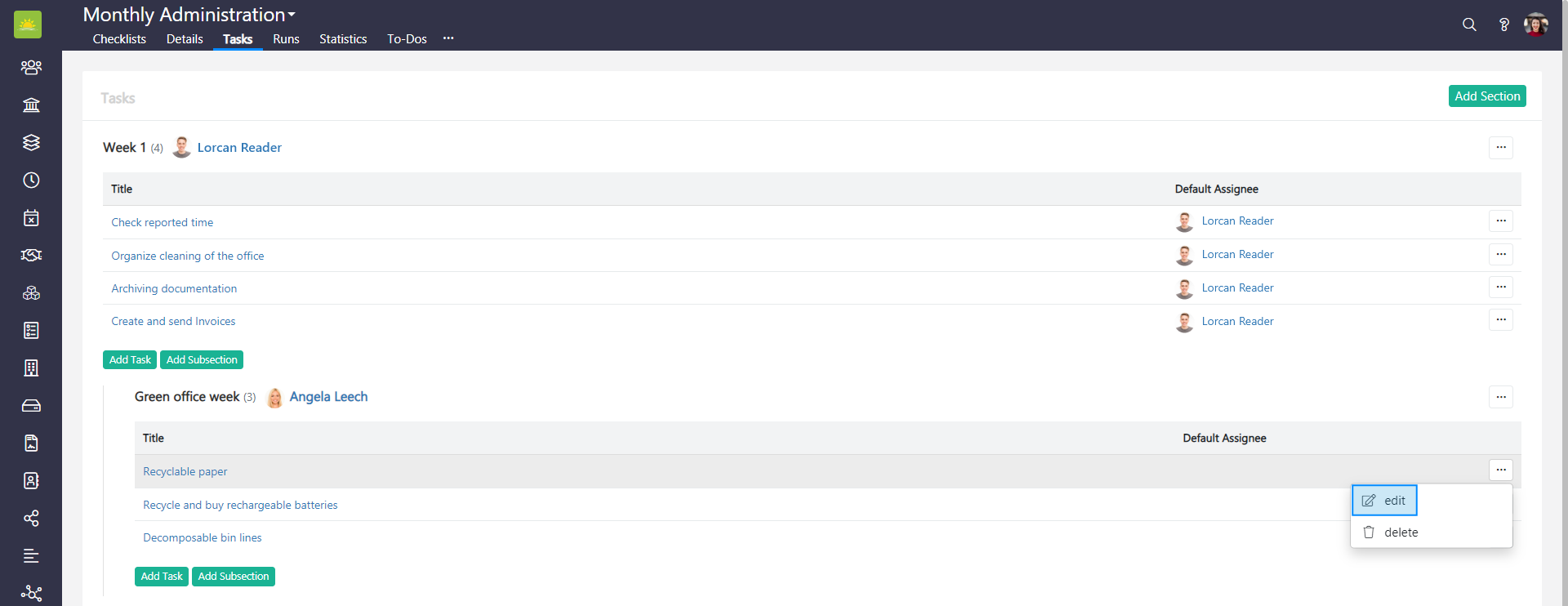
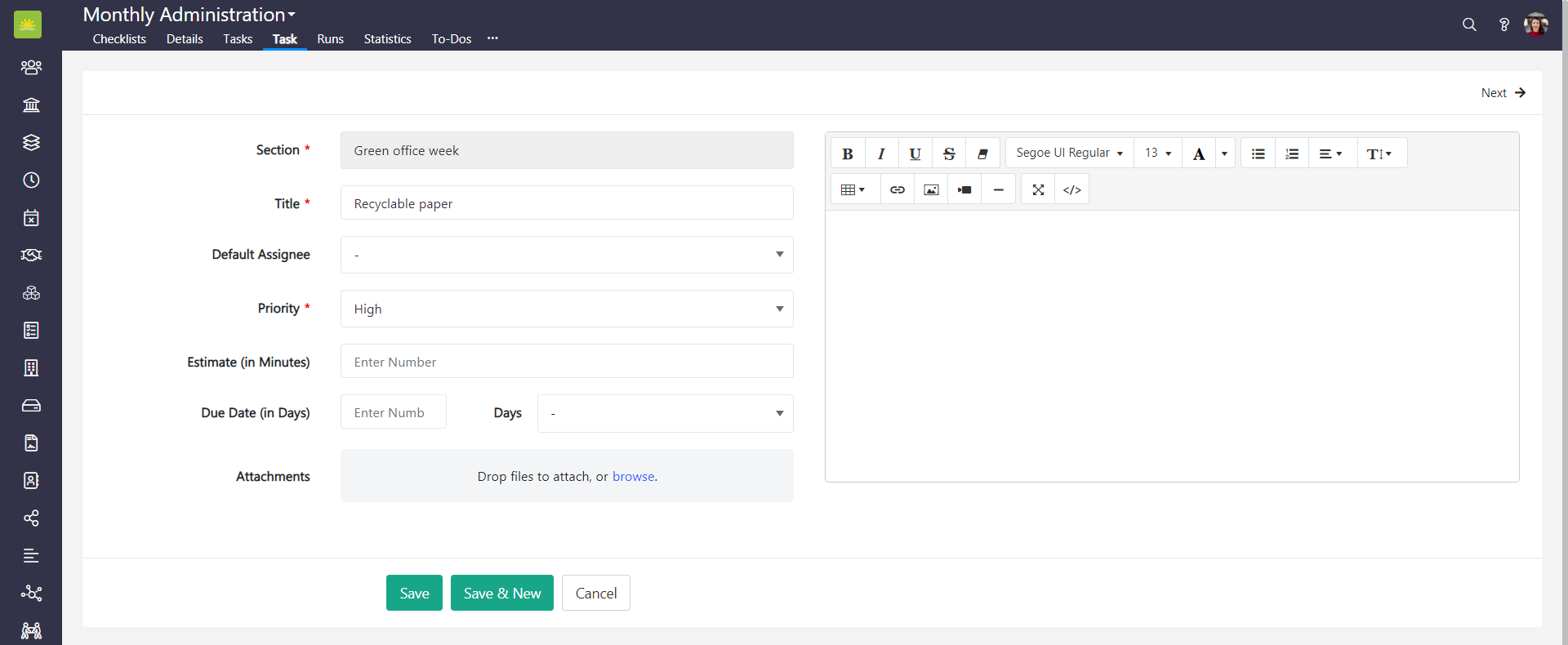
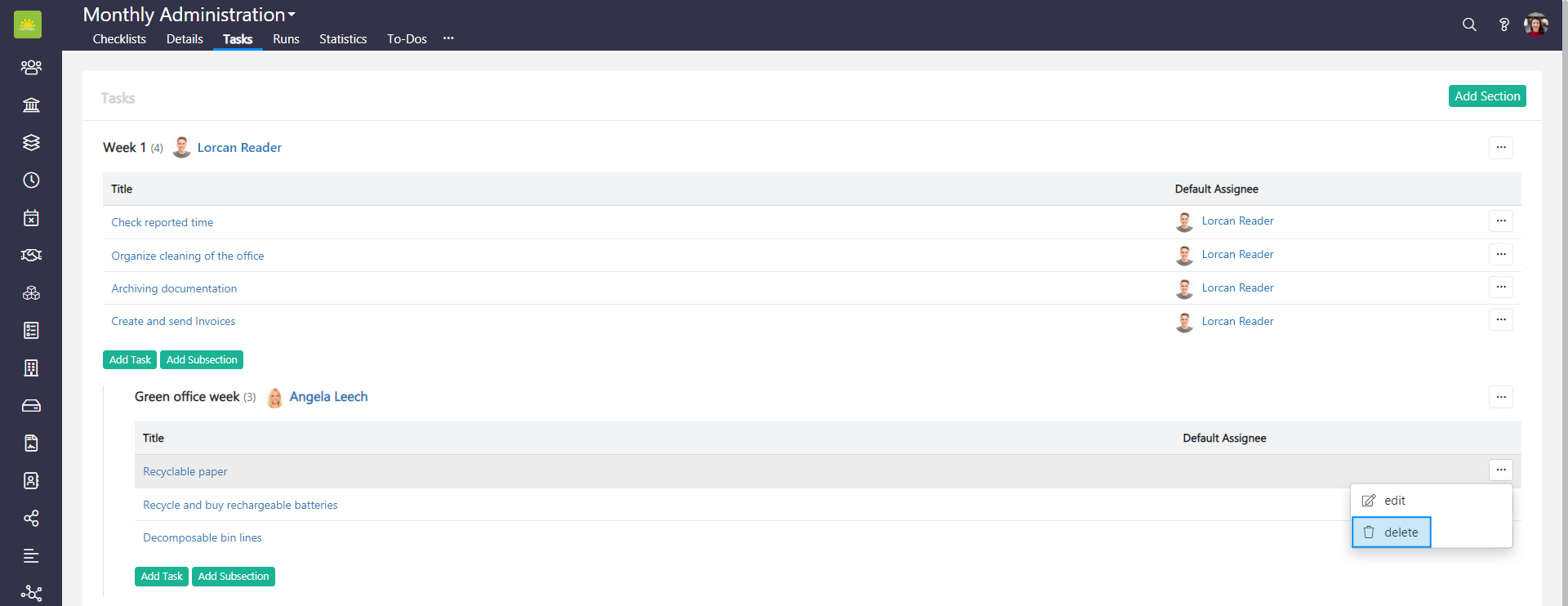
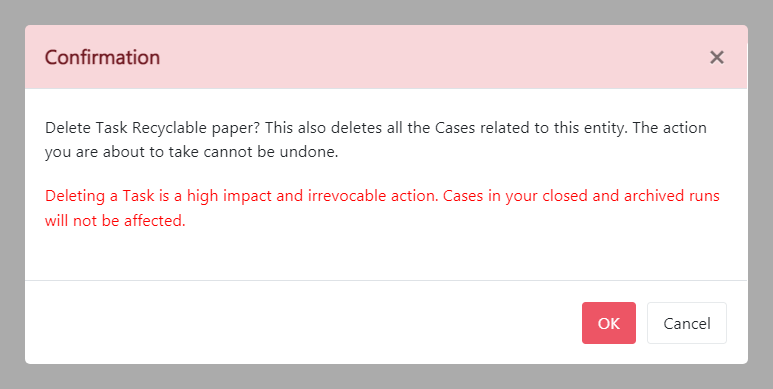
How to delete task in a subsection
Didn’t find what you were looking for?
Contact us and we’ll build the right solution for you. Vault Synapse can be fully customized based on your business needs.