How to approve or deny transactions
Once a transaction has been received in the decision center, a window containing transaction details, action tools, and other data opens. The decision center view will vary depending on the transaction type.
How to approve or deny transactions from the Project Transactions module
If you want to approve or deny a transaction from the Project Transactions module, select the project transaction from the left side of the screen. You can see pending transactions with the project name, amount, and the name of the person who submitted the transaction.
Click the link to find out how to submit transaction items for approval from the Projects module.
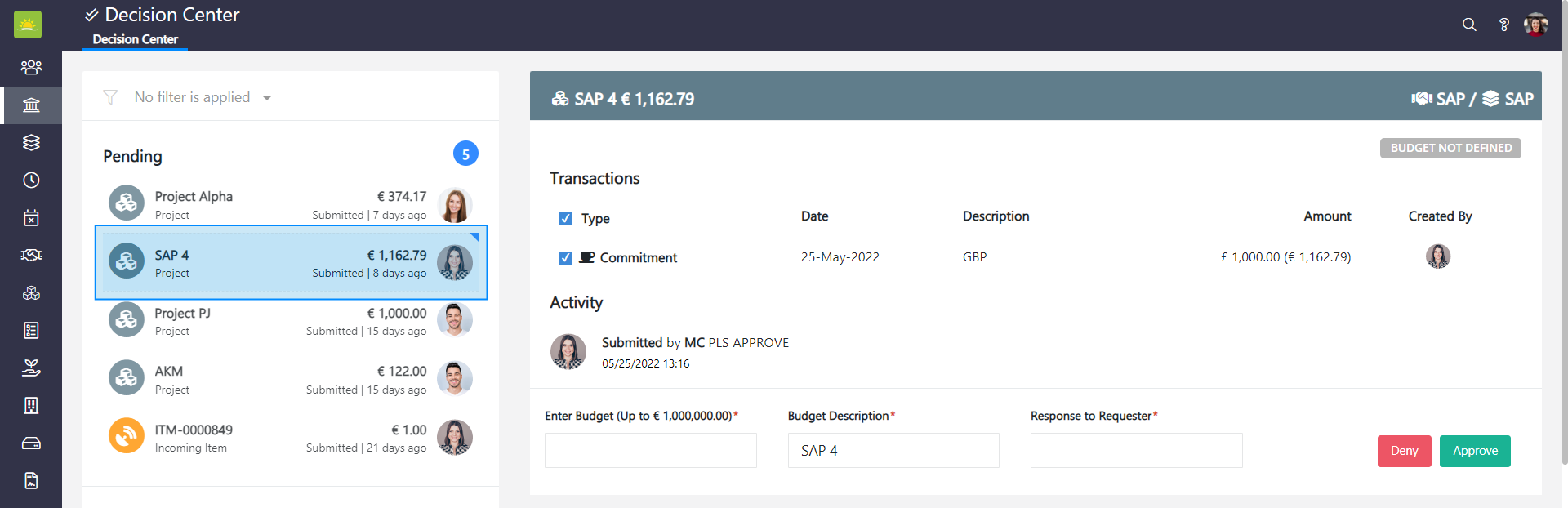
On the right side of the screen, you can see Transactions, Documents, Enter Budget (Up To) field, Budget Description field, Response to Requester field, and two action buttons.
The transaction section contains the following information:
- Type – Indicates the transaction type such as Equipment, Food Resources, Flight Ticket, Infrastructure Cost, Commitment etc. Transaction types can be defined by an administrator in the Organization Configuration.
- Date – The date the transaction was created.
- Description – A description of the transaction.
- Amount – The amount allotted for the type of transaction.
- Created By – The user who created the transaction.
The document section allows you to view the attached documents for the individual transaction type.
Prior to approving or denying a transaction, enter a value for the budget, the budget description (This field will prepopulate the project name, although the budget description field can still be editable), and the Response to Requester field. Press Deny to deny the transaction or Approve to approve the transaction.
After pressing Deny/Approve the transaction will move to the Resolved transactions list.
Note! The budget amount which can be approved will be configured by an administrator in the Organization Configuration in Approval Setup.
Note! The decision center is visible only to users who have some limit setup in Organization Configuration.
How to approve or deny line items from the Purchase Orders module
If you want to approve or deny line items from the Purchase Orders module, select the purchase order transaction from the left side of the screen. You can see pending transactions with the purchase order number, amount, and the name of the person who submitted the purchase order.
Click the links to find out what a purchase order workflow is and how to submit a purchase order for approval.
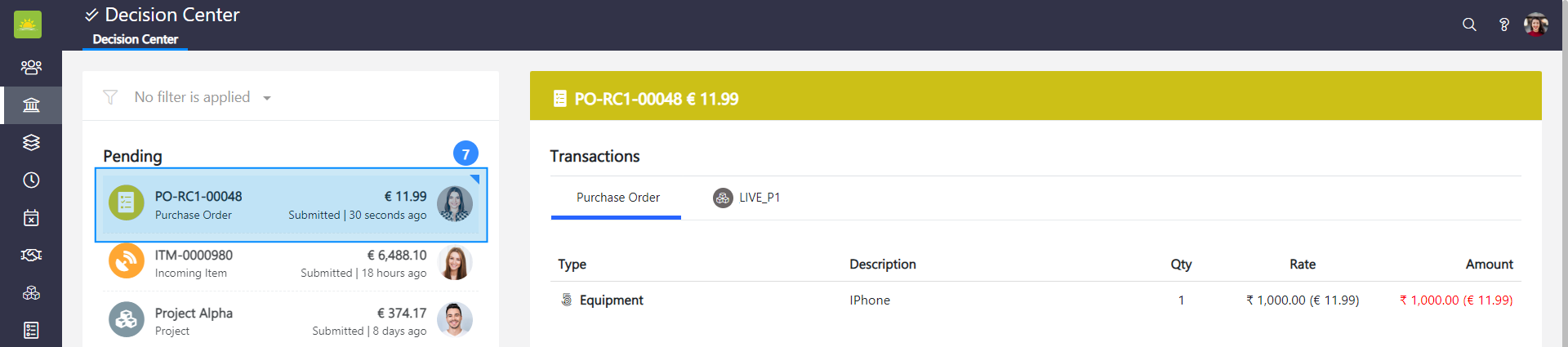
On the right side of the screen, you can see Transactions, the Activity section, and action fields. The transaction section contains the following information:
- Type - Indicates the transaction type such as Equipment, Food Resources, Flight Ticket, Infrastructure Cost, Commitment etc. Transaction types can be defined by an administrator in the Organization Configuration.
- Description - A description of the transaction.
- Qty - The quantity of items.
- Rate - The individual value of the item.
- Amount - A total aggregate of the transaction.
The Activity section will allow you to view the action involved in completing the document along with the Date, Time, Current Status, and Approver Avatar.
Prior to approving or denying a transaction, fill in the Response to Requester field. Press Deny to deny the transaction or Approve to approve the transaction.
After pressing Deny/Approve the transaction will move to the Resolved transactions list.
How to approve or deny allocations from the Incoming Center module
If you want to approve or deny allocations from the Incoming Center module, select the incoming item transaction from the left side of the screen. You can see pending transactions with the incoming item number, amount, and the name of the person who submitted the incoming item.
Click the link to find out how to send an incoming item for approval.
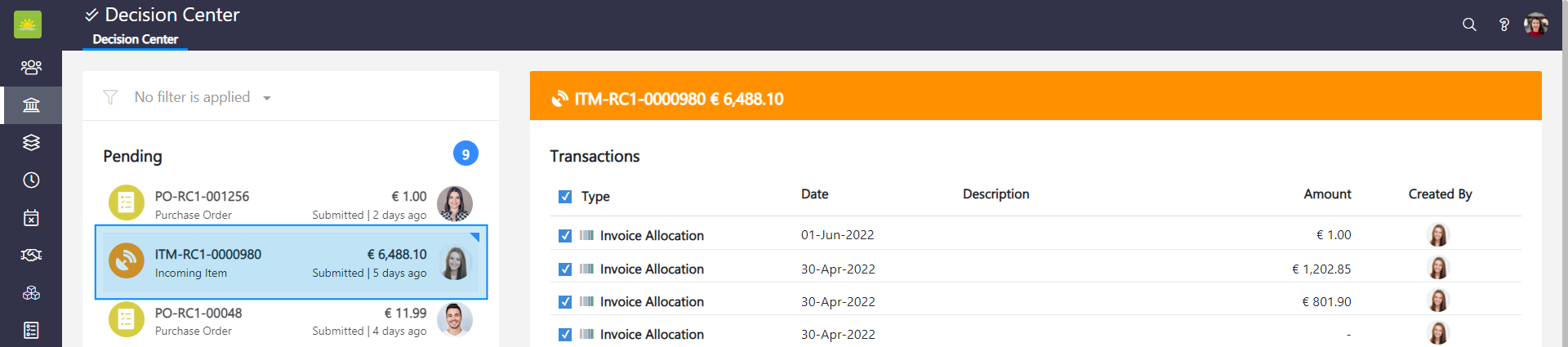
On the right side of the screen, you can see the Transactions and Activity section.
The Transaction section contains the following information:
- Type – Indicates the transaction type such as Equipment, Food Resources, Flight Ticket, Infrastructure Cost, Commitment, Invoice Allocation etc. Transaction types can be defined by an administrator in the Organization Configuration.
- Date – The date of the incoming item.
- Description – A description of the individual incoming item.
- Amount – The amount allotted for the type of transaction.
- Created By – The owner of the transaction or the user who created the transaction.
The Activity section will allow you to view the action needed to complete the incoming item/document along with the Date, Time, Current Status, and Approver Avatar.
Prior to approving or denying a transaction, fill in the Response to Requester field. Press Deny to deny the transaction or Approve to approve a transaction.
After pressing Deny/Approve the transaction will move to the Resolved transactions list.
Didn’t find what you were looking for?
Contact us and we’ll build the right solution for you. Vault Synapse can be fully customized based on your business needs.