Custom fields
What are custom fields
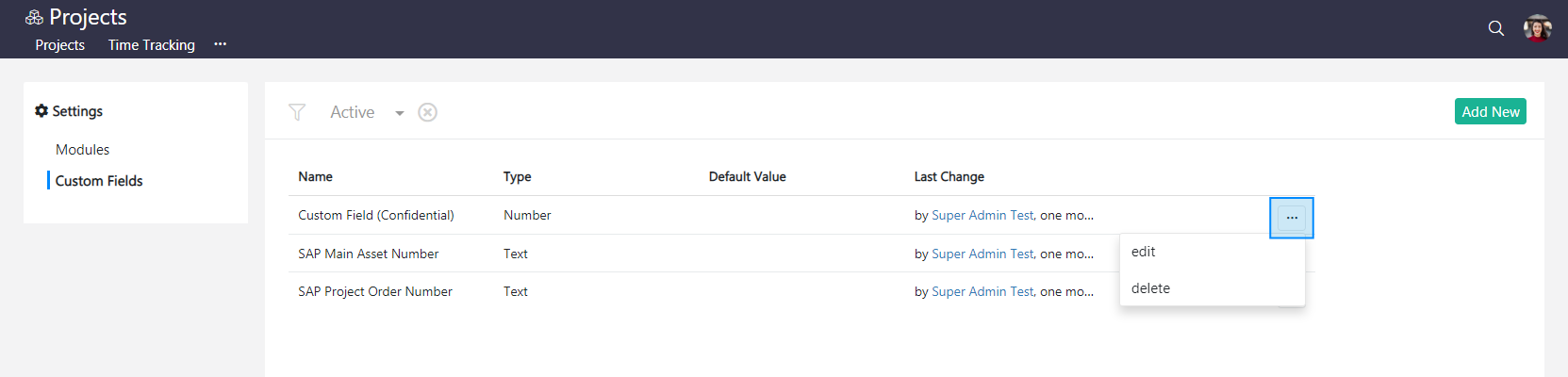
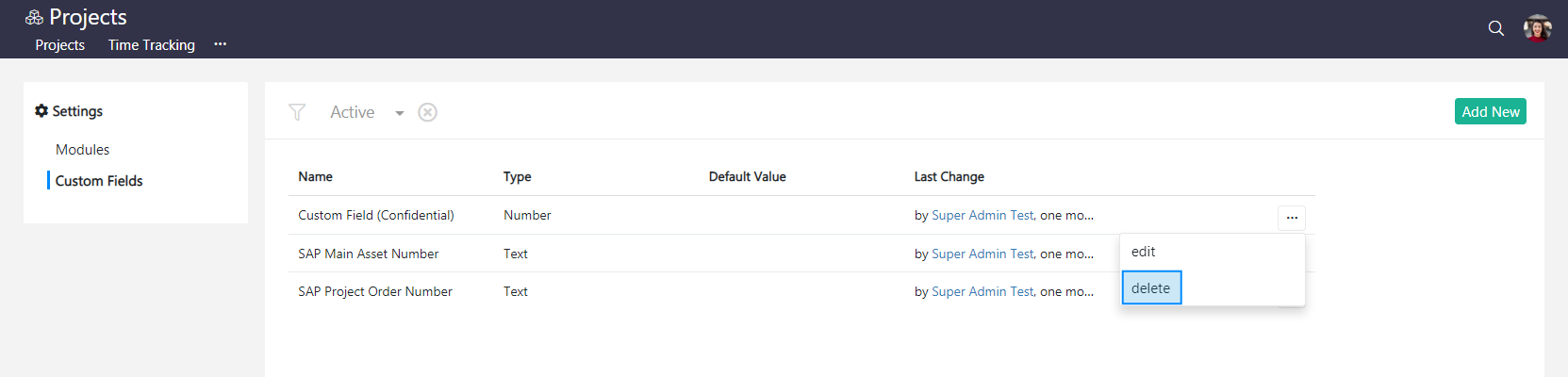
Projects basic info in the Projects module is made up of fields. You can create any number of fields to appear when creating project information. Custom fields in Vault Synapse allows you to add information that’s specific to your projects.To view custom fields, click Custom Fields in the top left corner of the Settings window. The following window opens if some fields have already been set up for projects.

Click … at the end of an item's row to edit or delete the item.
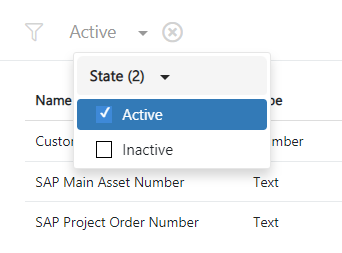
You can filter the search for fields by their state – Active, Inactive, or both.
How to add a new custom field
To add a new custom field, click Custom Fields in the top left corner of the Settings window. Click Add New in the top right corner.

An Add New modal window pops up. The fields you can see will vary based on the field type you choose.
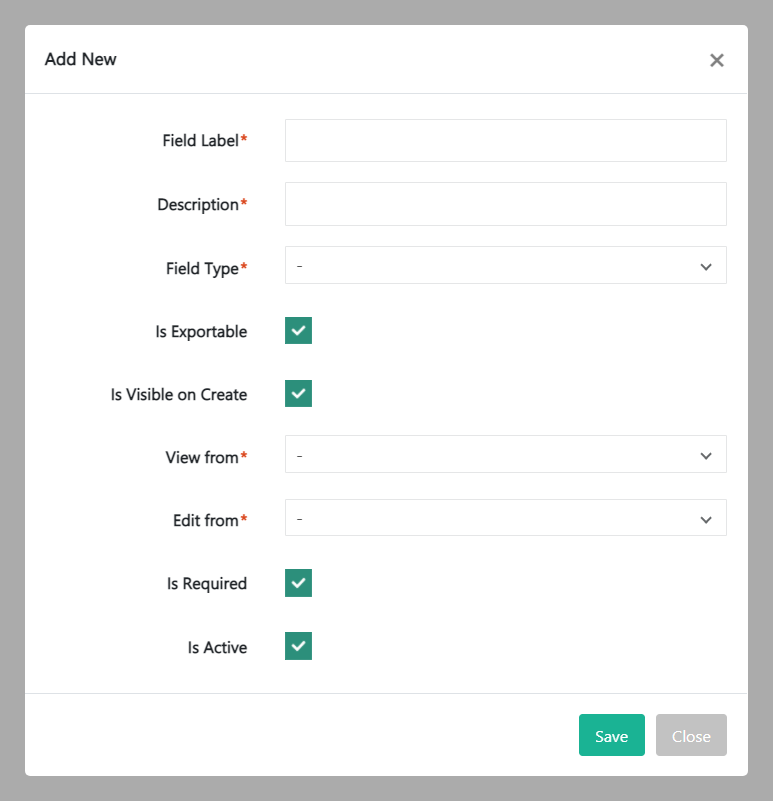
Fill out the fields about the new custom field:
- Field Label – Give the field a name.
- Description – Briefly describe the field, adding any ID if applicable.
- Field Type – Select the field type from the dropdown menu. Field types are defined by the system.
- Default Value – Set a default value, if applicable.
- Minimum – Specify the minimum characters required for the field. This field is present if you choose Amount and Number from the Field Type menu.
- Maximum – Specify the maximum characters allowed for the field. This field is present if you choose Amount and Number from the Field Type menu.
- Is Exportable – This box is checked by default. The data can be exported to Excel.
- Is Visible on Create – This box is checked by default. This means that the field is visible when creating the entity.
- View from – Set up who will be able to view the created field. Select the type from the dropdown menu. Read or write options mean that the field will be viewed by people who only have read or write access to the entity, which is set up in the Organization configuration. Extended option means that the field will be viewed by people who have owner access to the entity set up in the Organization configuration.
- Edit from – Set up who will be able to edit the created field. Select the type from the dropdown menu. Read or write options mean that the field will be edited by people who only have read or write access to the entity, which is set up in the Organization configuration. Extended option means that the field will be edited by people who have owner access to the entity set up in the Organization configuration.
- Is Required – This box is checked by default. If you un-check this box, the field will not be mandatory.
- Is Active – This box is checked by default.
Review the information and click Save.
Note! A user can access the custom fields information only with the relevant permissions/access rights given by the administrator.
How to edit a custom field
To edit a custom field, click Custom Fields in the top left corner of the Settings window. Click … at the end of the row of the chosen item and click edit.
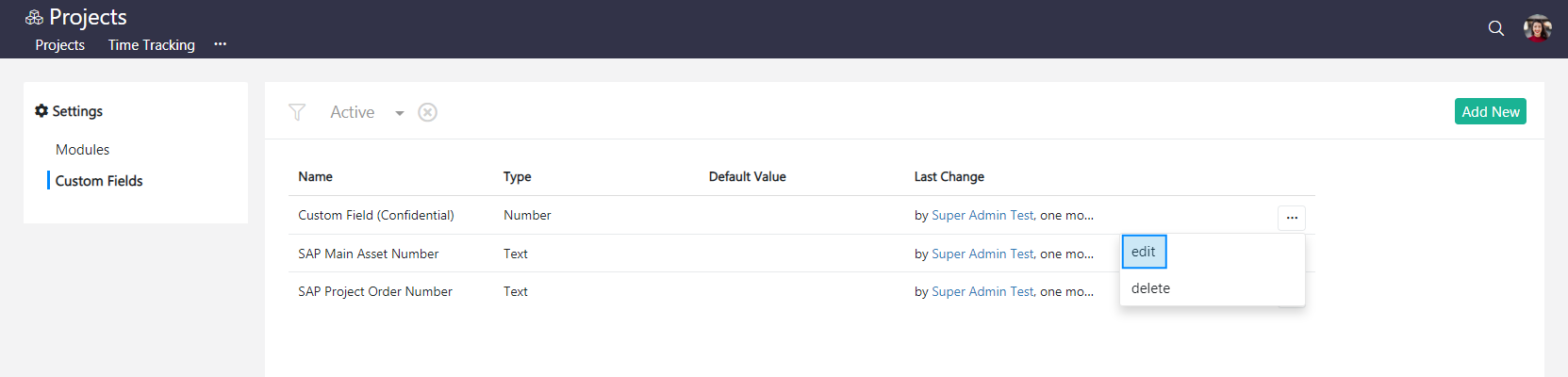
An Edit modal window pops up. Edit the information and click Save.
How to delete a custom field
To delete a custom field, click Custom Fields in the top left corner of the Settings window. Click … at the end of the row of the chosen item and click delete.
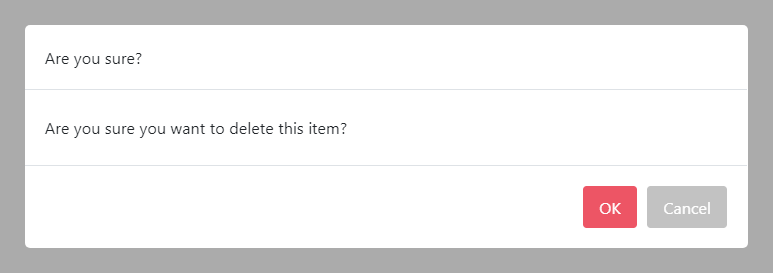
To minimize the risk of accidental deletion, you must confirm your intention to delete the custom field. Click OK to delete the custom field.
Link copied to clipboard.
Didn’t find what you were looking for?
Contact us and we’ll build the right solution for you. Vault Synapse can be fully customized based on your business needs.