Tasks in a schedule
A project schedule in project management helps break down a complex project into smaller parts that are represented by tasks so that things are done faster and more efficiently. The goal of a work breakdown structure (WBS) is to estimate, manage, monitor, and control each task better in order to make the project more manageable.
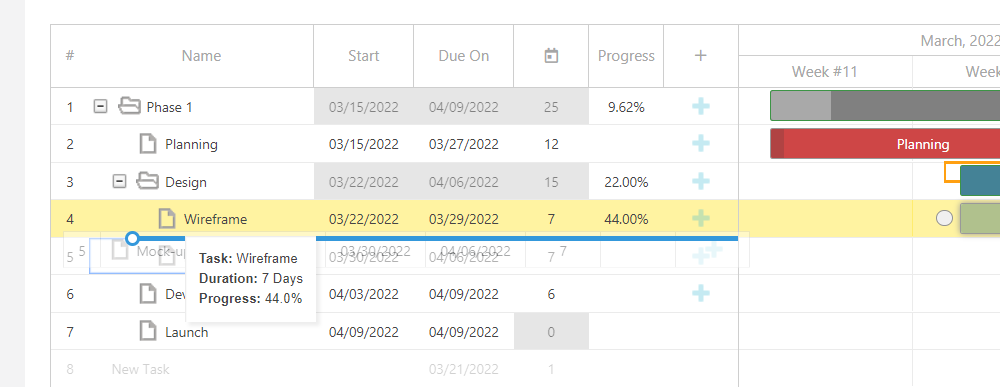
Tasks can be rearranged by dragging and dropping them into a preferred position.
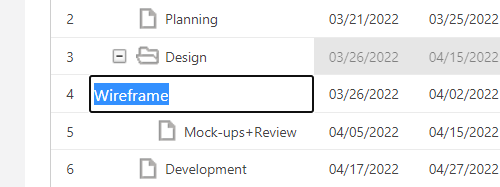
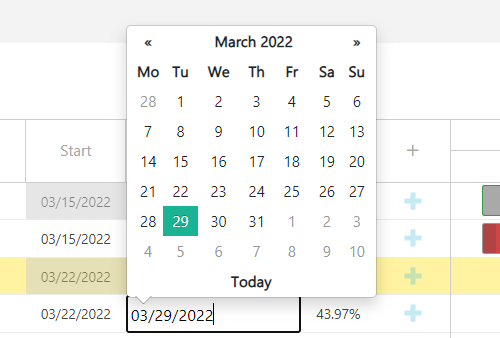
The name of the task, start date, due date, duration (days), predecessors and deadlines can be edited by clicking the fields on the task row.
Break a project execution into manageable phases by creating milestones in the schedule. A milestone marker will separate the end of one phase from the start of another. You can also link tasks to a milestone marker so that you can view progress.
How to add a task to a schedule
To add a task to a schedule, go to the Projects module and click the Schedule tab inside of a specific project.
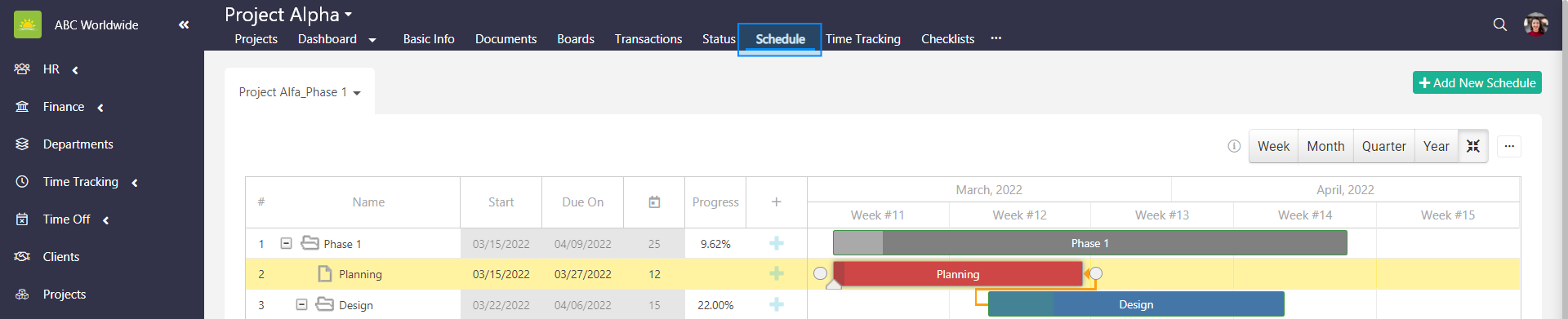
Click the plus icon and an Add Task modal window pops up. Fill out the fields to specify the requirements for the task in more detail. You can add information about resources, skills, assets, links, and risks. You can also add a task to a schedule by clicking on a blank name field and entering a name of the task.
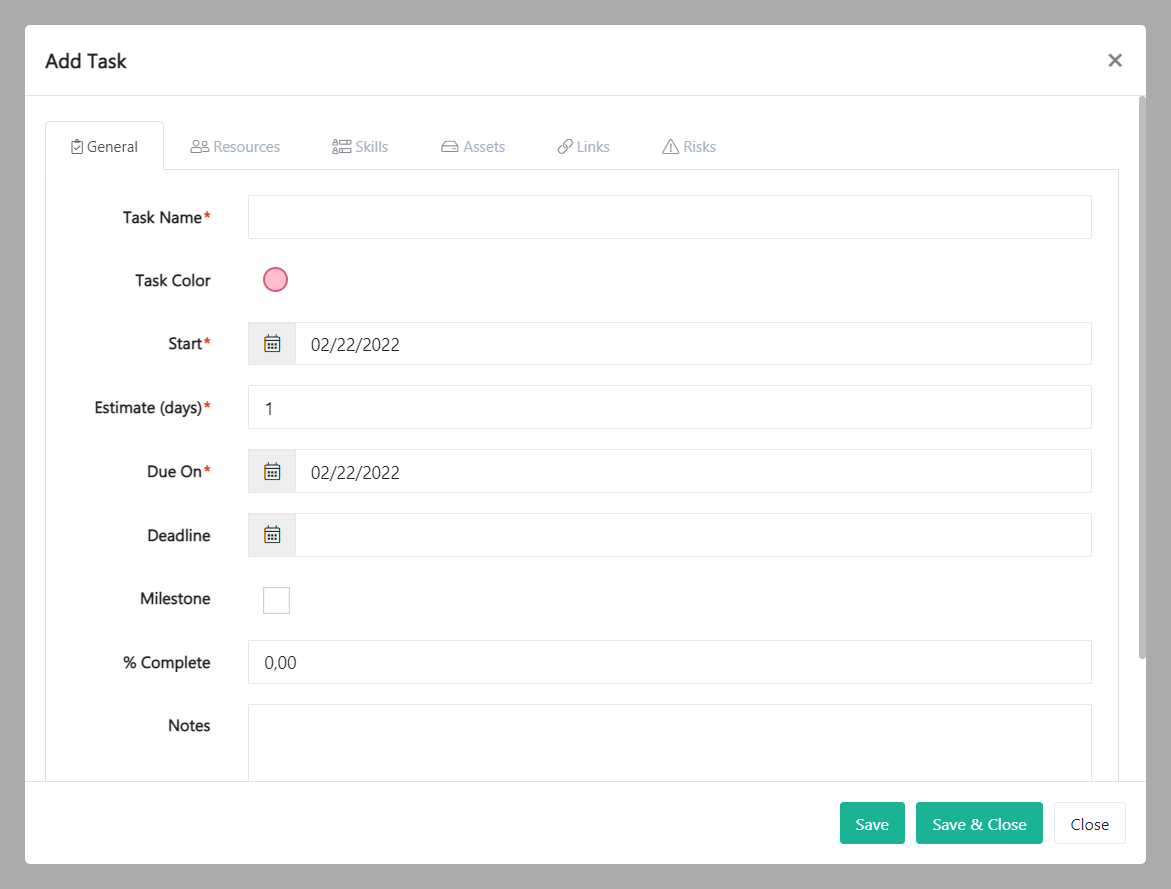
Fill out the fields about the new task:
General
- Task Name – Give the task a name.
- Task Color – Link the task to one of the colors.
- Start – Select a start date for the task from the date-picker.
- Estimate (days) – Enter an estimate of how long it will take to complete the task.
- Due On – Select the due date for the task from the date-picker.
- Deadline – Select a date when the task must be completed by.
- Milestone – Tick this box if the task is a milestone.
- % Complete – 0.00 percent is set by default. If you are adding a task that has been partially completed, you can move the arrow in this field up or down to indicate the completion percentage or by typing the value into this field.
- Notes – Add more information here if required.
Resources
- Resource – Select personnel from the dropdown menu. You must have at least one user entry in the Users module for this list to populate.
- Est (hrs) – Enter an estimate of how many hours will be worked on the task by moving the arrow in this field up or down.
- Max (hrs) – Set the maximum hours of work on the task by moving the arrow in this field up or down or by typing the value into this field.
Assets
- Asset – Select an asset that’s required for the task from the dropdown menu. You must have at least one asset entry in the Assets module for this list to populate.
Links
- Title – Give the link a title. You can link a task to a web address.
- Url – Enter the URL here.
Risks
- Title – Give the risk a title.
- Probability – Rate the risk probability by selecting very low, low, medium, high, or very high from the dropdown menu. Probability types are defined by the system.
- Severity – If the identified risk occurred, how severe would the impact be? Select negligible, low, moderate, significant, or catastrophic from the dropdown menu. Severity types are defined by the system.
Click Save or Save & Close.
How to edit a task in a schedule
To edit a task in a schedule, go to the Projects module and click the Schedule tab inside of a specific project. Select the task you would like to edit and right click on the task row and click edit, or double click the task bar on the Gantt chart.
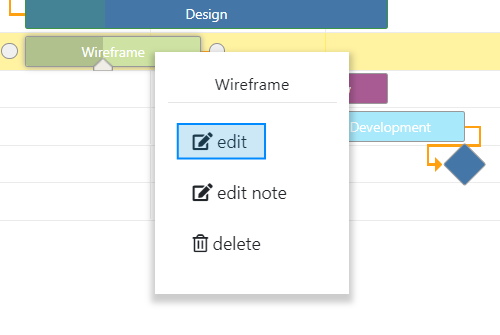
An Edit Task modal window pops up.
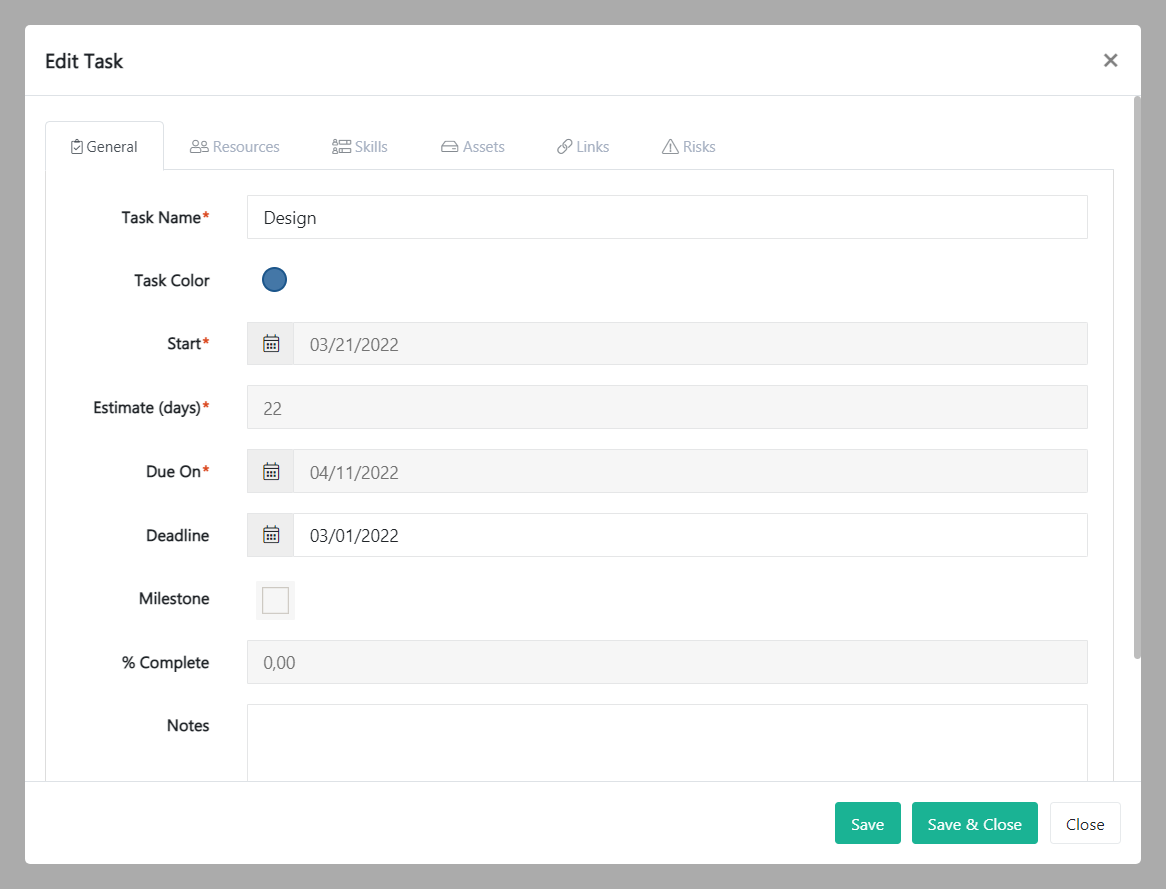
Update the relevant information and click Save or Save & Close. Clicking Close will take you to the schedule screen.
How to edit a task note in a schedule
To edit a task note in a schedule, go to the Projects module and click the Schedule tab inside of a specific project. Select the task you would like to edit a task note to and right click the task row and click edit note, or double click the task bar on the Gantt chart.
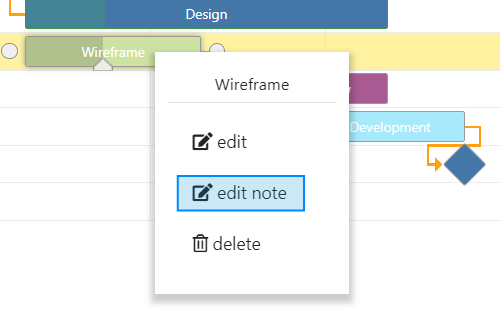
An Edit Schedule Note modal window pops up.
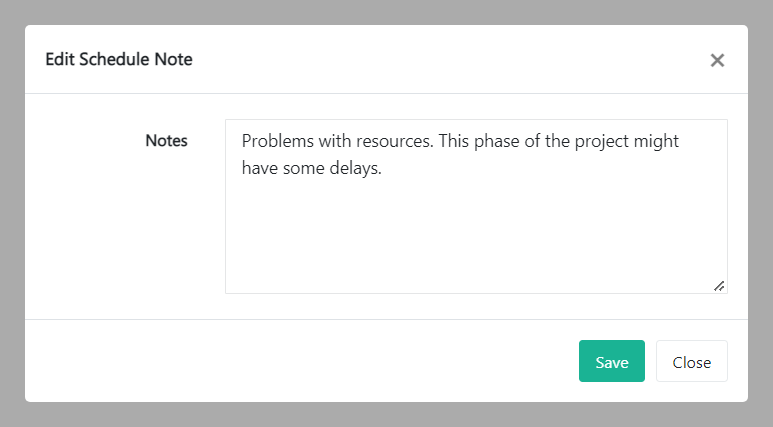
Update the relevant information and click Save. Clicking Close will take you to the schedule screen.
How to delete a task in a schedule
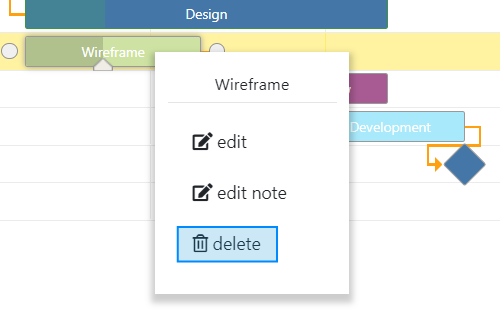
To delete a task in a schedule, go to the Projects module and click the Schedule tab inside of a specific project. Select the task you would like to delete and right click on the task row and click delete.
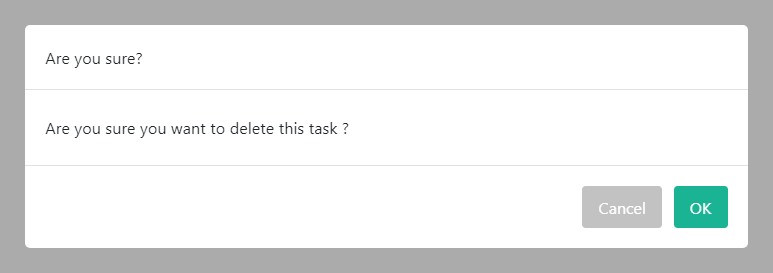
To minimize the risk of accidental deletion, you must confirm your intention to delete this task. Click OK and the task will be deleted.
How to create, edit, and delete a task link
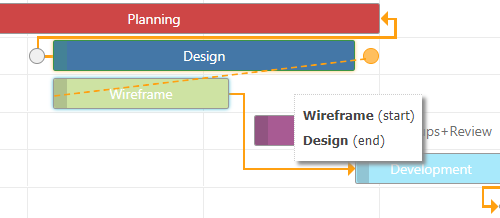
Connect any tasks in the Gantt chart to show their relationship, which is also known as a task dependency. Dependencies show the order in which tasks must be performed. Circles represent the start and end dates of each task. The end date of one task is usually the start day of the next task.
You can create a task link in two different ways:
- Move your mouse to a task bar on the Gantt chart until a circle appears. You can link tasks by using the drag and drop feature and connecting the circle of one task with the circle of another task.
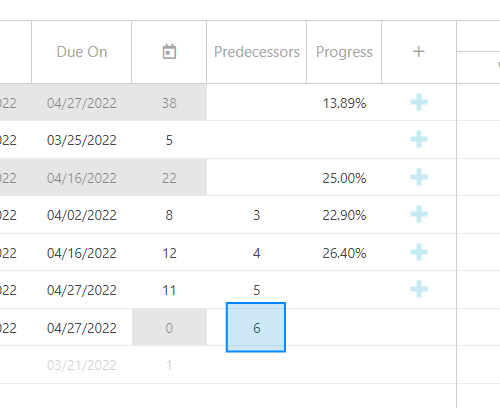
- Set up a predecessor of the selected task by filling out the Predecessors column on the left-hand side of the Gantt chart. You can set up more than one task as a predecessor by separating them with a coma.
To delete a task link, move your mouse to a task link that you would like to disconnect. Double-click this line and an Edit Link modal window pops up. Click Delete Link.
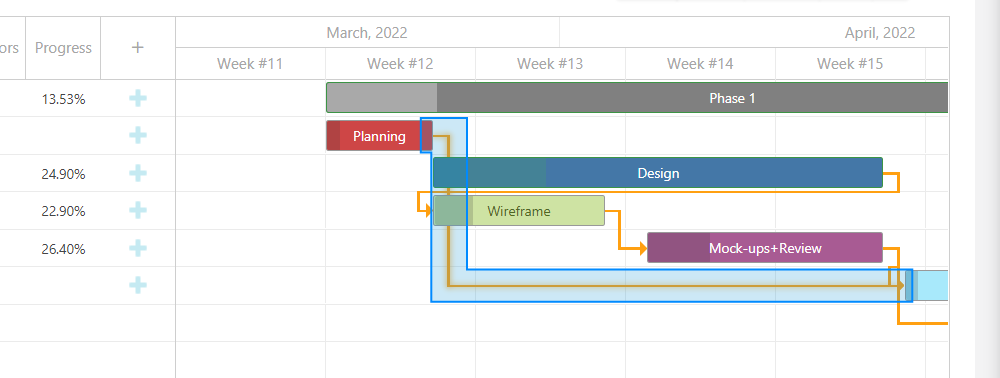
To edit a task link, move your mouse to a task link that you would like to edit. Double-click this line and an Edit Link modal window pops up.
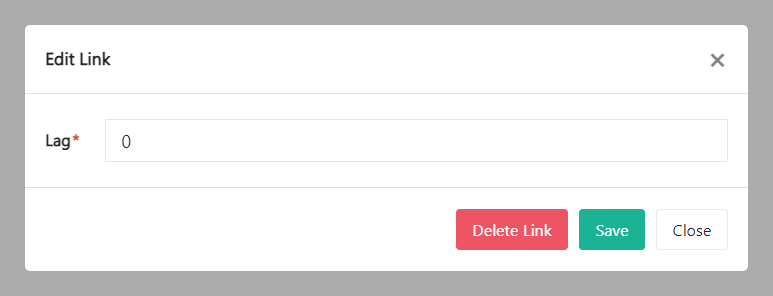
The Lag field refers to the amount of time added between a predecessor task and its successor. Update the Lag field and click Save.
How to change the date of a task in a schedule
You can change the date of a task inside the Gantt chart in 3 different ways:
- Moving the start or the end of the task bar to the left or right.
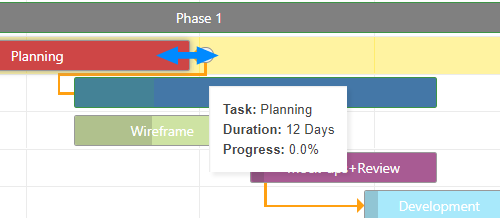
- Editing the task by double clicking on the task bar.
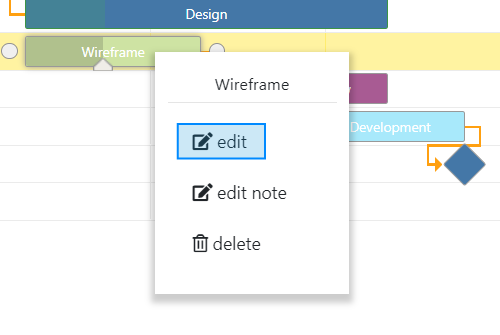
- Clicking on the due date field on the left-hand side of the Gantt chart.
Didn’t find what you were looking for?
Contact us and we’ll build the right solution for you. Vault Synapse can be fully customized based on your business needs.