Components
What is a component
Components allow you to effectively label your tasks. With Vault Synapse, you can create custom components that will provide you with more flexibility and increased visibility when it comes to organizing tasks. You can also gain insight into your components as you can see who the lead is, a description of the component, and a count of how many times it’s been used.
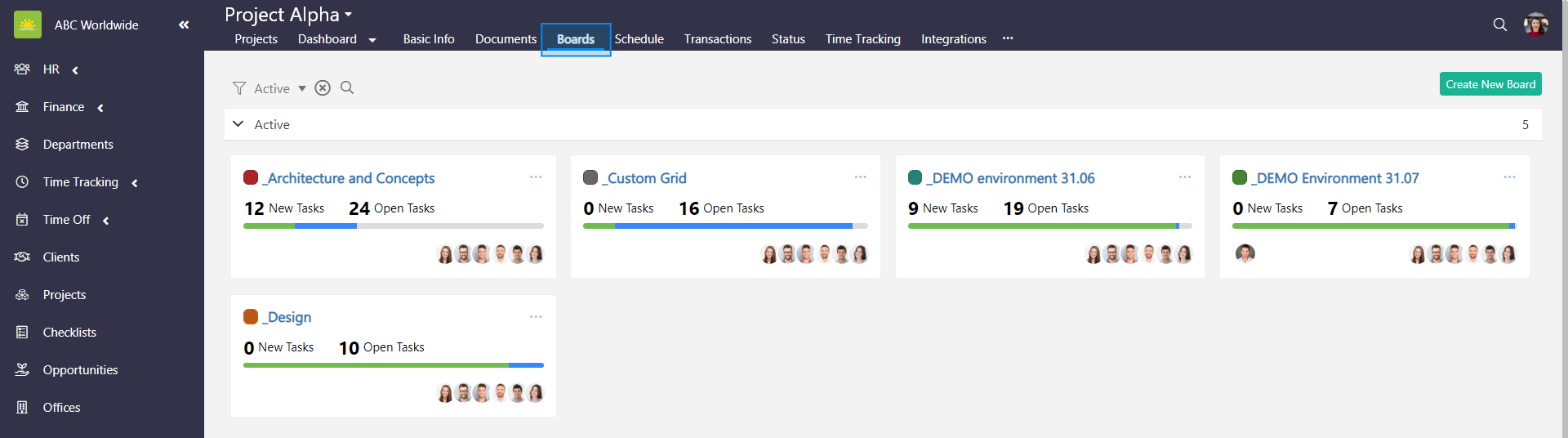
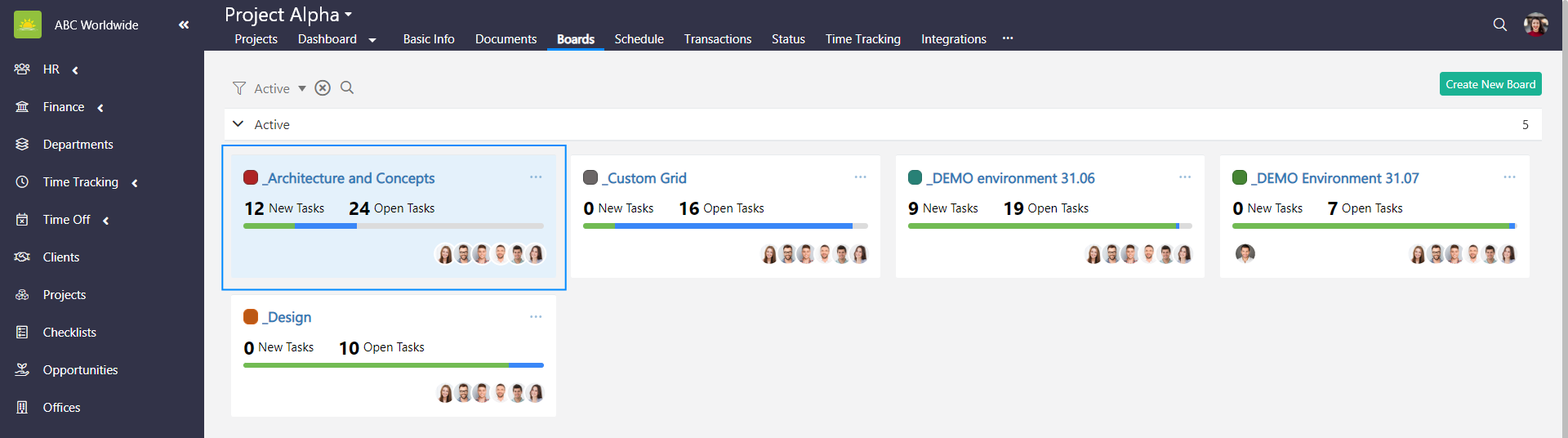
To view a board's components, go to the Projects module and click the Boards tab inside of a specific project.
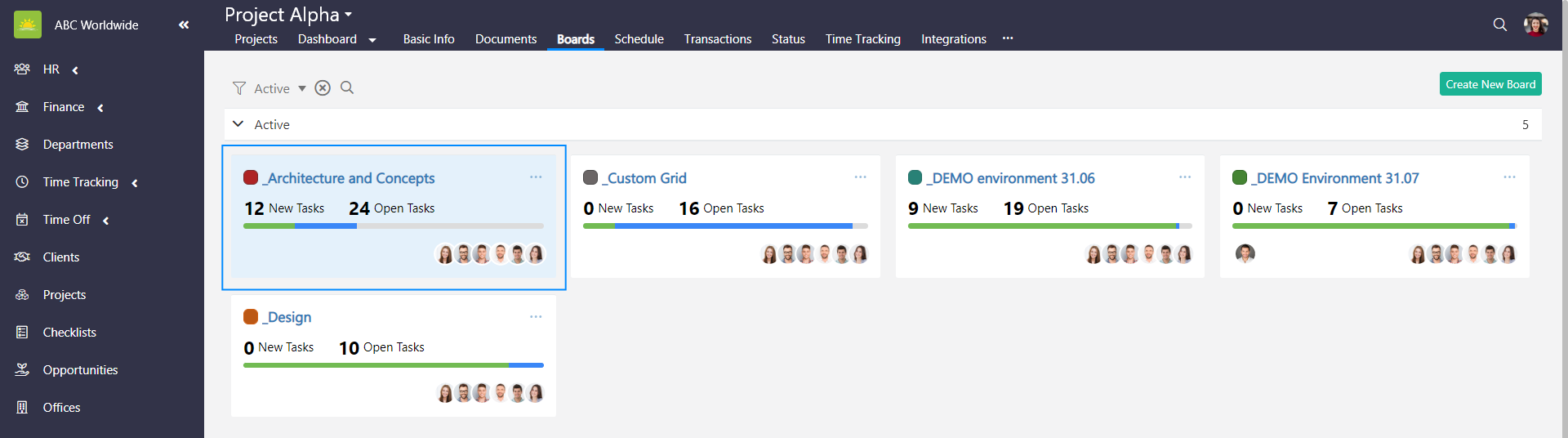
Select the board that you want to view components for.
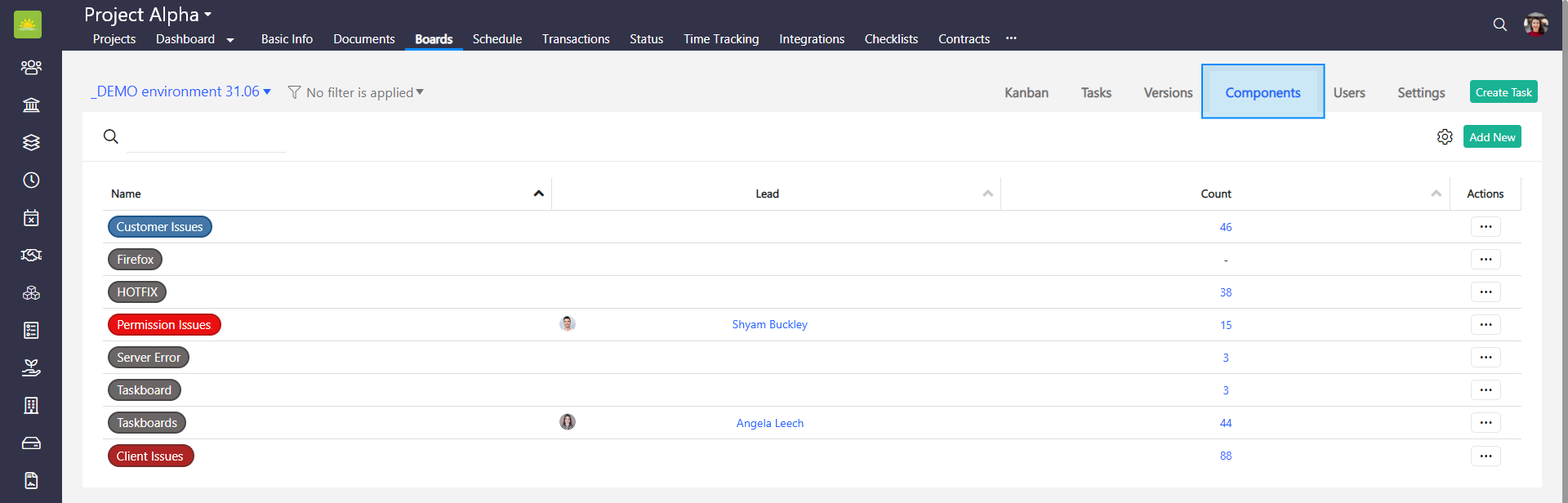
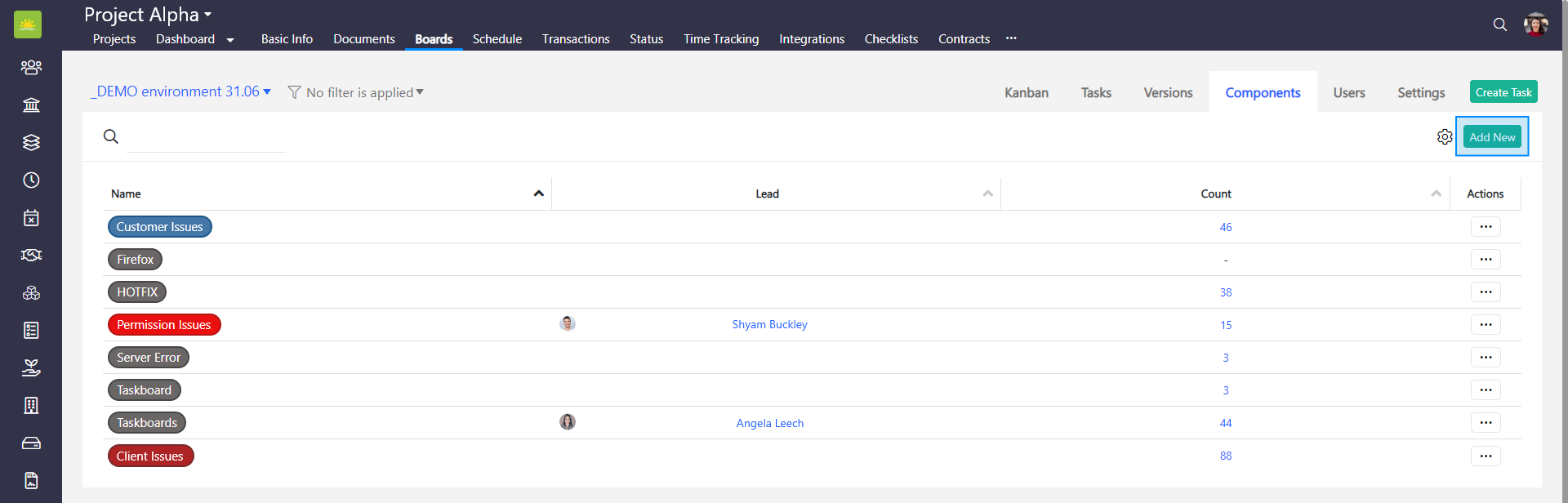
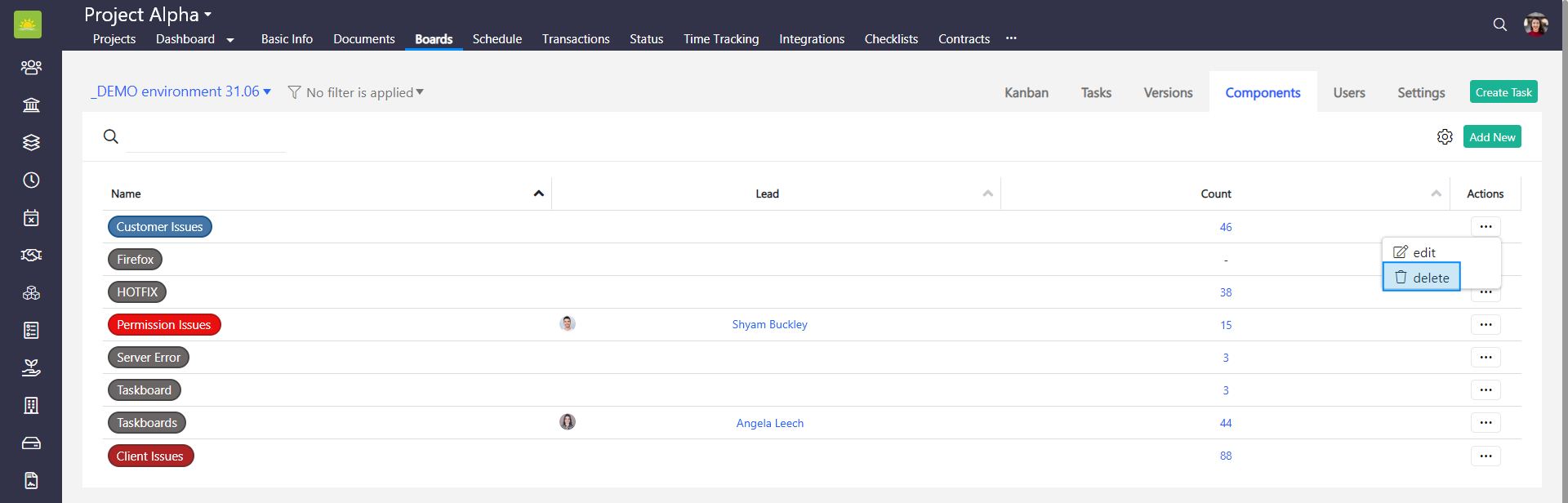
Click the Components tab inside of a specific board. You will be presented with a lot of valuable information regarding the components. You can also create a new component directly from this page.
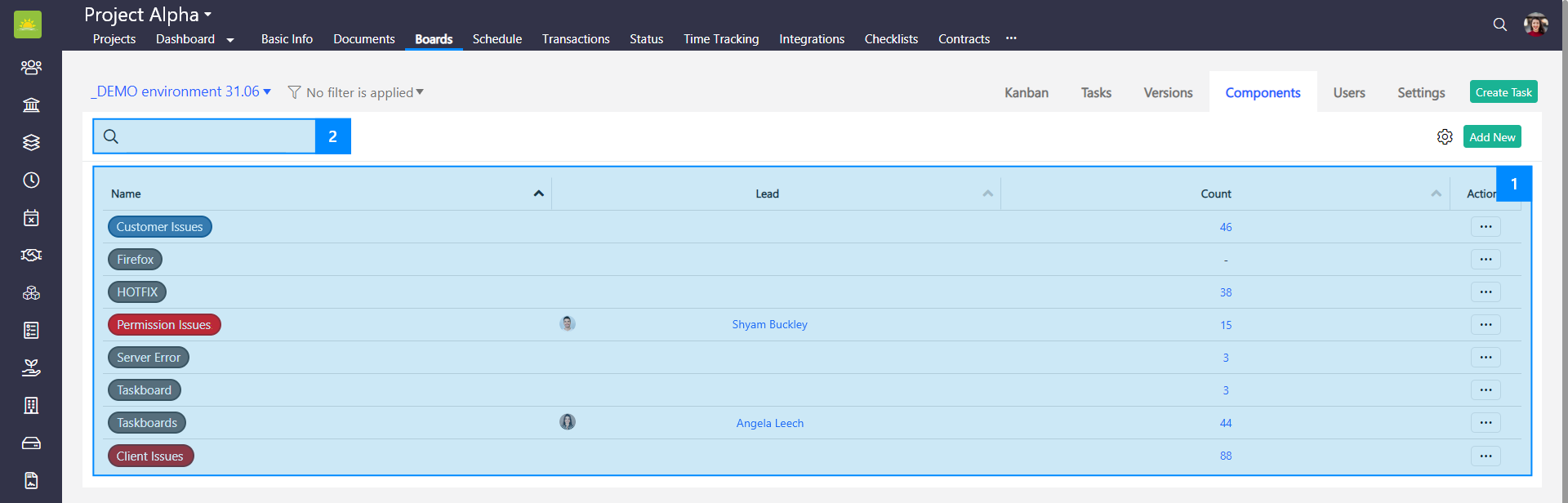
You can search for a component in 2 different ways:
- Manually – Select the relevant component from the list.
- Enter keywords – Enter the name of the component or any other keywords that the component contains to find your entry.
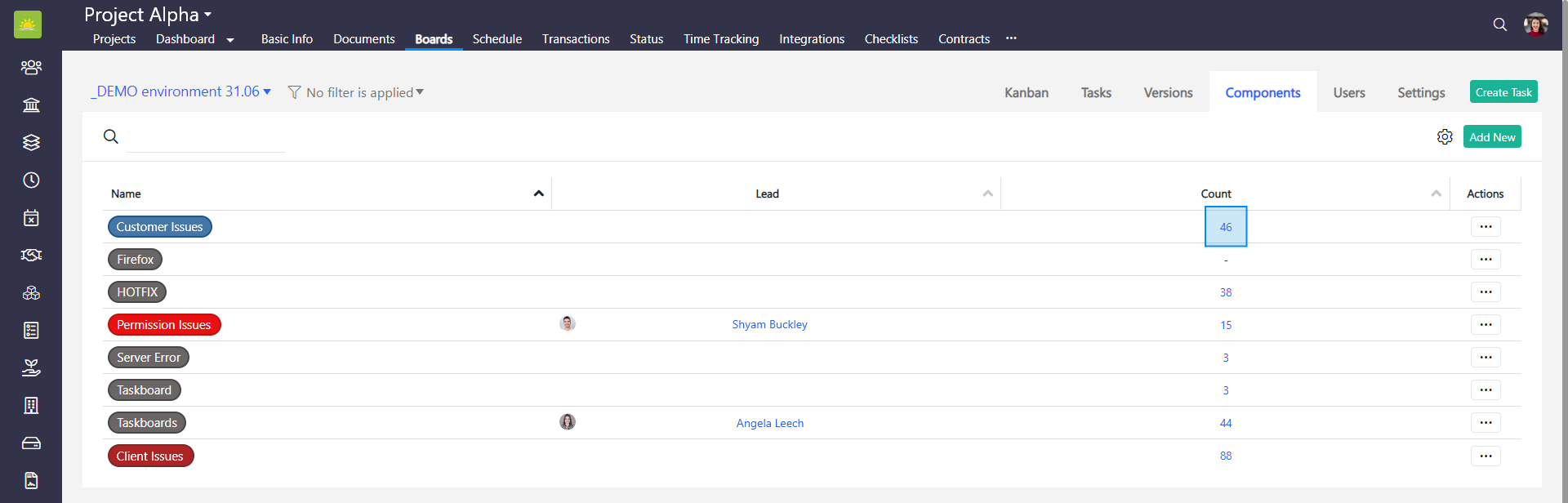
Clicking on the number in the count column will take you to the component dashboard with all the tasks of the component.

The columns in the grid are optional and are based on your configuration. Click the link to find out how to customize the view.
You can see this information from the components view:
- Name – The name of the component.
- Lead – The name of the person responsible for that component.
- Count – Shows the number of tasks of the component.
Note! Components can be turned off in the Organization Configuration by an administrator.
Note! Vault Synapse is a highly customizable tool meaning certain parts and functionalities of the application can be additionally built-in or customized based on your business needs and preferences.
What is a component dashboard
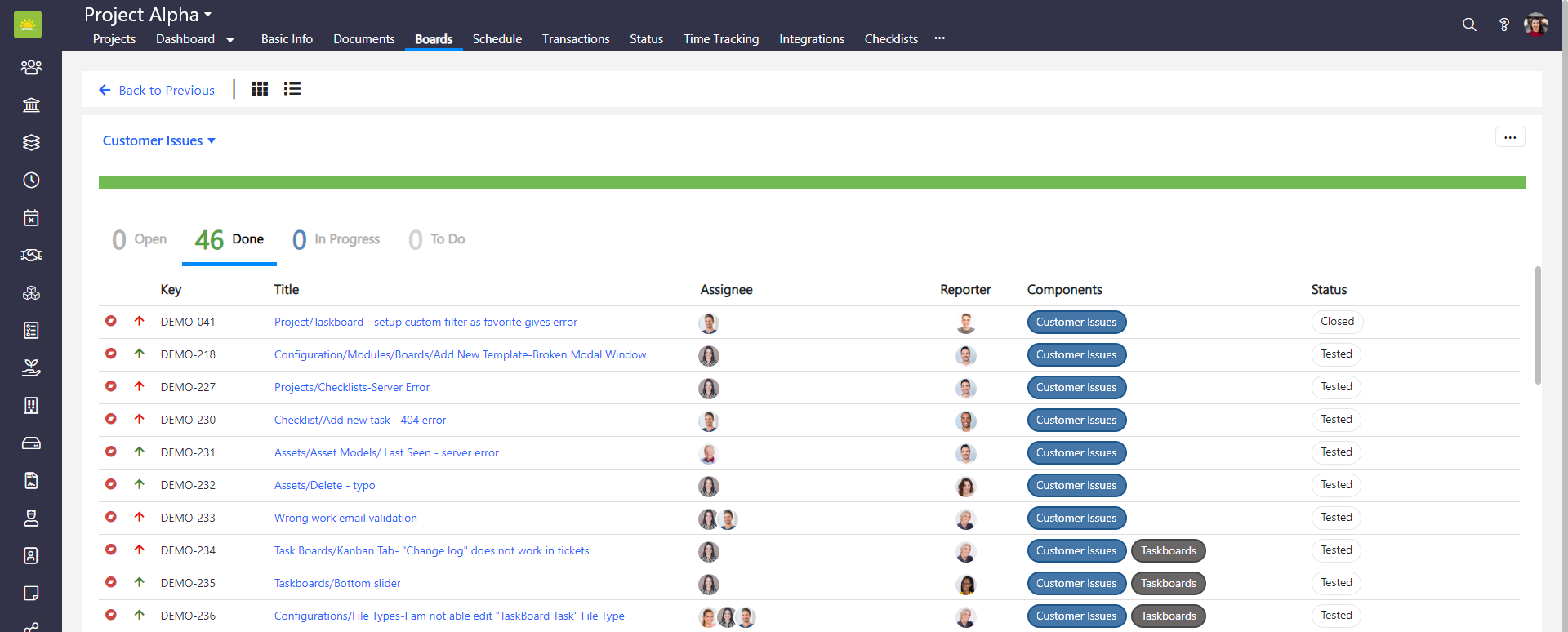
The component's dashboard allows you to export tickets to excel and copy data. With a quick glance, you can view all the tasks related to the same component.
To see your component dashboard, go to the Projects module and click the Boards tab inside of a specific project.
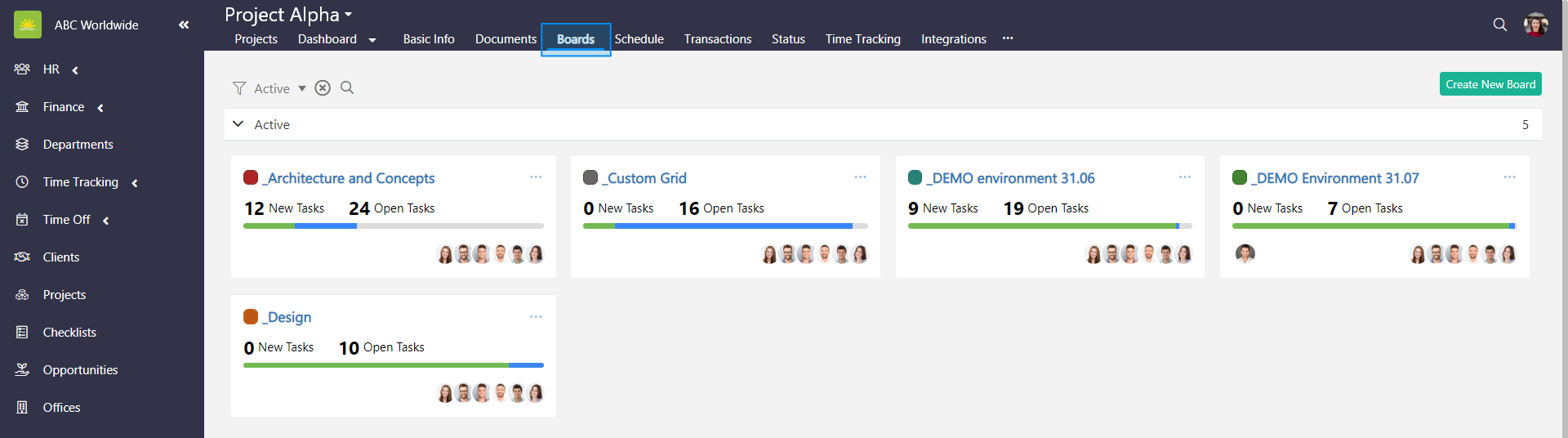
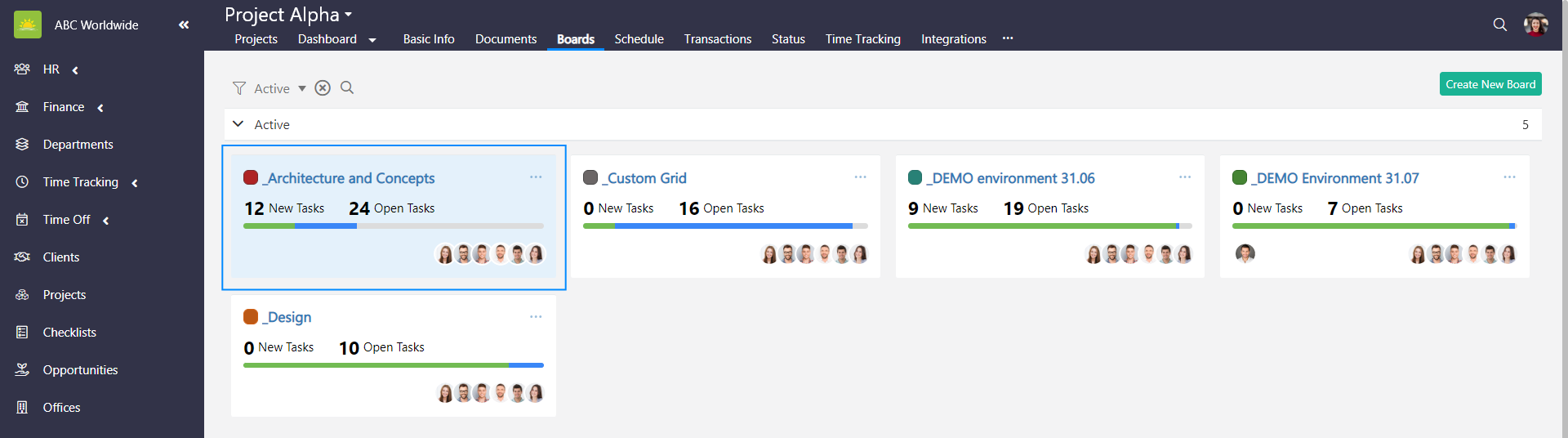
Select the board that you want to view the component dashboard for.
Find the component that you want to view the dashboard for and click on the number in the count column. This will take you to the component dashboard.
You will be presented with a lot of valuable information about all the tasks related to that particular component.
How to create a new component
To create a new component, go to the Projects module and click the Boards tab inside of a specific project.
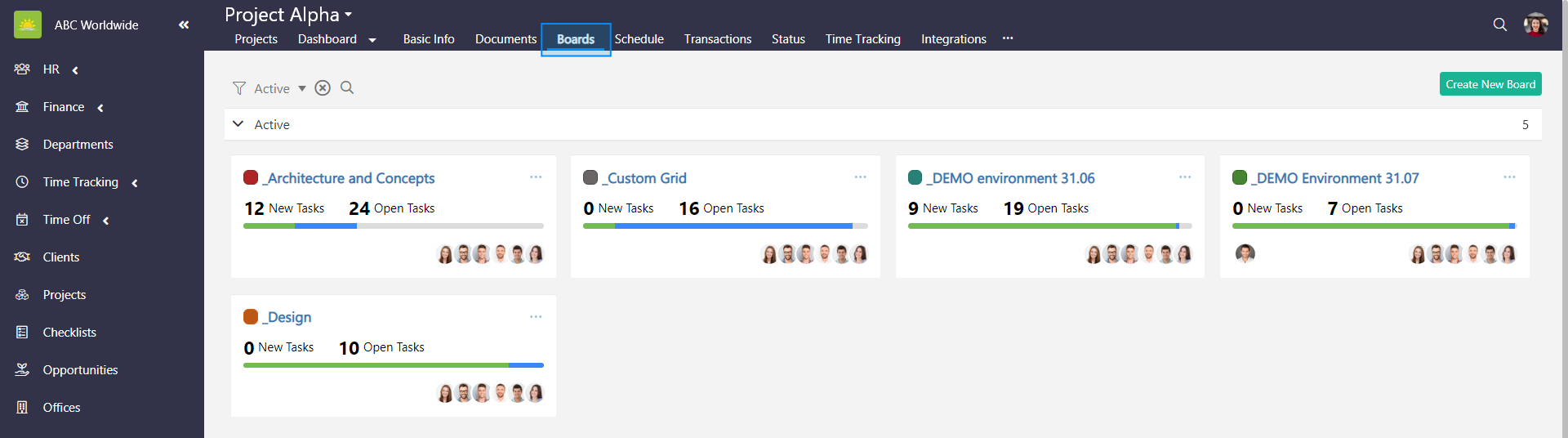
Select the board that you want to create a new component for.
Click the Components tab inside of a specific board and click Add New.
An Add New Component modal window pops up.
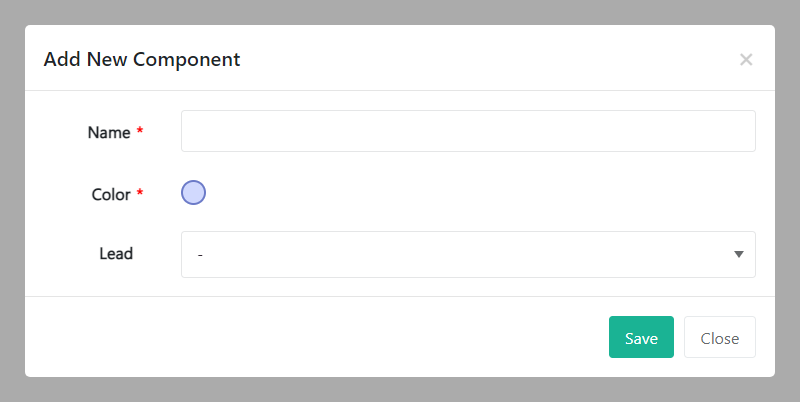
Fill out the fields about the new component:
- Name – Give the component a name.
- Color – Choose a color for this component.
- Lead – Choose who the lead is.
Review the information and click Save.
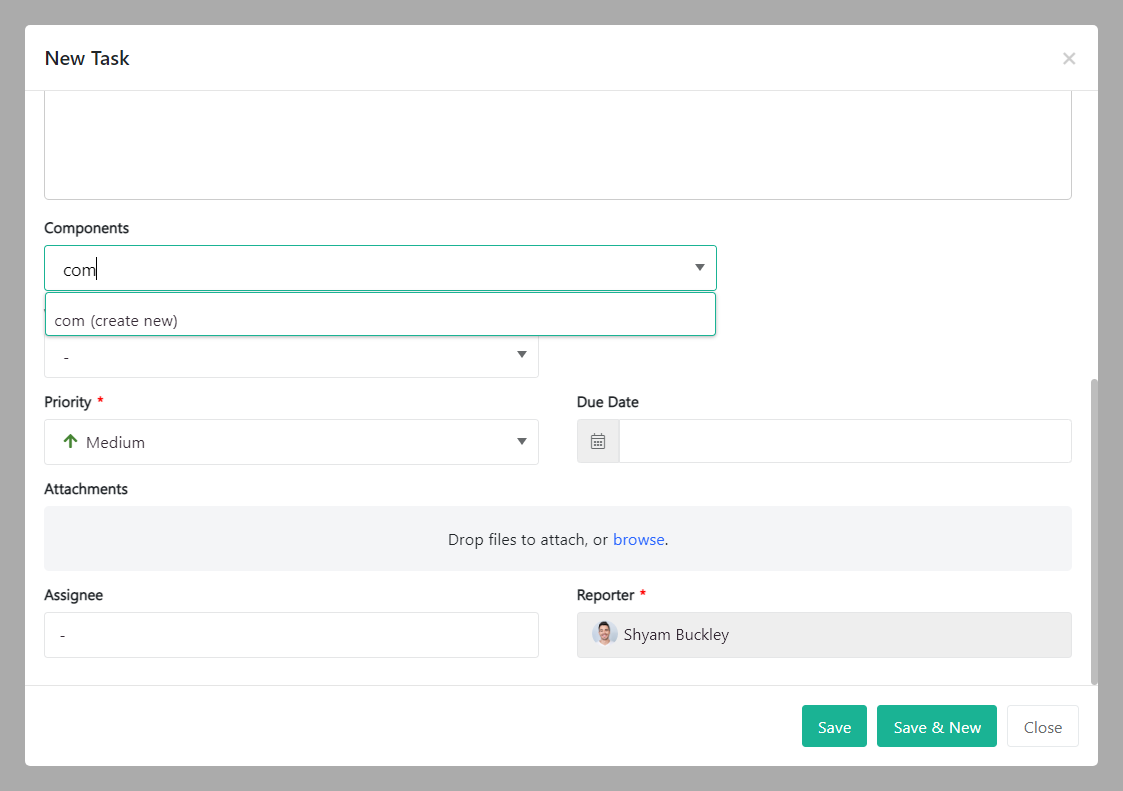
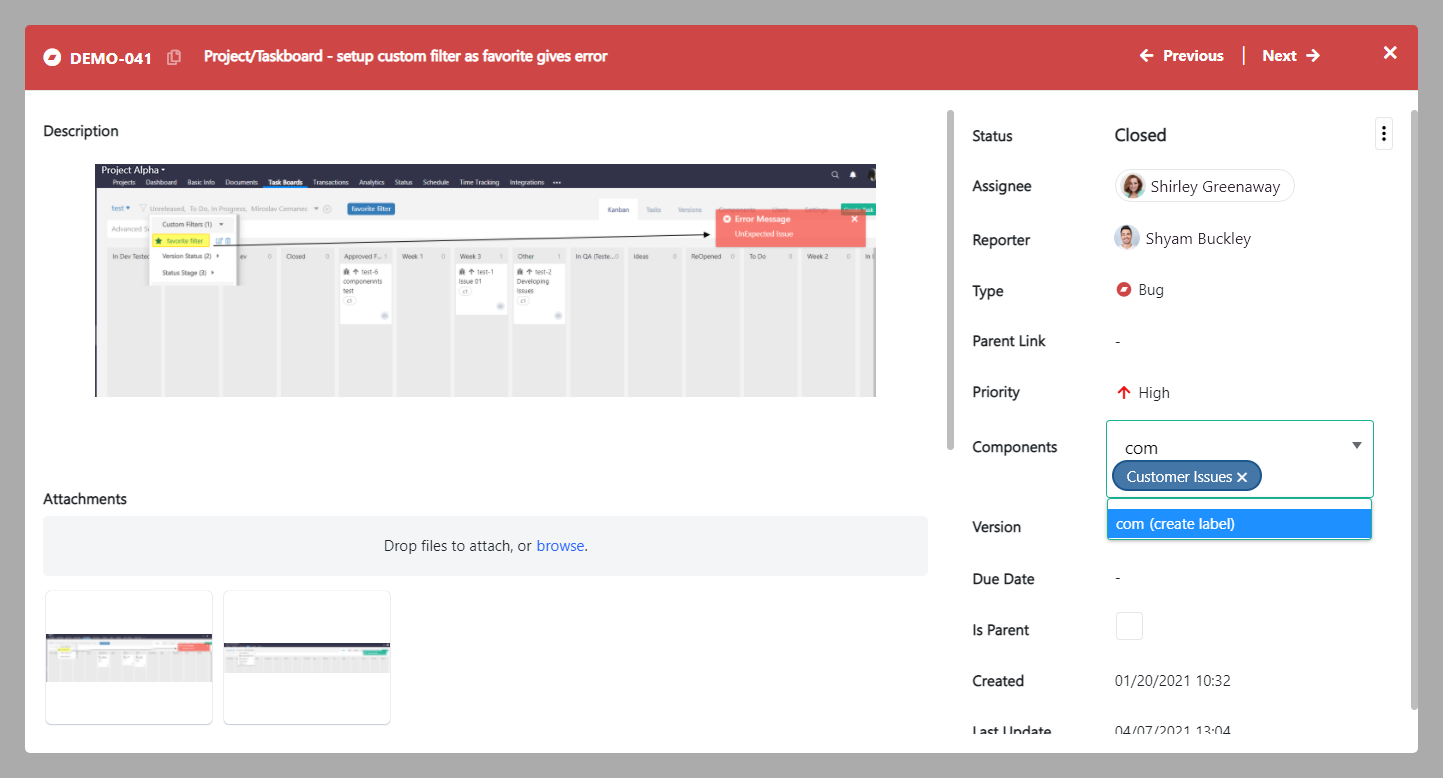
You can create a component two other ways: When you create a new task or when you edit an existing task.
- When you are creating a new task, select a component from the dropdown menu or start typing into the Components field. Click Save once done.
- Click on the task for which you want to create a new component for. Select a component from the dropdown menu or start typing into the Components field. Click Save once done.
How to edit a component
To edit a component, go to the Projects module and click the Boards tab inside of a specific project.
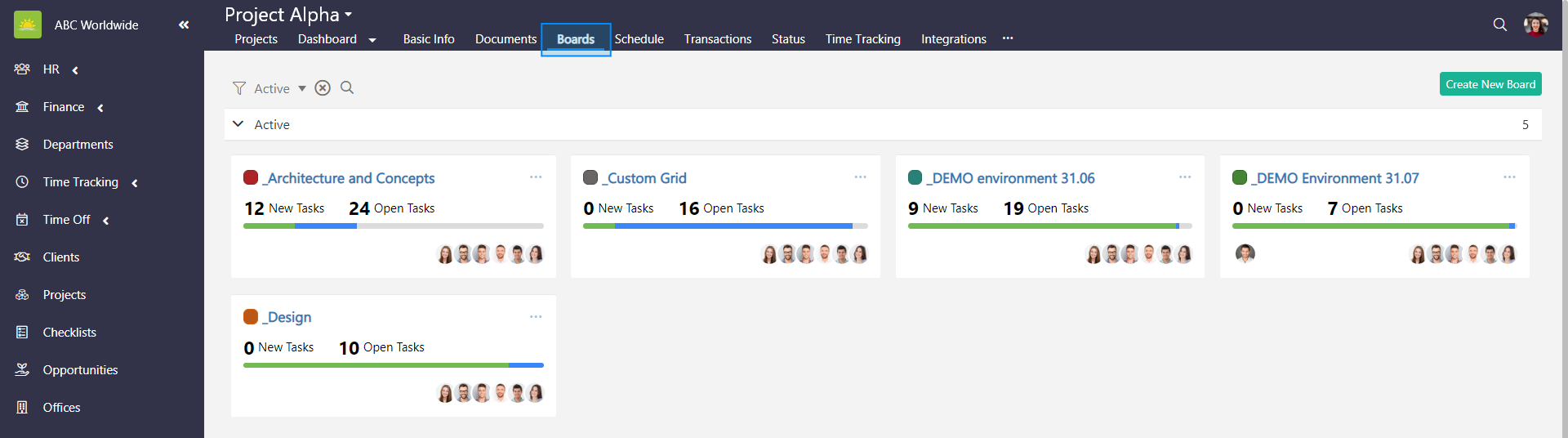
Select the board that you want to edit components for.
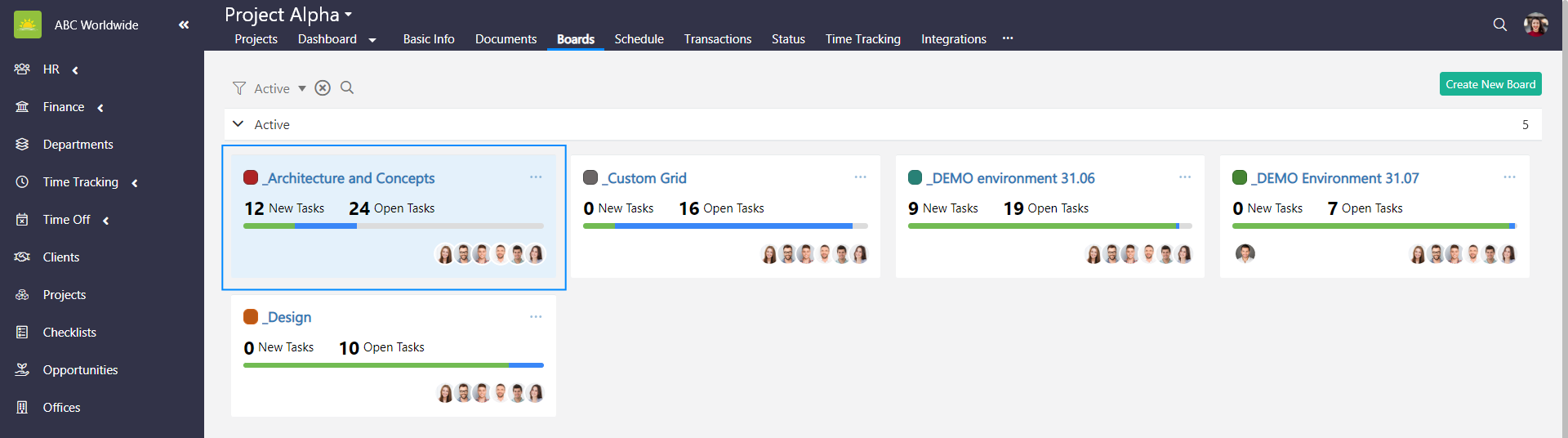
Click the Components tab inside of a specific board. Find the component you wish to edit. Click … at the end of the selected component row and click edit.
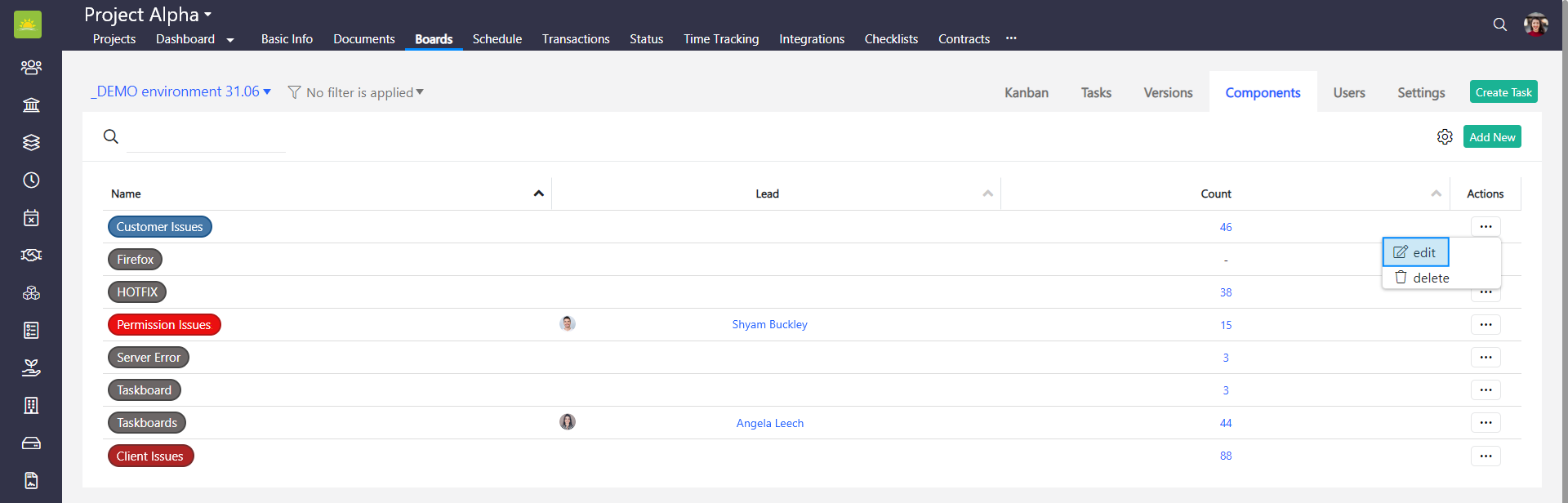
An Edit Component modal window pops up.
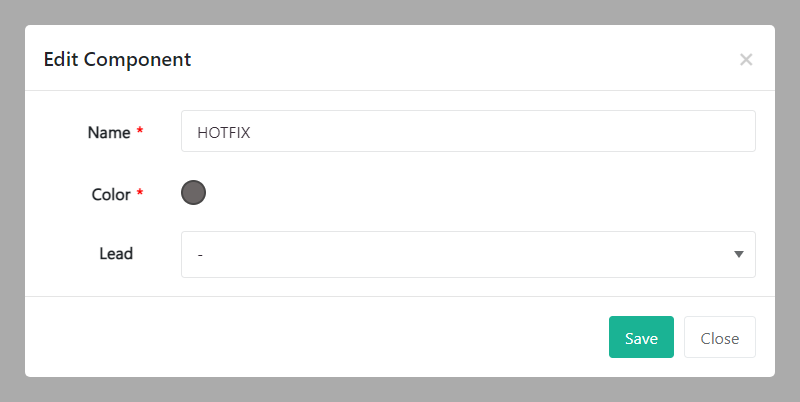
Update the relevant information and click Save.
How to delete a component
To delete a component, go to the Projects module and click the Boards tab inside of a specific project.
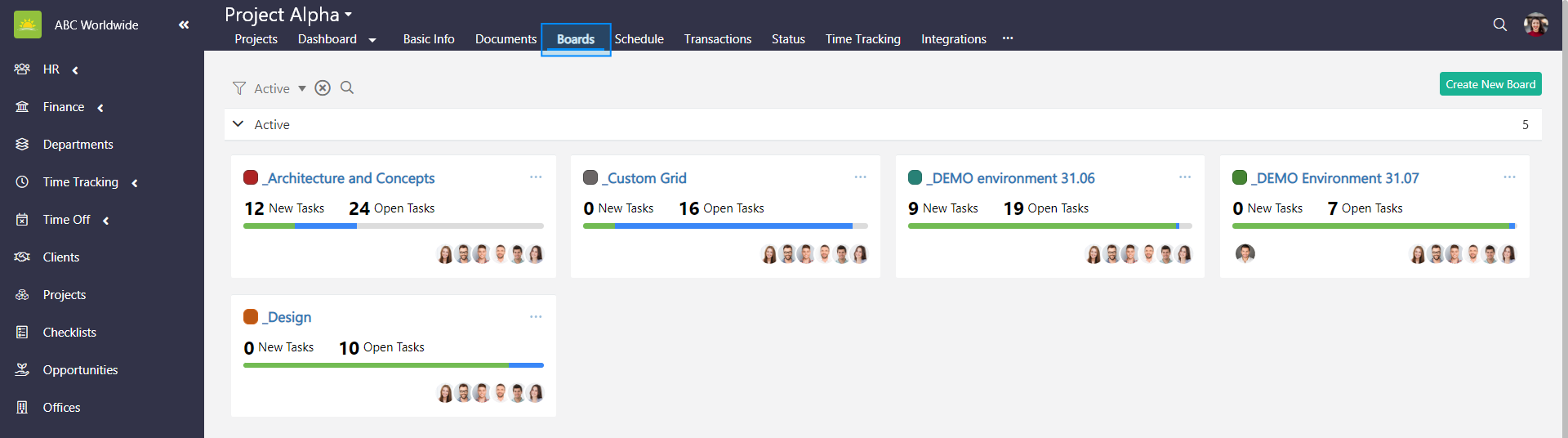
Select the board that you want to delete components for.
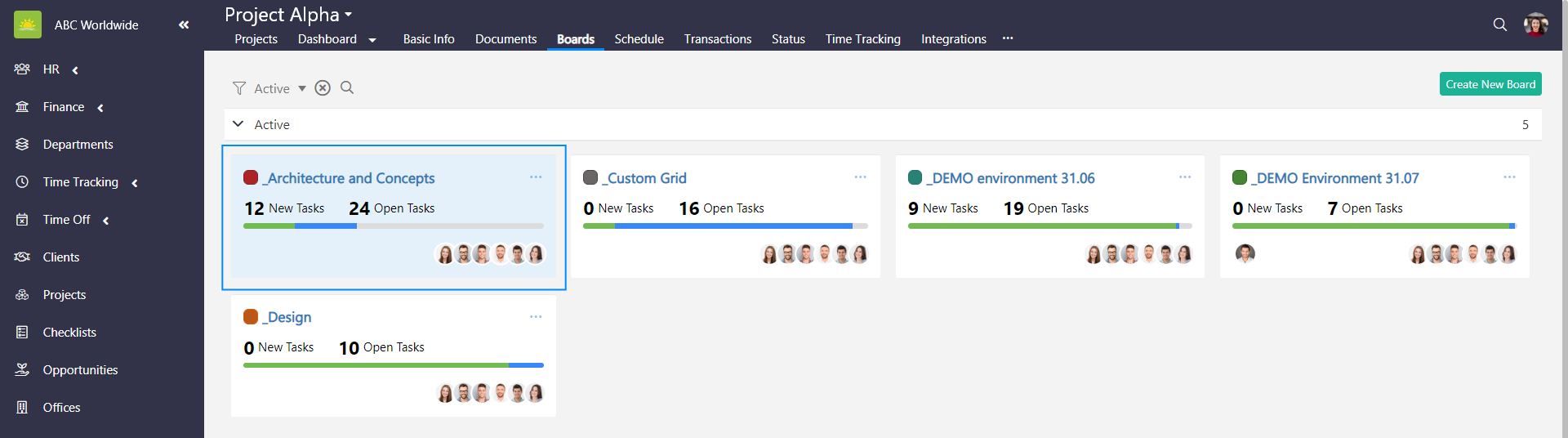
Click the Components tab inside of a specific board. Find the component you wish to delete. Click … at the end of the selected component row and click delete.
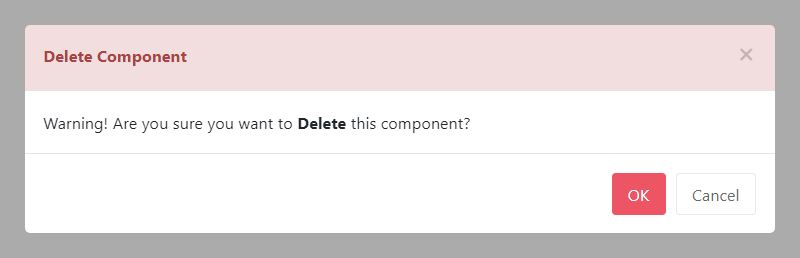
To minimize the risk of accidental deletion, you must confirm your intention to delete the component. Click OK and the component will be deleted.
Didn’t find what you were looking for?
Contact us and we’ll build the right solution for you. Vault Synapse can be fully customized based on your business needs.