What are asset details
What are asset details
The Details section of an asset is a form holding all the essential information that you need to know about the asset. Here, you can find the following details: Name of the asset, Model, S/N, Tag #, Location, Status, Assignee, Owned By, Purchase Order, Purchase Date, Labels, Asset Kit, Notes, Quick Note, Quick Warning, Quick Criticality, Condition, Warranty Length (month), Life of Asset (month), Asset Events, Location, Notes, Reminder, Documents, and Checklist.
To view information about an asset, go to the Assets module and click on the Assets tab. Find the asset whose details you want to view. Click on the S/N or Tag # column of the selected asset.
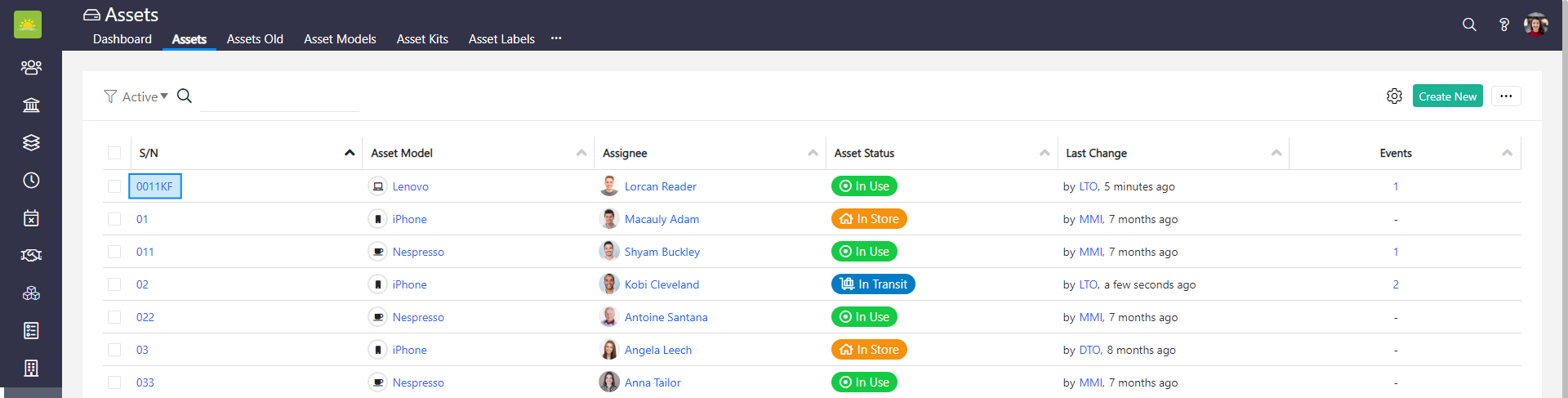
The Details page of the desired asset will open.
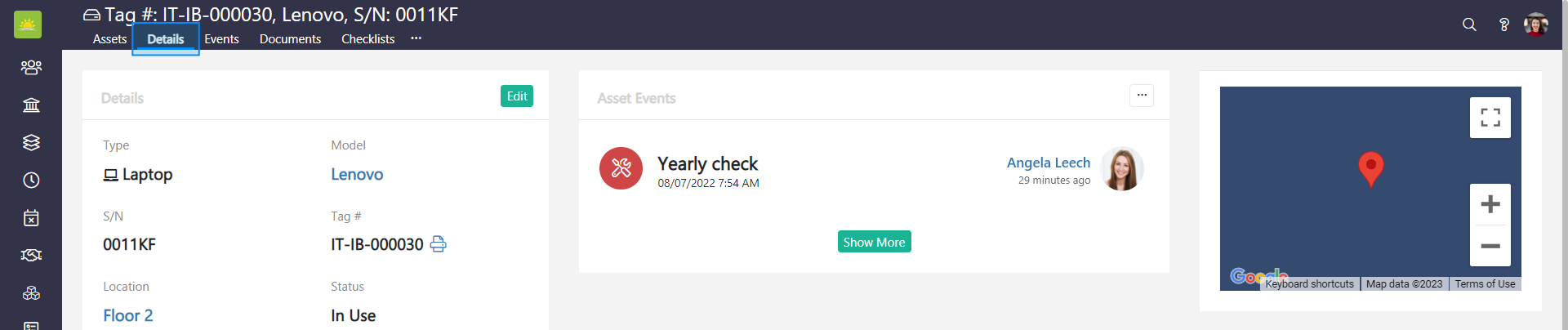
The details of an asset contain the following:
- Model – The model of the asset, such as Lenovo P14S, Apple MacBook Air 13.6". etc. Select the asset model from the dropdown.
- S/N – The serial number of the asset.
- Tag # – This is the tag number which you can use to search for the asset when locating it in the future. This tag is auto generated by Vault Synapse but can be changed.
- Warranty Length (mo.) – The length of the warranty for the asset, valued in months.
- Life of Asset (mo.) – The length of the total accounting life of the asset, valued in months.
- Notes – You have the option to save additional information here.
- Secret – You can enter any secret information about the asset into this field, such as a Bitwarden key. This key is entered manually.
- Purchase Order # – The number of the purchase order. A purchase order can be created in the Purchase Order module or in project transactions and linked with the asset.
- Purchase Date – The date on which the asset was purchased.
- Condition – The current condition of the asset.
- Assignee – Assign the asset to yourself, another user, a project, or contact.
- Owned by – The name of the personnel, company, project, or office that owns the asset.
- Asset Kit – If the asset is a part of an asset kit, you can select the relevant asset kit from the dropdown.
- Labels – Choose any applicable labels. Labels are created under the Asset Label tab and group specific assets.
- Location – The last known location of the asset.
- Delivery Note – A document that accompanies the delivery of the asset, typically providing the name of the product and the quantity of the units present.
- Quick Note – Enter any important piece of information that should not be missed here. For example: “out of warranty soon”. If this field has been added to the customized Assets view, the note will be visible in the asset line.
- Quick Warning – A quick warning can be added to the asset on its details page to ensure an action is performed. For example: “inspection unsatisfactory”.
- Quick Criticality – A quick criticality added to an asset on its Details page can alert the person responsible when they need to act. For example: “broken, immediate replacement required”.
- Is Active – This box is checked by default. Unticking this checkbox will change the status from active to inactive.
If you want to edit an asset's details, follow the link: How to edit an asset.
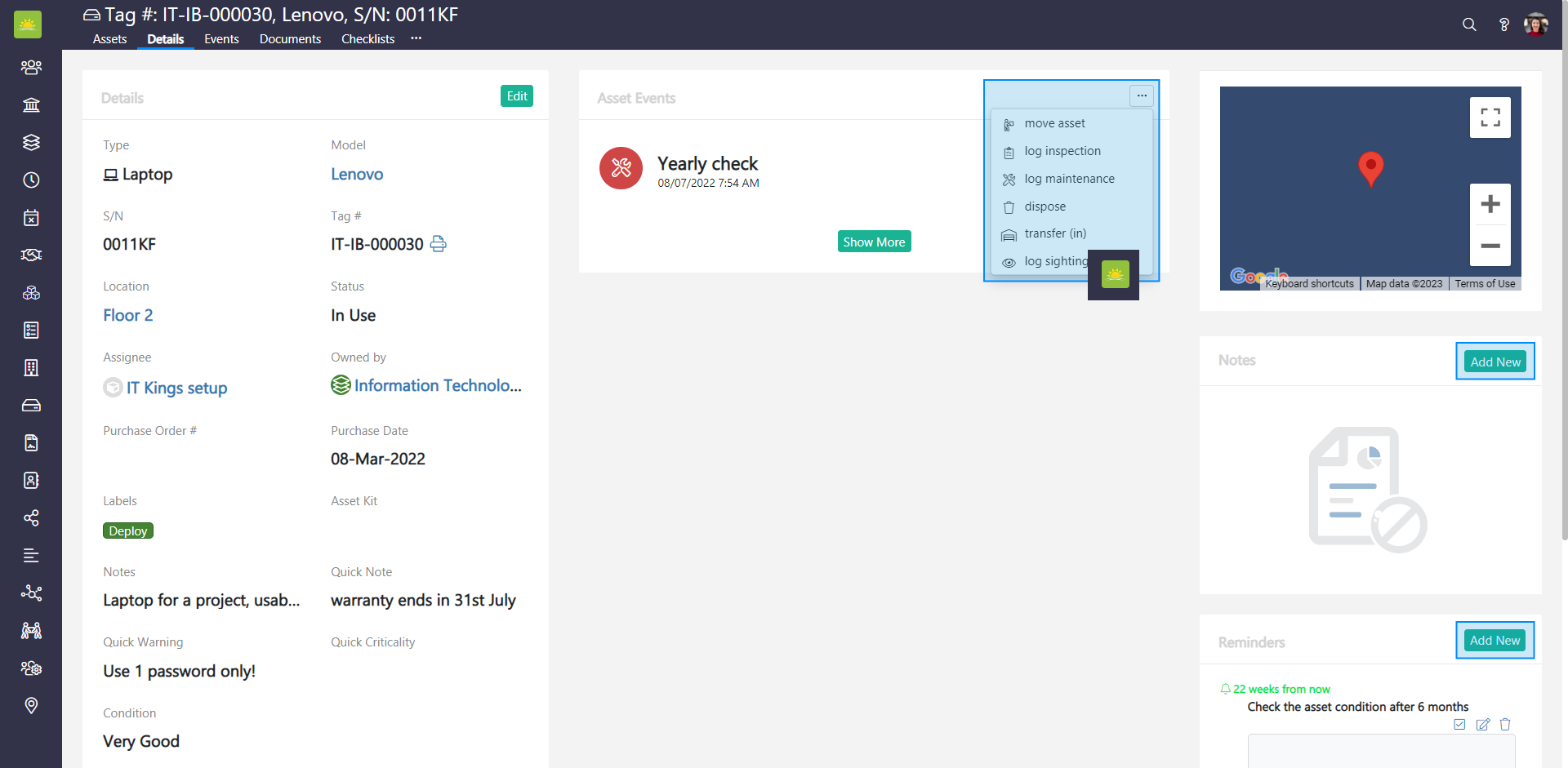
You can also add new notes, reminders, and track events from this page.
What are asset notes
Asset notes are brief pieces of information related to the asset which will be visible on the asset's Details page. You can add, edit, or remove as many notes as required.
To add a new note, click on the Add New button.
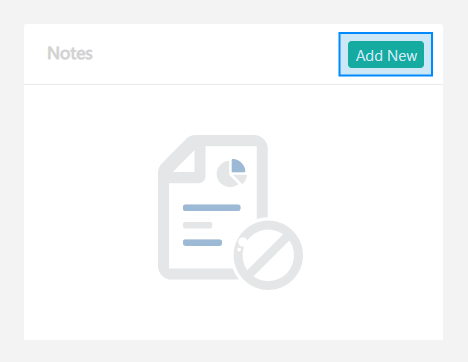
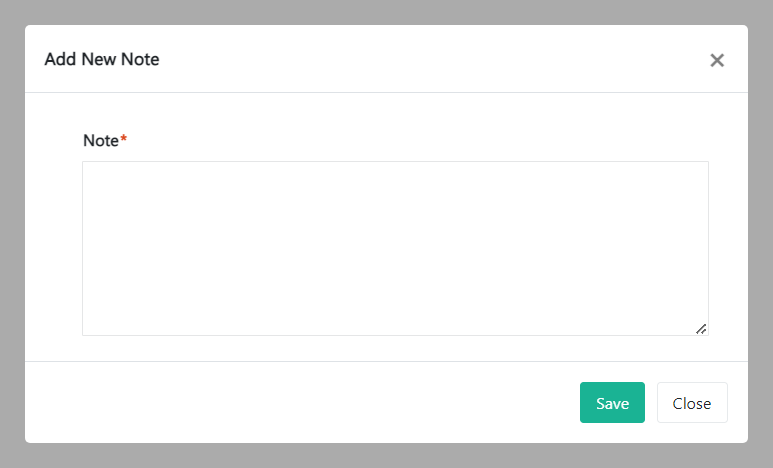
A modal window will pop up. Type your note into the input box and click on Save.
What are asset reminders
Asset reminders are important dates or events related to an asset that should not be missed.
You can use the calendar tool to set reminders for warranty expiration, inspection due date, and more here.
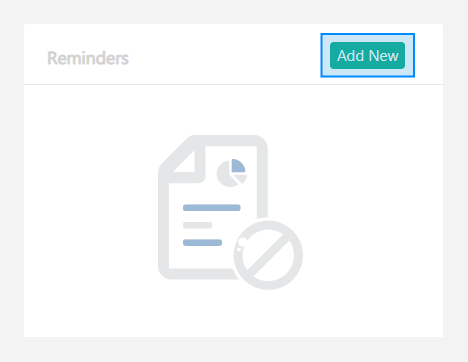
To add a new reminder, click on the Add New button.
The Add New Reminder window will pop up.
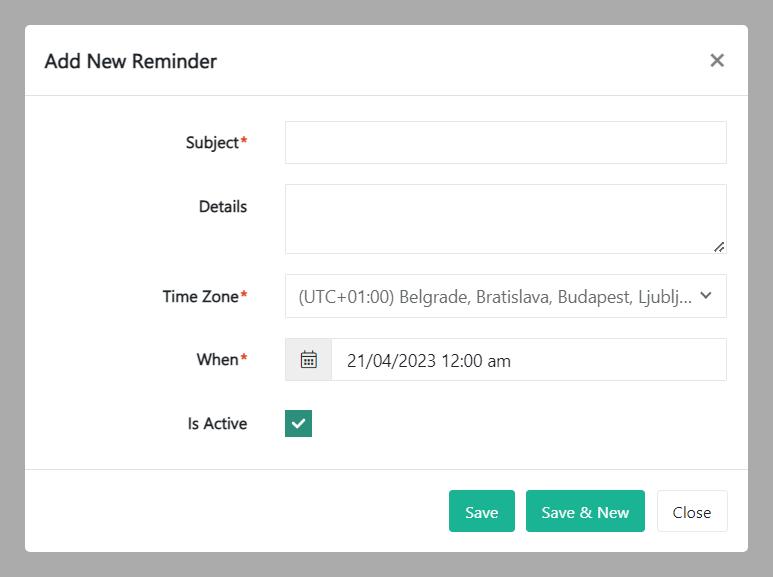
Enter information into the following fields:
- Subject – Enter a brief, one-line summary of the reminder.
- Details – Add more details, if applicable.
- Time Zone – Specifies the time zone at which the reminder notification will be sent off. This file is linked to the field below.
- When – The date and time at which a reminder will be triggered to send the users a notification.
- Is Active – If this box is ticked, the reminder is active. Unticking this checkbox will result in the reminder being deactivated.
Click Save to save the reminder, or Save & New if you want to add another reminder.
If you want to complete an asset reminder, check the box as complete. You can reverse this action by unchecking the box again.
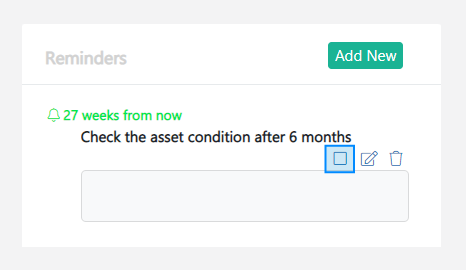
 edit icon next to the reminder you want to edit.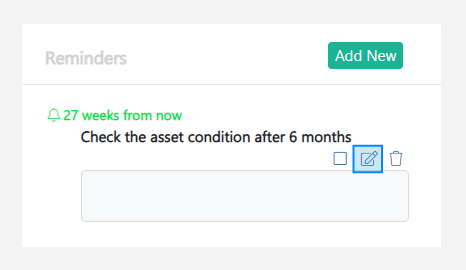
A modal View Reminder window will pop up. Edit the information as required and click Save. To abort the action, click on Close.
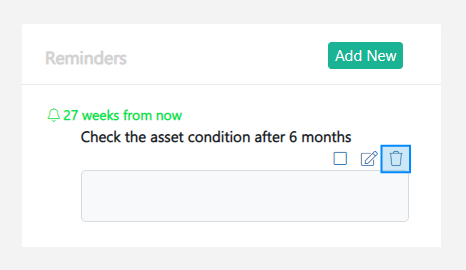
If you want to delete an asset reminder, click the  delete icon next to the reminder you want to delete.
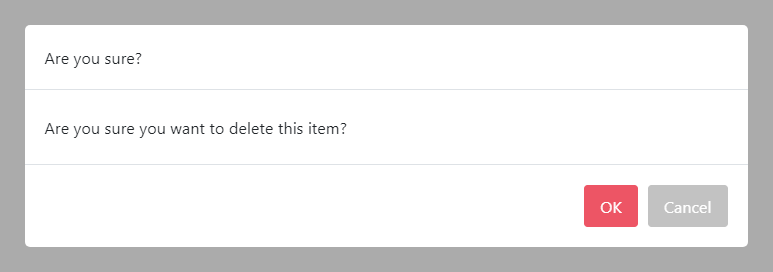
To abort the action, click on Cancel.
What are asset events
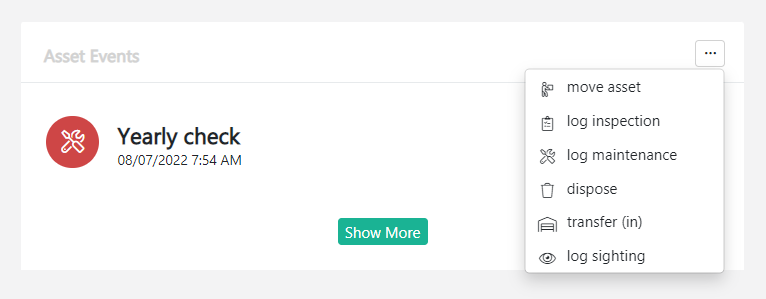
Asset events are records of any changes and updates on an asset such as asset movements, inspections, maintenance, disposal, transfer (out), transfer (in) and sighting. You can download any relevant documents and view asset event locations, where applicable. To add a new event, click on the ... button and select an option. The relevant modal window will pop up. You will need to enter information about the asset event and click the Save button for the new event to display.
For more information, follow the link: What are asset events.
Note! Vault Synapse is a highly customizable tool, meaning certain parts and functionalities of the application can be additionally built-in or customized based on your business needs and preferences.
Note! A user can access the asset information only with the relevant permissions/access rights given by the administrator.
Didn’t find what you were looking for?
Contact us and we’ll build the right solution for you. Vault Synapse can be fully customized based on your business needs.