How to add a new widget
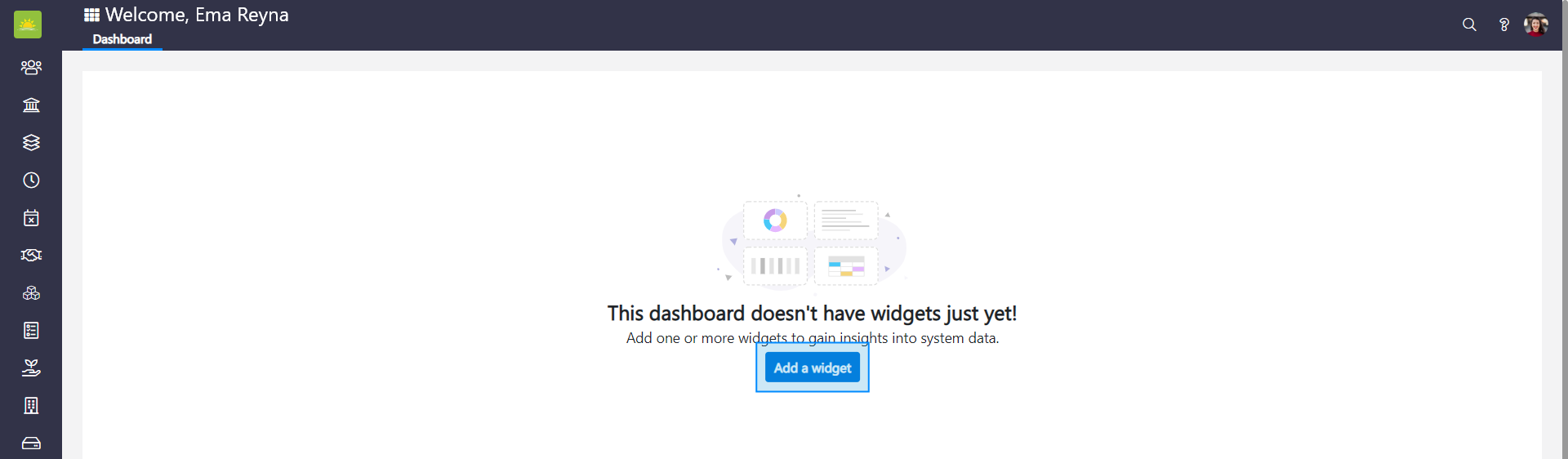
If there are no widgets, click Add a widget.
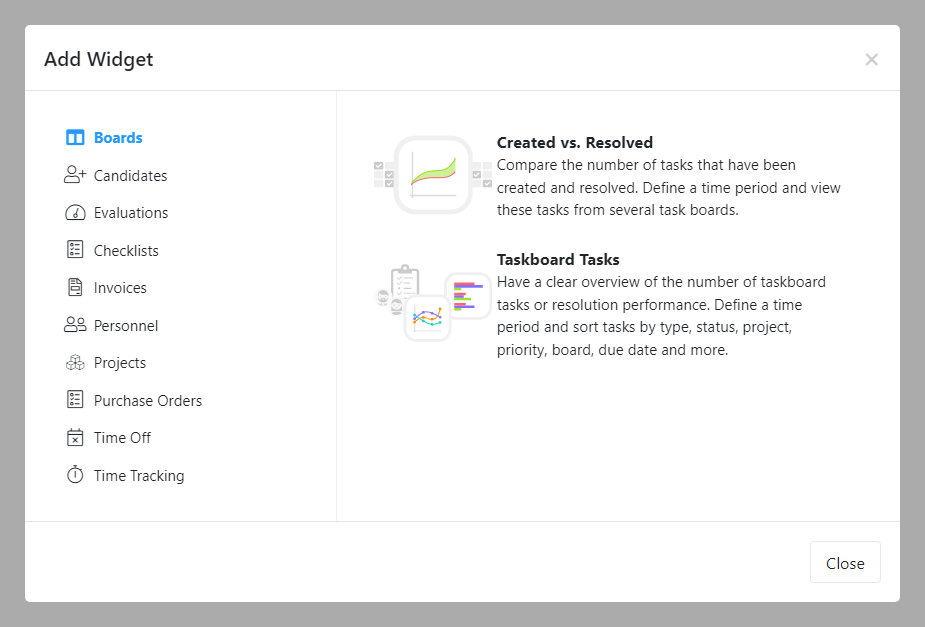
An Add Widget modal window pops up.
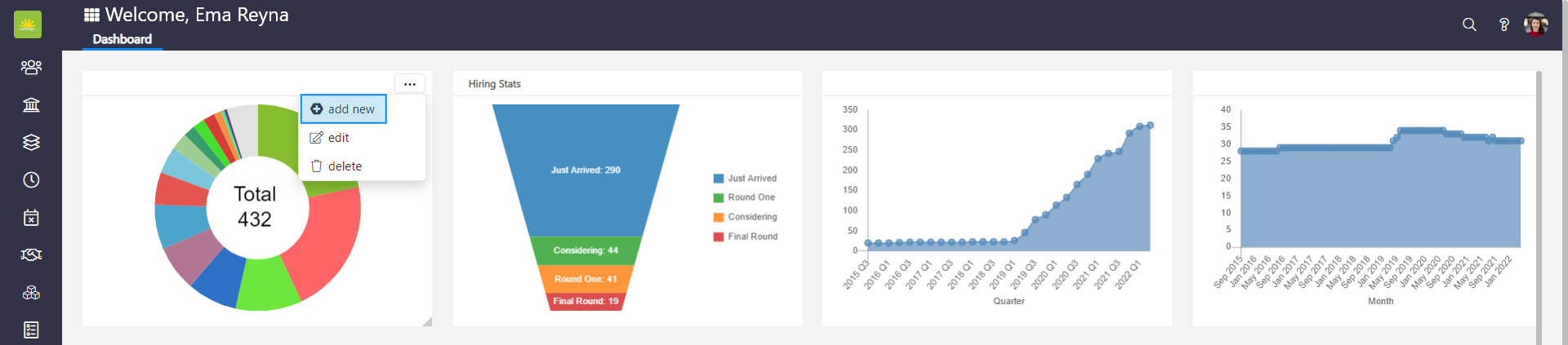
If the dashboard has at least one widget, click … on a widget and you will have three options: add new, edit, and delete. Click add new and an Add Widget modal window pops up. Choose a widget that you wish to include on the global dashboard.
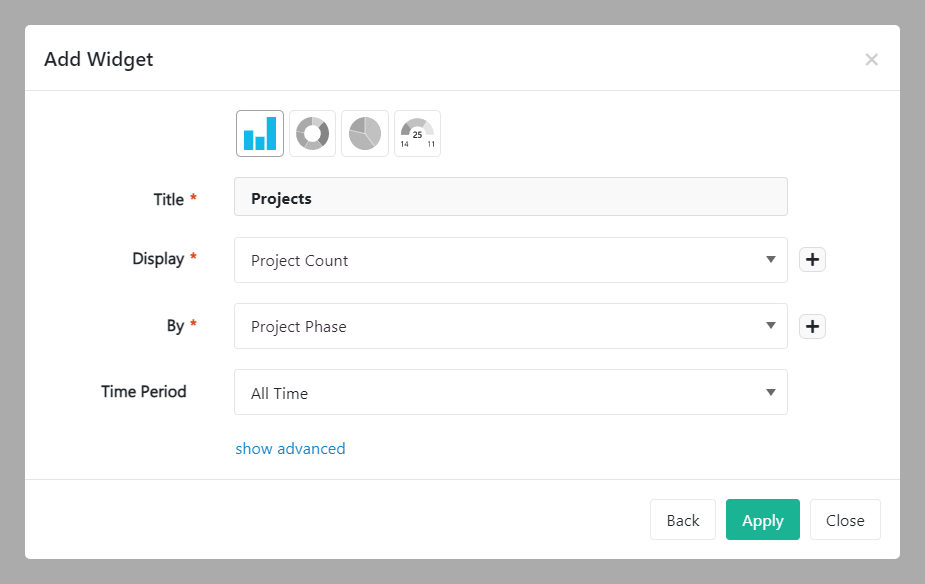
The next step is configuring the parameters for the widget data. Depending on the chosen widget, the configuration can be anything from simply adding a title to an item to more complex customization such as setting up graph parameters.
Click Apply to add a new widget.
You can choose any of the following widgets:
- Boards – Add a Created vs. Resolved widget to see how the number of created tasks compares to the number of resolved tasks. You can define the display period by day, week, month, quarter, or year based on your preferences. A Taskboard Tasks widget give you an overview of tasks by tickets, resolution time, priority, due date, complexity, version, and much more. Select a time period for which you want the tasks to be displayed on your dashboard.
- Candidates – Enables you to monitor the different stages of the hiring process for prospective candidates. A count of the candidates and their status will be displayed based on your chosen time period.
- Checklists – With this widget you can track how many outstanding tasks you have to complete. The Checklist To-Dos widget will keep you on track and show your progress regarding your to-do list.
- Evaluations – Allows you to rate co-workers' job execution, track the evaluation progress, and view how many evaluations you have completed. Add a Shuriken widget to see your tokens balance, how many tokens you have received, and how many you have got left to give.
- Invoices – Add this widget to store invoices and track their status. Define a time period for the invoices you want displayed and set parameters for the data you want to make visible and how.
- Personnel – This widget allows you to set what personnel information you want to view and during what time period. Depending on your priorities, you can view personnel by age, overall cost, position, department, and more. Add a Time Tracking Stats widget to view how many hours you've worked today, this week, or this month.
- Projects – Gives you an overview of projects, types, their execution phases, and status. Select a time period for the projects you want to be displayed based on your preferences.
- Purchase Orders – Keeps you on track with purchase orders, their status, count, and amounts. Vault Synapse offers various time periods for the purchase orders you want displayed. A Request for approval widget shows you the total amount of items waiting for approval.
- Time Off – Is a great widget that'll help you plan for resources and view which department or project is going to be affected by absences. You can customize the time off view in many ways; set up a time frame, view absences by departments, positions, team, the entire organization, and more.
- Time Tracking – A Logged Time Analytics widget gives you a clear overview of time allocations for different entities. You can set the view by total time, billable time, or non-billable time. A Time Tracking Stats widget, same as the one under personnel, shows you how many hours you've worked today, this week, or this month.
Didn’t find what you were looking for?
Contact us and we’ll build the right solution for you. Vault Synapse can be fully customized based on your business needs.