Allocations
The Allocations tab allows you to add or remove allocated members from a project. Resource allocation is the process of assigning project resources to tasks and monitoring workload to keep your projects running smoothly and on time.
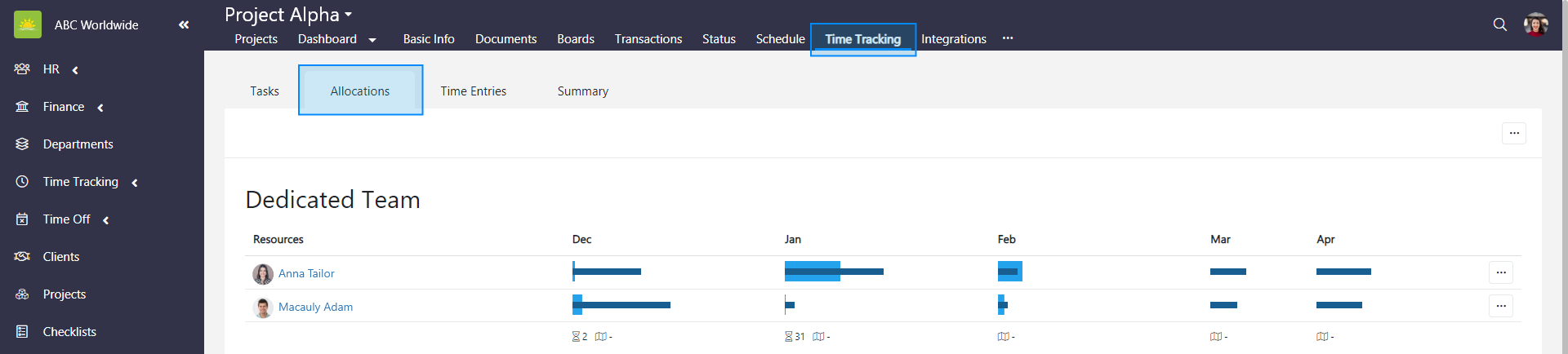
To view Allocations of the entire Projects module, go to the Projects module and click the Time Tracking tab. If you want to view Allocations for the specific project, go inside of a specific project and click the Time Tracking tab from there. Then click the Allocations tab.
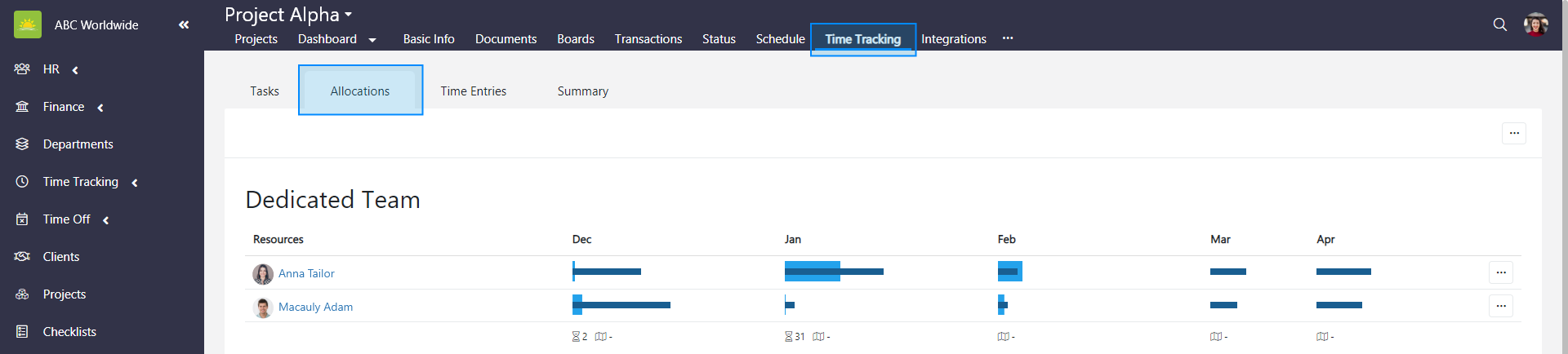
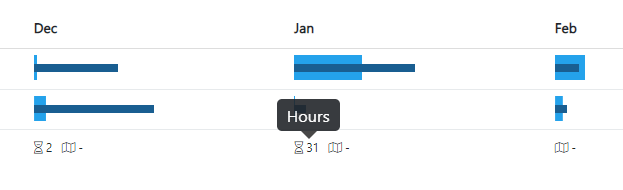
The value next to the time icon at the bottom of each month displays the total hours of work on a project by a dedicated team.
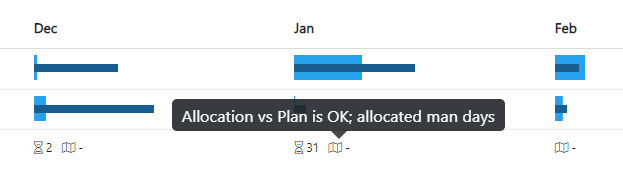
Hover over the plan icon to view that allocations vs plan and allocated man days are okay.
Dedicated Team and Additional Personnel
The Allocation page is divided into a Dedicated Team and Additional Personnel section.
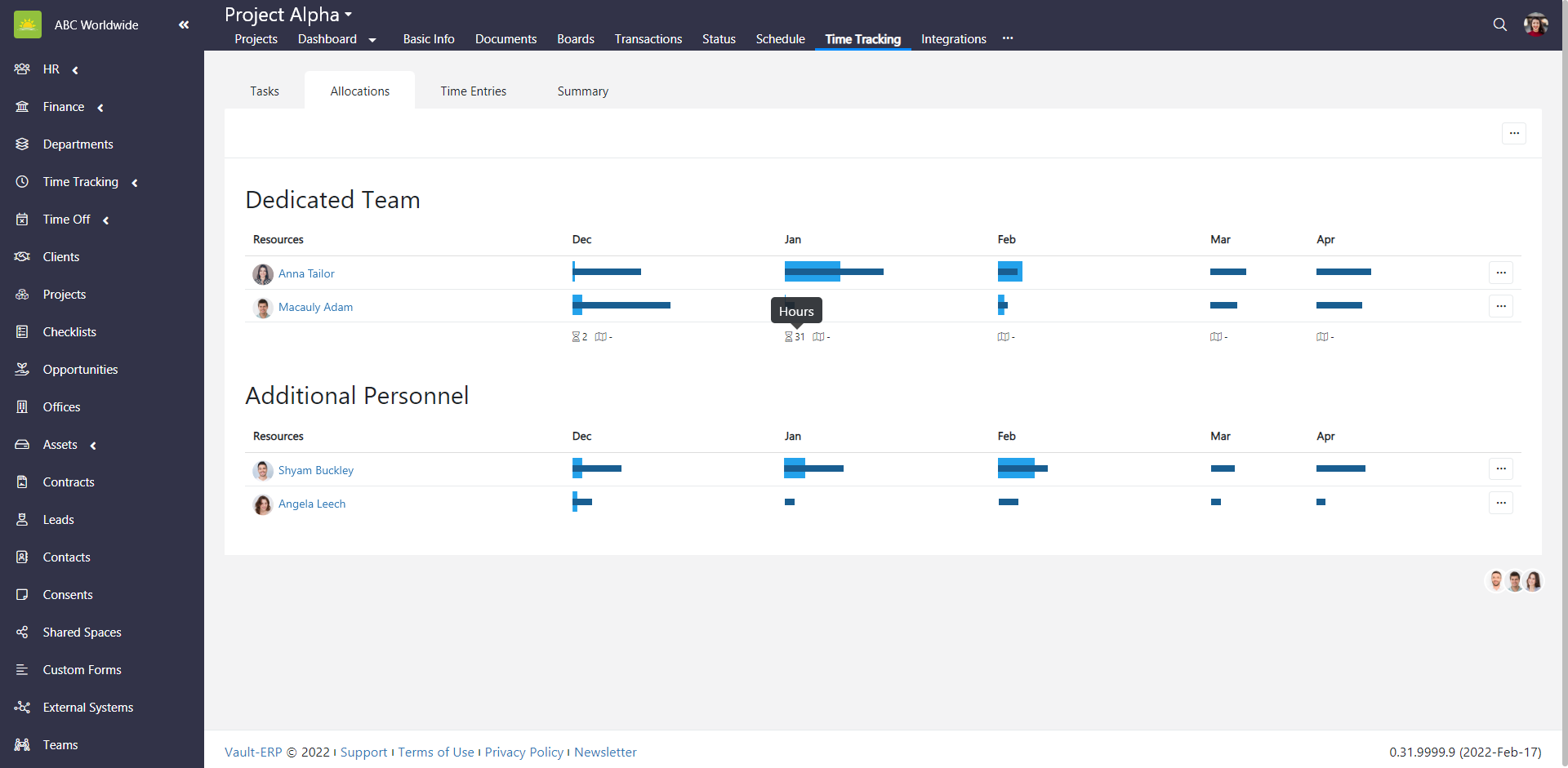
Dedicated Team are personnel who have been assigned at least 10% project allocations for the current month.
Additional Personnel are personnel who can log their time (CLT) under a project without having a project allocation at a specific percentage value assigned to them.
The light blue bars represent project allocations as a percentage, and the dark blue bars indicate the percentage of hours worked against the allocations. Ideally, they should be the same.
How to add an allocation
To add an allocation for the entire Projects module, go to the Projects module and click the Time Tracking tab. If you want to add an allocation for the specific project, go inside of a specific project and click the Time Tracking tab from there. Then click the Allocations tab.
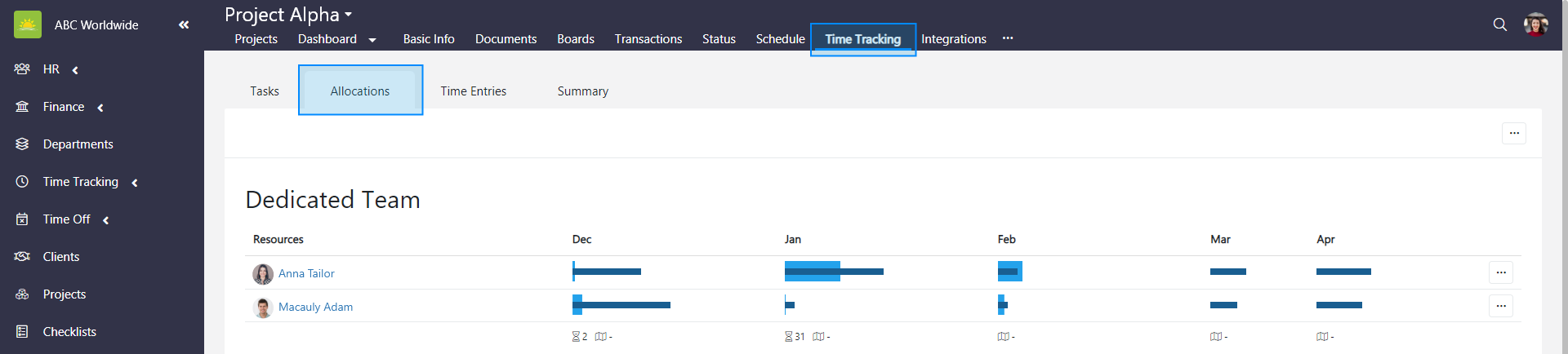
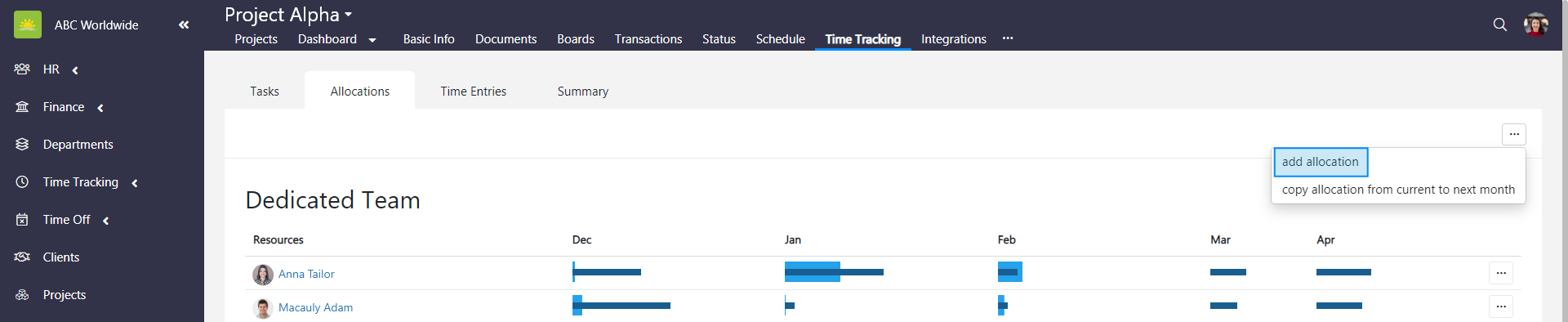
Click ... in the top right corner and then click add allocation.
An Add New Allocation modal window pops up.
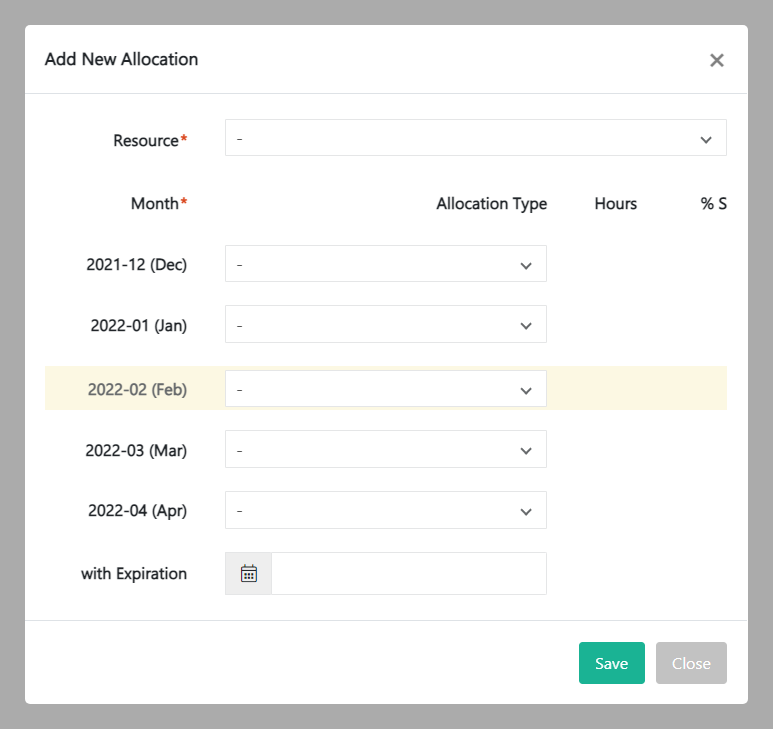
Fill out the fields about the new allocation:
- Resource – Select the team member from the dropdown list. Resources can be defined in the Personnel module.
- Month – You can manage individual team members allocation per month here. You can plan your resources 2 months ahead.
- With Expiration – Set an expiration date for a team member allocation.
Note! If you exceed an employee’s allocation across all entities, the percentage number changes color from green to red.
Review the information and click Save.
How to copy an allocation from the current month to next month
To copy an allocation from the current month to next month for the entire Projects module, go to the Projects module and click the Time Tracking tab. If you want to copy an allocation from the current month to next month for the specific project, go inside of a specific project and click the Time Tracking tab from there. Then click the Allocations tab.
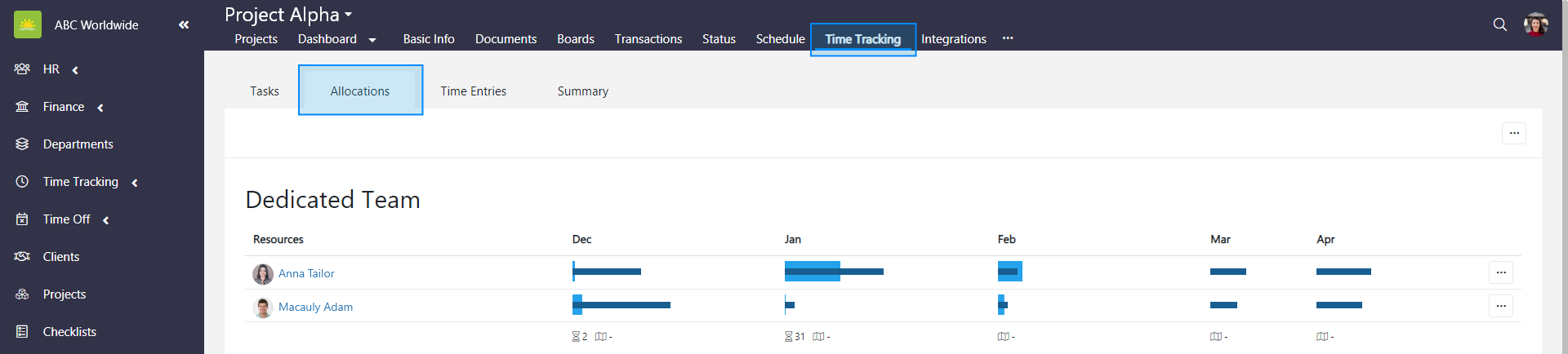
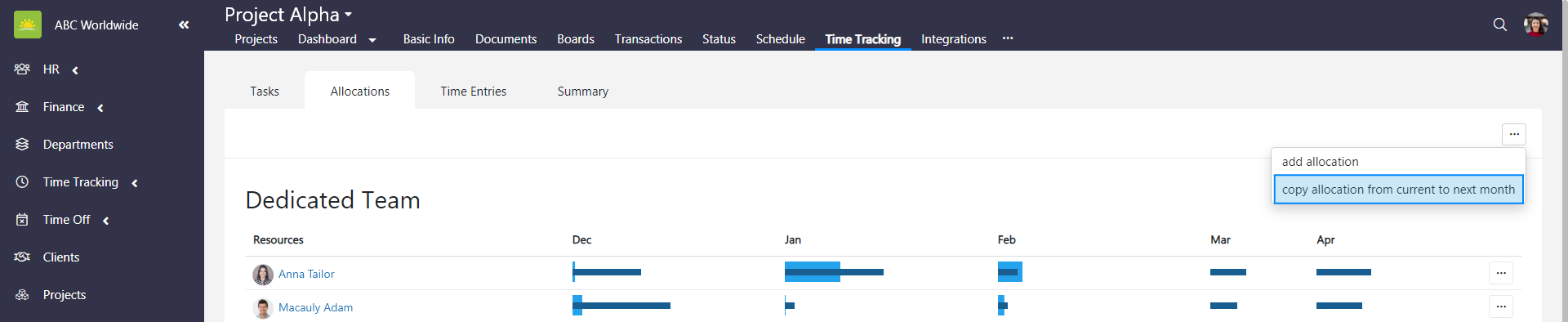
Click ... in the top right corner and then click copy allocation from current to next month.
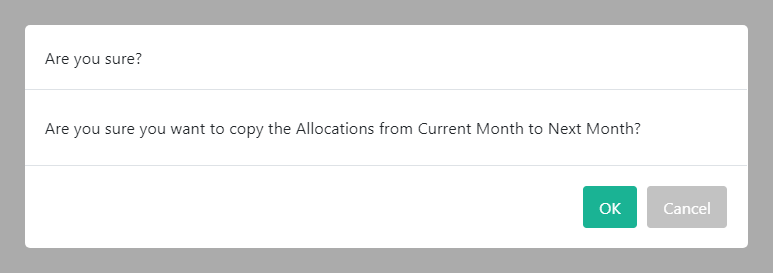
Click OK to confirm your choice.
How to edit an allocation
To edit an allocation for the entire Projects module, go to the Projects module and click the Time Tracking tab. If you want to edit an allocation for the specific project, go inside of a specific project and click the Time Tracking tab from there. Then click the Allocations tab.
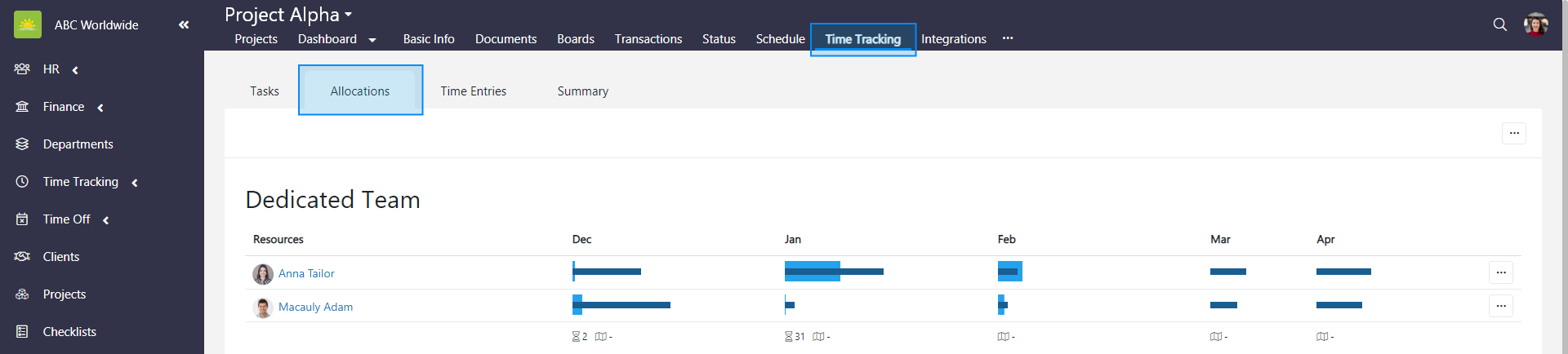
Find the allocation you wish to edit. Click ... at the end of the selected allocation row and click edit allocation.
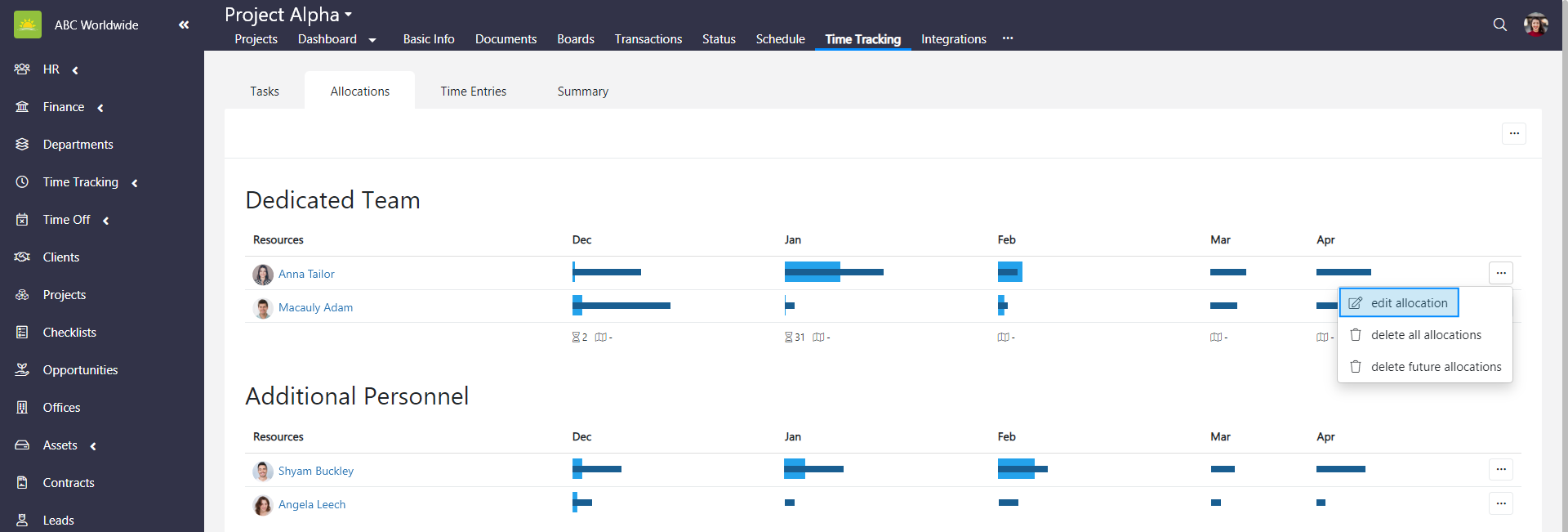
An Edit Allocation modal window pops up.
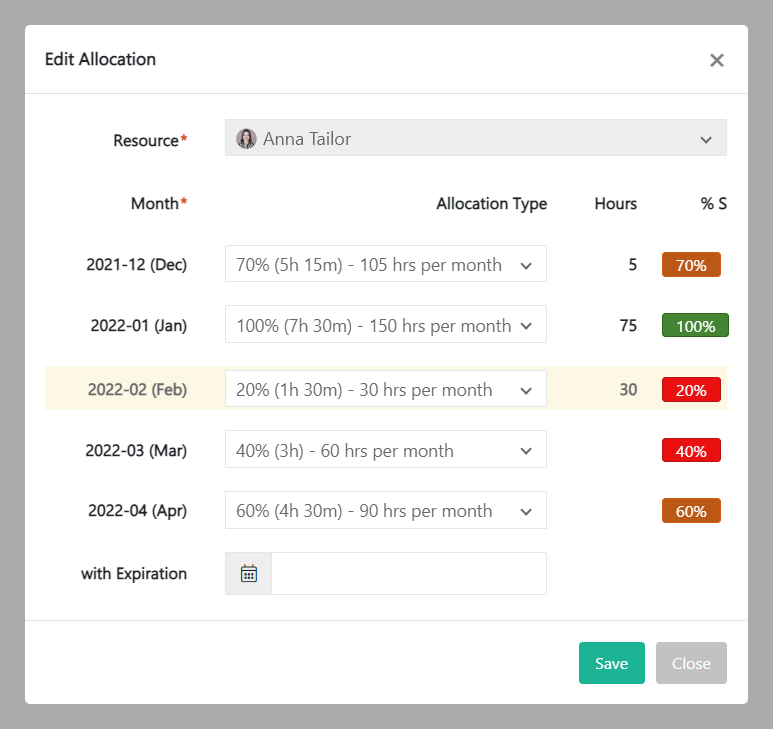
Update the relevant information and click Save.
How to delete all allocations
To delete an allocation for the entire Projects module, go to the Projects module and click the Time Tracking tab. If you want to delete an allocation for the specific project, go inside of a specific project and click the Time Tracking tab from there. Then click the Allocations tab.
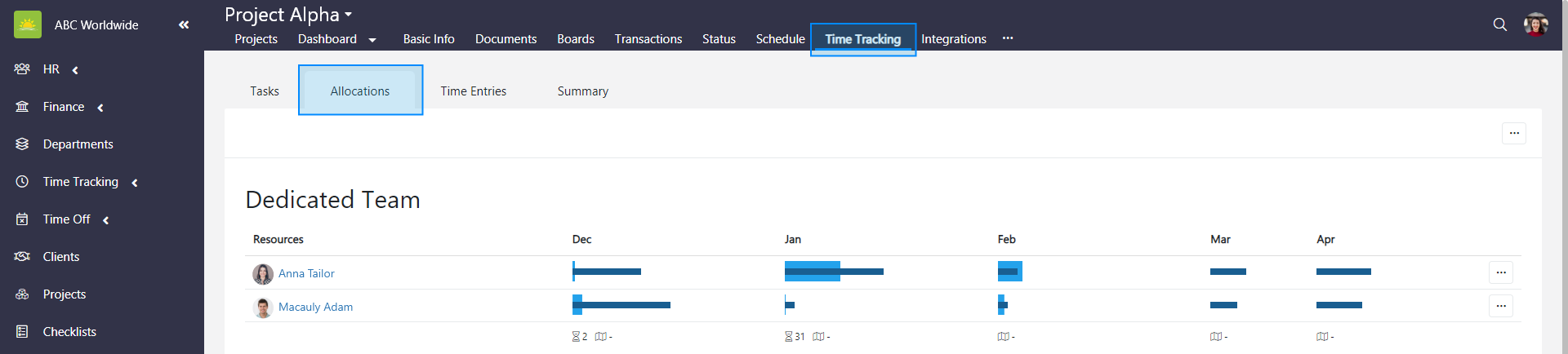
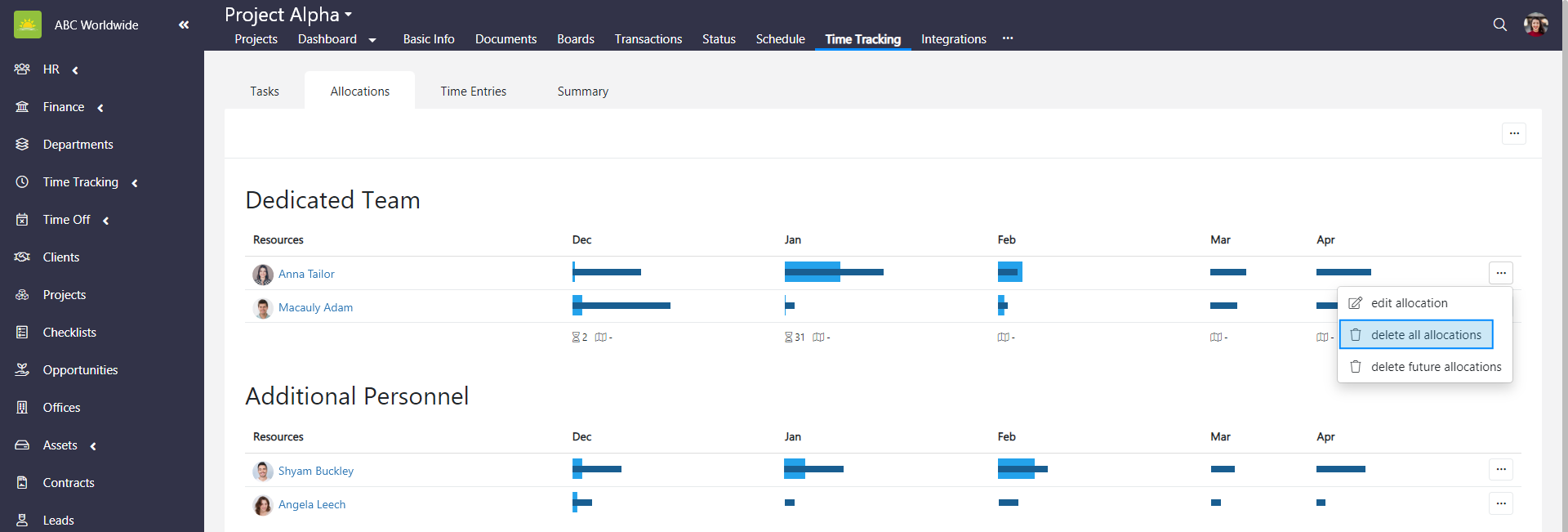
Click ... at the end of the selected allocation row and click delete all allocations.
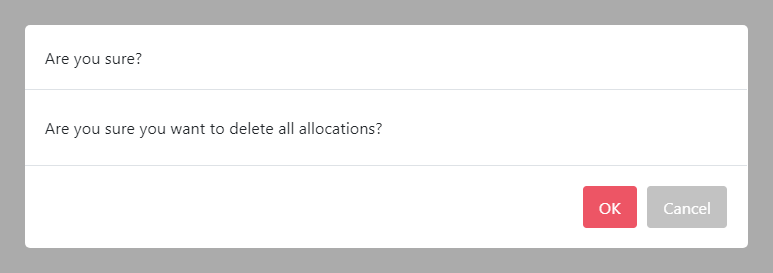
To minimize the risk of accidental deletion, you must confirm your intention to delete all allocations. Click OK and all the allocations will be deleted.
How to delete future allocations
To delete future allocations for the entire Projects module, go to the Projects module and click the Time Tracking tab. If you want to delete future allocations for the specific project, go inside of a specific project and click the Time Tracking tab from there. Then click the Allocations tab.
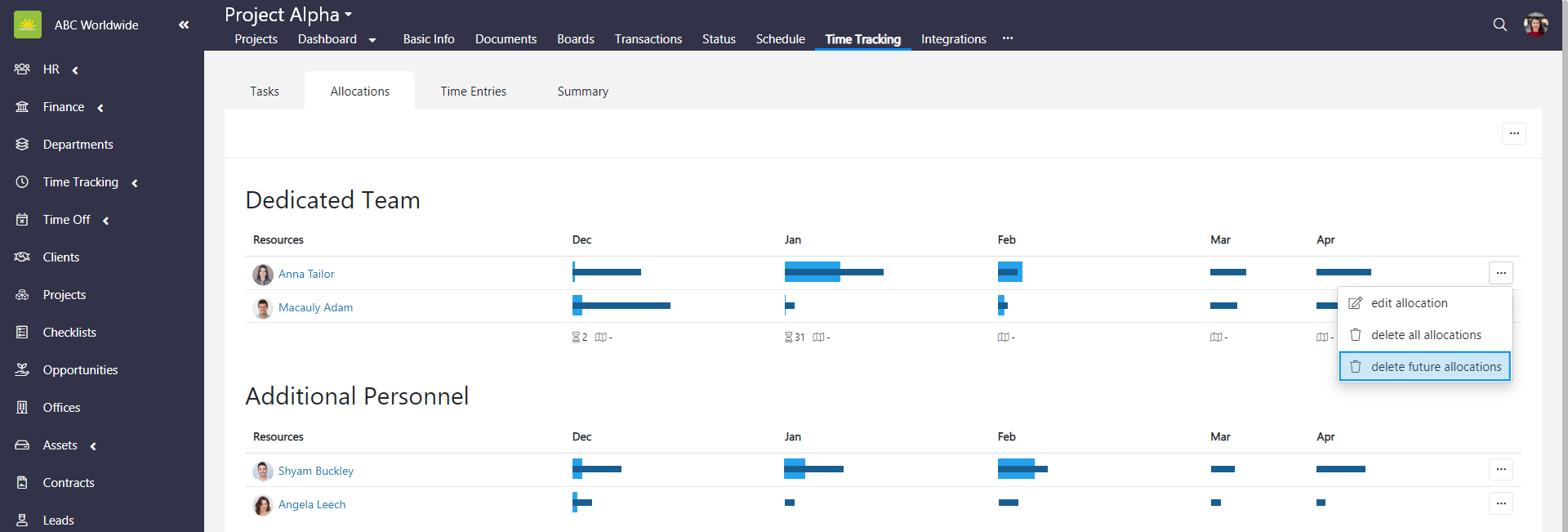
Click ... at the end of the selected allocation row and click delete future allocations.
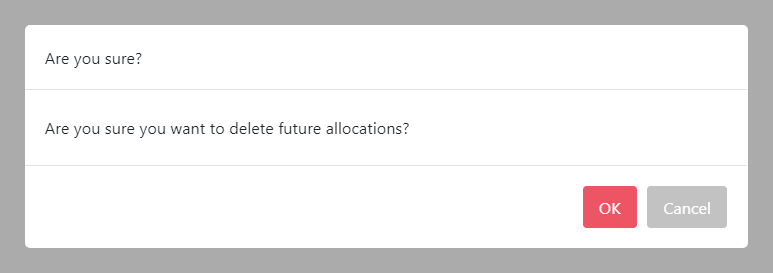
To minimize the risk of accidental deletion, you must confirm your intention to delete all future allocations. Click OK and all future allocations will be deleted.
Didn’t find what you were looking for?
Contact us and we’ll build the right solution for you. Vault Synapse can be fully customized based on your business needs.