Tasks
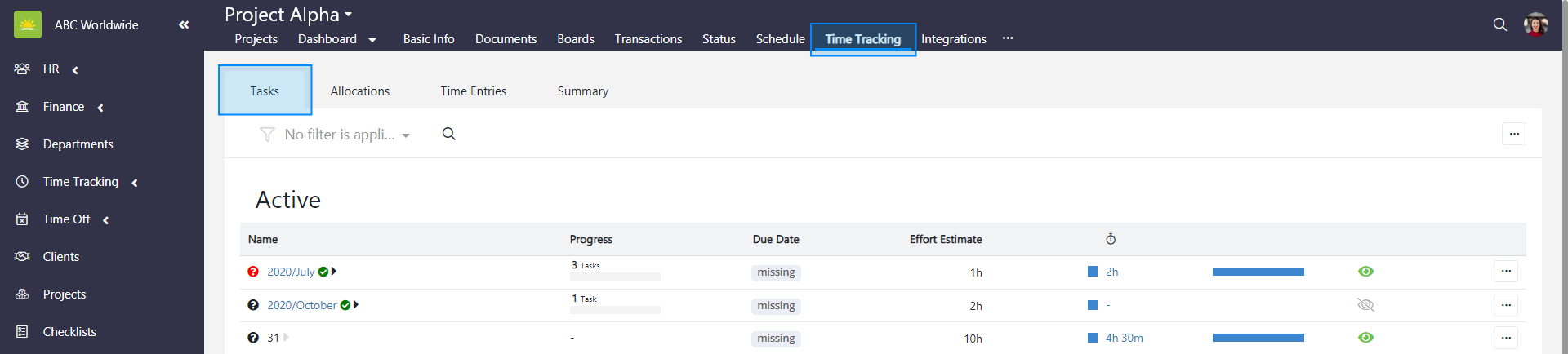
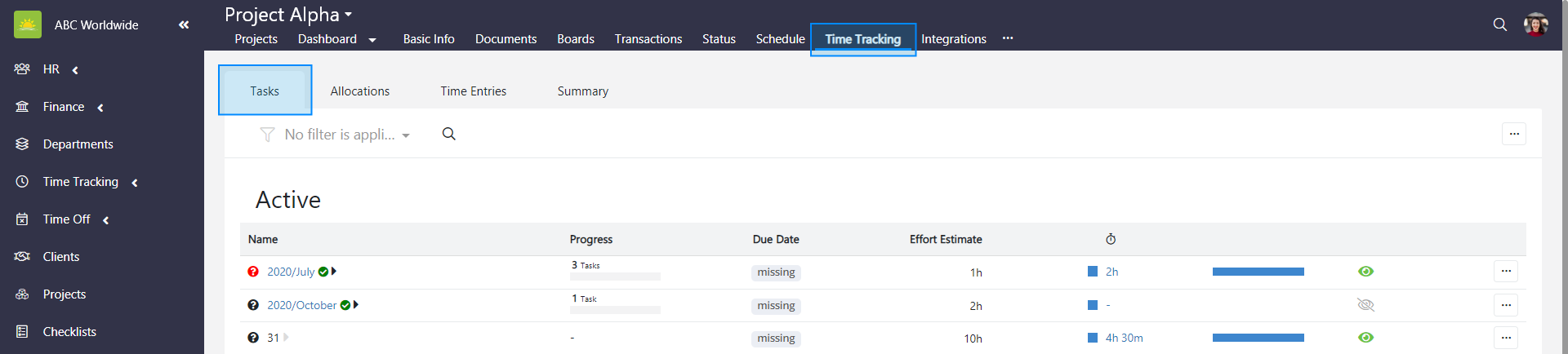
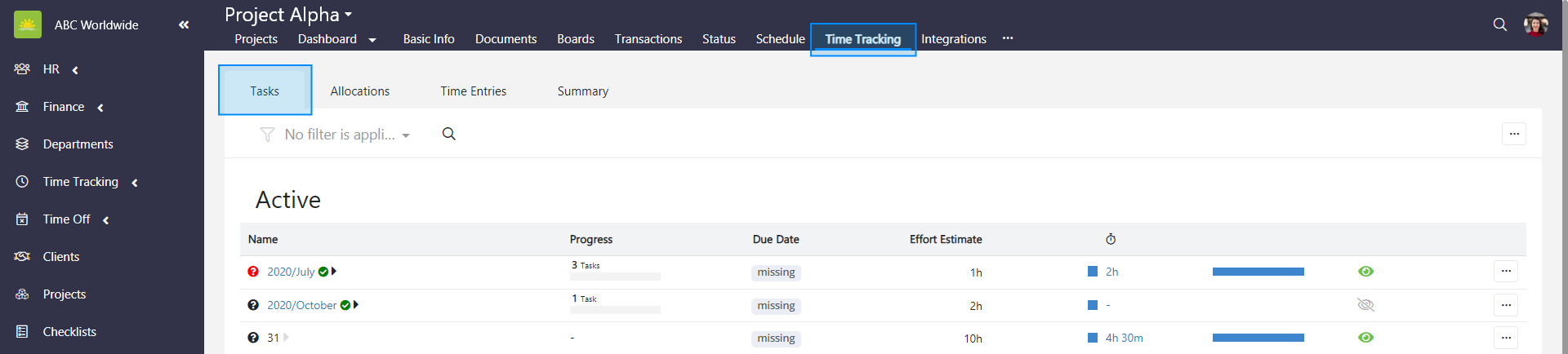
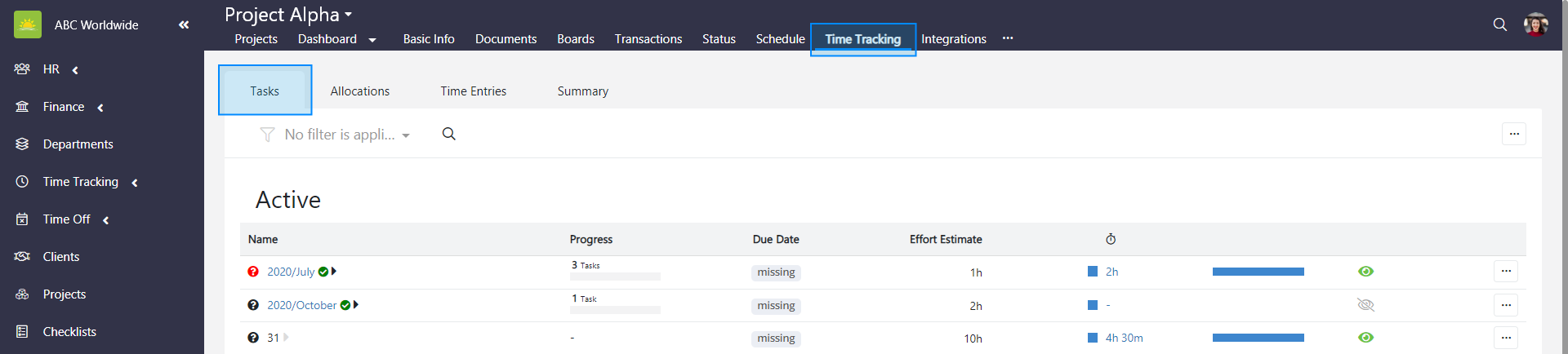
On the Tasks page you can view a list of Active and Completed tasks lists, their Progress, the Due Date, and Effort Estimate. The column under the clock icon displays the hours worked in total on all the tasks which are part of a specific task list. The dark square  icon next to the number of hours indicates billable hours.
A light blue square  icon indicates non-billable number of hours. The eye
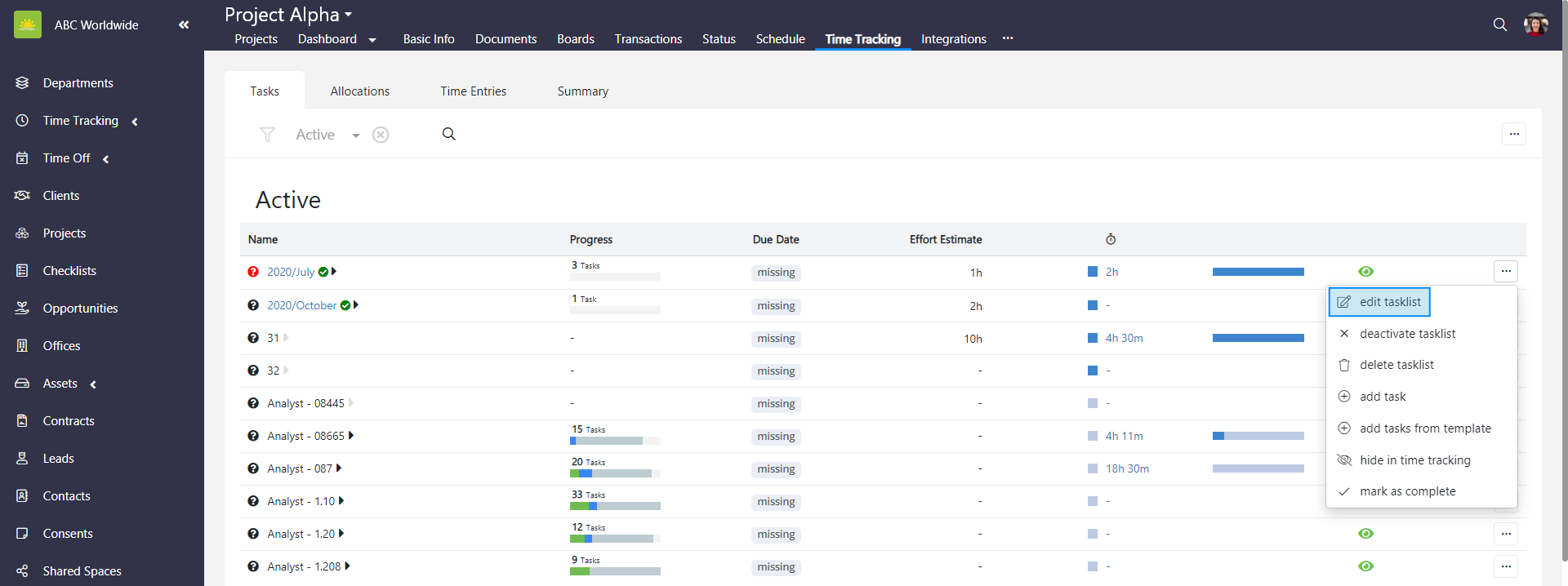
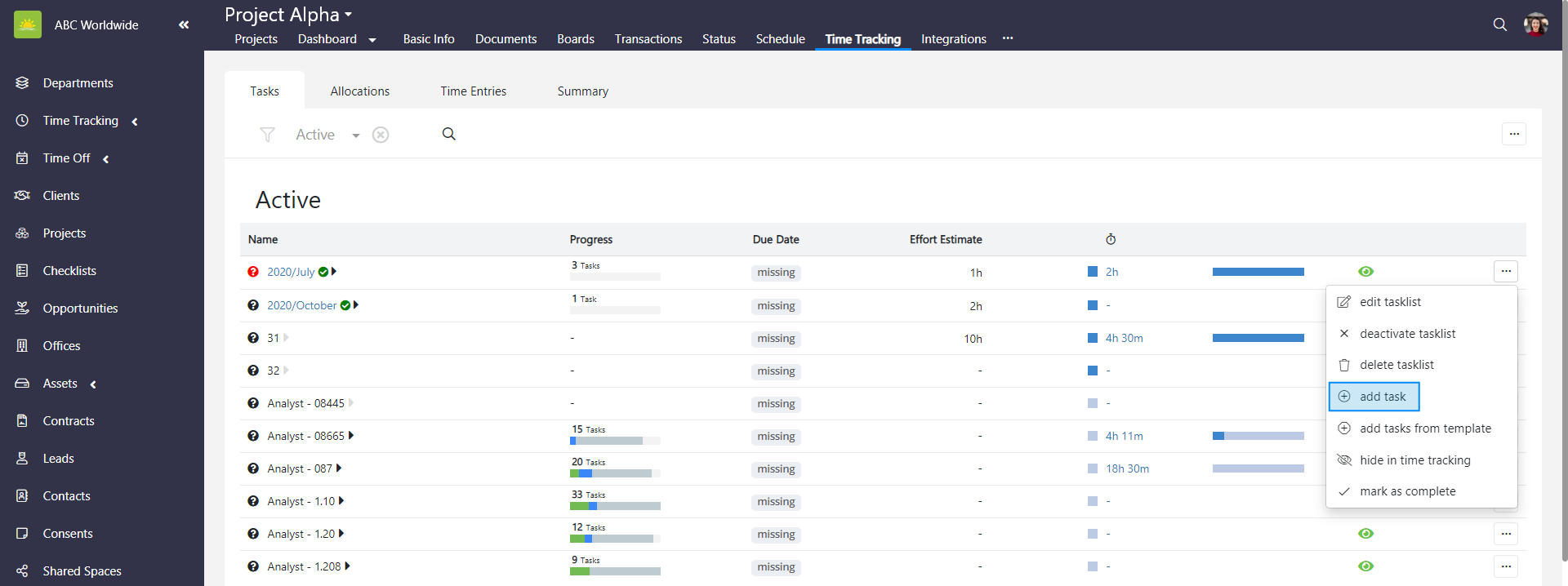
  icon tells you whether the task list is visible in time tracking or not. At the end of each item’s row, you find … which when you click on it allows you to edit a tasklist, deactivate a tasklist, delete a tasklist, add a task, add tasks from a template, show in time tracking, and mark as complete.
To view tasks of the entire Projects module, go to the Projects module and click the Time Tracking tab. If you want to view tasks for the specific project, go inside of a specific project and click the Time Tracking tab from there. Then click the Tasks tab.
The Tasks tab allows you to add, edit, deactivate, or delete project tasks and task lists. Task lists can also be marked as complete from here or hidden  in time tracking.
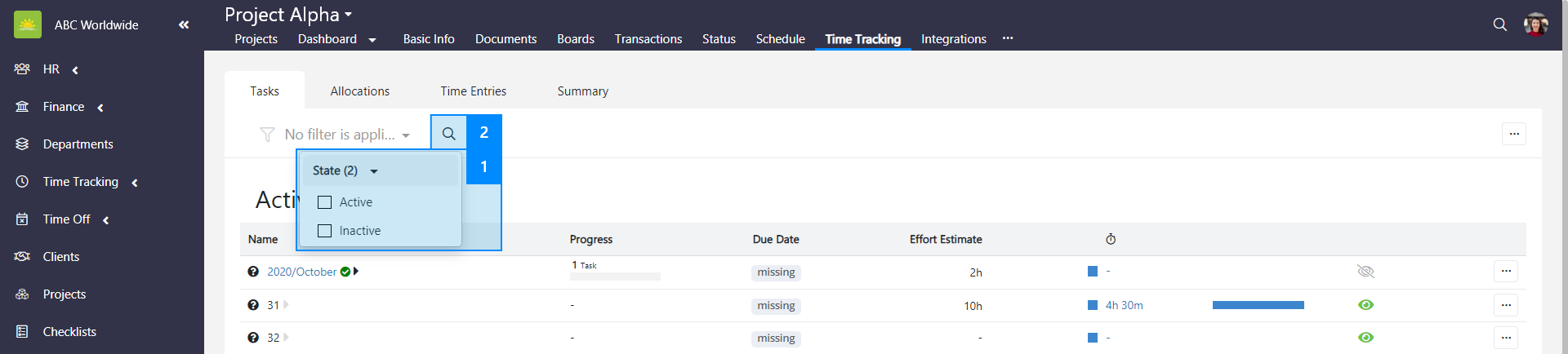
You can filter the view by active and inactive tasks lists, or both. You can even type the name of the task list into the search field.
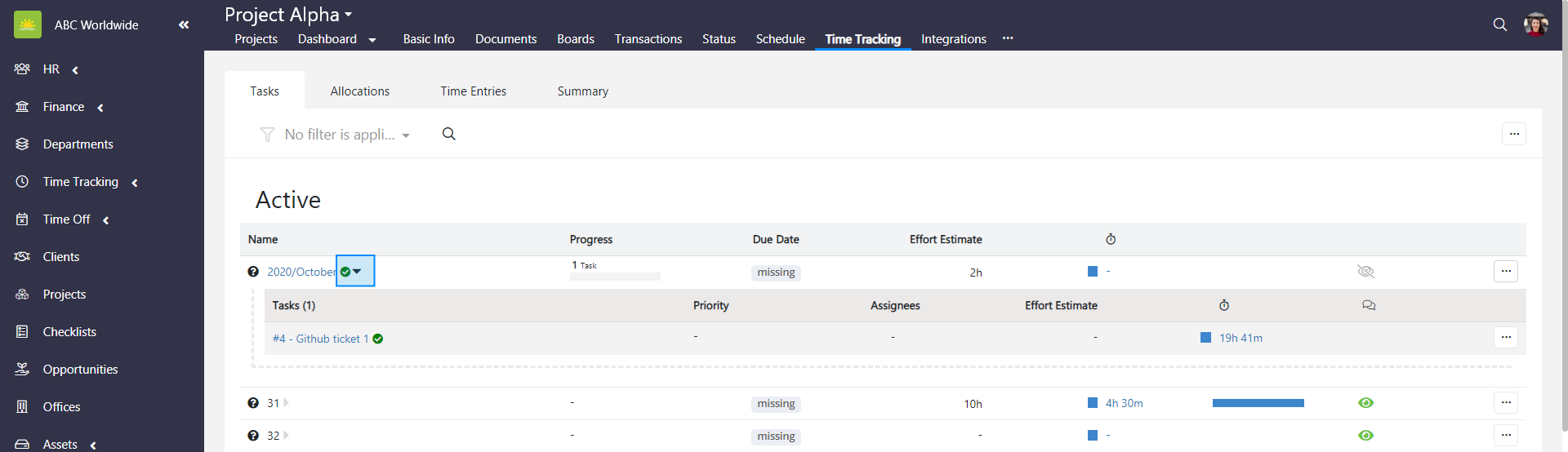
Expand a task list to view individual tasks and how much time has been spent on them. From here you can also edit, deactivate, and delete tasks.
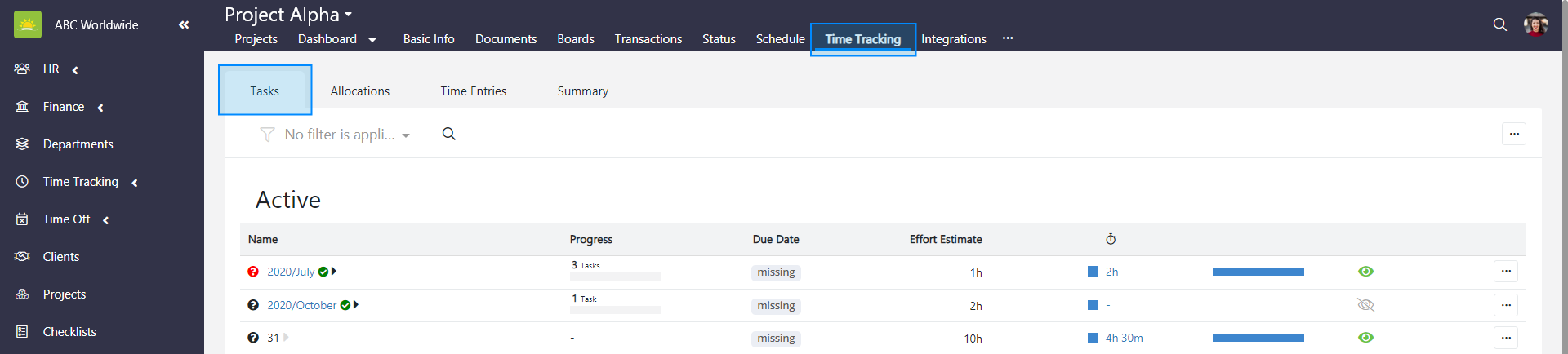
How to add a new tasklist
To add a new tasklist for the entire Projects module, go to the Projects module and click the Time Tracking tab. If you want to add a new tasklist for the specific project, go inside of a specific project and click the Time Tracking tab from there. Then click the Tasks tab.
Click ... in the top right corner and then click add task list.
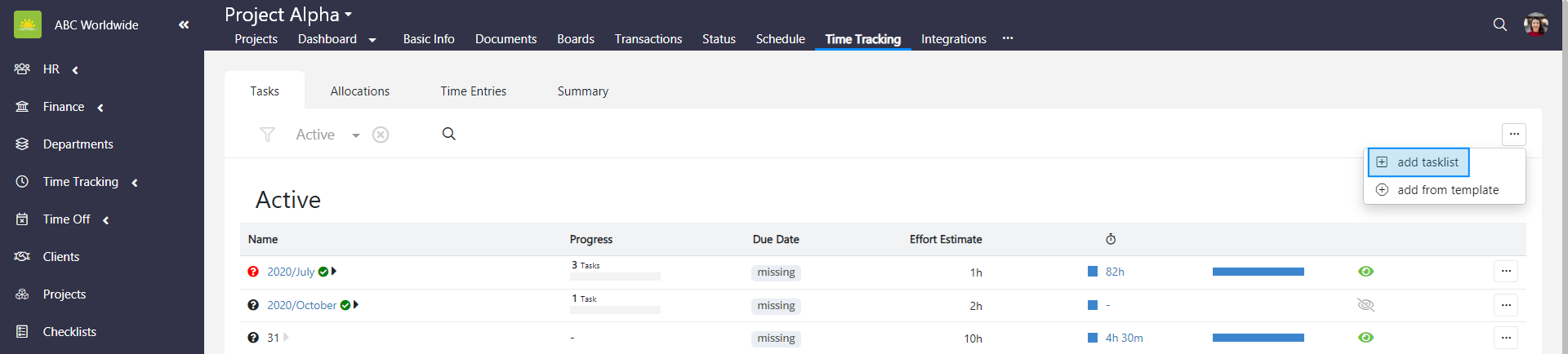
An Add New Tasklist modal window pops up.
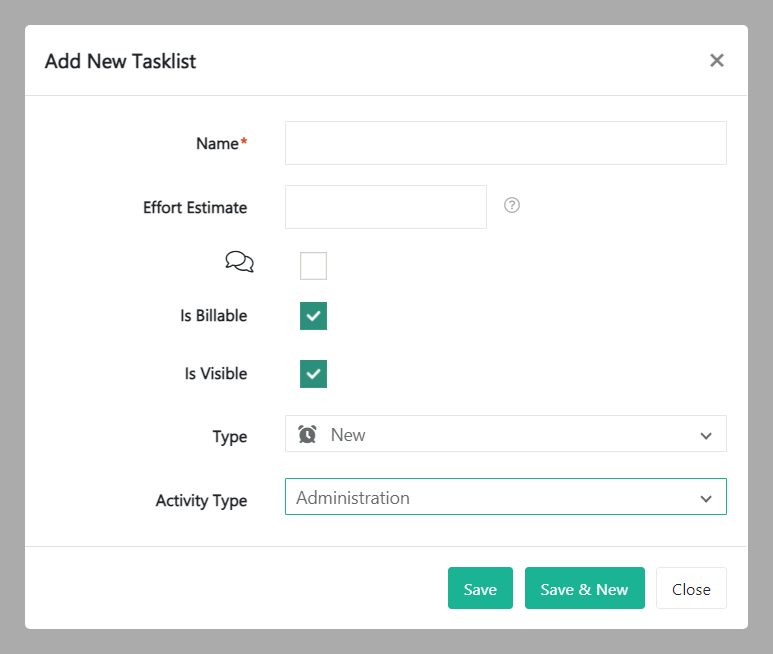
Fill out the fields about the new tasklist:
- Name – Give the tasklist a name.
- Effort Estimate – Estimate the time needed to complete this tasklist.
- Comment – Tick this checkbox if you want to add comments to this tasklist.
- Is Billable – This box is checked by default. Untick if the work on this tasklist is not invoiced to the client.
- Is Visible – This box is checked by default. Untick if you want this tasklist to be invisible in the system.
- Type – Select the tasklist type from the dropdown menu. Tasklist types can be defined in the Organization Configuration by an administrator.
- Activity Type – Select the activity type from the dropdown menu. You can choose Administration, Non-productive Time, Production / Services, Sales, Support, and Uncategorized.
Review the information and click Save.
How to add a tasklist from a template
To add a tasklist from a template for the entire Projects module, go to the Projects module and click the Time Tracking tab. If you want to add a tasklist from a template for the specific project, go inside of a specific project and click the Time Tracking tab from there. Then click the Tasks tab.
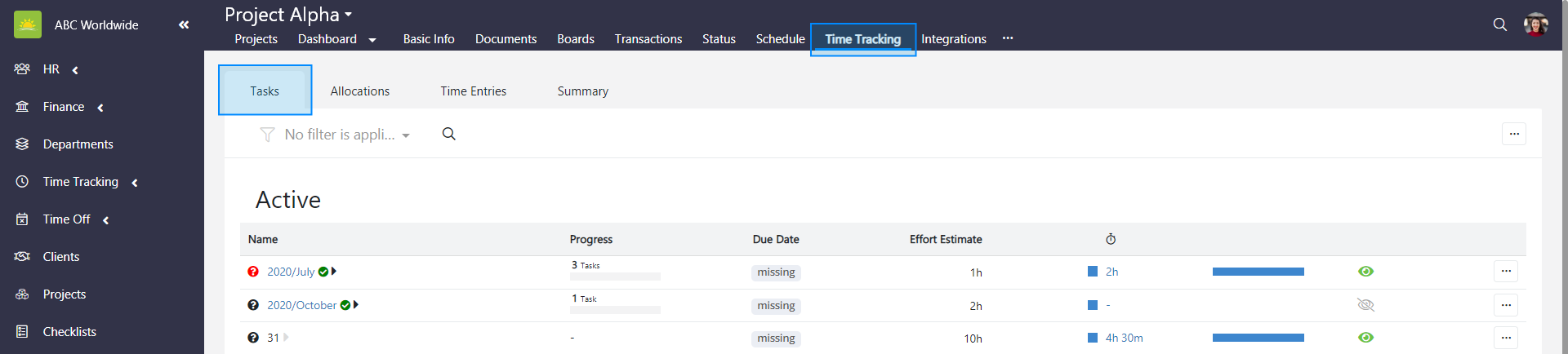
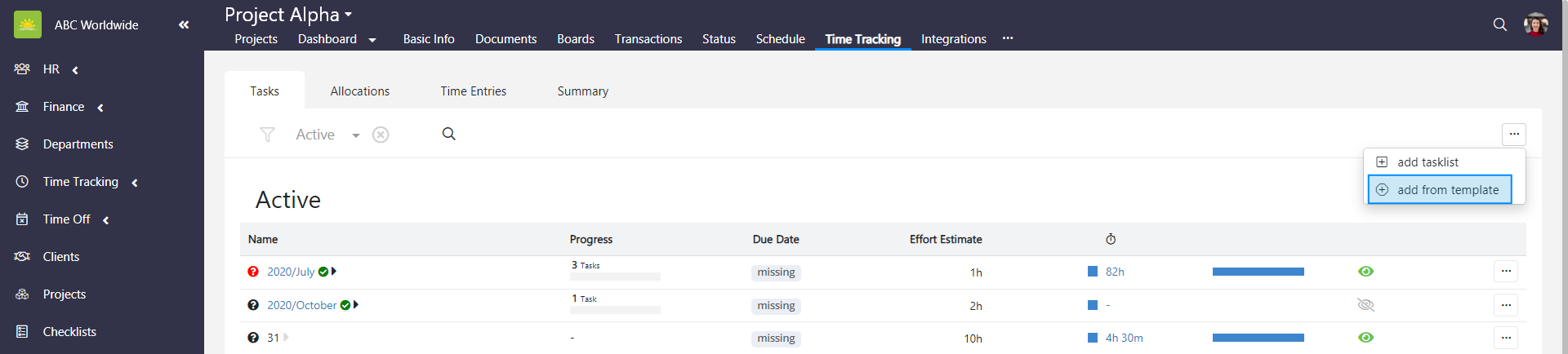
Click ... in the top right corner and then click add from template.
Select a template from the dropdown menu and click Add. Tasklist templates are created and defined in the Organization Configuration by an administrator.
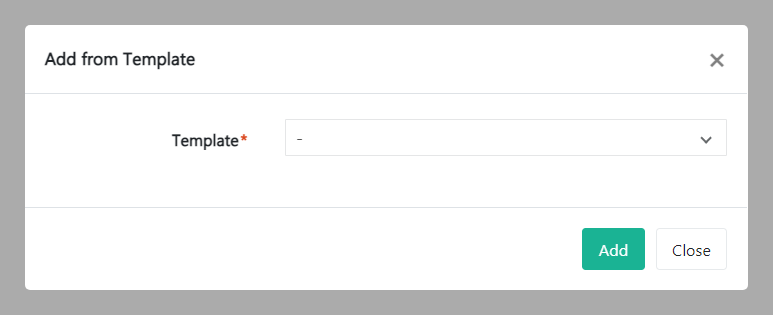
Select the items to add to the project.
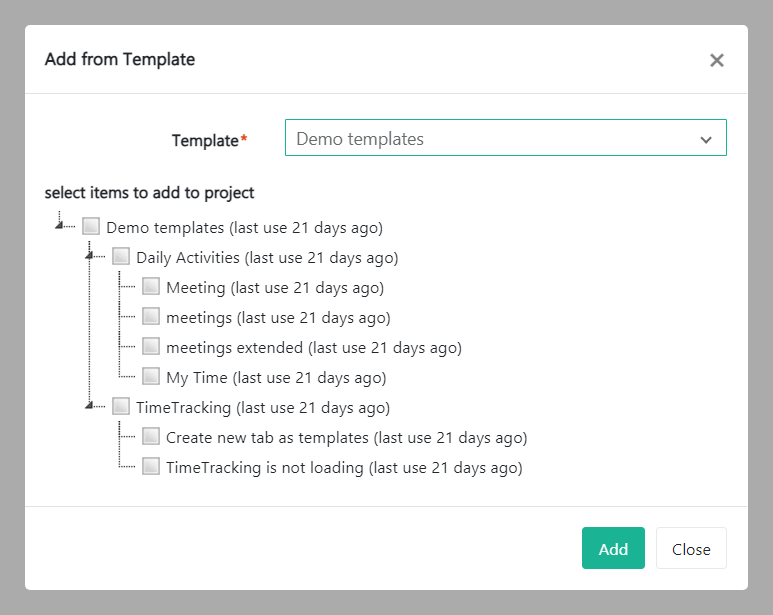
Review the information and press Add.
How to edit a tasklist
To edit a tasklist for the entire Projects module, go to the Projects module and click the Time Tracking tab. If you want to edit a tasklist for the specific project, go inside of a specific project and click the Time Tracking tab from there. Then click the Tasks tab.
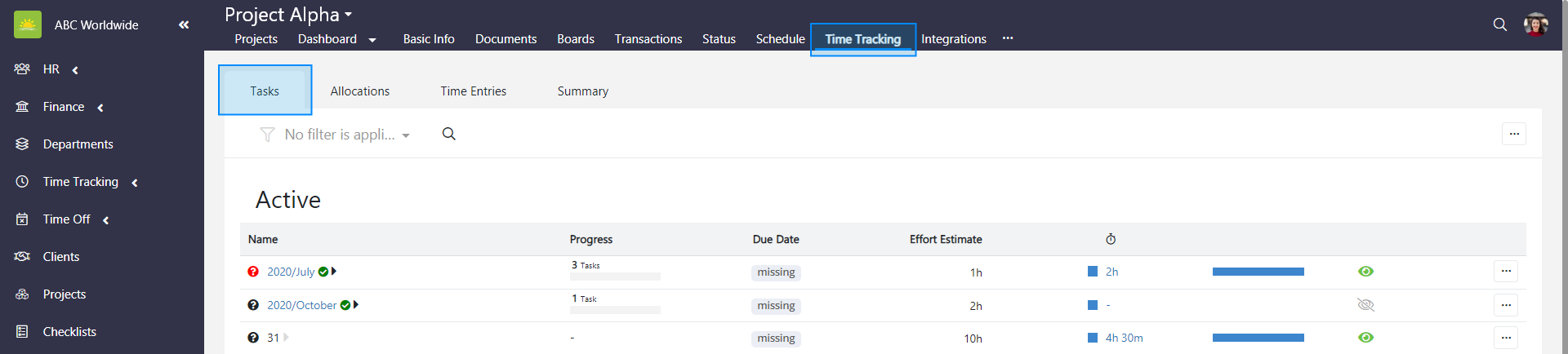
Find the tasklist you wish to edit. Click ... at the end of the selected tasklist row and click edit tasklist.
An Edit Tasklist modal window pops up.
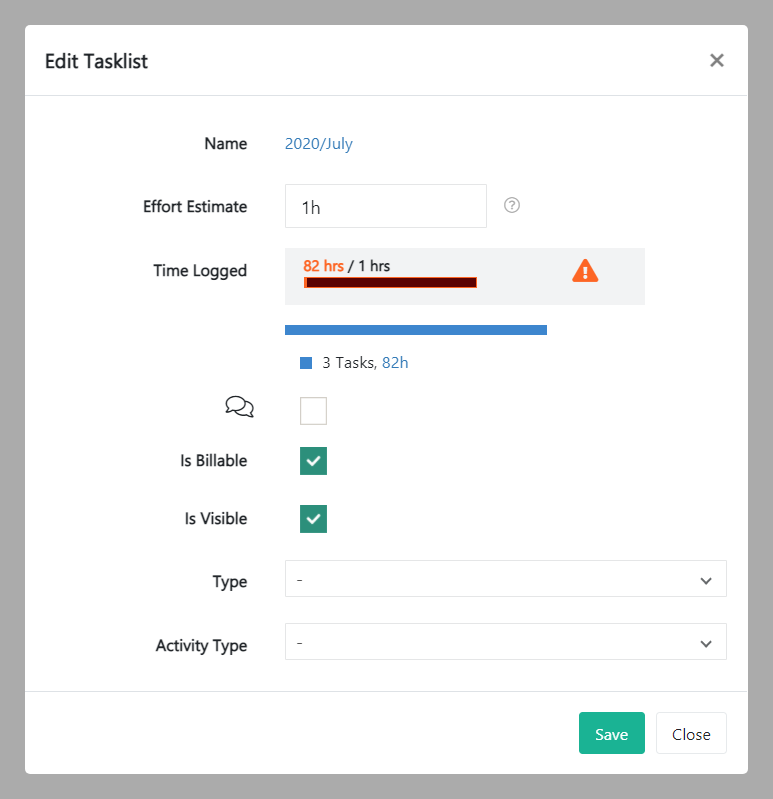
Update the relevant information and click Save. Clicking Close will take you back to the tasklists screen.
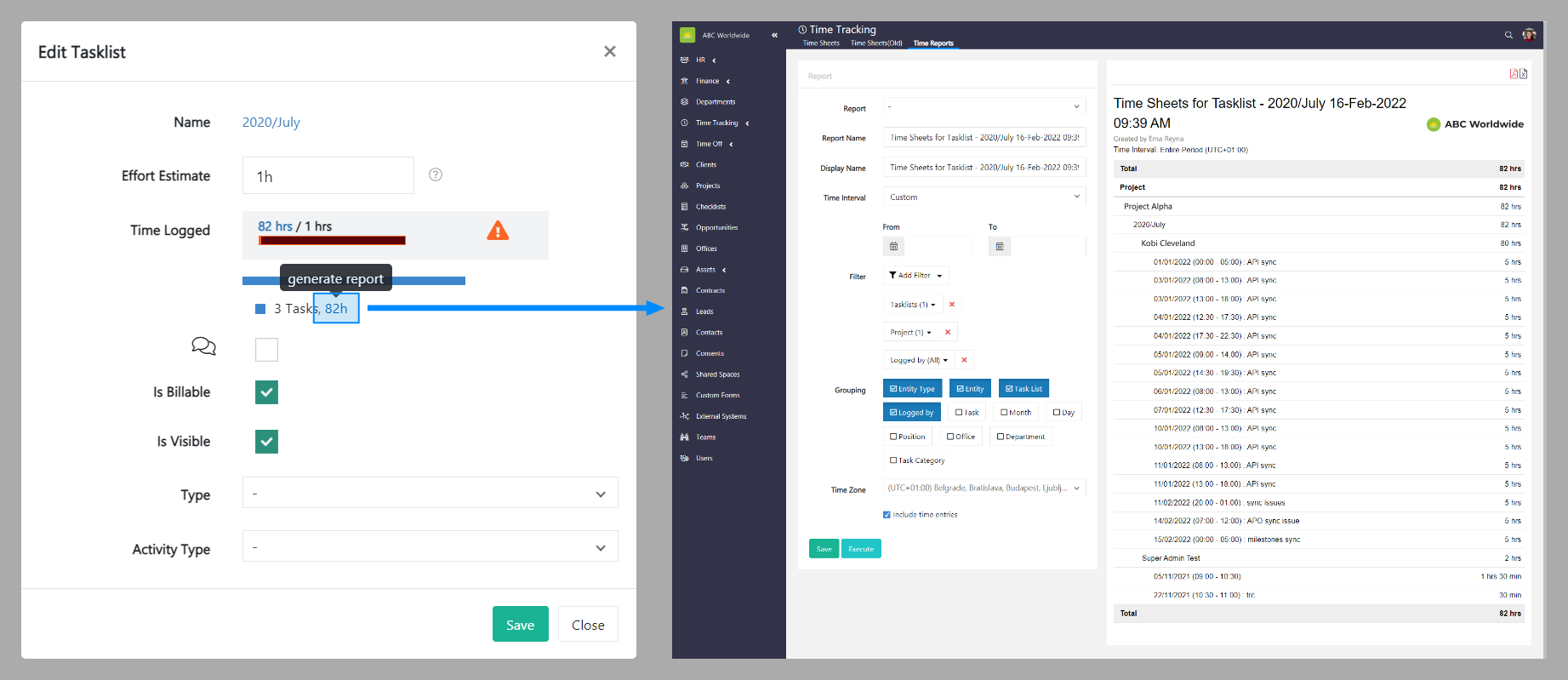
Click on the time logged to generate a report.
How to deactivate a tasklist
To deactivate a tasklist for the entire Projects module, go to the Projects module and click the Time Tracking tab. If you want to deactivate a tasklist for the specific project, go inside of a specific project and click the Time Tracking tab from there. Then click the Tasks tab.
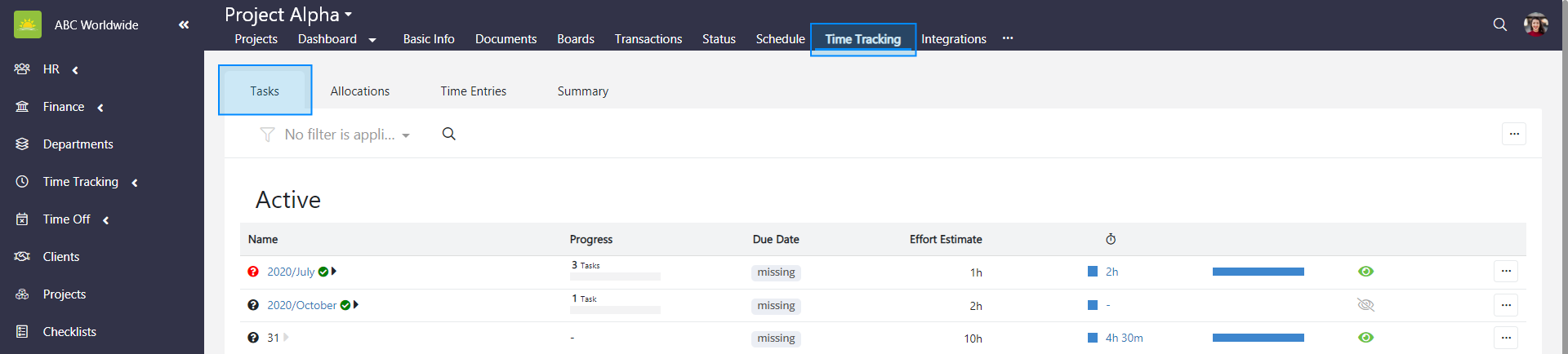
Find the tasklist you wish to deactivate. Click ... at the end of the selected tasklist row and click deactivate tasklist.
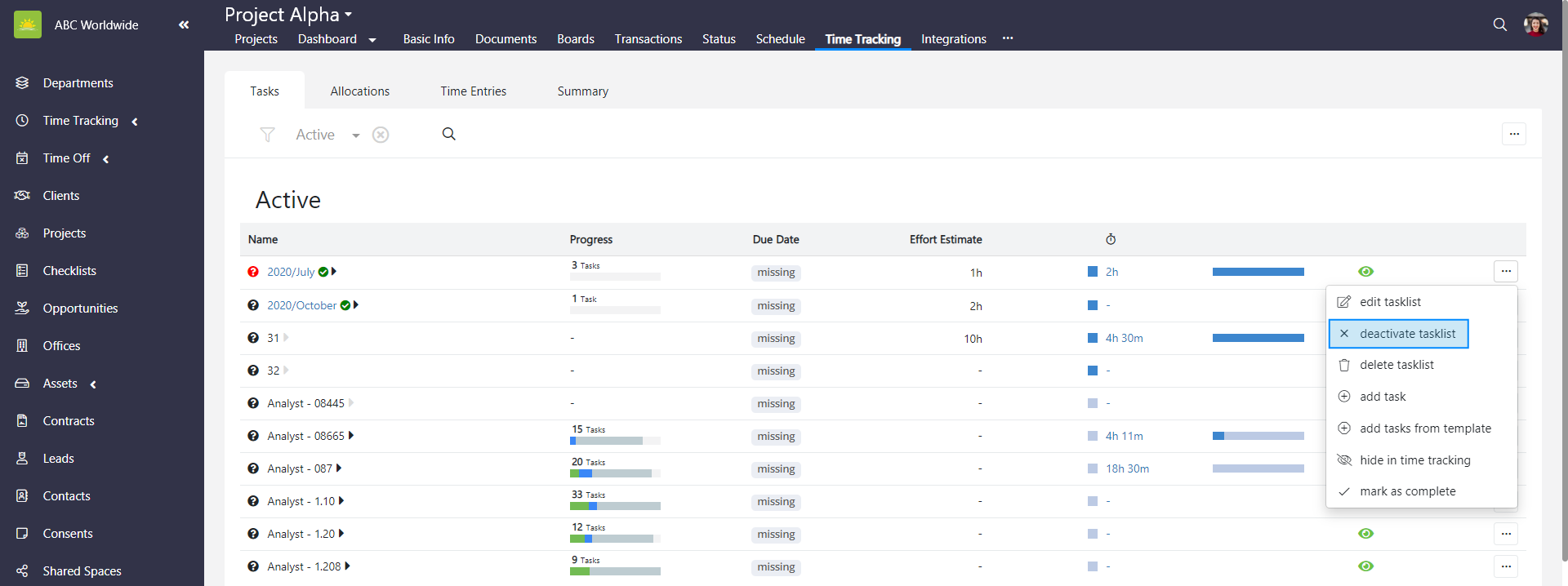
To minimize the risk of accidental deactivation, you must confirm your intention to deactivate the tasklist. Click OK and the tasklist will be deactivated.
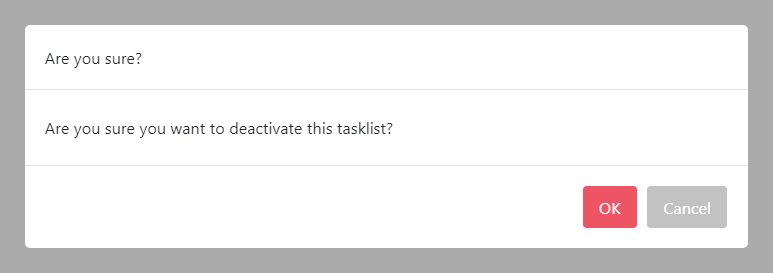
You will still be able to view deactivated tasklists by filtering the view by state (inactive).
How to delete a tasklist
To delete a tasklist for the entire Projects module, go to the Projects module and click the Time Tracking tab. If you want to delete a tasklist for the specific project, go inside of a specific project and click the Time Tracking tab from there. Then click the Tasks tab.
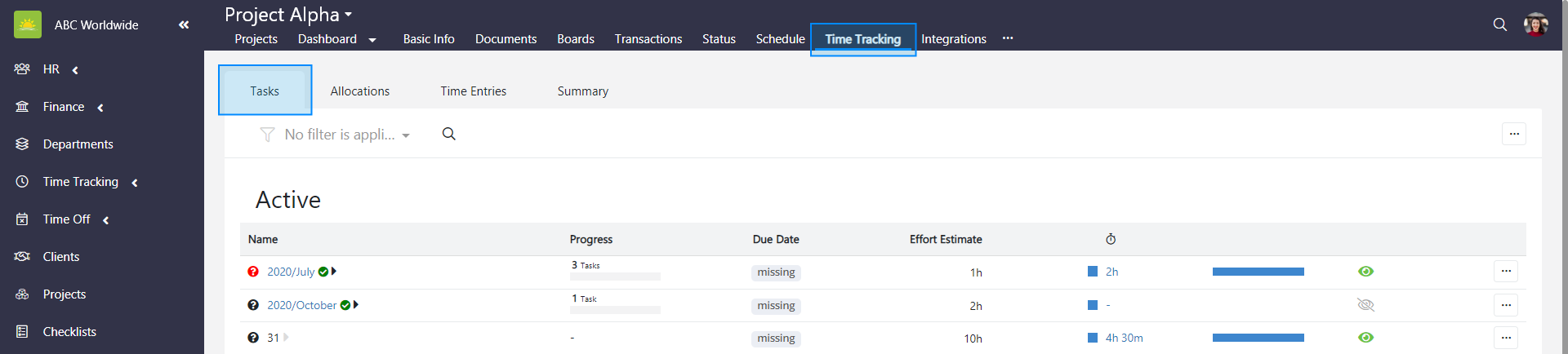
Find the tasklist you wish to delete. Click ... at the end of the selected tasklist row and click delete tasklist.
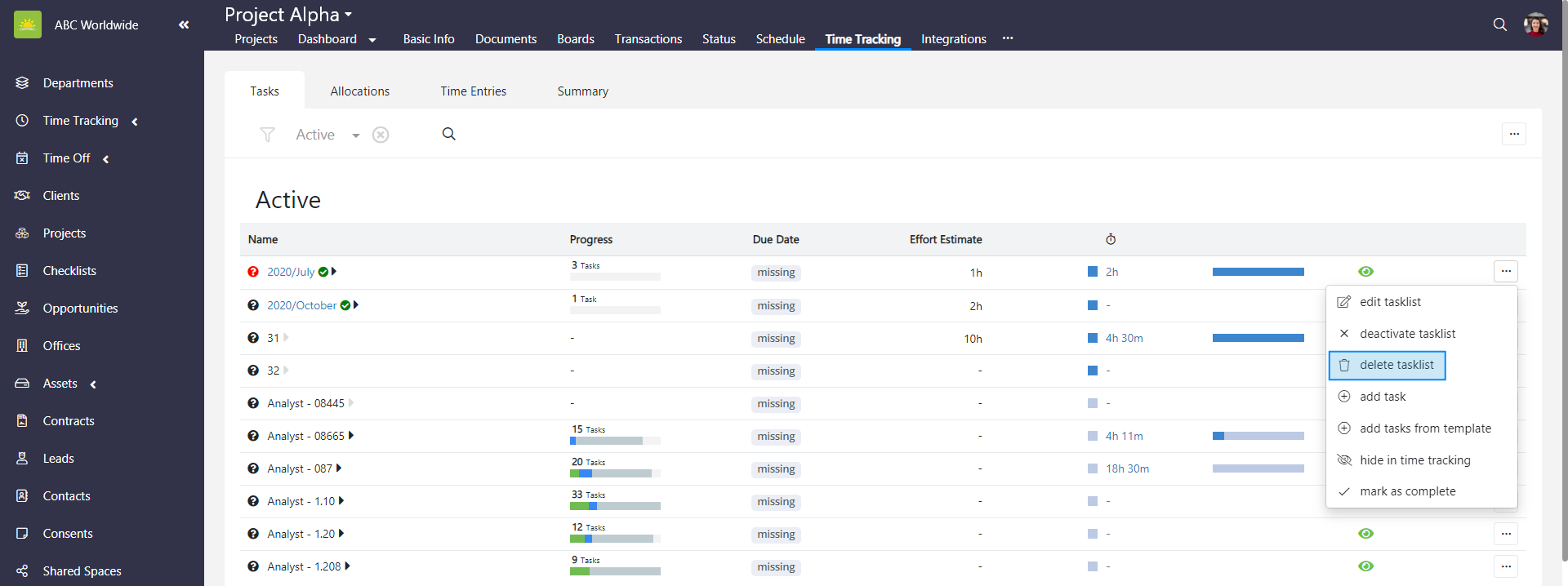
A tasklist is synced with other data that you don’t want to lose, therefore you need to select a different tasklist from the dropdown list where the existing task will be migrated to. Click OK to delete the tasklist.
How to add a task
To add a task for the entire Projects module, go to the Projects module and click the Time Tracking tab. If you want to add a task for the specific project, go inside of a specific project and click the Time Tracking tab from there. Then click the Tasks tab.
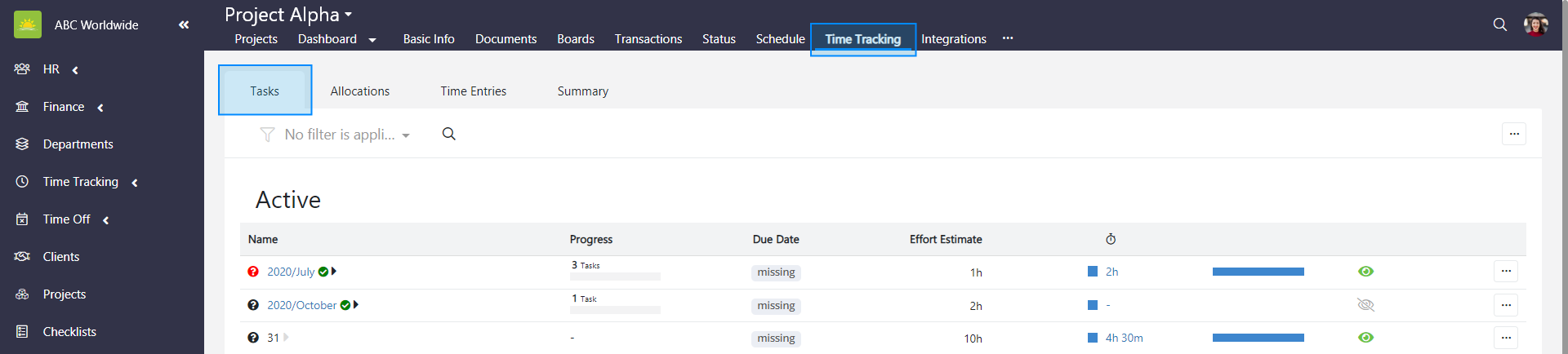
Find the tasklist you wish to add a task to. Click ... at the end of the selected tasklist row and click add task.
An Add New Task modal window pops up.
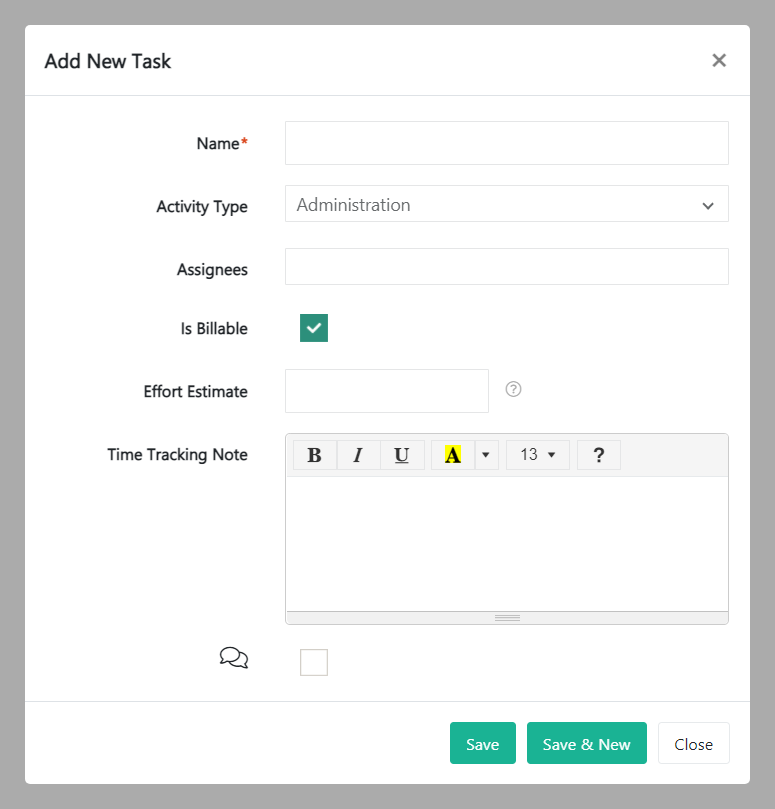
Fill out the fields about the new task:
- Name – Give the task a name.
- Activity Type – Select the activity type from the dropdown menu. You can choose Administration, Non-productive Time, Production / Services, Sales, Support, and Uncategorized.
- Assignees – Select one or more assignees, or a whole team from the dropdown menu. Assignees can be defined in the Personnel module.
- Is Billable – This box is checked by default. Untick if the task is not billable.
- Effort Estimate – You can enter an estimate on the duration for the task to be completed. For more information about how to use the smart Time Span Picker, move your mouse over the question mark on the right of this input field.
- Time Tracking Note – You can predefine the note that appears in time tracking for this task.
- Comment – Checking this box allows for leaving comments. Comments can be viewed at the corresponding task row after expanding a task list. Hover the mouse over the comment icon to read them.
Review the information and click Save, or Save & New if you want to add more tasks. Clicking Close will take you back to the tasks view.
How to add a task from a template
To add a task from a template for the entire Projects module, go to the Projects module and click the Time Tracking tab. If you want to add a task from a template for the specific project, go inside of a specific project and click the Time Tracking tab from there. Then click the Tasks tab.
Click ... at the end of the selected tasklist row and click add tasks from template.
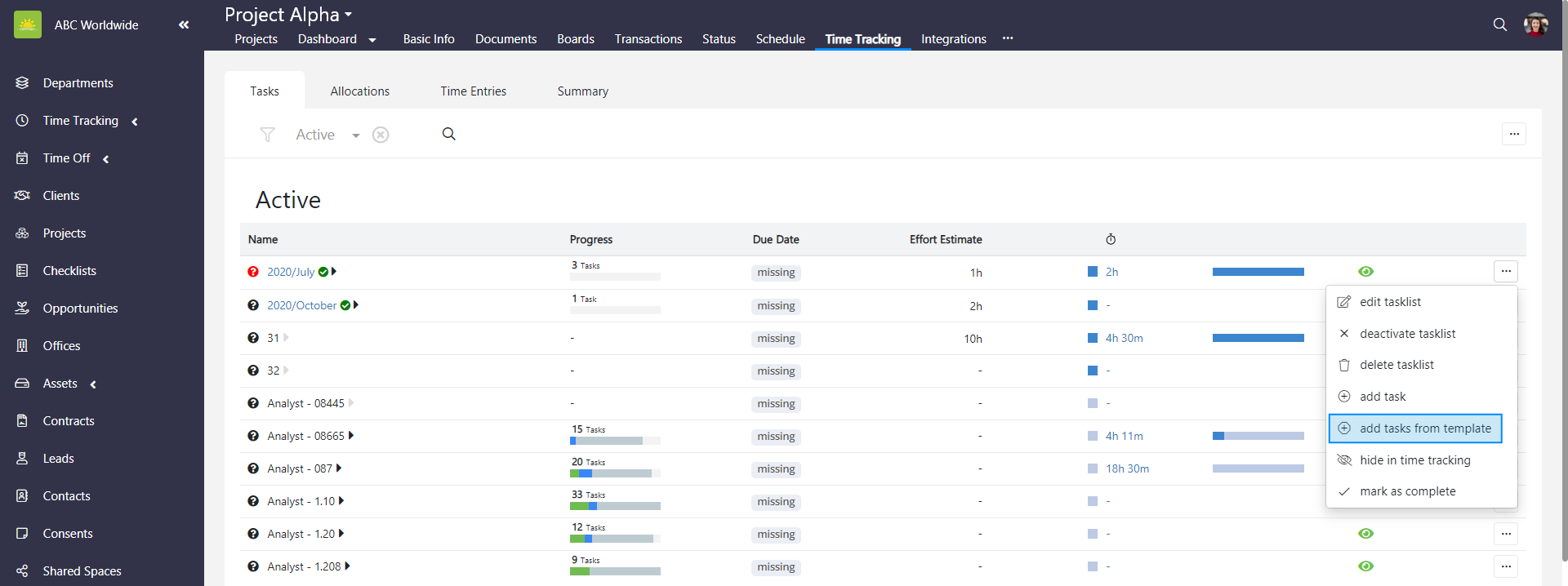
An Add Tasks from Template modal window pops up.
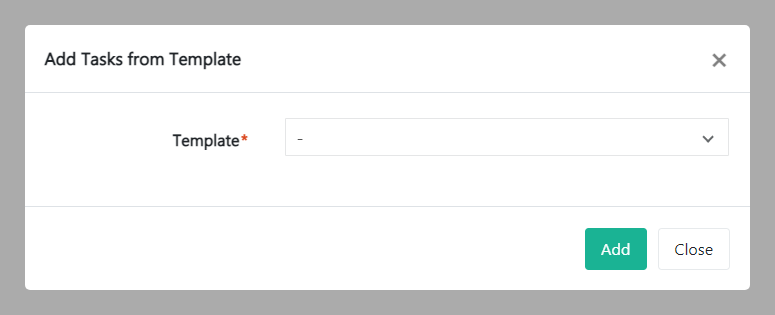
Select a template for this task from the dropdown menu and click Add. Templates are created and defined in the Organization Configuration by an administrator.
How to hide a tasklist in time tracking
To hide a tasklist for the entire Projects module, go to the Projects module and click the Time Tracking tab. If you want to hide a tasklist for the specific project, go inside of a specific project and click the Time Tracking tab from there. Then click the Tasks tab.
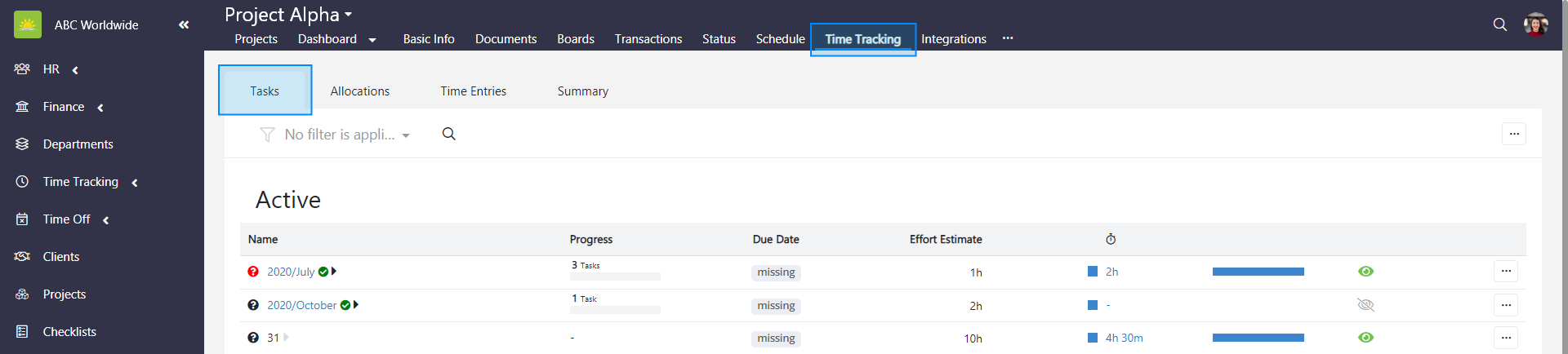
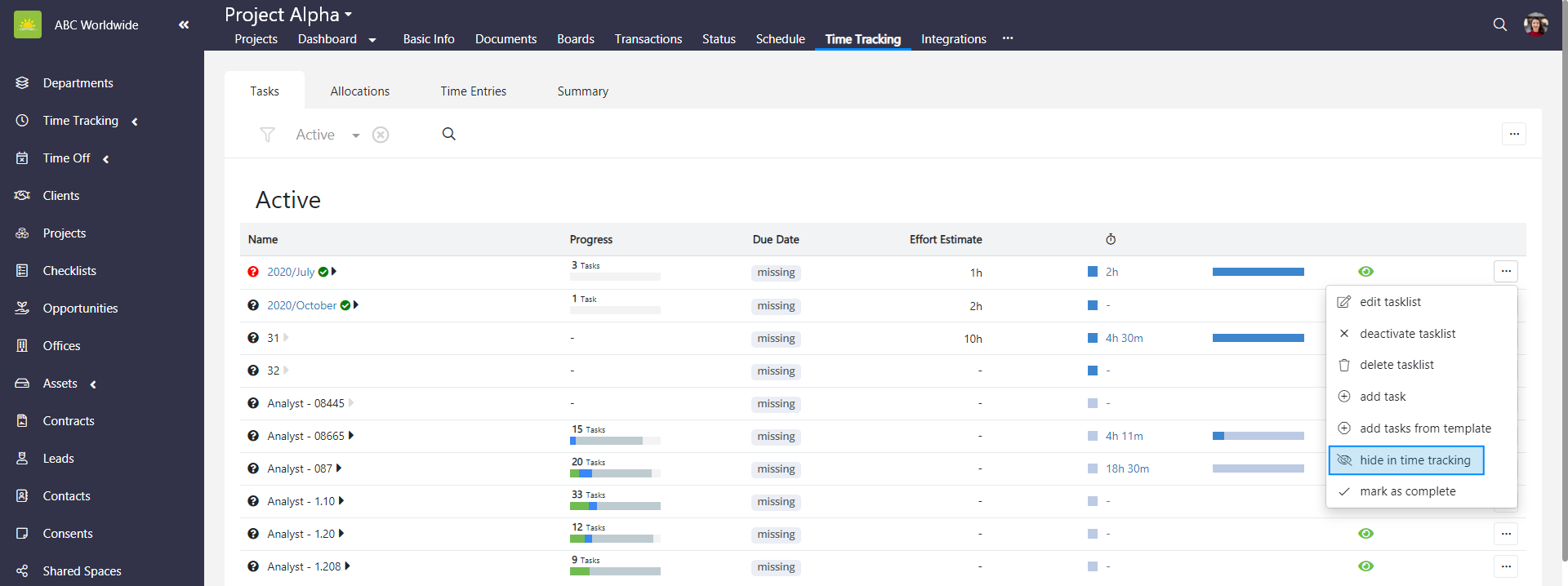
Find the tasklist you wish to hide in time tracking. Click ... at the end of the selected tasklist row and click hide in time tracking.
To reverse this action and show the tasklist in time tracking, proceed to the previous steps and click show in time tracking.
How to mark a tasklist as complete
To mark a tasklist as complete for the entire Projects module, go to the Projects module and click the Time Tracking tab. If you want to mark a tasklist as complete for the specific project, go inside of a specific project and click the Time Tracking tab from there. Then click the Tasks tab.
Find the tasklist you wish to mark as complete. Click ... at the end of the selected tasklist row and click mark as complete.
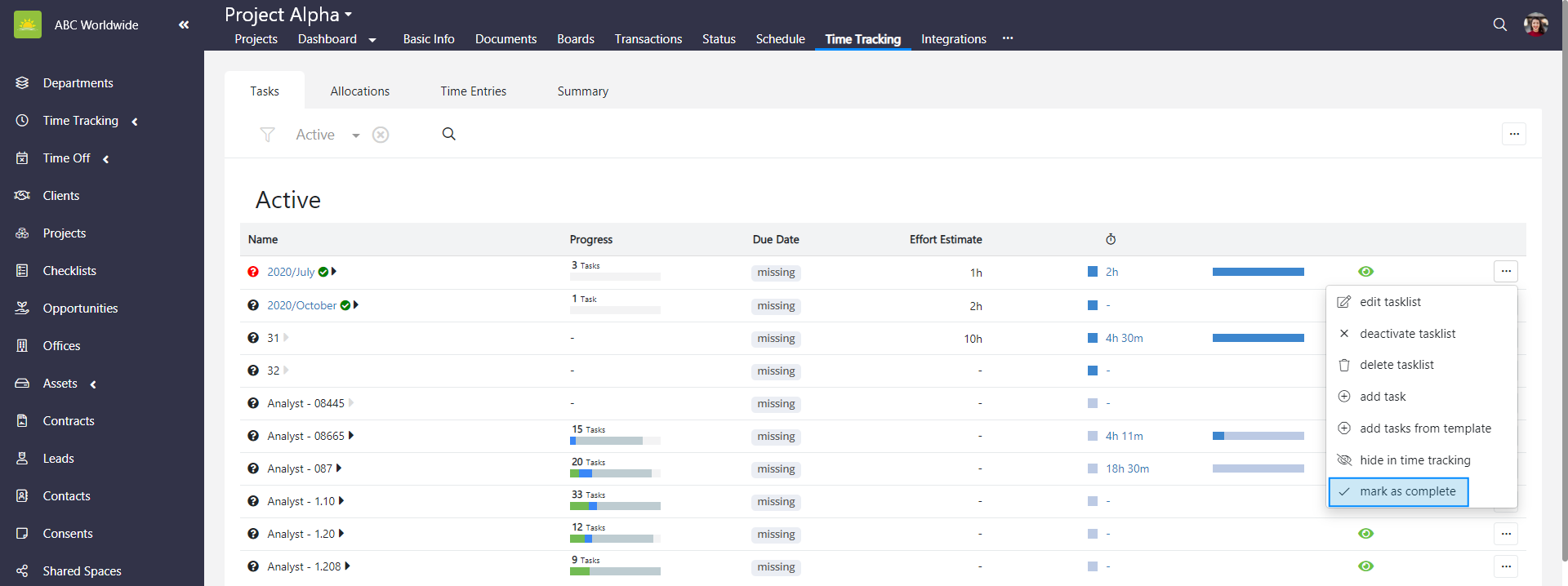
The tasklist now appears in the Completed section of the Tasks window under the Project Time Tracking tab. Note that the Completed section of tasklists can be edited the same way as Active tasklists. You can even mark a tasklist as incomplete and move it to the Active section.
How to edit a task
To edit a task for the entire Projects module, go to the Projects module and click the Time Tracking tab. If you want to edit a task for the specific project, go inside of a specific project and click the Time Tracking tab from there. Then click the Tasks tab.
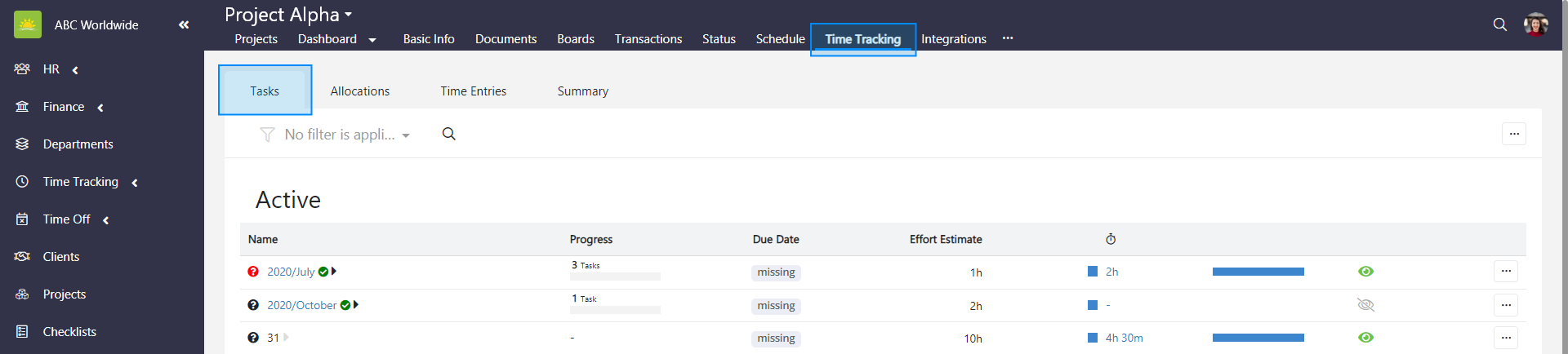
Expand a tasklist to view tasks and find the task you want to edit. Click … at the end of the selected task row and click edit task.
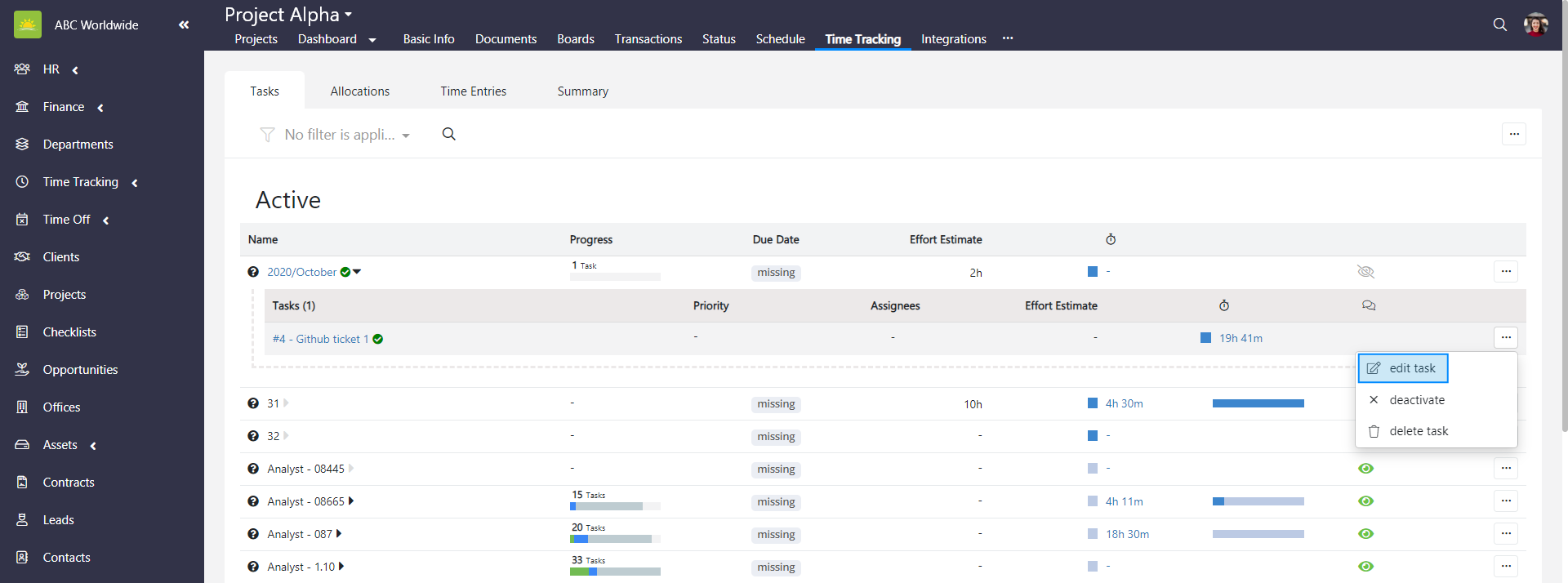
An Edit Task modal window pops up.
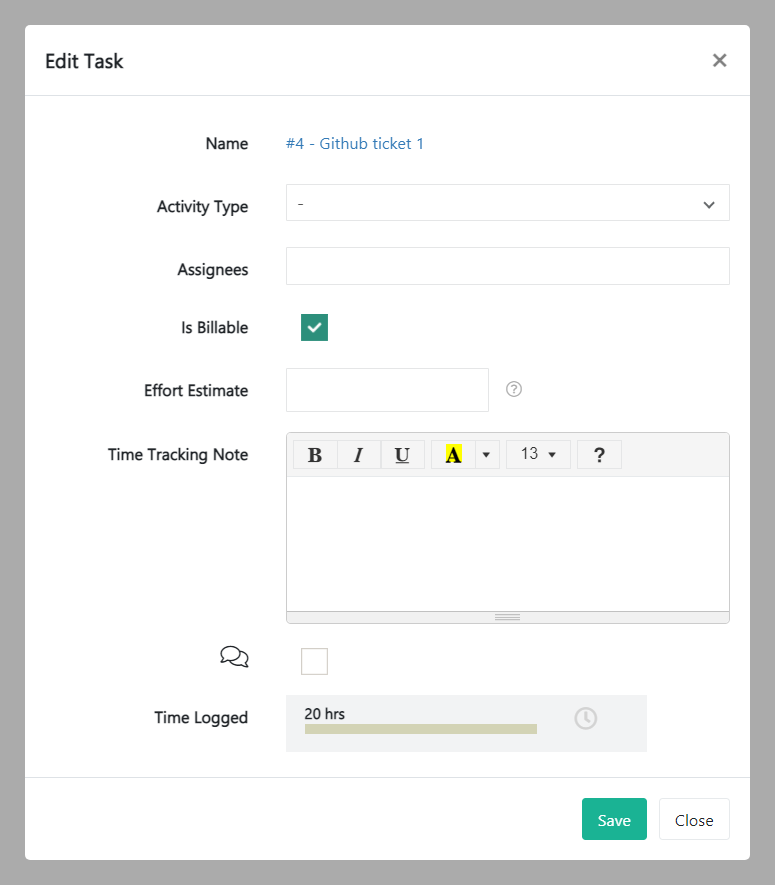
Edit the fields you would like to change and click Save.
How to deactivate a task
To deactivate a task for the entire Projects module, go to the Projects module and click the Time Tracking tab. If you want to deactivate a task for the specific project, go inside of a specific project and click the Time Tracking tab from there. Then click the Tasks tab.
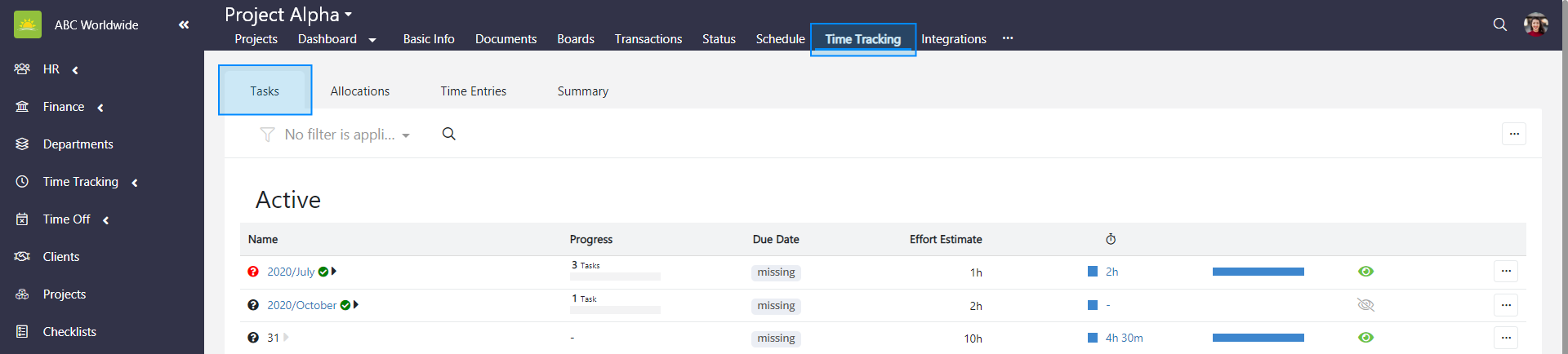
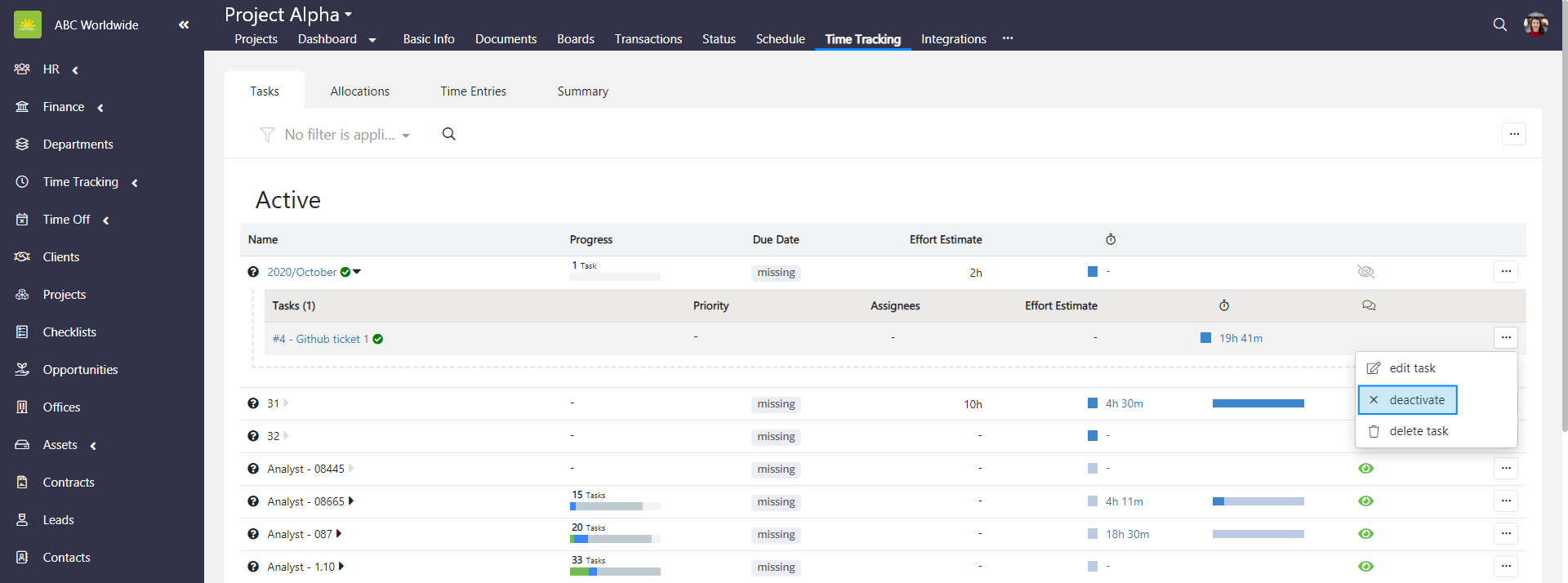
Expand a tasklist to view tasks and find the task you want to deactivate. Click … at the end of the selected task row and click deactivate.
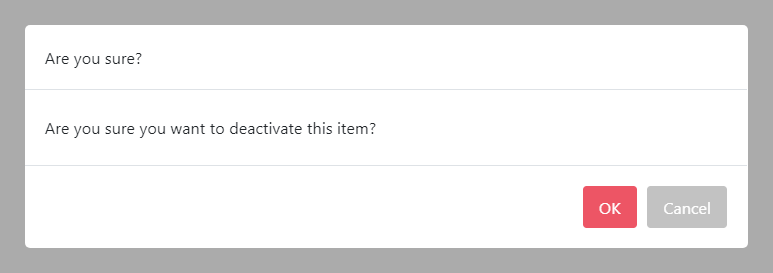
To minimize the risk of accidental deactivation, you must confirm your intention to deactivate the task. Click OK and the task will be deactivated.
How to delete a task
To delete a task for the entire Projects module, go to the Projects module and click the Time Tracking tab. If you want to delete a task for the specific project, go inside of a specific project and click the Time Tracking tab from there. Then click the Tasks tab.
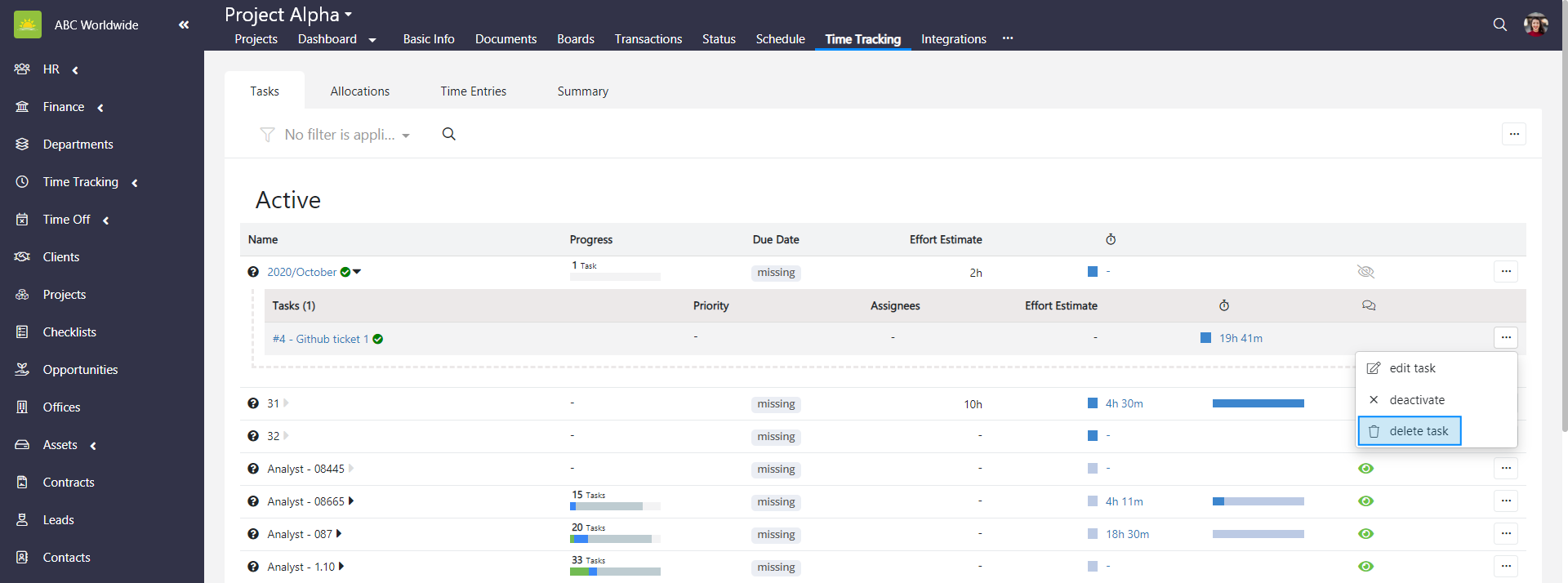
Expand a tasklist to view tasks and find the task you want to delete. Click … at the end of the selected task row and click delete task.
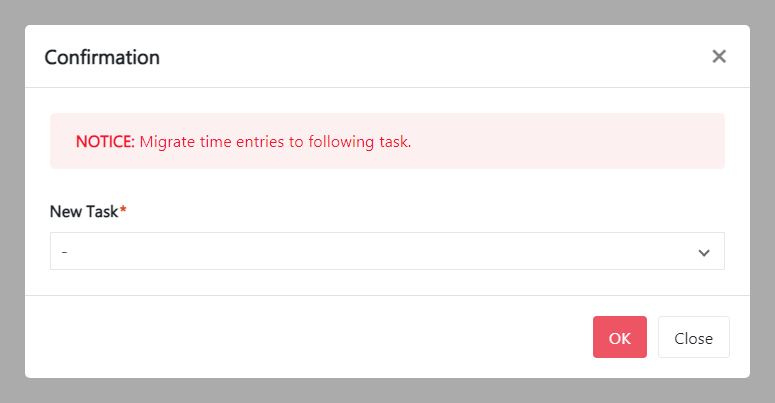
A task is synced with time entry data that you don’t want to lose, therefore you need to select a different task from the dropdown list where the existing time entries will be migrated to. Click OK to delete the task.
Didn’t find what you were looking for?
Contact us and we’ll build the right solution for you. Vault Synapse can be fully customized based on your business needs.