How to add a run
A run is a list of predefined tasks created by any user who has relevant permissions. The tasks can be grouped into run sections and assigned to users for completion.
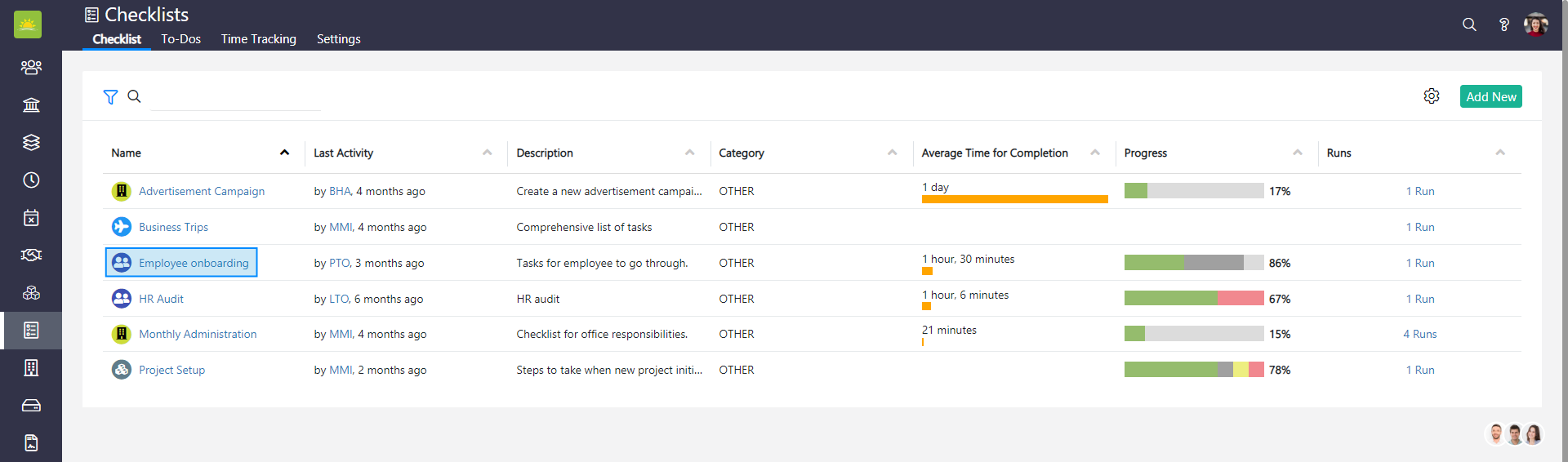
You can add runs in four separate places: on the checklist Details page, under the Runs tab and under the ...action menu, which is located both in the checklist’s navigation header and from the Entity to which the checklist is applicable.
1. Under the Details tab
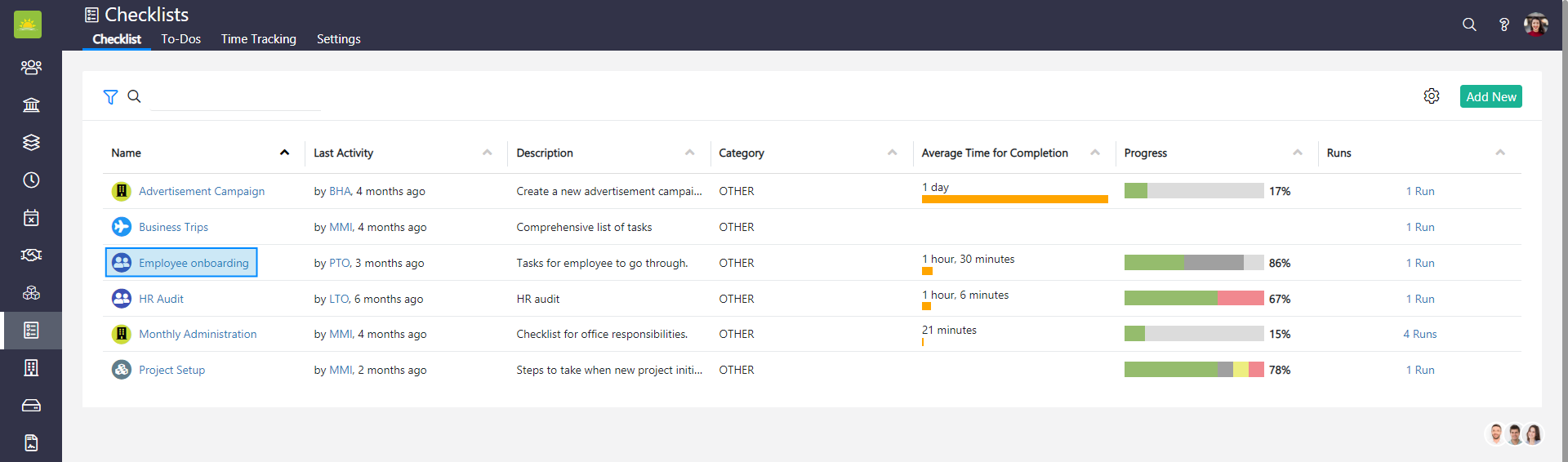
To add a new run, go to the Checklists module and click on the specific checklist you would like to add a new run to.
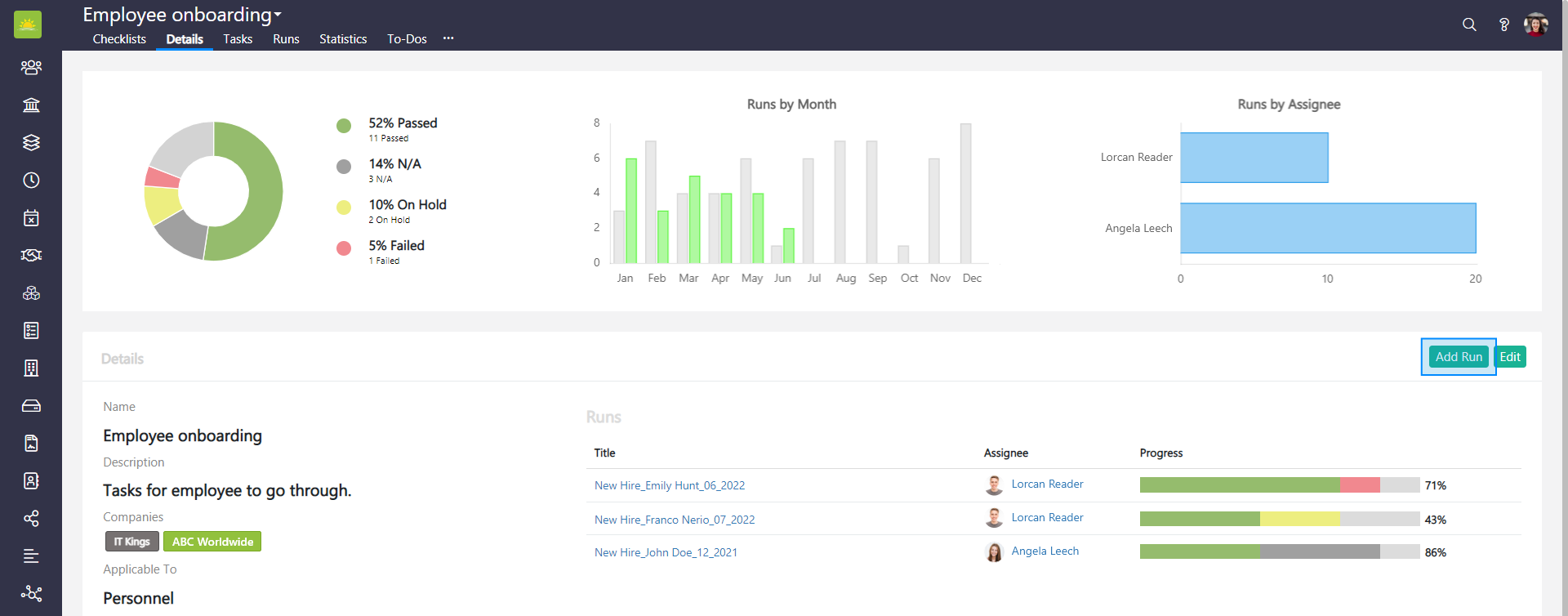
Click Add Run on the right side in the Details line.
The Add New Run modal window will pop up.
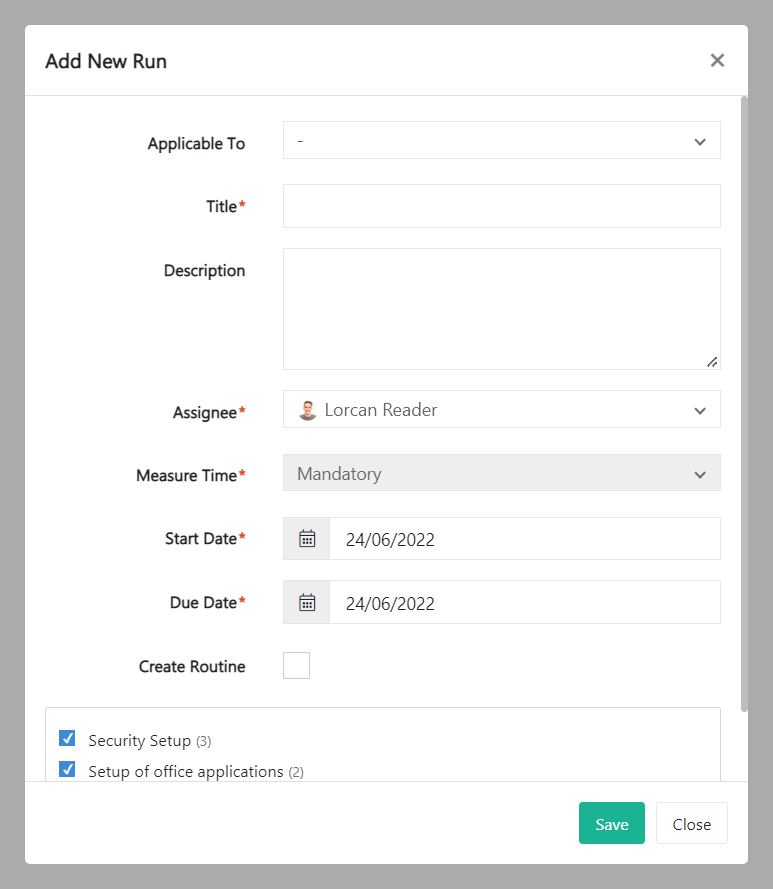
Fill out the following:
- Applicable to – Select an item from the dropdown list which the run applies to or start typing into this field to quickly find the item. For instance, if the Checklist is applicable to Projects entity, the dropdown list will display projects. Your selection will apply to the new Checklist Run.
- Title – Give the run a name.
- Description – Add a description for the run.
- Assignee – Assign the checklist run to yourself, another user, or a team. Start typing into this field to quickly find the assignee.
- Measure time - Define whether measuring time for the run completion is mandatory, optional, or not measured.
- Start date – Set a start date for the checklist run.
- Due date – Set a due date for the completion of the checklist run.
- Create routine – Tick the create routine box if you want to set up a routine for this checklist run. You will be presented with the following options.
- Repetition Cycle Interval – Set a daily, weekly, monthly, or yearly cycle.
- Repetition Cycle Value – Set a repetition Cycle Value higher than 0.
- Repetition Cycle Start Date (UTC) – The date and time of the first checklist run from the repetition cycle.
You have the option to include all task sections or uncheck sections that are not required for this run.
Review the information and click Save. The run you just created will appear in the selected Checklist Runs. Clicking Cancel will take you back to the details tab.
2. Under Runs
Note! At least one run must have been created in the selected checklist for this option to work.
To add a new run, go to the Checklists module and click on the specific checklist you would like to add a new run to.
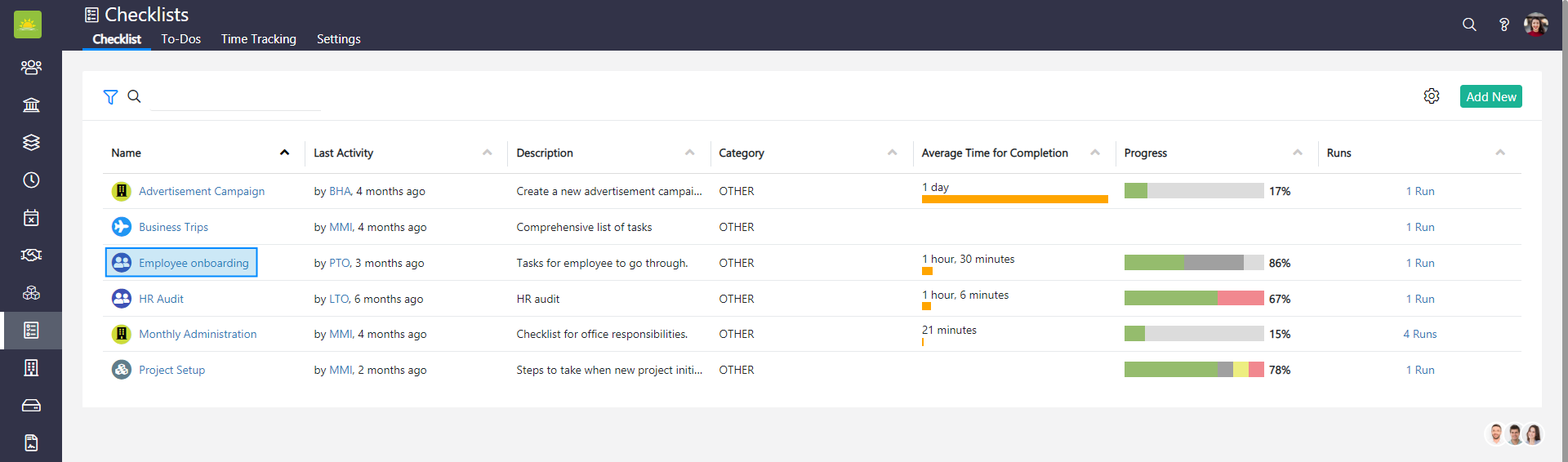
Click on the Runs tab in the navigation header.
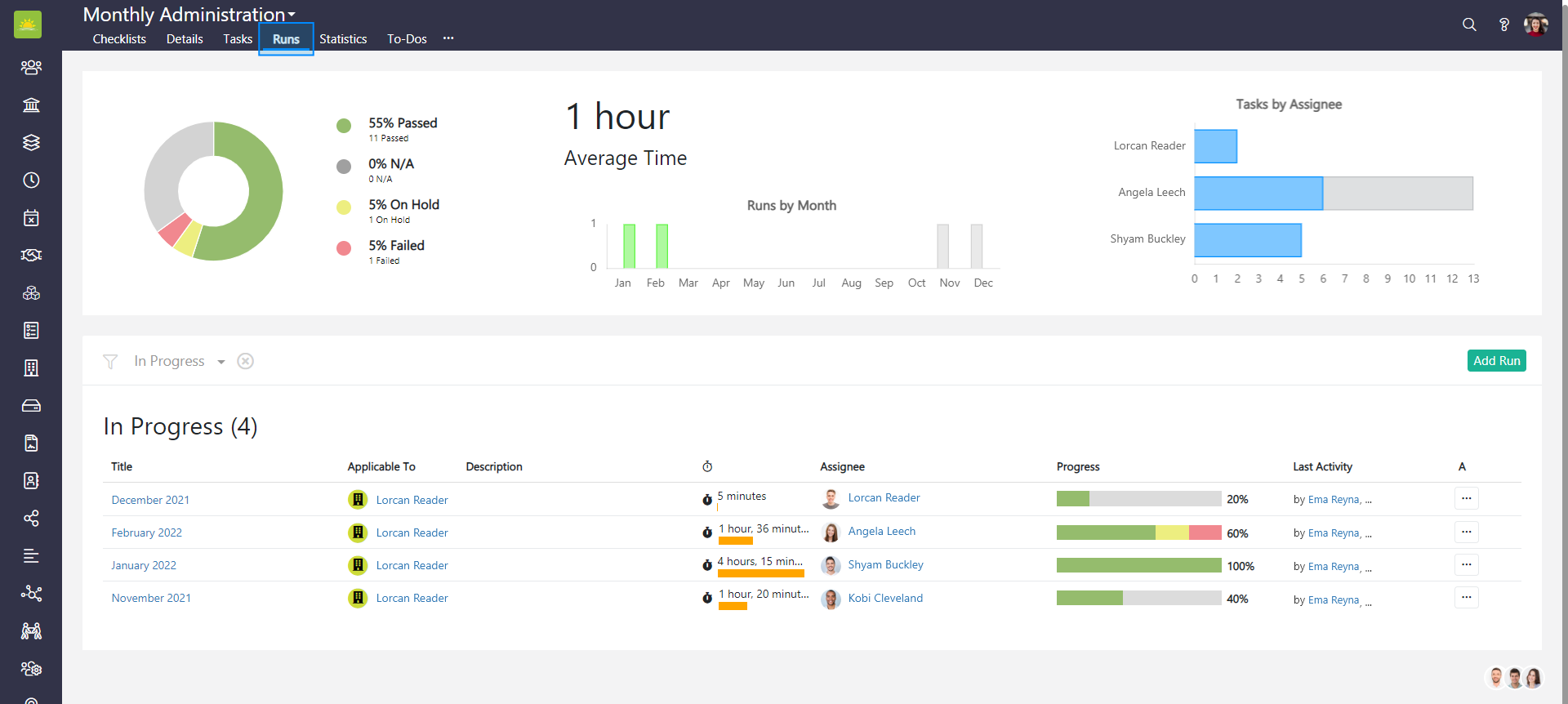
Click the Add Run button.
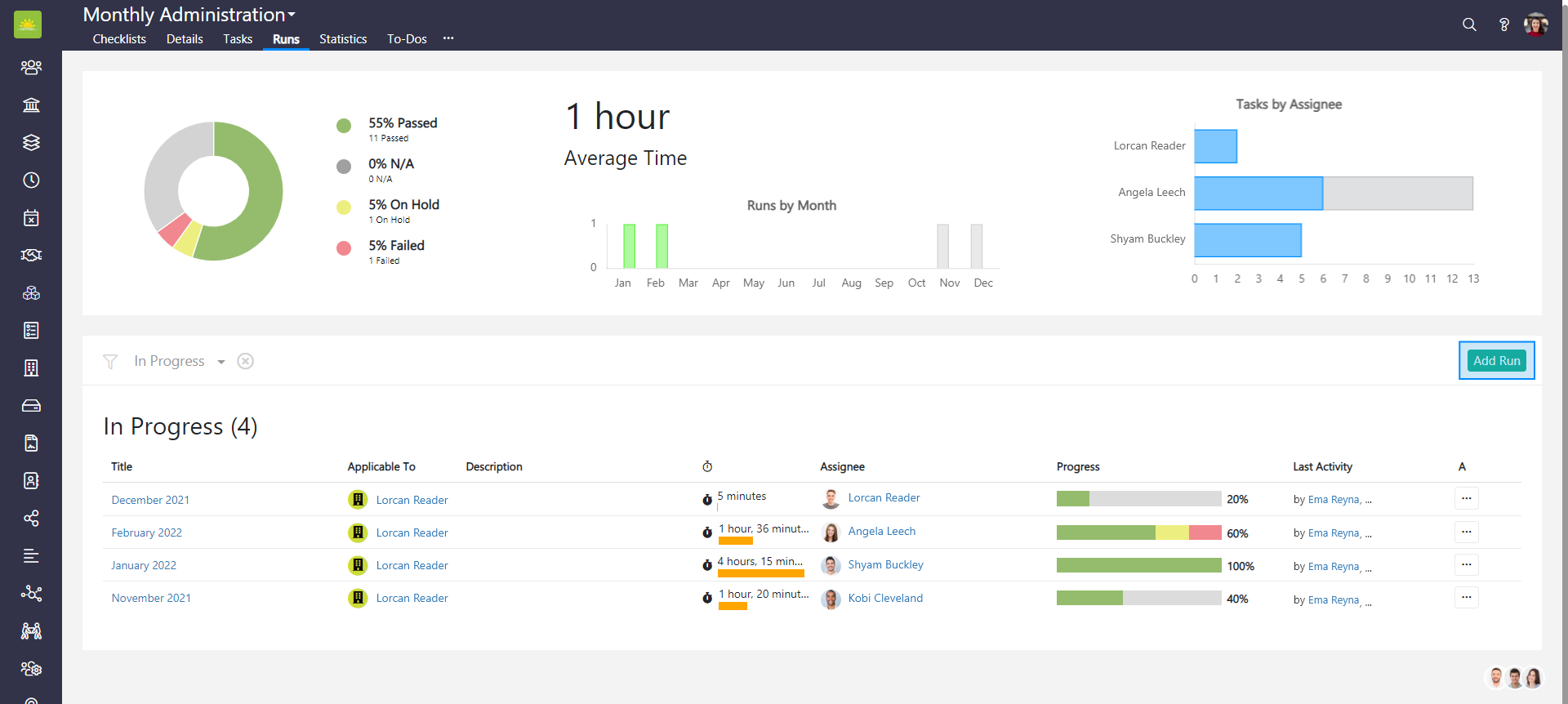
The same modal window as in the first option will pop up. Fill out the information and click Save. Clicking Cancel will take you back to the details tab.
3. Under …
To add a new run, go to the Checklists module and click on the specific checklist you would like to add a new run to.
Click on … in the navigation header. Select Add Run.
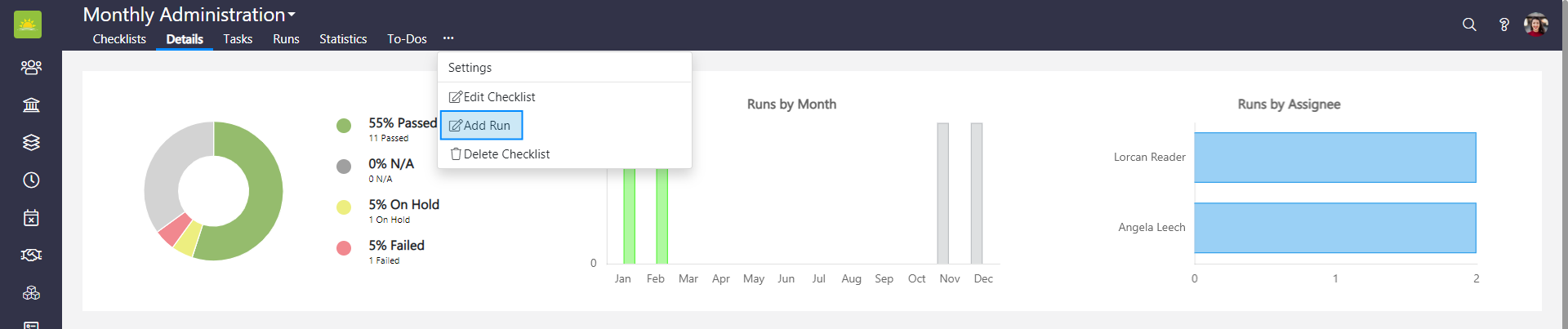
The same modal window as in the first option will pop up. Fill out the information and click Save. Clicking Cancel will take you back to the details tab.
4. From the Entity to which the checklist is applicable across all Vault Synapse modules
Didn’t find what you were looking for?
Contact us and we’ll build the right solution for you. Vault Synapse can be fully customized based on your business needs.