What is a project list
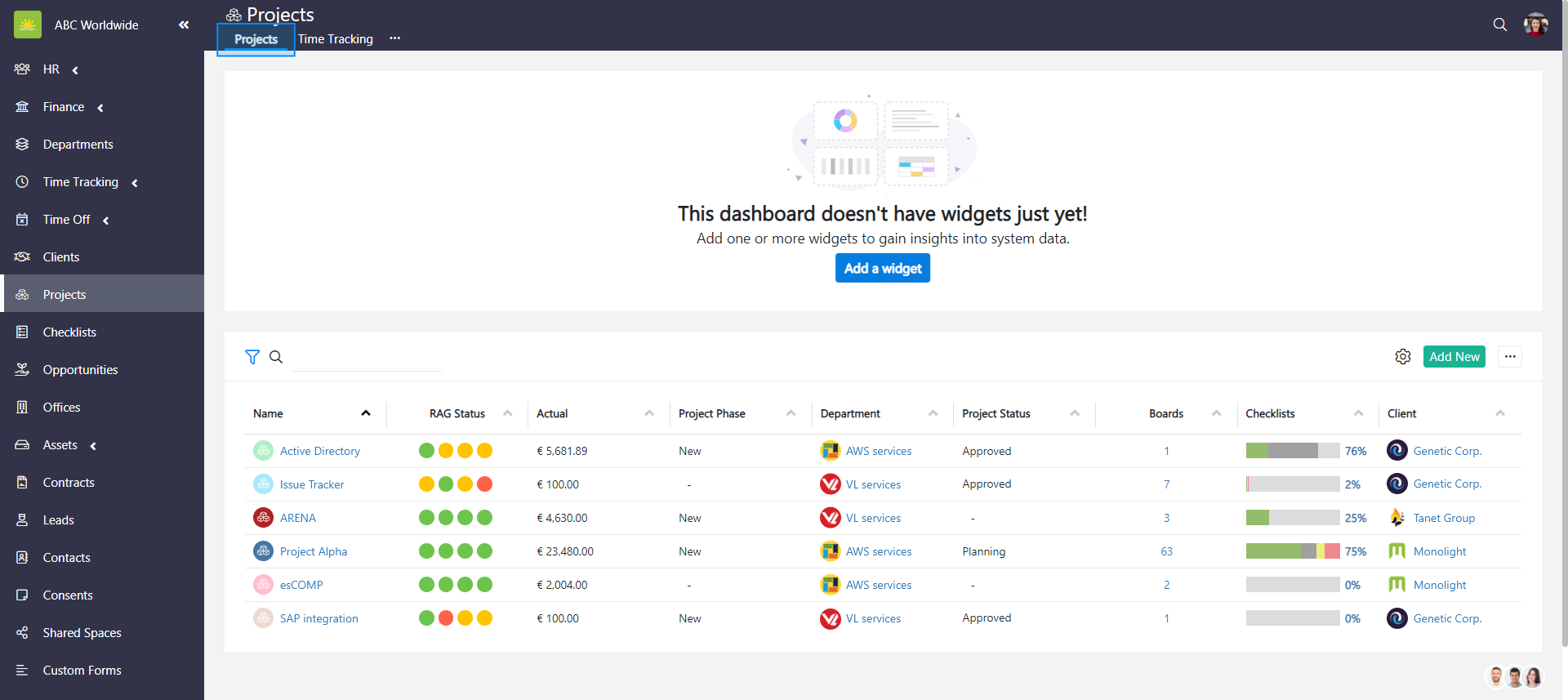
The project list provides you with complete insight into your projects. The clear structure of the project list enables you to view projects, boards, checklists, clients, schedules, time tracking, and much more. A color-coded overview of symbols and data representing each project helps you identify what’s urgent and provides you with the project's status, allocations, and other significant details.
To see the project list, go to the Projects module. You will be presented with a lot of valuable information. You can also create a new project directly from this page.
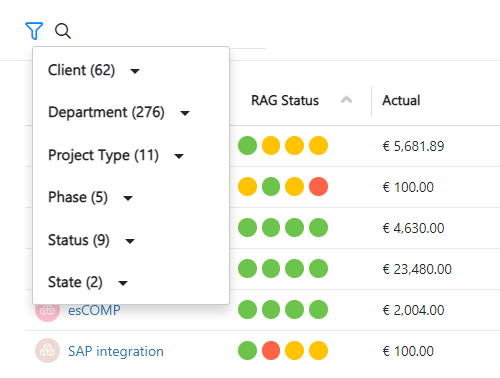
You can filter grids. Use filters to help narrow down your search.
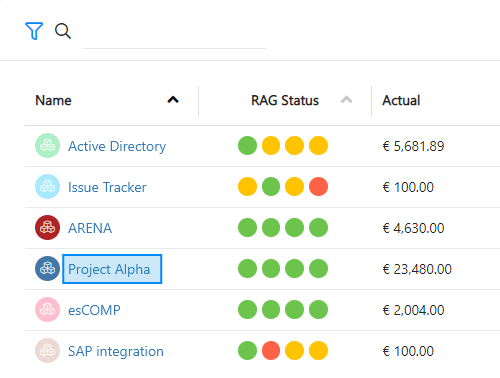
Clicking on values in the project view will take you to tabs across Vault Synapse’s modules.
In the project list, you can change and save the width of the columns in the grid itself. Click  to save the changes.
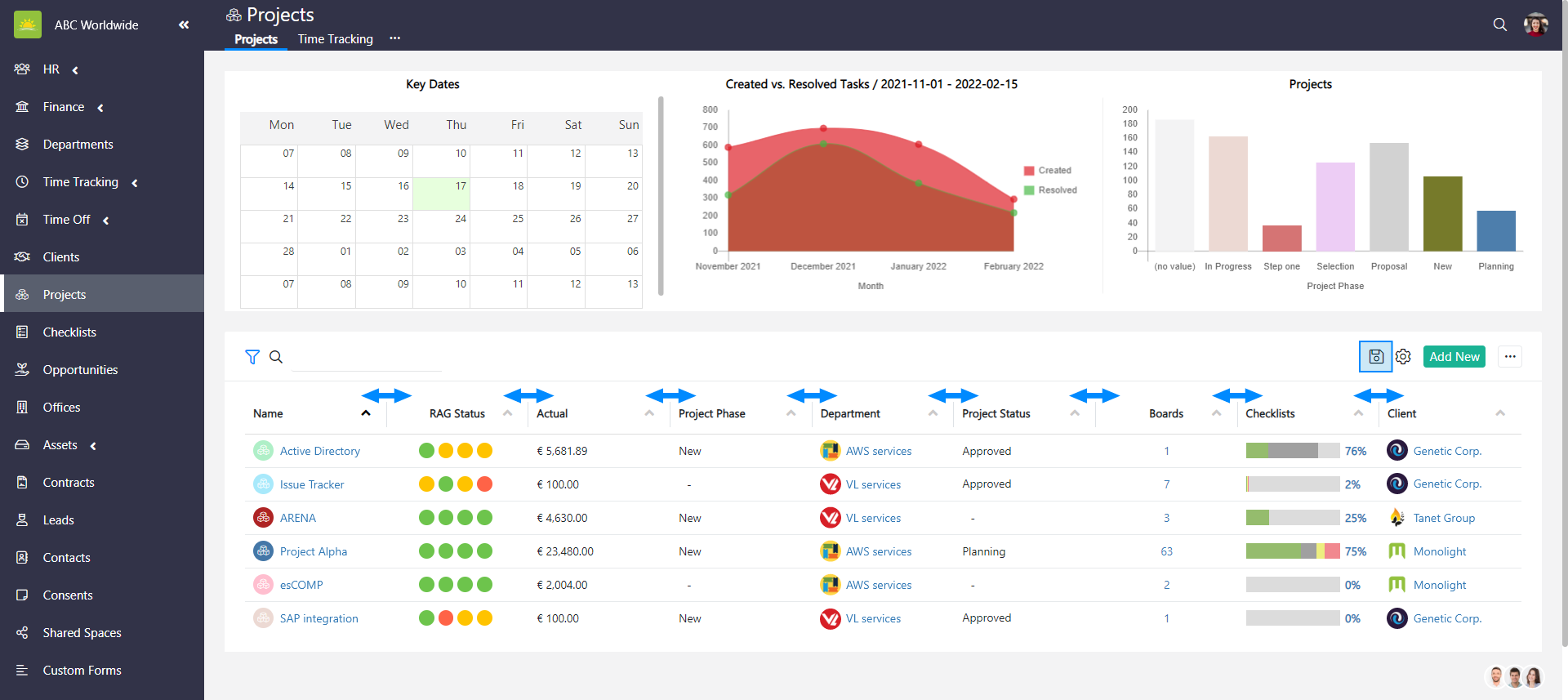
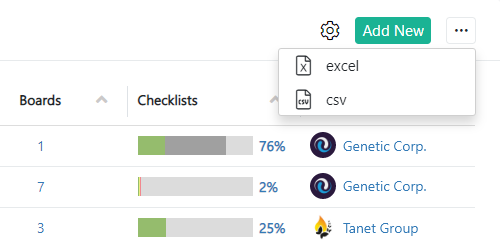
In the project list, you can generate a list of all the projects in an excel file and share it with your coworkers.
The columns in the grid are optional and are based on your configuration. Click the link to find out how to customize the view.
You can see this information from the project view:
- Actual – This column shows the actual spending allocated for due invoices in the incoming center.
- Assets – This is the number of assets that are assigned to a project. This value is a direct link to the Asset tab of the project.
- Boards – The value represents the number of boards created under a project. This value is a direct link to the project boards.
- Boards (archived) – Shows the number of archived boards.
- Budget – Shows the budget available for the project.
- Checklists – The progress bar displays the progress of the assigned checklists. Hovering on them will show you the number of assigned checklists per phase in more detail.
- Commitment – This is the amount committed which means you cannot spend this amount as it has already been allocated for a due transaction in the incoming center.
- Client – The client tab shows the avatar and name of the client who is connected to the project. Projects can only have one client connected to them.
- Department – The department column shows the department the project relates to. Projects can be linked to one department.
- Managers – You can view managers of the entity under this column
- Members – These avatars represent all the members working on a project.
- My Tracked Time (all time) – This column shows the sum of all the hours each member logged individually under a project.
- Tracked Time (all time) – Tracked time shows the sum of all the hours logged under one project by all the members.
- Transaction Stats – This complex progress bar shows the budget status of the project. It is divided into 2 types, actual and committed. Hovering over the progress bar will activate a tooltip with numerical values.
- Name – These are the project names. Click on any name to open the project on its Project dashboard.
- Project Phase – Projects have various phases. This column will show the phase the project is currently at.
- Project Status – Projects have various statuses. This column will show the status of the project is currently at.
- Project Type – Projects can be divided into different project categories. This column will show the type of project.
- RAG Status – These 4 circles show the status by schedule, resourcing, risk, and issue. Hovering over any of the circles will show a more detailed account of the status.
- Schedules – This value shows the number of schedules created for this project.
- State – The project state shows if the project is currently active or inactive.
- Remaining – This column shows the remaining budget amount you can spend.
Note! Vault Synapse is a highly customizable tool meaning certain parts and functionalities of the application can be additionally built-in or customized based on your business needs and preferences.
Didn’t find what you were looking for?
Contact us and we’ll build the right solution for you. Vault Synapse can be fully customized based on your business needs.