- Knowledge Base
- Assets
- Asset Models
- What are asset models
- How to add a run
- How to edit a run
- How to mark a run as complete
- How to archive a run
- How to delete a run
- How to change the assignee
- How to add a result in a checklist run
- How to add bulk results in a checklist run
- How to share run tasks with external participants
- How to generate an Excel or PDF report from a checklist run
- How to filter the run tasks view
- What is an office asset
- How to create a new asset
- How to manage an asset
- How to move an asset
- How to dispose of an asset
- How to transfer (in) an asset
- How to transfer (out) an asset
- How to log a sighting of an asset
- How to log an inspection of an asset
- How to log maintenance on an asset
- How to export a record of an asset
- How to print asset labels
- Introduction
- Admissions
- Assets
- Bank Accounts
- Boards
- Business Trips
- Candidates
- Checklists
- Clients
- Companies
- Consents
- Contacts
- Contracts
- Custom Forms
- Departments
- Documents
- Evaluations
- Employee Performance
- GL Accounts
- Incoming Center
- Integrations/External Systems
- Invoices
- Job Management
- Key Dates
- Months
- Offices
- Personnel
- Polls
- Project Management
- Project Status
- Purchase Orders
- Schedule
- Shared Spaces
- Teams
- Time Off
- Time Tracking
- Transactions
- Vendors
- Mobile Application
- What is a personnel asset
- How to create a new asset
- How to manage an asset
- How to move an asset
- How to log inspection on an asset
- How to log maintenance on an asset
- How to dispose of an asset
- How to transfer (out) an asset
- How to transfer (in) an asset
- How to log a sighting on an asset
- How to print asset labels
- How to export a record of an asset
- What is a project asset
- How to create a new asset
- How to manage an asset
- How to move an asset
- How to log inspection on an asset
- How to log maintenance on an asset
- How to dispose of an asset
- How to transfer (out) an asset
- How to transfer (in) an asset
- How to log a sighting of an asset
- How to print asset labels
- How to export a record of an asset
- Project transactions
- How to record an estimate
- How to create a budget
- How to submit transaction items for approval
- How to approve or deny budgeting items from the transactions grid
- How to create a purchase order from approved estimates
- How to link approved estimates to approved budgets
- How to cancel a transaction
- How to deactivate a transaction
- How to edit a transaction
- How to re-submit a denied transaction
What are asset models
Assets models contain a name, description and asset properties. For example, you can define a laptop as a Lenovo P14s, Dell XPS 15, Mercedes A150, etc. Assets' model numbers can be easily located on the devices. By using asset models, organizations can manage their assets more effectively, track their usage and maintenance needs, and make informed decisions about when to replace or retire them.
Vault Synapse’s Asset Models is a module where you can view, record, and manage all company assets. To view the asset models’ information, go to the Assets module and click on the Asset Models tab.
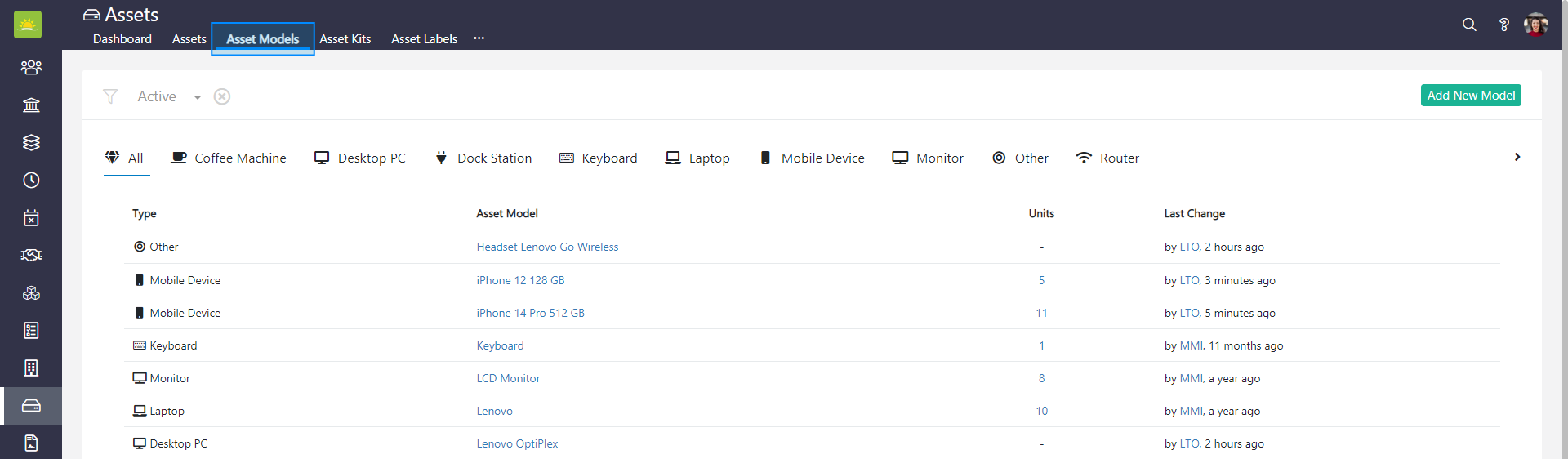
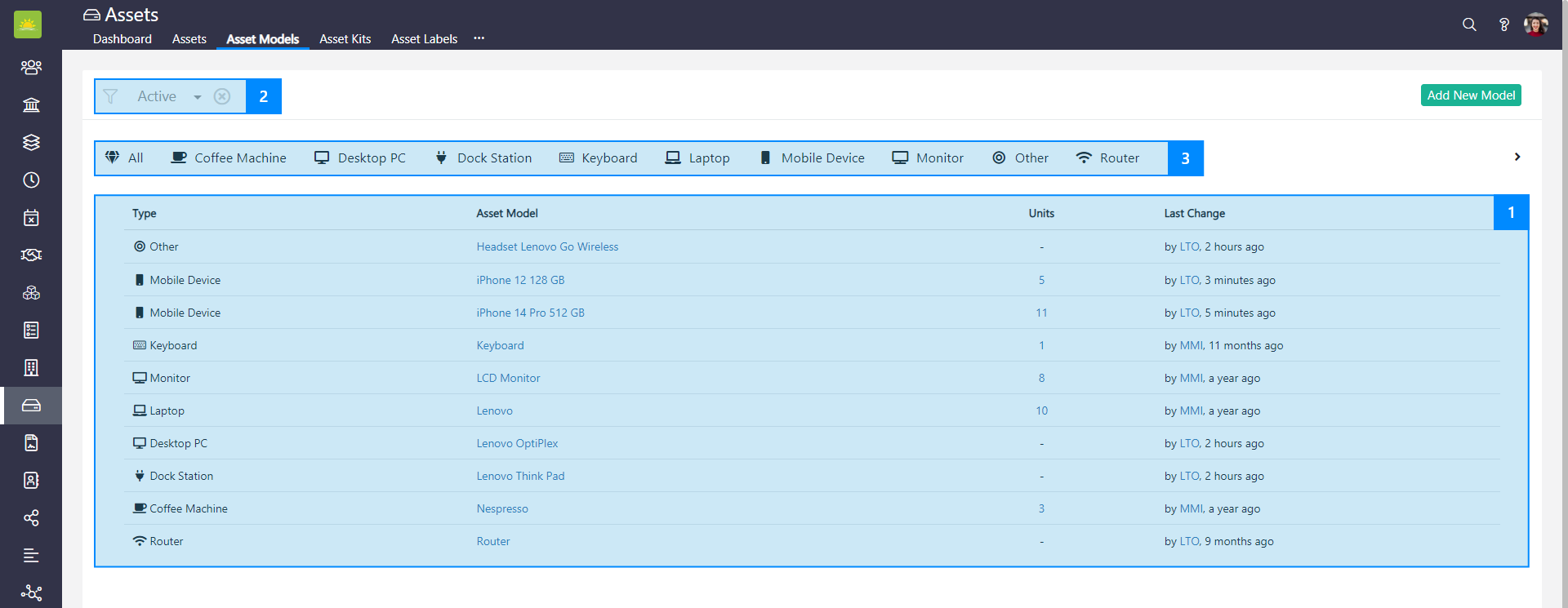
You can search for an asset model in three different ways:
- Manually – Select the relevant asset model from the list.
- Using filters – Narrow down your search by applying any of the available filters
- Selecting asset types – Use the asset type icons above the list of assets to filter by asset types. If you cannot see an icon/description of the asset type you want, click on the arrow to the left or right until it is visible. For example, click on the laptop icon to pull out all data about laptops, or click on the cup icon to return all coffee machine results. Note that icons and asset types are customizable.
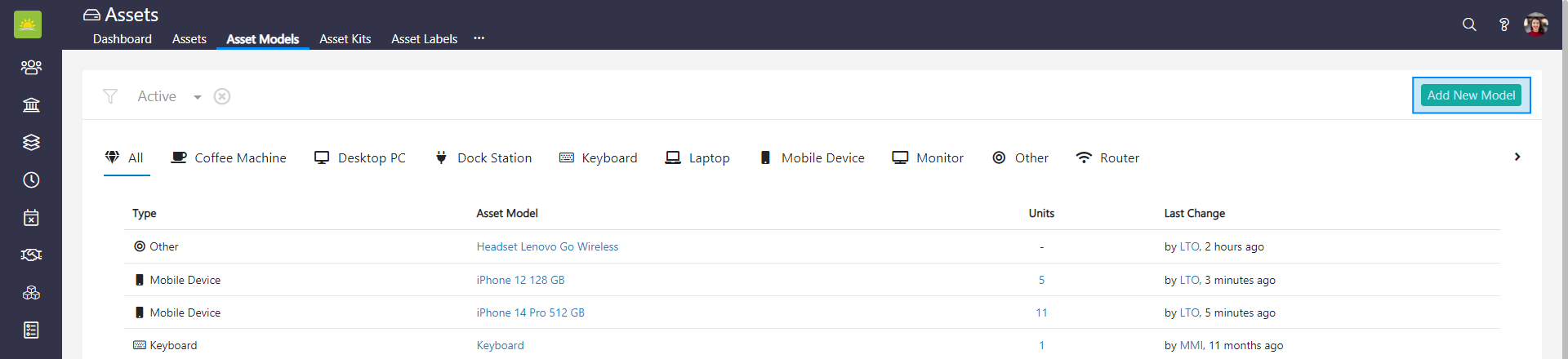
You can also use the Add New Model button from this page.
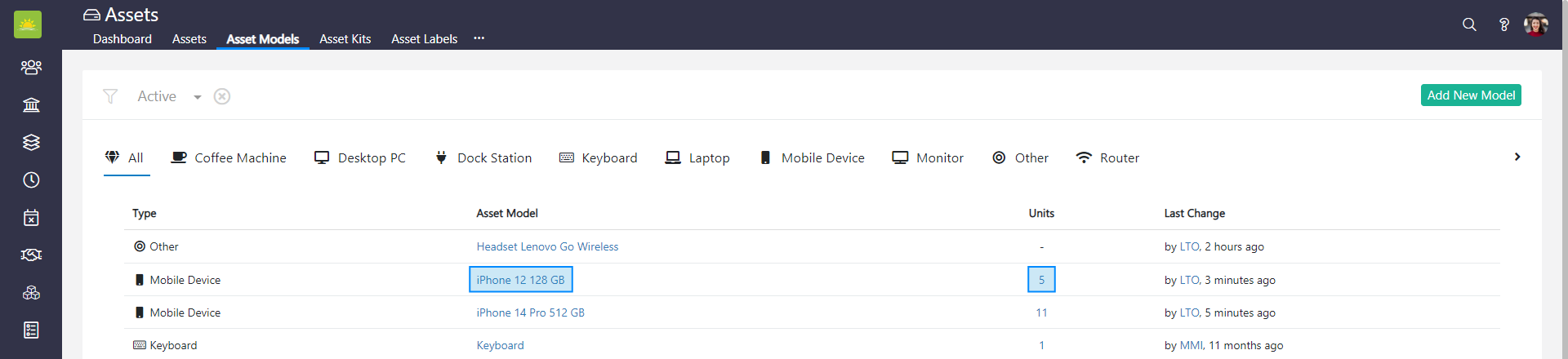
Click on the asset model to go to the Details tab of that asset model, where you can edit the information recorded about the asset model. By clicking on the number of units, you can access the Assets tab of the asset model, where you can see a list of all assets of a particular model. You can customize the view based on your preferences or add a new asset from here.
Was this article helpful?
Didn’t find what you were looking for?
Contact us and we’ll build the right solution for you. Vault Synapse can be fully customized based on your business needs.