Documents
What is a purchase order document
Store all purchase order related documents in the Documents module for easy access. Vault Synapse's Documents module allows you to browse and upload files from your desktop or from any of your cloud storage applications. You can also edit, deactivate, or share them with your co-workers or external participants.
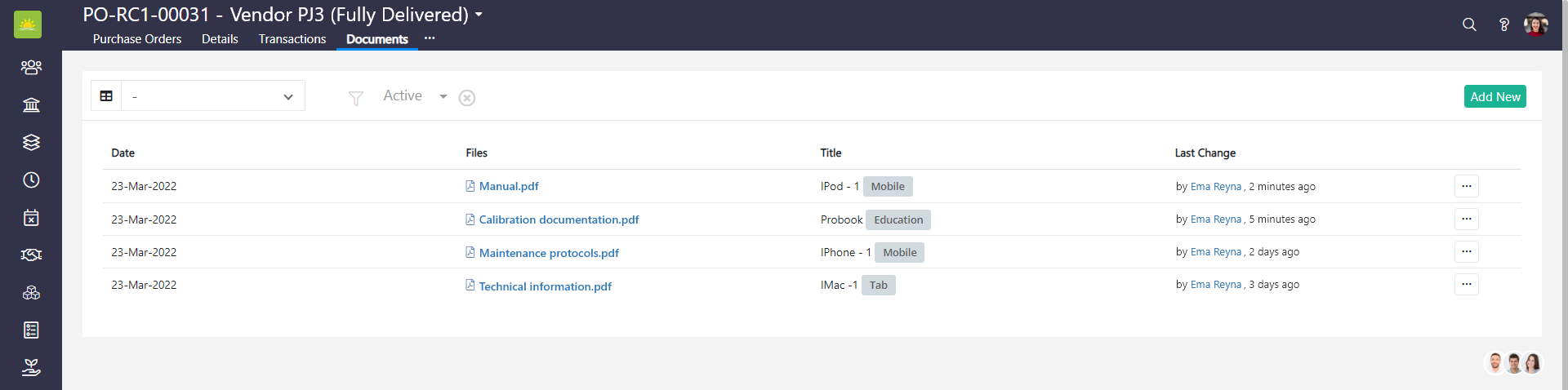
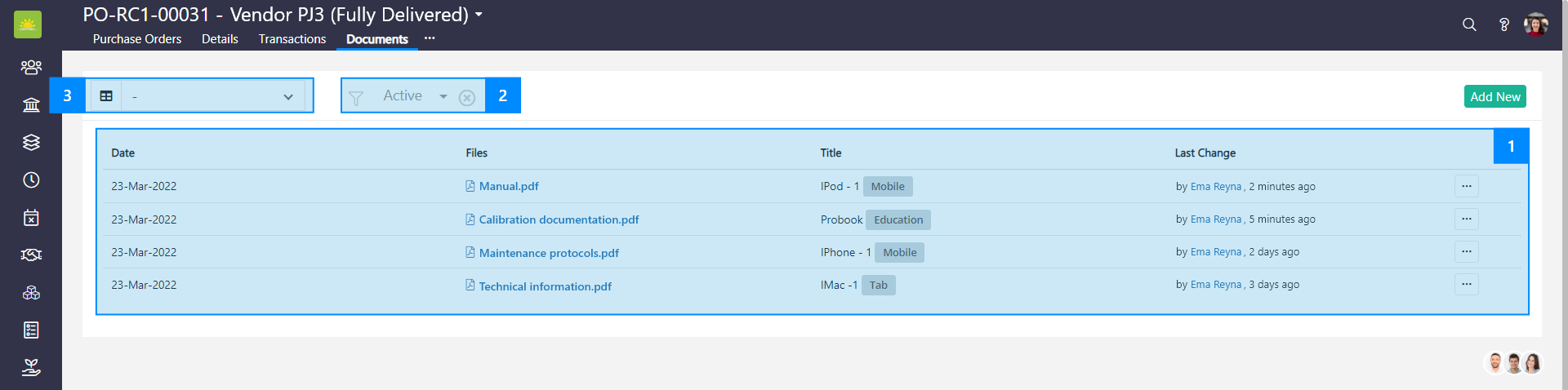
You can search for a document in 3 different ways:
- Manually – Select the relevant document from the list.
- By using filters – Use filters to help narrow down your search.
- By grouping – Group documents by tags, month, and year.
How to upload a document
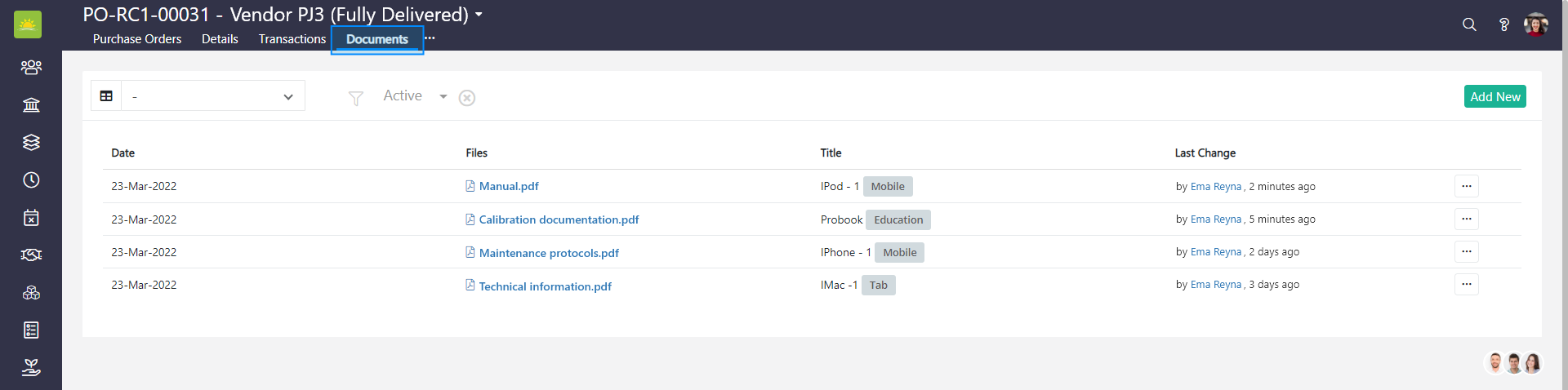
To upload a document, go to the Finance module and click the Purchase Orders module. Click the Documents tab inside of a specific purchase order.
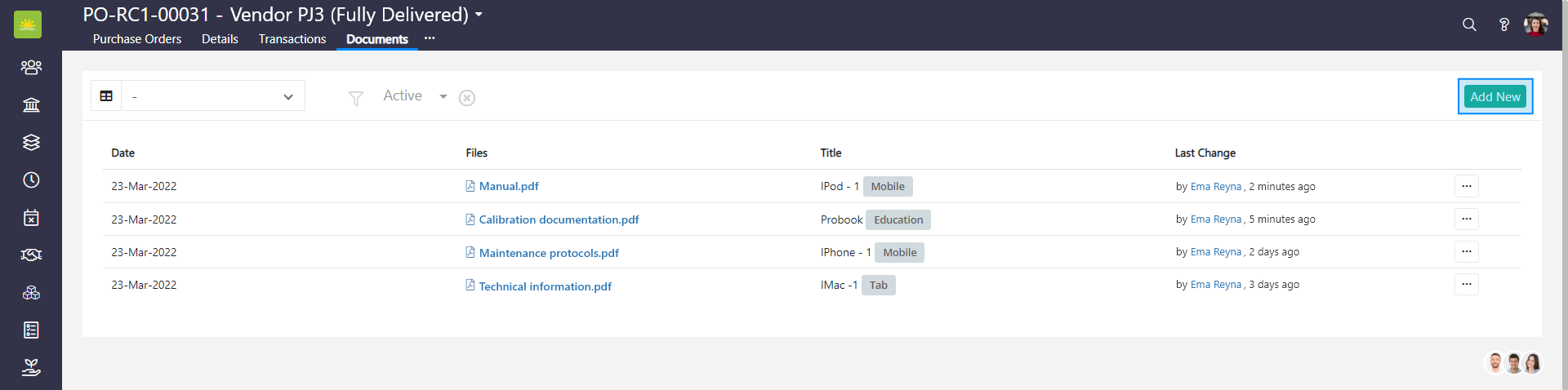
Click Add New in the top right corner.
An Add New Document modal window pops up.
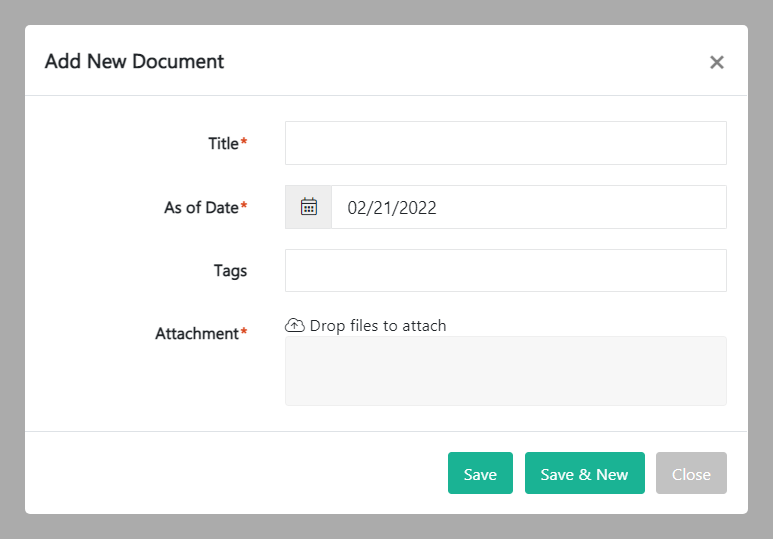
Fill out the fields about the new document:
- Title – Give the document you’re uploading a name.
- As of Date – This date shows when a document has been uploaded or a date when this document is active from.
- Tags – You can add tags to documents to easily identify the type of content.
- Attachment – Upload your documents here.
Click Save or Save & New if you want to add another document. Your new document now appears in the documents list.
How to edit a document
To edit a document, go to the Finance module and click the Purchase Orders module. Click the Documents tab inside of a specific purchase order.
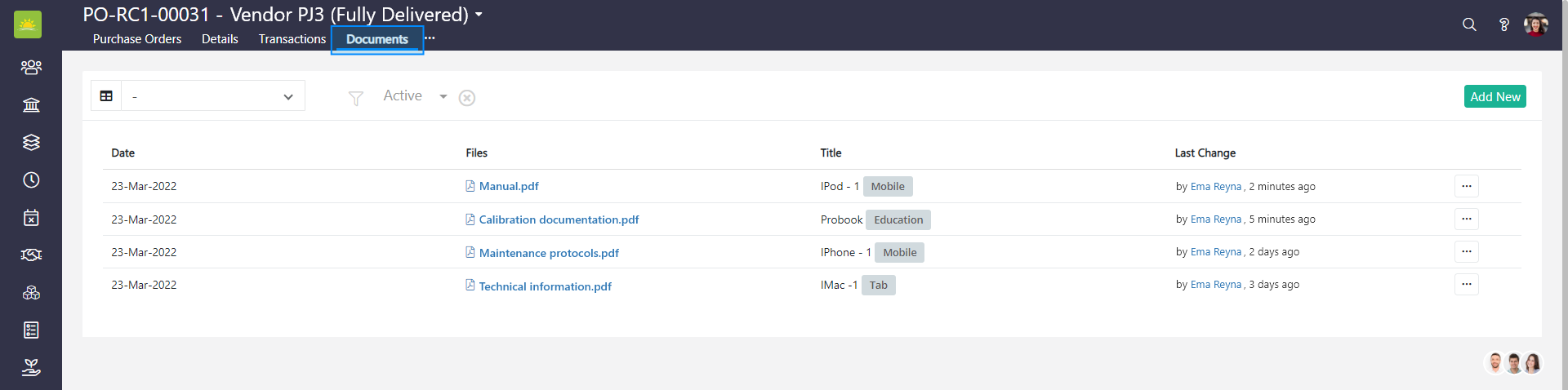
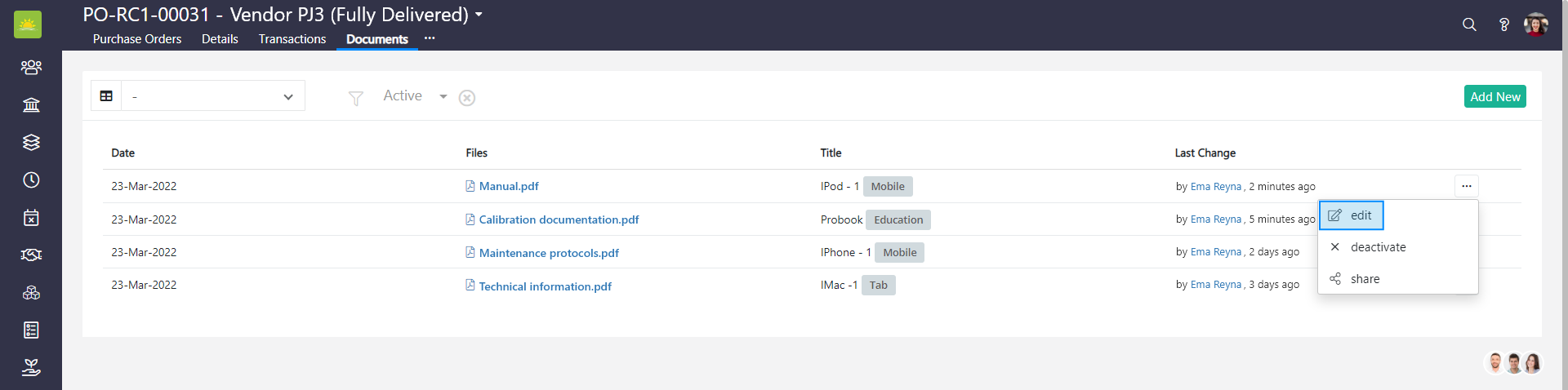
Find the document you want to edit. Click … at the end of the selected document row and click edit.
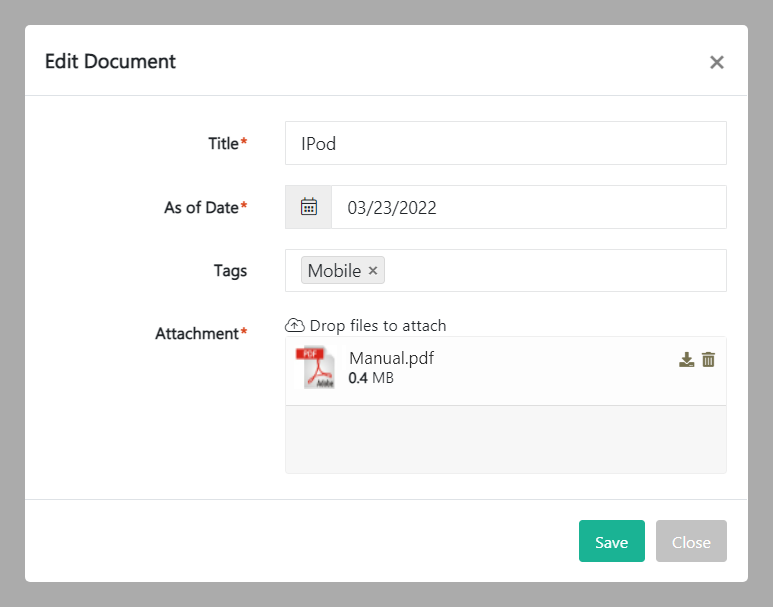
An Edit Document modal window pops up. Update the relevant information and click Save.
How to deactivate a document
Note! You can only deactivate a document. Permanently deleting a document isn't an option.
To deactivate a document, go to the Finance module and click the Purchase Orders module. Click the Documents tab inside of a specific purchase order.
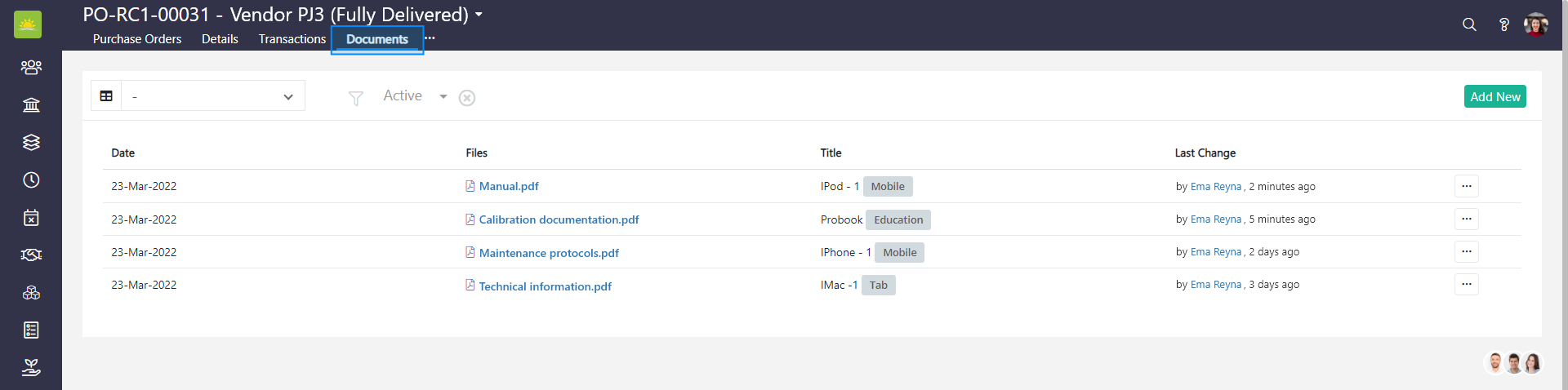
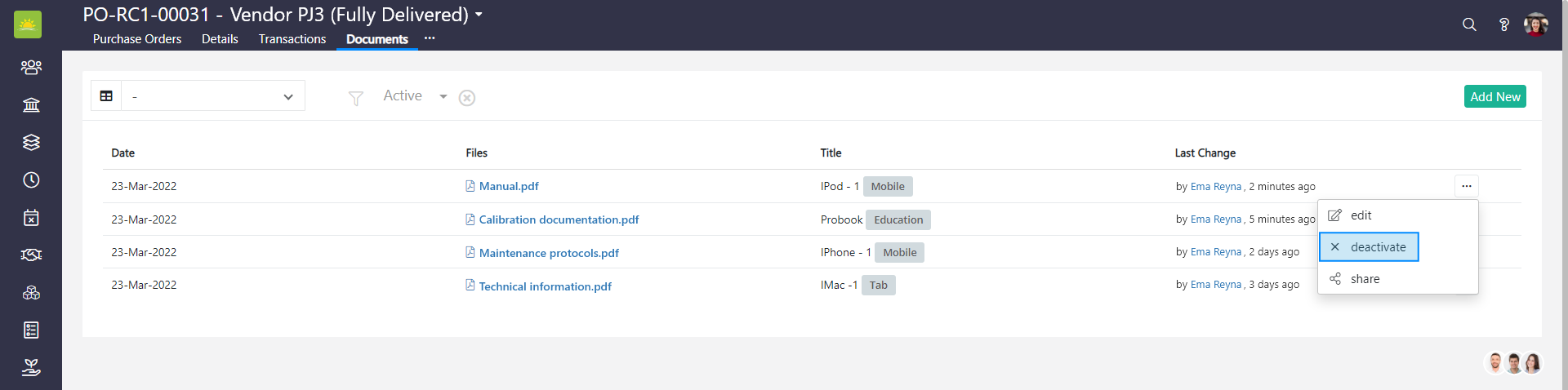
Find the document you want to deactivate. Click … at the end of the selected document row and click deactivate.
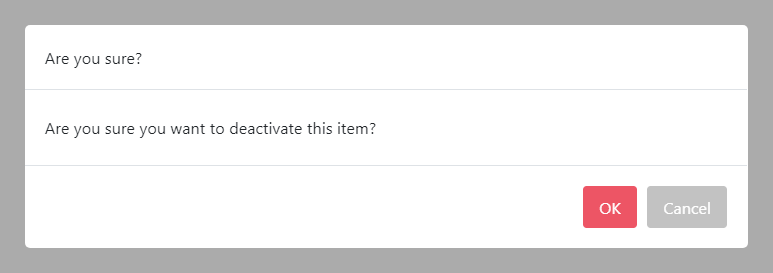
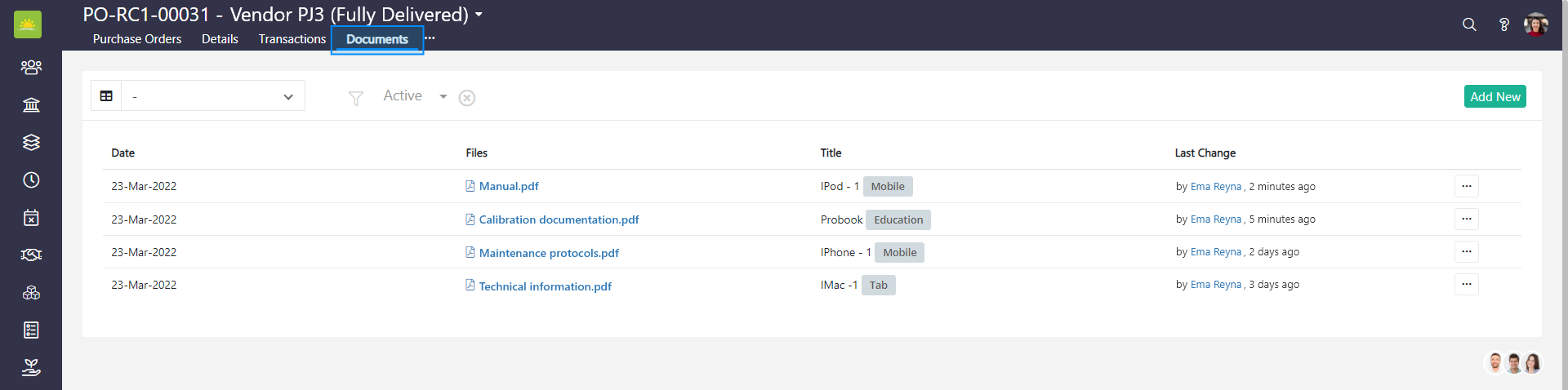
Confirm your intention to deactivate the document by clicking OK.
How to share a document
To share a document, go to the Finance module and click the Purchase Orders module. Click the Documents tab inside of a specific purchase order.
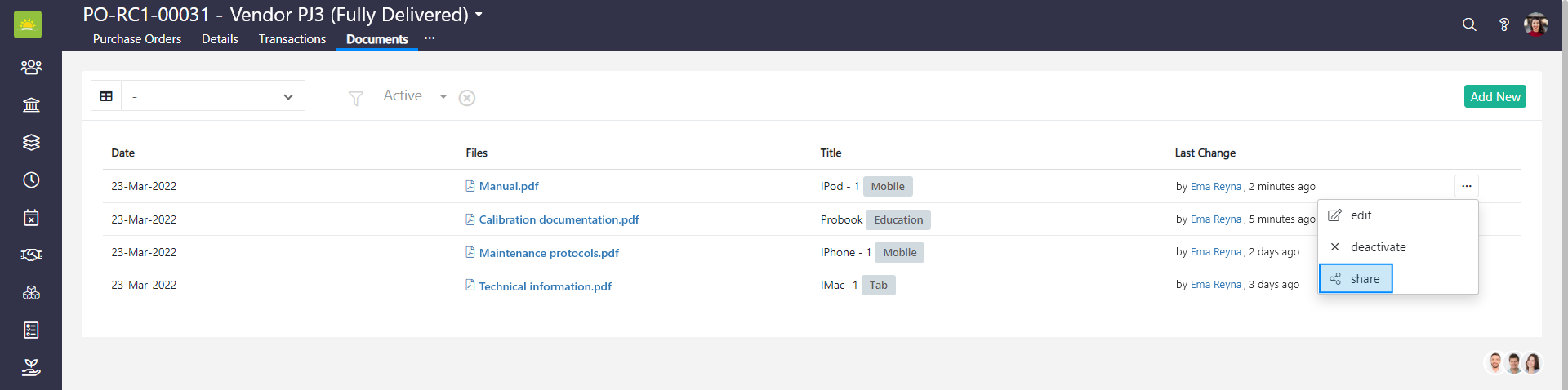
Find the document you want to share. Click … at the end of the row and click share.
A Share with External Participant modal window pops up.
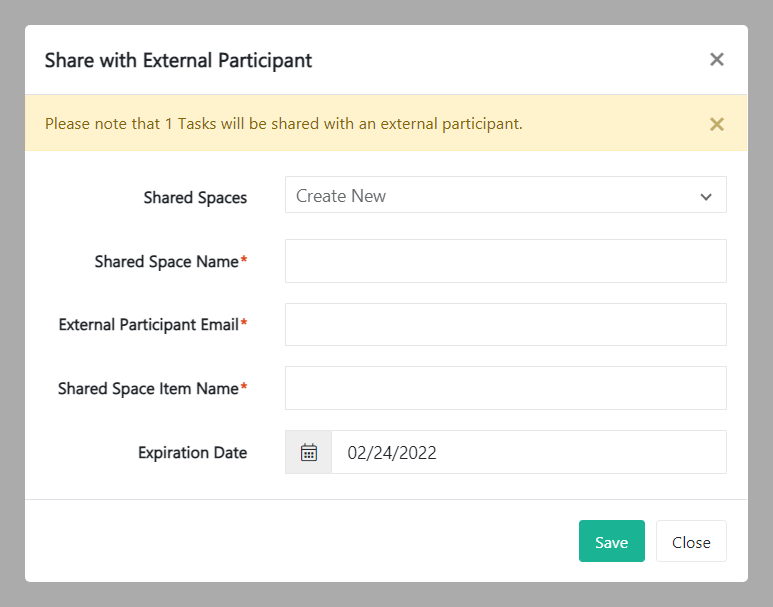
Fill out the fields about the external participant:
- Shared Spaces – Select an existing sharing workspace from the dropdown list or create a new one.
- Shared Space Name – Enter the name of your company’s shared space into this field. A company can have multiple shared spaces.
- External Participant Email – Enter the email address of the external participant who is not a user in Vault Synapse.
- Shared Space Item Name – The name of the document you want to share.
- Expiration Date – Enter the expiration date from when access to this document will be revoked.
Click Save. You have successfully shared your document.
Note! Vault Synapse is a highly customizable tool meaning certain parts and functionalities of the application can be additionally built-in or customized based on your business needs and preferences.
Note! A user can access the document information only with the relevant permissions/access rights given by an administrator.
Didn’t find what you were looking for?
Contact us and we’ll build the right solution for you. Vault Synapse can be fully customized based on your business needs.