- Knowledge Base
- Personnel
- Evaluations
- Personnel evaluation
- How to add a run
- How to edit a run
- How to mark a run as complete
- How to archive a run
- How to delete a run
- How to change the assignee
- How to add a result in a checklist run
- How to add bulk results in a checklist run
- How to share run tasks with external participants
- How to generate an Excel or PDF report from a checklist run
- How to filter the run tasks view
- What is an office asset
- How to create a new asset
- How to manage an asset
- How to move an asset
- How to dispose of an asset
- How to transfer (in) an asset
- How to transfer (out) an asset
- How to log a sighting of an asset
- How to log an inspection of an asset
- How to log maintenance on an asset
- How to export a record of an asset
- How to print asset labels
- Introduction
- Admissions
- Assets
- Bank Accounts
- Boards
- Business Trips
- Candidates
- Checklists
- Clients
- Companies
- Consents
- Contacts
- Contracts
- Custom Forms
- Departments
- Documents
- Evaluations
- Employee Performance
- GL Accounts
- Incoming Center
- Integrations/External Systems
- Invoices
- Job Management
- Key Dates
- Months
- Offices
- Personnel
- Polls
- Project Management
- Project Status
- Purchase Orders
- Schedule
- Shared Spaces
- Teams
- Time Off
- Time Tracking
- Transactions
- Vendors
- Mobile Application
- What is a personnel asset
- How to create a new asset
- How to manage an asset
- How to move an asset
- How to log inspection on an asset
- How to log maintenance on an asset
- How to dispose of an asset
- How to transfer (out) an asset
- How to transfer (in) an asset
- How to log a sighting on an asset
- How to print asset labels
- How to export a record of an asset
- What is a project asset
- How to create a new asset
- How to manage an asset
- How to move an asset
- How to log inspection on an asset
- How to log maintenance on an asset
- How to dispose of an asset
- How to transfer (out) an asset
- How to transfer (in) an asset
- How to log a sighting of an asset
- How to print asset labels
- How to export a record of an asset
- Project transactions
- How to record an estimate
- How to create a budget
- How to submit transaction items for approval
- How to approve or deny budgeting items from the transactions grid
- How to create a purchase order from approved estimates
- How to link approved estimates to approved budgets
- How to cancel a transaction
- How to deactivate a transaction
- How to edit a transaction
- How to re-submit a denied transaction
Personnel evaluation
What is a personnel evaluation
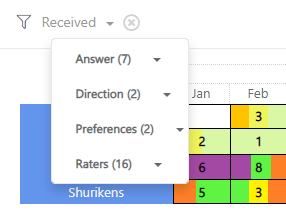
Personnel evaluations is a tool that views how well an employee has been performing in the past leading up to the current month. A dynamic grid with Office Presence and Job Execution cells allows you to assign an evaluation to a rater with one click. Click on the Contribution cell to add new contributions and attach files. The Tokens cell holds data regarding the amount of tokens earned each month. You can apply filters to view evaluations by answers, directions, preferences, and raters. You no longer need to upload and store evaluation records, just open the personnel of your choice and view their evaluation history in one window.
To view information about a personnel's evaluation, go to the Personnel module and click the Evaluations tab inside a personnel's page.
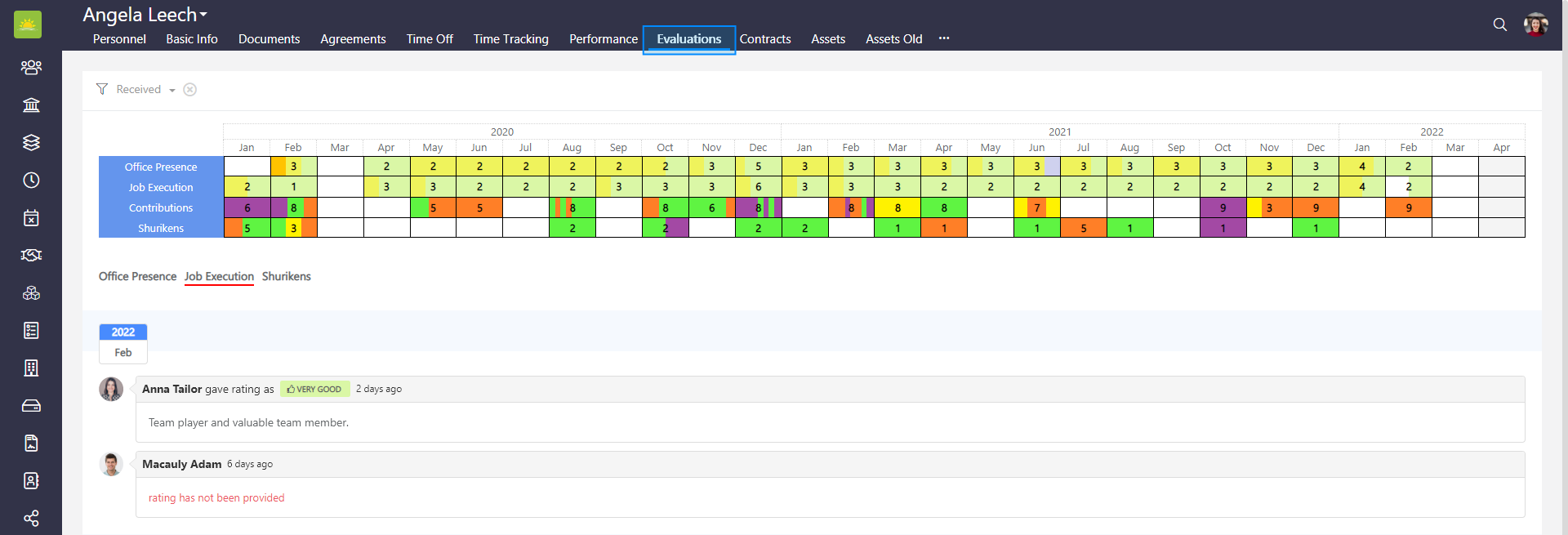
Click on the tabs to see details of the provided ratings like comments and the name of the rater.
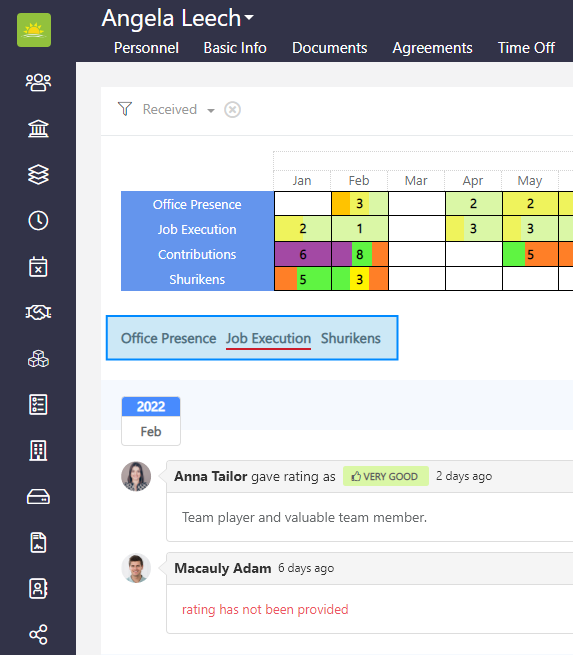
The user can view the following evaluation information about the personnel:
- Office Presence – Measures general behavior in the office, employee's work attendance, adherence to rules, professional attitude, employee's respect for colleagues, whether their behavior is counterproductive, etc.
- Job Execution – Measures work ethic, productivity, skill, helpfulness, professionalism, teamwork, overall contribution, etc.
- Contributions – Measures productivity, skill, helpfulness, professionalism, teamwork or overall contribution to successfully completed projects, milestones or achieved goals. A contribution can also be also negative, for example if a ratee caused an incident that affected the work progress.
- Tokens – This is a summary of all the tokens/shurikens the personnel received during a given month from their colleagues. This cannot be changed or edited, instead it’s automatically added. Click the link to find out more about Tokens.
You can filter evaluations which will help narrow down your search.
Note! A user can access the personnel evaluation only with the relevant permissions/access rights given by the administrator.
How to delete a rater/rating
Select the entry you want to delete and press the delete button.
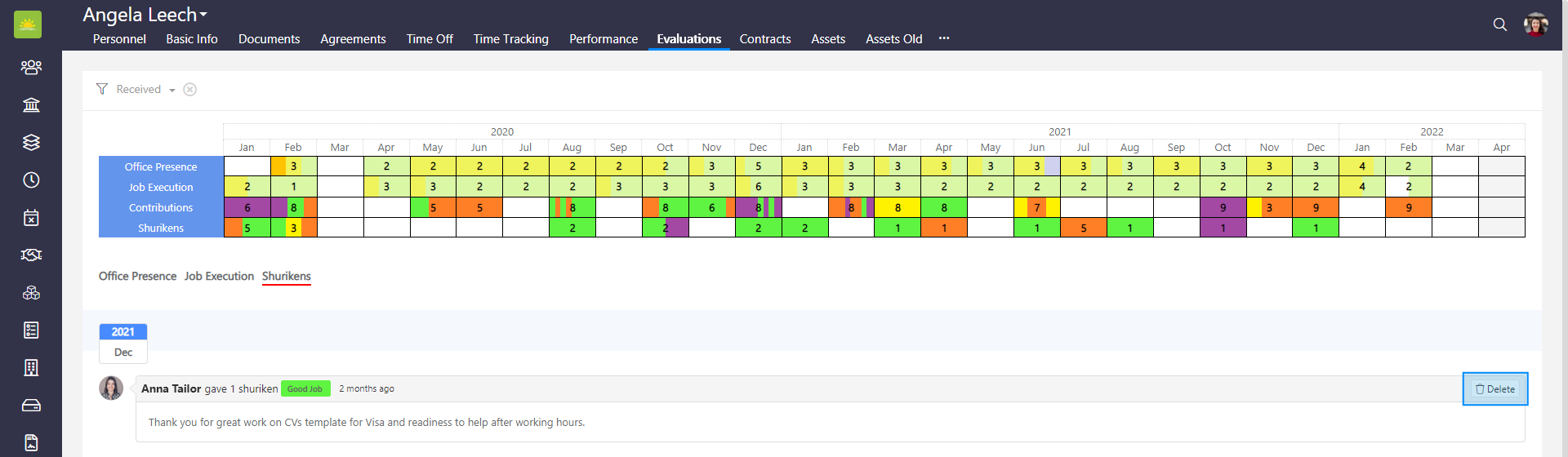
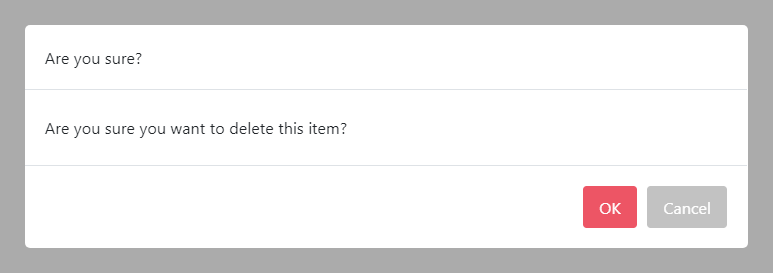
To minimize the risk of accidental deletion, you must confirm your intention to delete the rater/rating. Click OK and the rater/rating will be deleted.
How to switch the visibility rating on and off
To switch the visibility rating off, click the eye icon  on an entry.
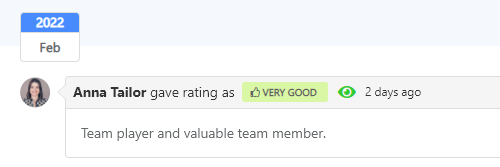
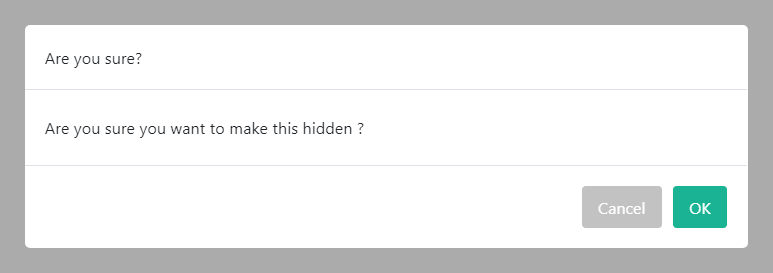
Click OK if you want to hide this item from the ratee.
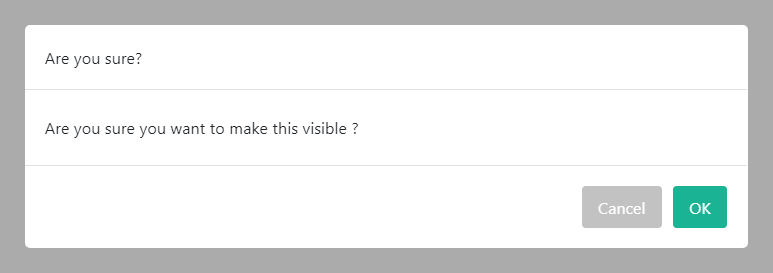
To switch the visibility rating on, click the eye icon  on an entry.
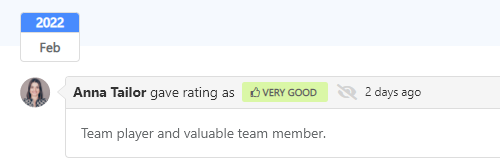
Click OK if you want to make this item visible to the ratee.
How to view the exact date and time of a rating
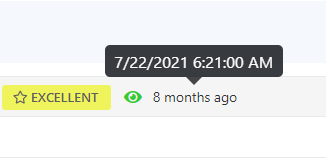
Hover the mouse over the period note to view the exact date and time of a rating.
Was this article helpful?
Didn’t find what you were looking for?
Contact us and we’ll build the right solution for you. Vault Synapse can be fully customized based on your business needs.