Details
What are purchase order details
Purchase order details provide information about the products and services as items. It includes information about the vendor, purchase order requester, key dates, currency, billing and shipping info, item list info such as VAT, Discount, Total amount, Qty, rate and other financial information.
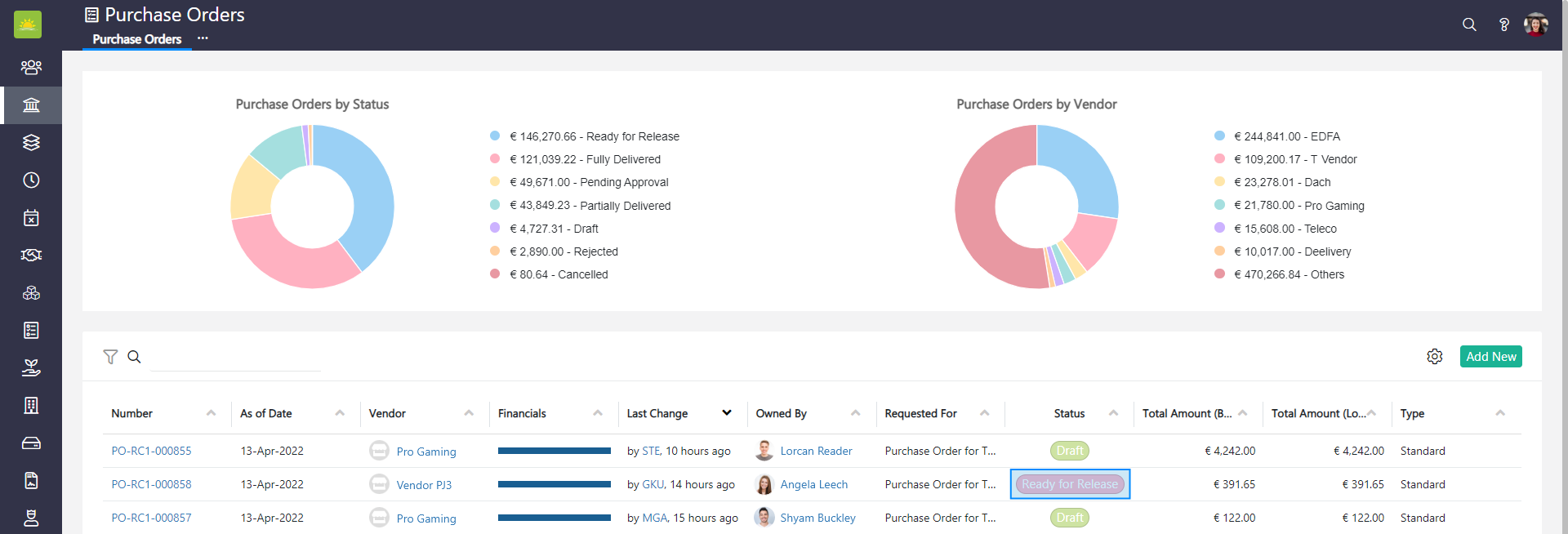
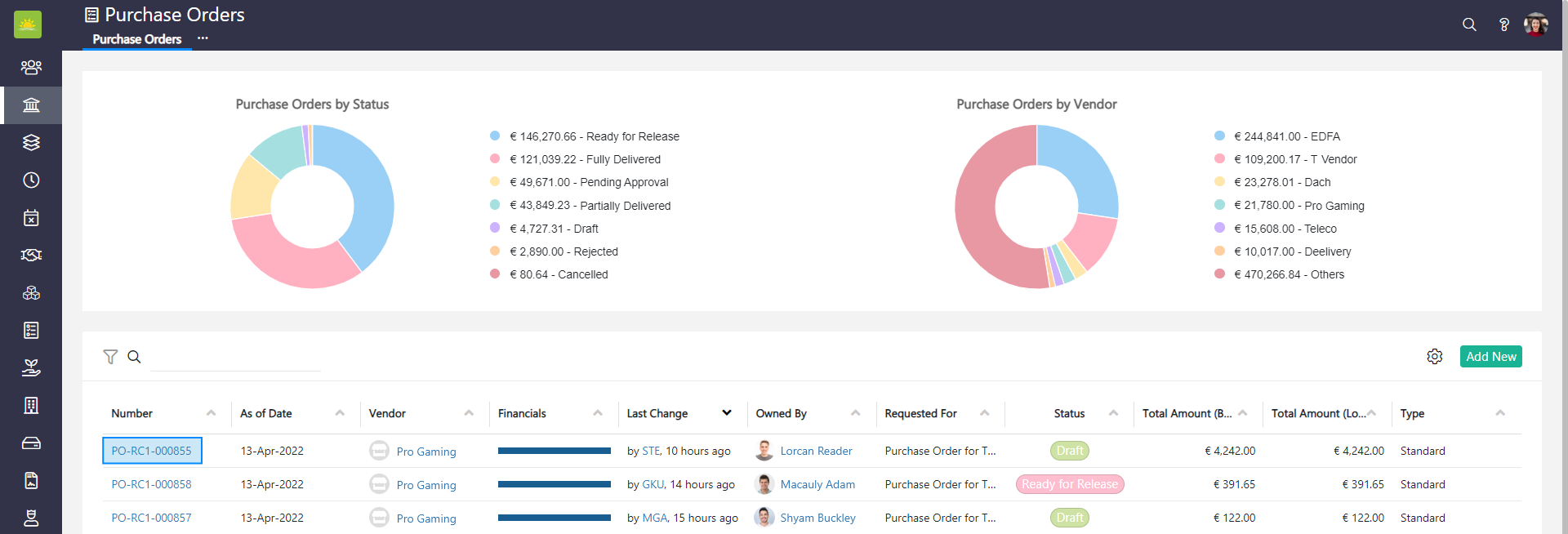
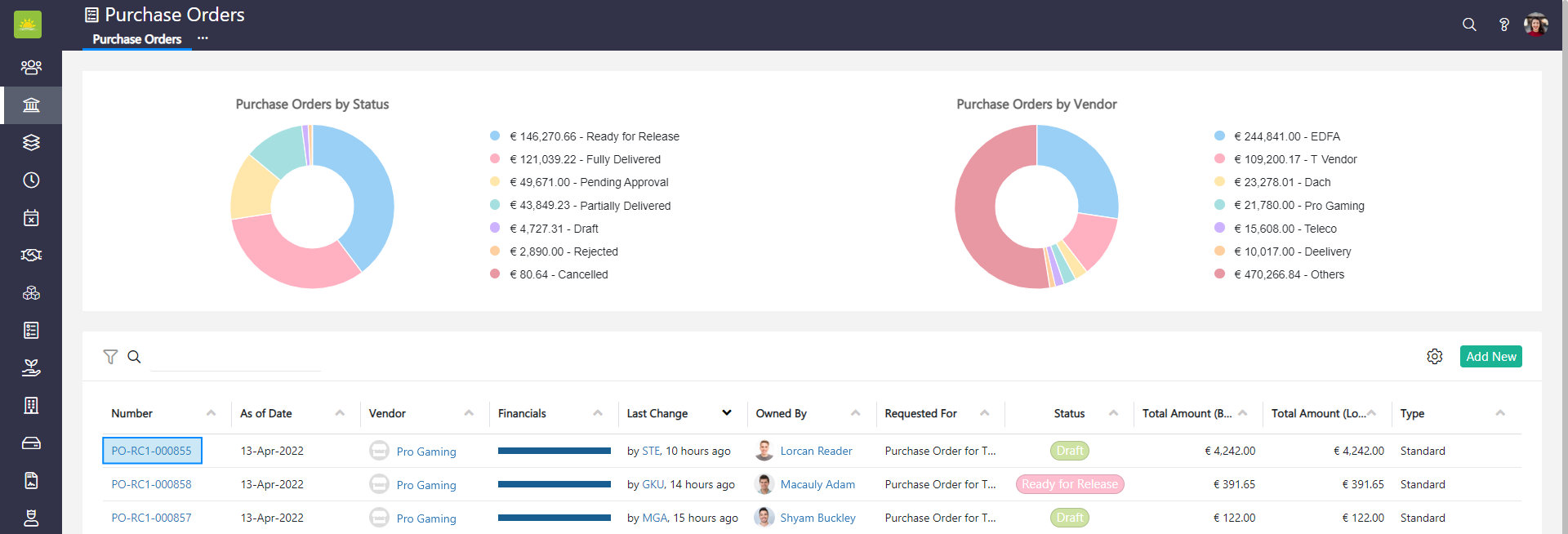
To view purchase order details, go to the Finance module and click the Purchase Orders module. Select one of the existing purchase orders by clicking on the PO number to open it.
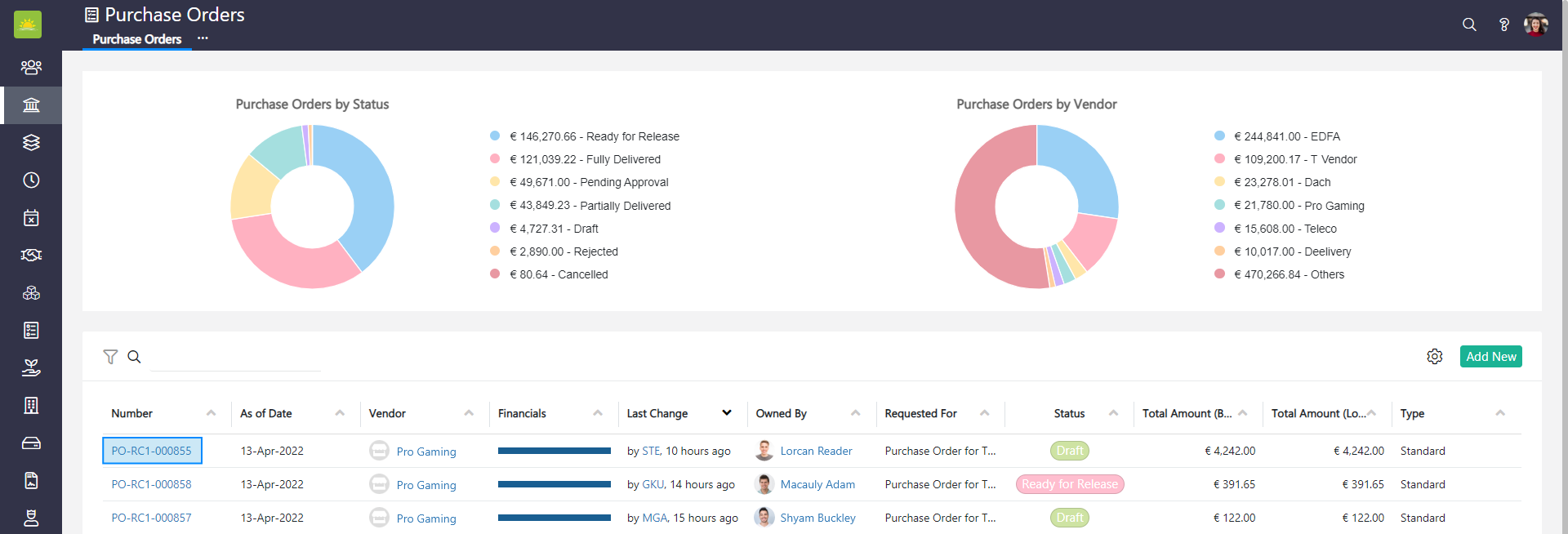
Click the link to find out how to preview, print, or download a purchase order.
How to submit a purchase order for approval
Note! The purchase order has to have a Draft status.
To submit a purchase order for approval, go to the Purchase Orders module and select one of the existing purchase orders by clicking on the PO number to open it.
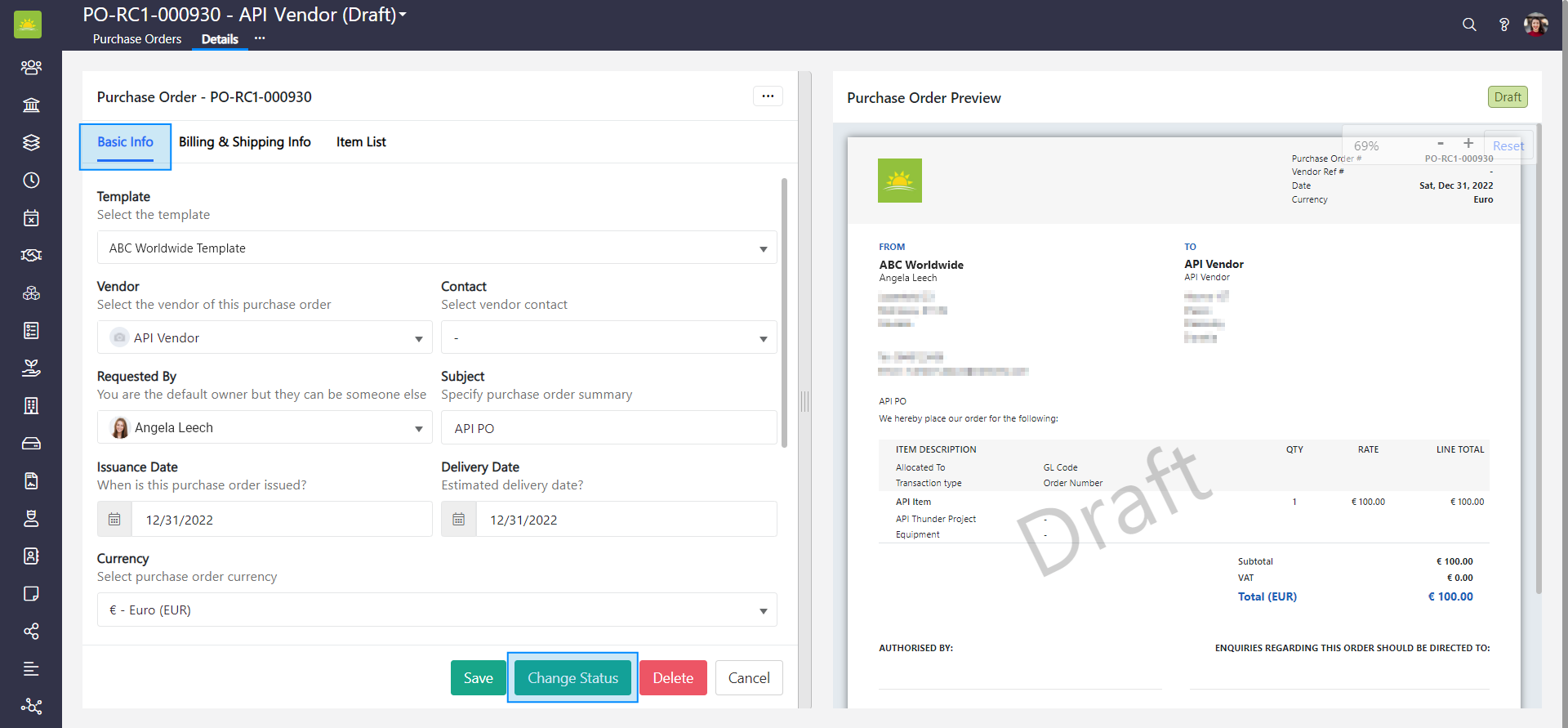
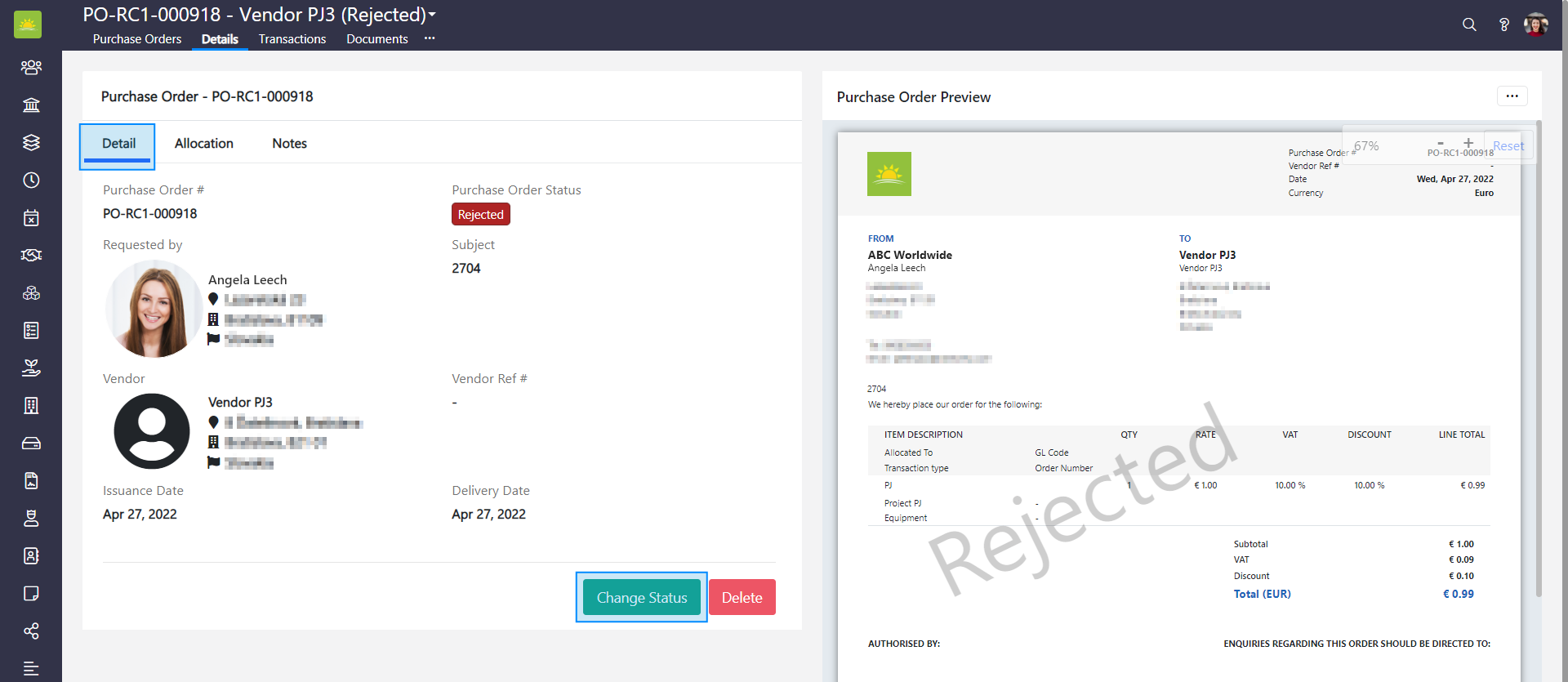
Click the Details tab and Basic Info under the purchase order number line. Click Change Status.
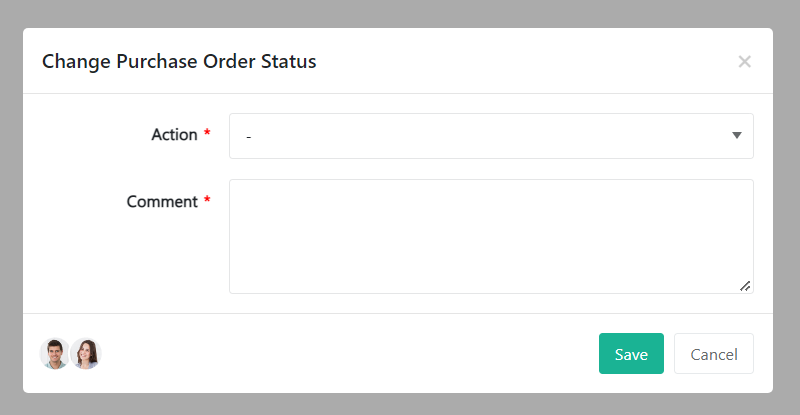
A Change Purchase Order Status modal window pops up. At this stage, the purchase order in the draft status can be sent for approval.
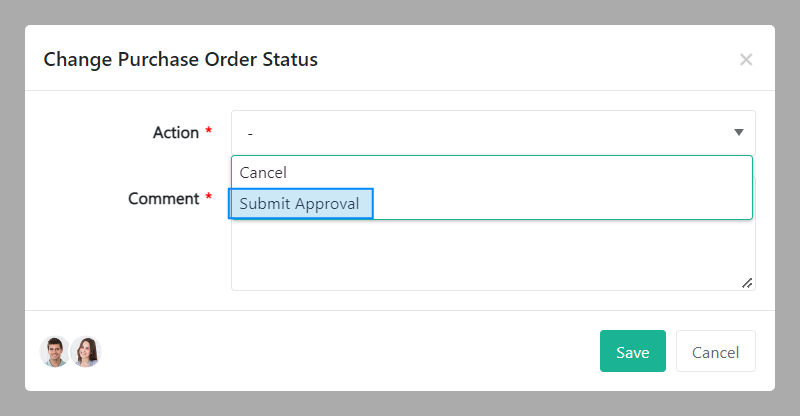
Click Save.
How to cancel a purchase order
Note! A purchase order with any status can be cancelled.
To cancel a purchase order, go to the Purchase Orders module and select one of the existing purchase orders by clicking on the PO number to open it.
Click the Details tab and Detail under the purchase order number line. Click Change Status.
A Change Purchase Order Status modal window pops up. The purchase order can then be cancelled.
Click Save.
How to change the status of a purchase order
Note! You cannot change the status of a purchase order with a Cancelled status. Statuses can be setup in the Organization Configuration by an administrator.
To change the status of a purchase order, go to the Purchase Orders module and select one of the existing purchase orders by clicking on the PO number to open it.
Click the Details tab and Basic Info under the purchase order number line. Click Change Status.
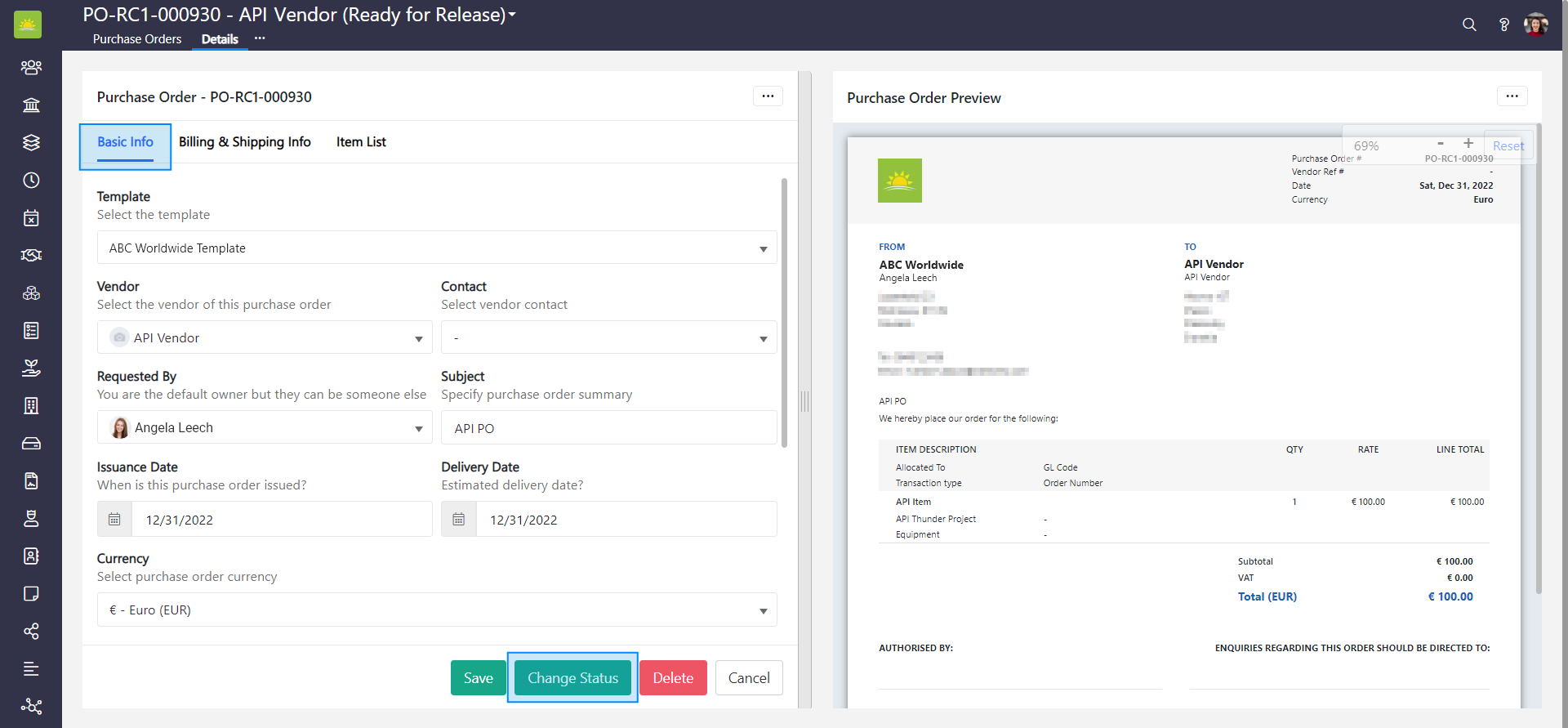
A Change Purchase Order Status modal window pops up. You can choose Cancel, Close, Fully Delivered, On Hold or Partially Delivered from the dropdown menu.
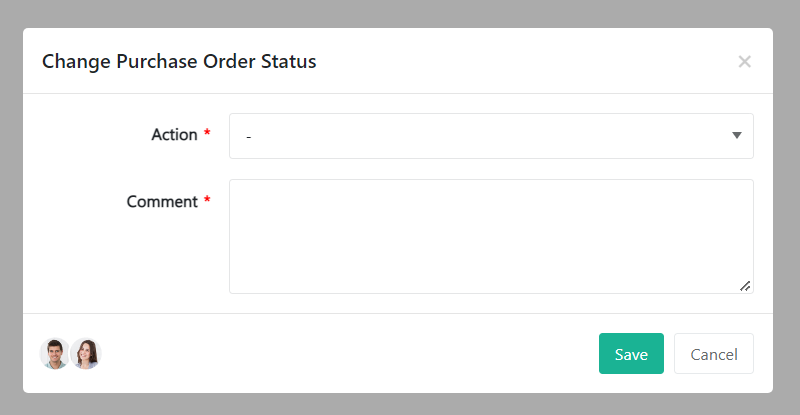
Click Save.
How to withdraw a purchase order
Note! This action can only be done when the purchase order was sent for approval and the status is Pending Approval.
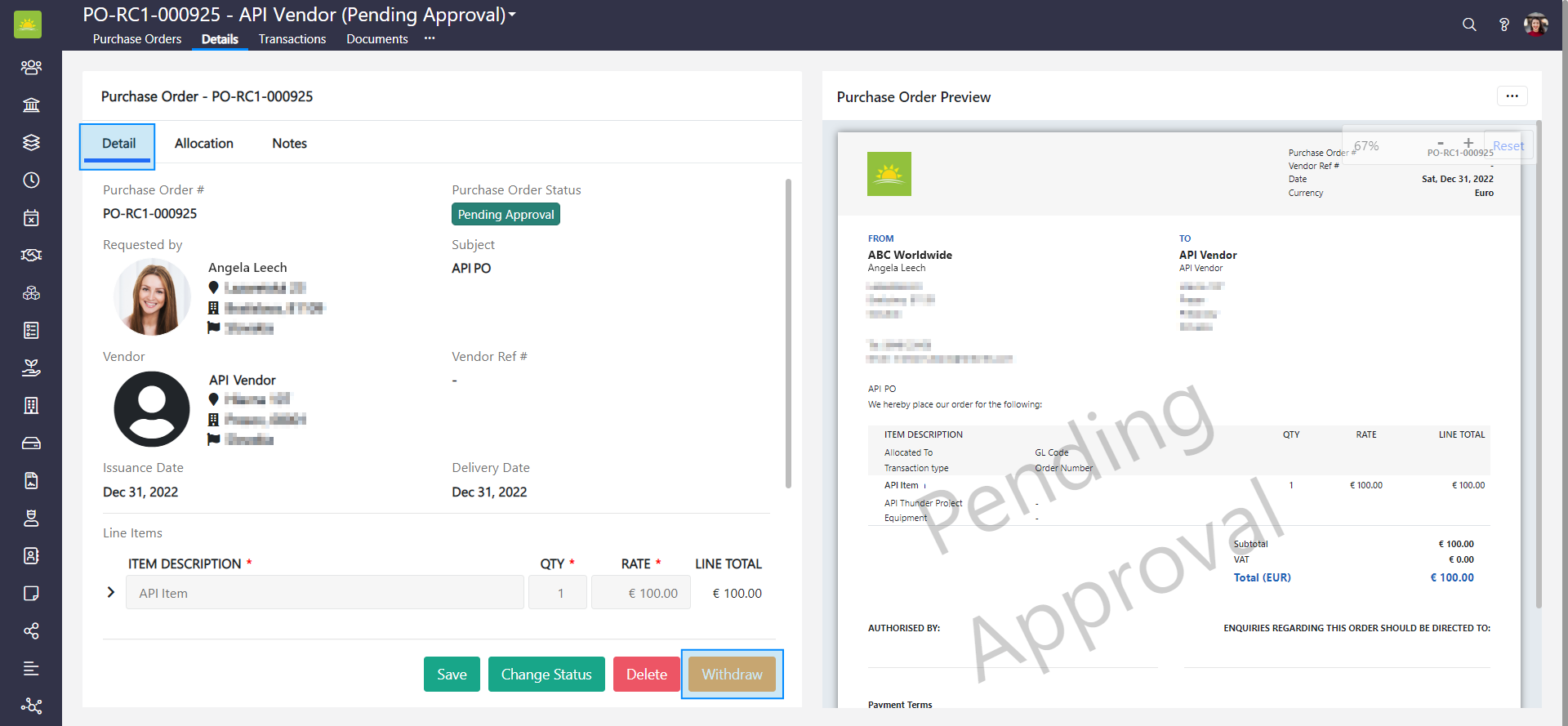
To withdraw a purchase order, go to the Purchase Orders module and select one of the existing purchase orders with a Pending Approval status by clicking on the PO number to open it.
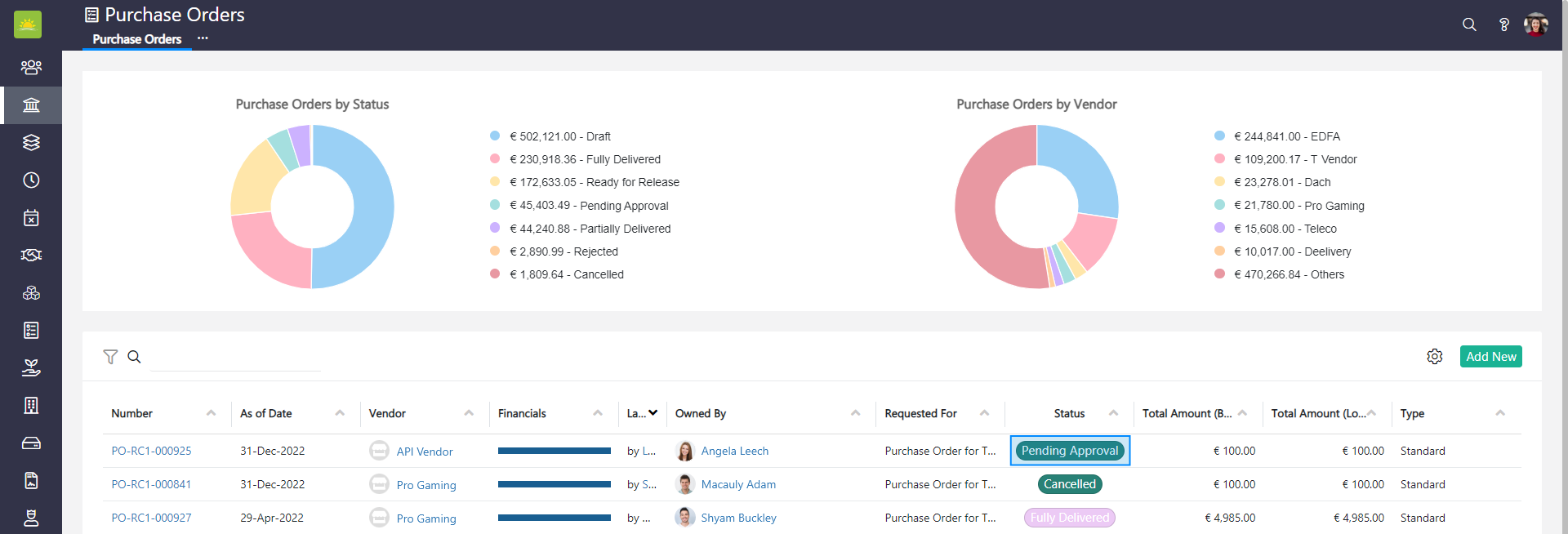
Click the Details tab and Detail under the purchase order number line. Click Withdraw to revoke the document and move back to the previous stage. At this stage you can edit information and send it for approval again. Click the link to find out how to submit a purchase order for approval.
How to delete a purchase order
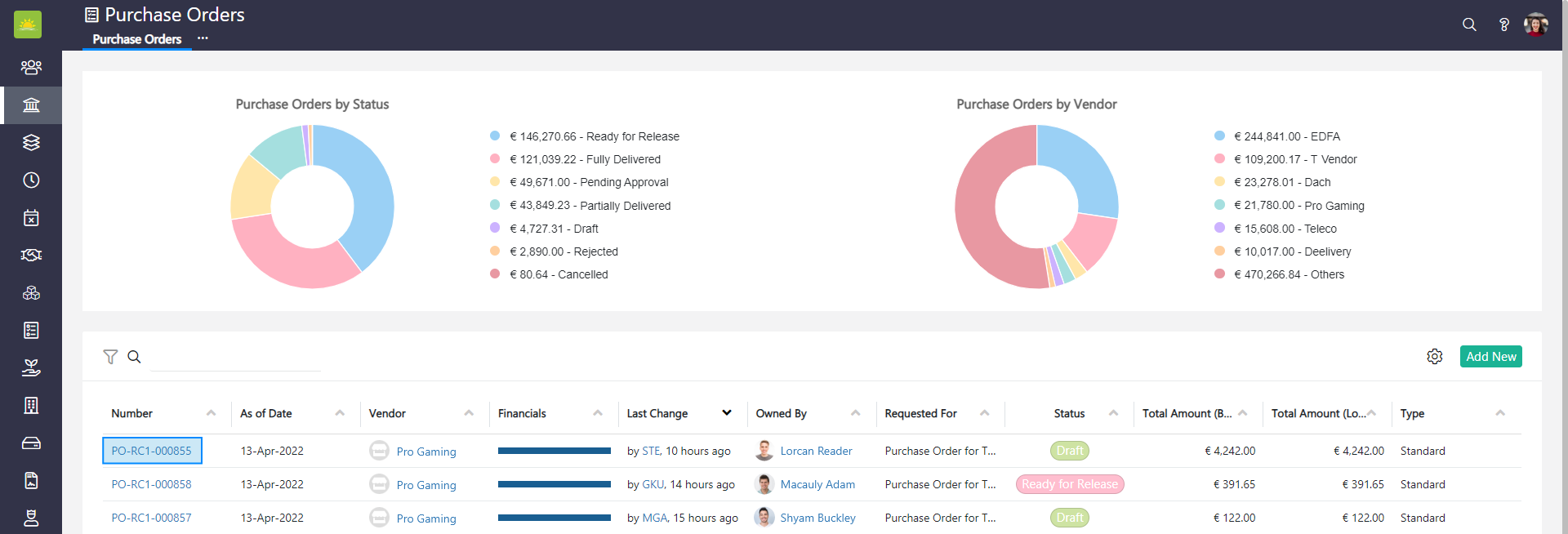
To delete a purchase order, go to the Purchase Orders module and select one of the existing purchase orders by clicking on the PO number to open it.
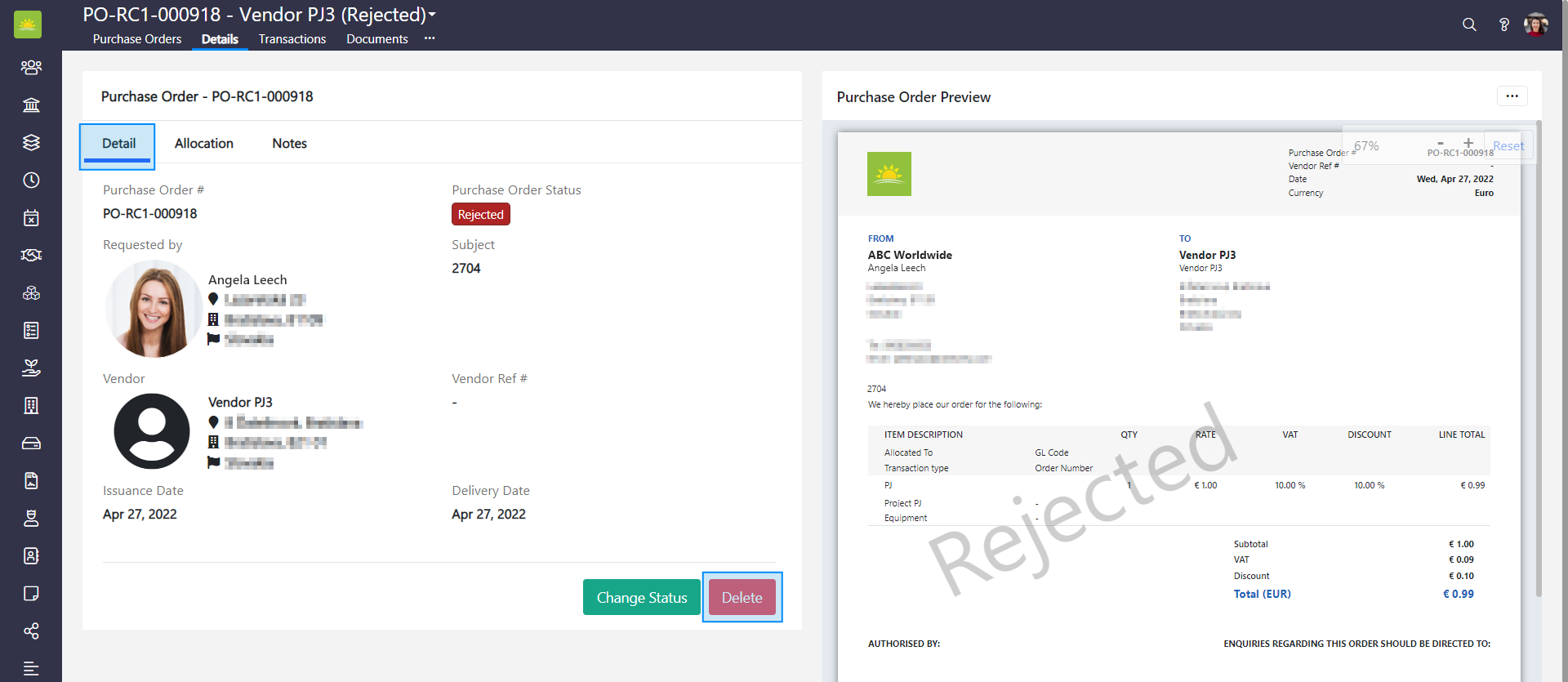
Click the Details tab and Detail under the purchase order number line. Click Delete.
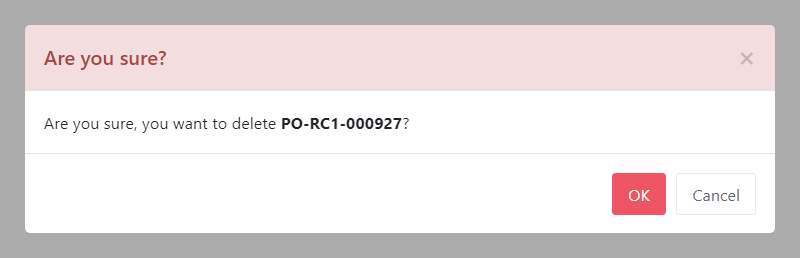
To minimize the risk of accidental deletion, you must confirm your intention to delete the purchase order. Click OK and the purchase order will be deleted.
How to allocate a purchase order
Note! Once the purchase order's status is Ready for Release, it is possible to allocate it to an existing asset, a new asset, or mark it as non-deliverable.
To allocate a purchase order, go to the Purchase Orders module and select one of the existing purchase orders with a Ready for Release status by clicking on the PO number to open it.
Click the Details tab and Allocation under the purchase order number line. Click … at the end of the row to allocate the purchase order to an existing asset, a new asset, or mark non-asset as delivered.
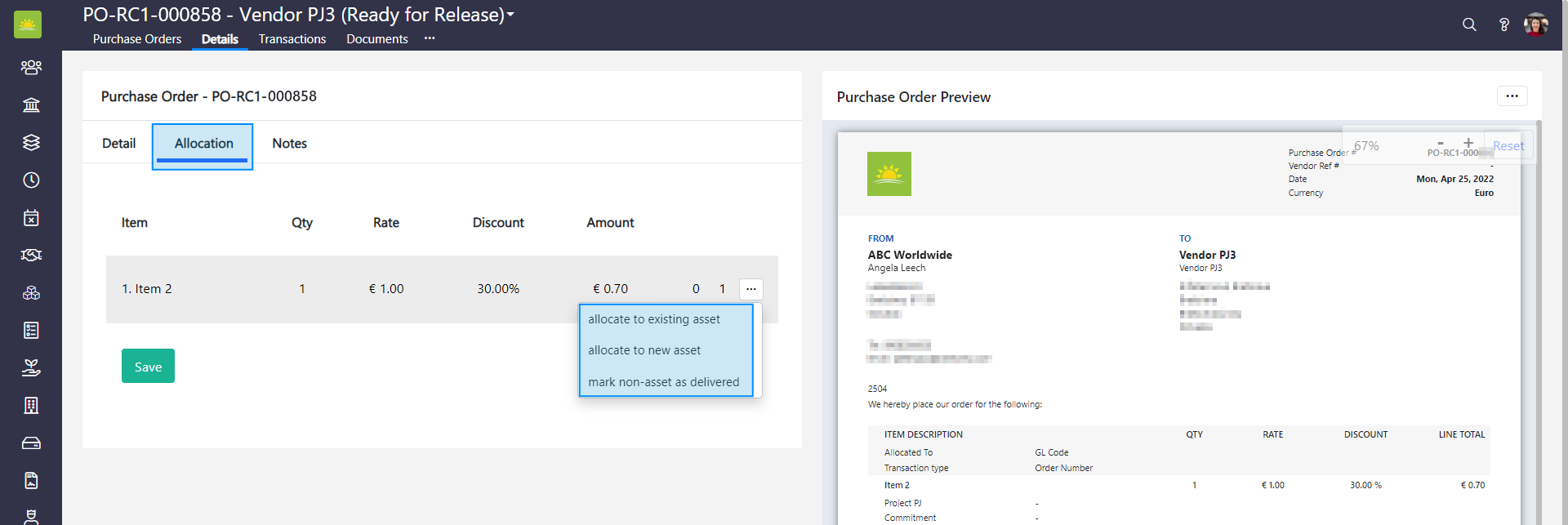
How to allocate to an existing asset
Click allocate to existing asset. A dropdown menu will open, choose an existing asset and click Save.
How to allocate to new asset
Click allocate to new asset. This will open a modal window where you will create a new asset. Click the link to find out how to create a new asset.
Fill out the fields and click Next and Save.
How to mark non-asset as delivered
Click mark non-asset as delivered. These are for deliverables that are not physical assets like the insurance of an asset or the installation fee of an asset.
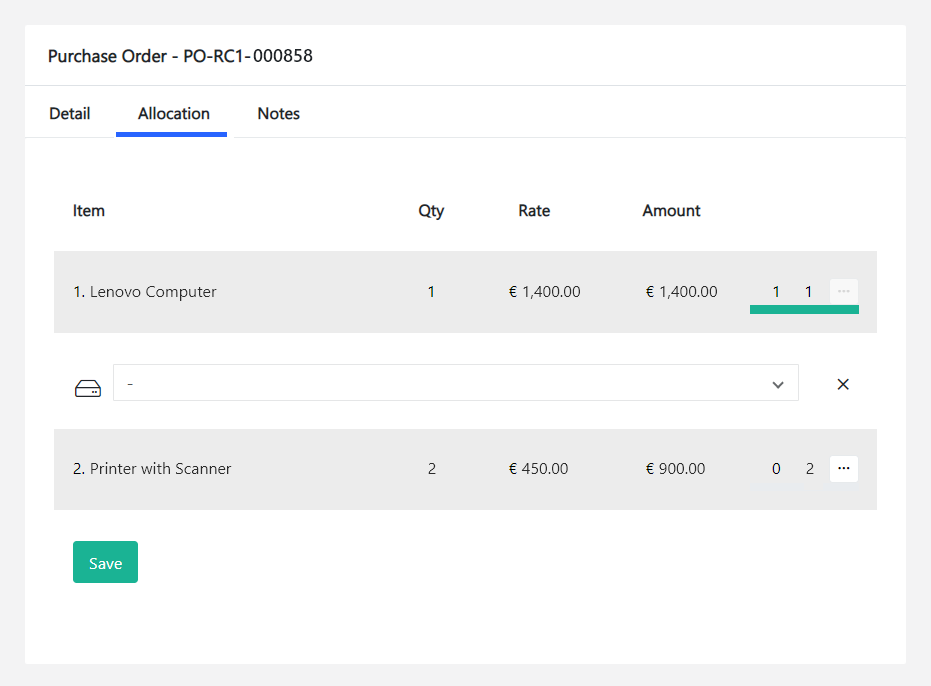
After allocating the assets, click Save to confirm the asset allocations. The green line shows if the asset has been allocated.
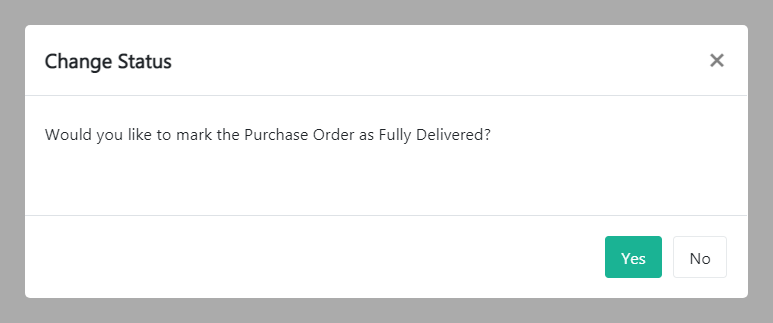
Click Yes to confirm the asset and mark it as Fully Delivered. If the purchase order contains more items and you haven't allocated all of the assets, you can mark the purchase order as partially delivered.
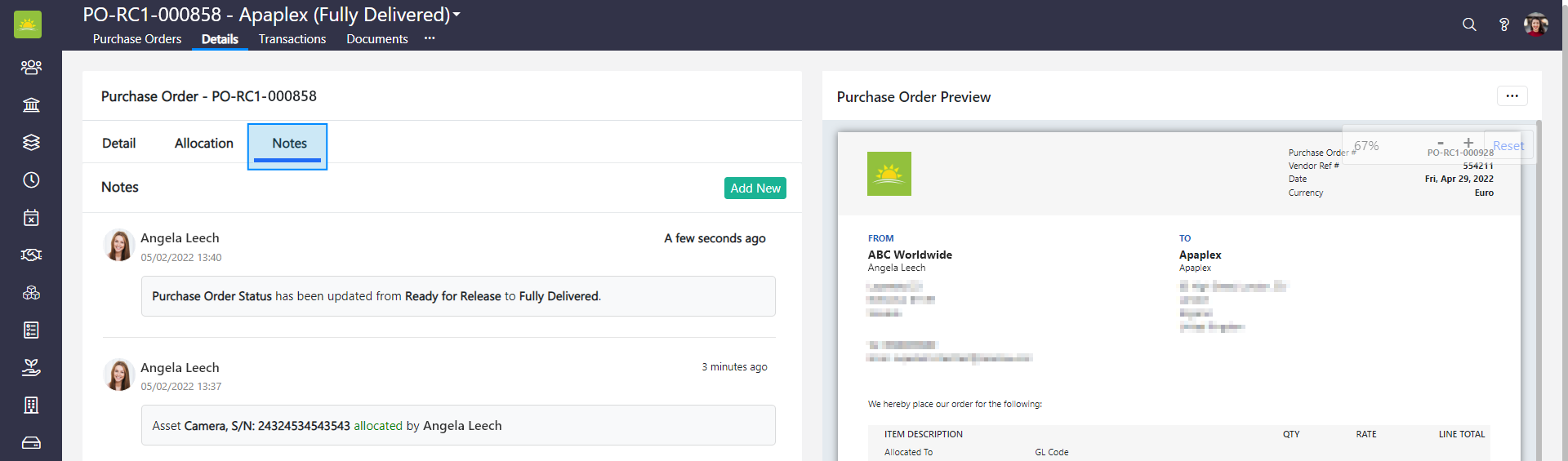
What are purchase order notes
All the actions performed on a purchase order are saved under Notes.
To add a new note, go to the Purchase Orders module and select one of the existing purchase orders by clicking on the PO number to open it.
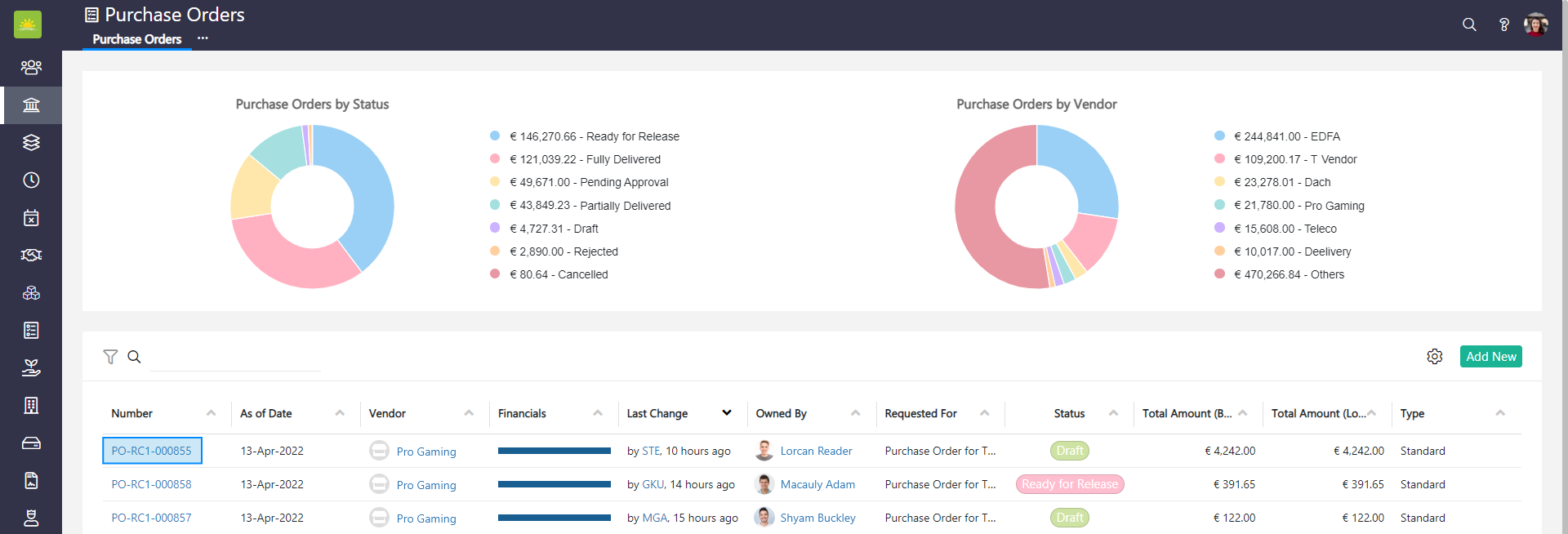
Click the Details tab and Notes under the purchase order number line. Click Add New.
An Add New Note modal window pops up.
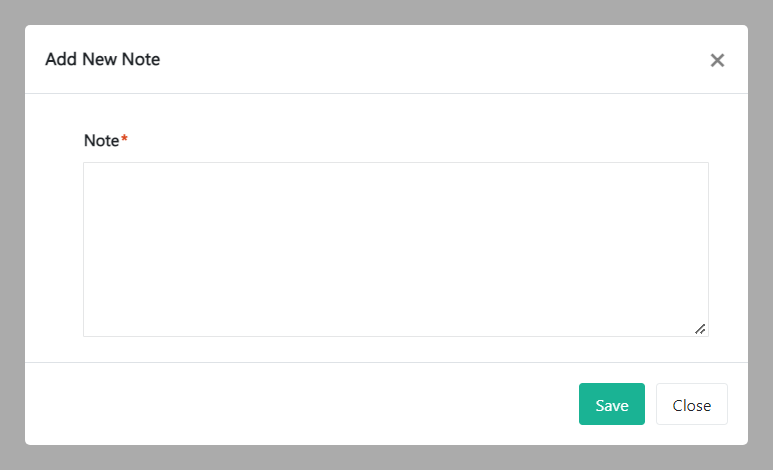
Fill out the field about the note and click Save. This will be saved under Notes.
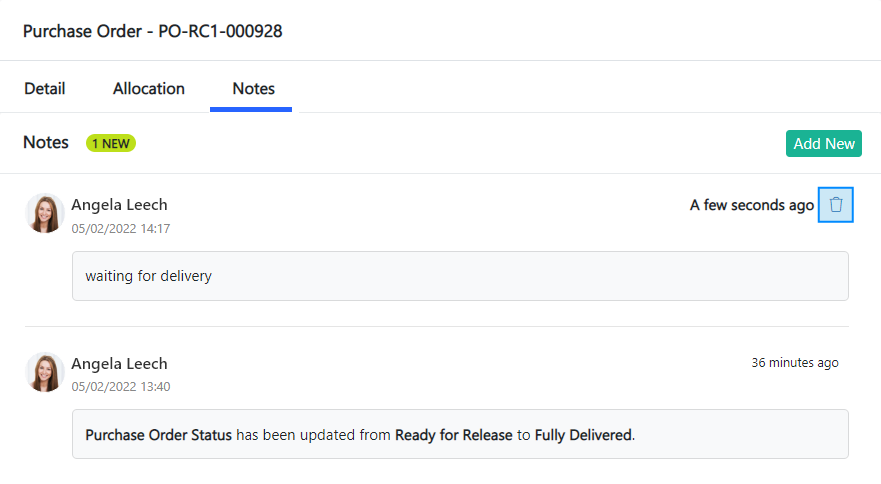
To delete a note, click  .
.
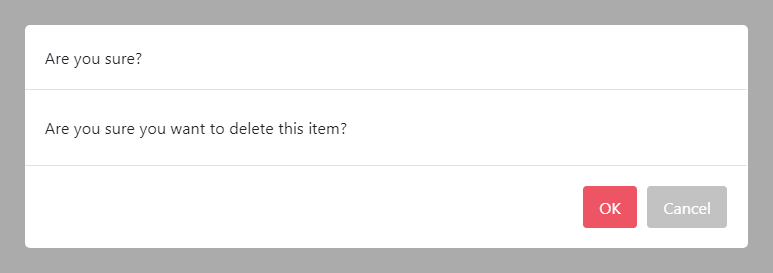
To minimize the risk of accidental deletion, you must confirm your intention to delete the note. Click OK and the note will be deleted.
Note! Only manually added notes can be deleted.
Didn’t find what you were looking for?
Contact us and we’ll build the right solution for you. Vault Synapse can be fully customized based on your business needs.