- Knowledge Base
- Checklists
- Runs
- How to share run tasks with external participants
- How to add a run
- How to edit a run
- How to mark a run as complete
- How to archive a run
- How to delete a run
- How to change the assignee
- How to add a result in a checklist run
- How to add bulk results in a checklist run
- How to share run tasks with external participants
- How to generate an Excel or PDF report from a checklist run
- How to filter the run tasks view
- What is an office asset
- How to create a new asset
- How to manage an asset
- How to move an asset
- How to dispose of an asset
- How to transfer (in) an asset
- How to transfer (out) an asset
- How to log a sighting of an asset
- How to log an inspection of an asset
- How to log maintenance on an asset
- How to export a record of an asset
- How to print asset labels
- Introduction
- Admissions
- Assets
- Bank Accounts
- Boards
- Business Trips
- Candidates
- Checklists
- Clients
- Companies
- Consents
- Contacts
- Contracts
- Custom Forms
- Departments
- Documents
- Evaluations
- Employee Performance
- GL Accounts
- Incoming Center
- Integrations/External Systems
- Invoices
- Job Management
- Key Dates
- Months
- Offices
- Personnel
- Polls
- Project Management
- Project Status
- Purchase Orders
- Schedule
- Shared Spaces
- Teams
- Time Off
- Time Tracking
- Transactions
- Vendors
- Mobile Application
- What is a personnel asset
- How to create a new asset
- How to manage an asset
- How to move an asset
- How to log inspection on an asset
- How to log maintenance on an asset
- How to dispose of an asset
- How to transfer (out) an asset
- How to transfer (in) an asset
- How to log a sighting on an asset
- How to print asset labels
- How to export a record of an asset
- What is a project asset
- How to create a new asset
- How to manage an asset
- How to move an asset
- How to log inspection on an asset
- How to log maintenance on an asset
- How to dispose of an asset
- How to transfer (out) an asset
- How to transfer (in) an asset
- How to log a sighting of an asset
- How to print asset labels
- How to export a record of an asset
- Project transactions
- How to record an estimate
- How to create a budget
- How to submit transaction items for approval
- How to approve or deny budgeting items from the transactions grid
- How to create a purchase order from approved estimates
- How to link approved estimates to approved budgets
- How to cancel a transaction
- How to deactivate a transaction
- How to edit a transaction
- How to re-submit a denied transaction
How to share run tasks with external participants
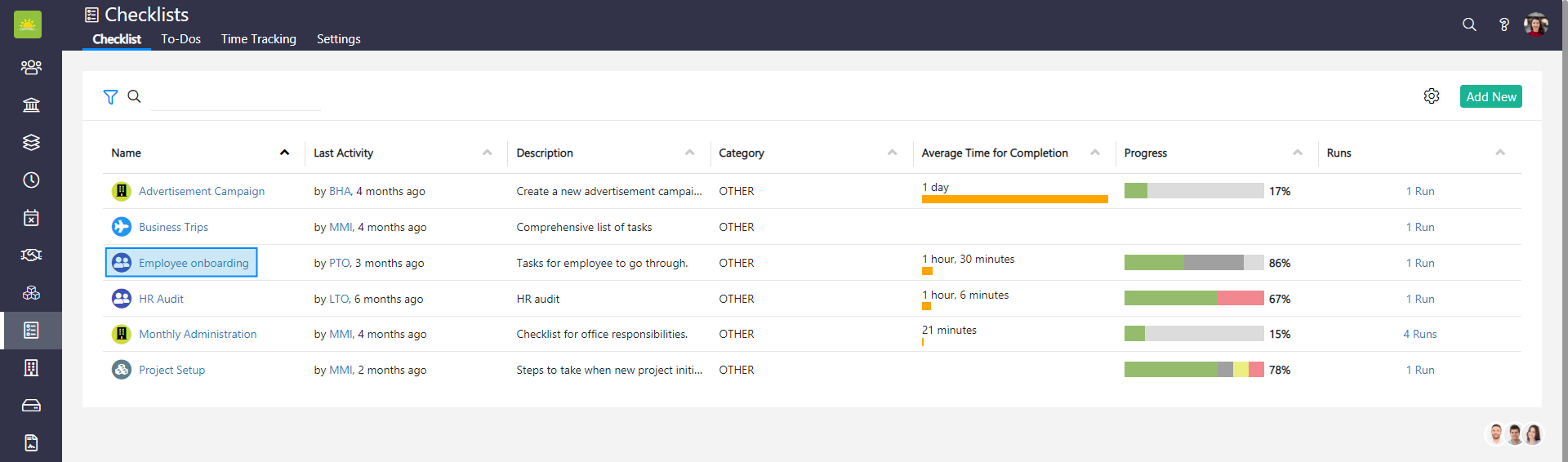
To share Run Tasks with external participants, go to the Checklists module and click on the checklist you want to share.
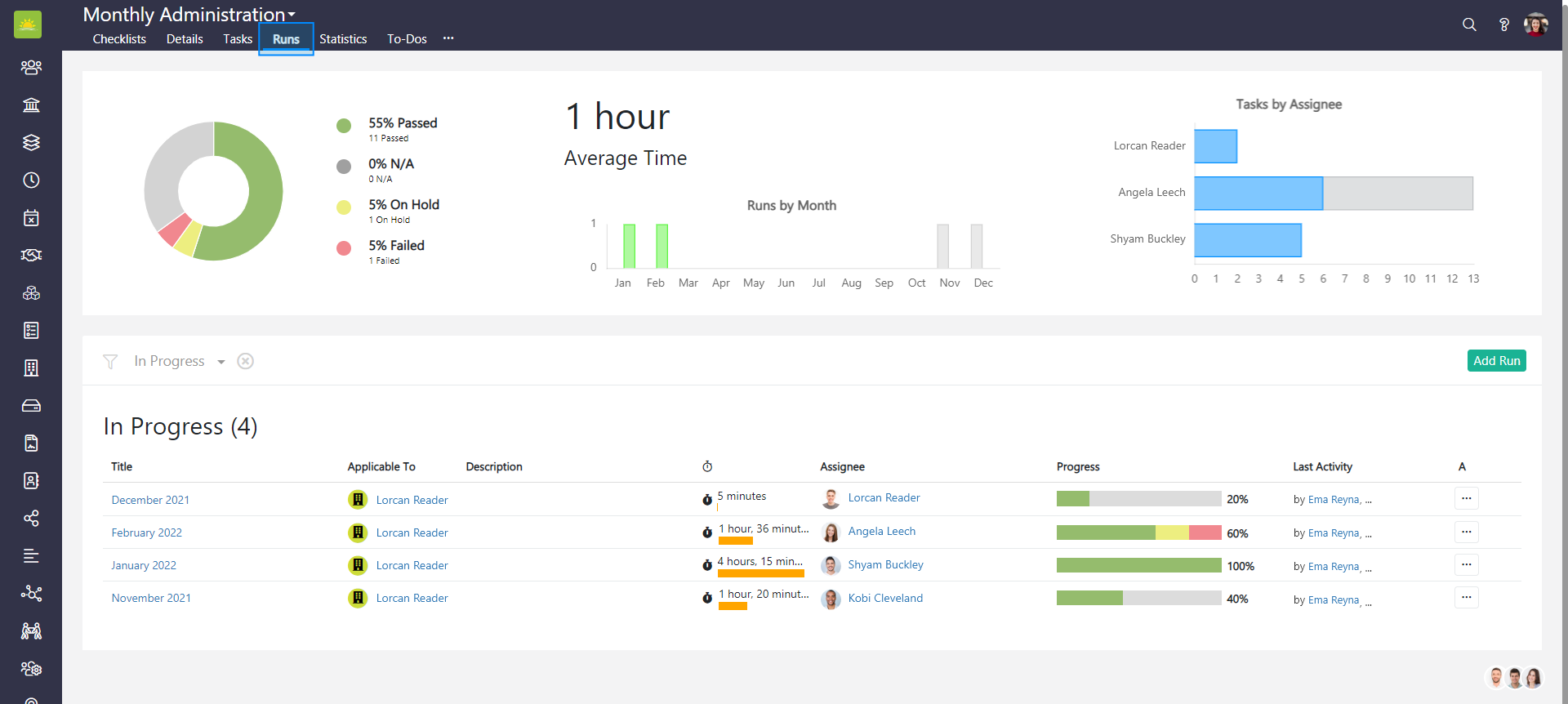
Click on the Runs tab to view all runs added to the checklist.
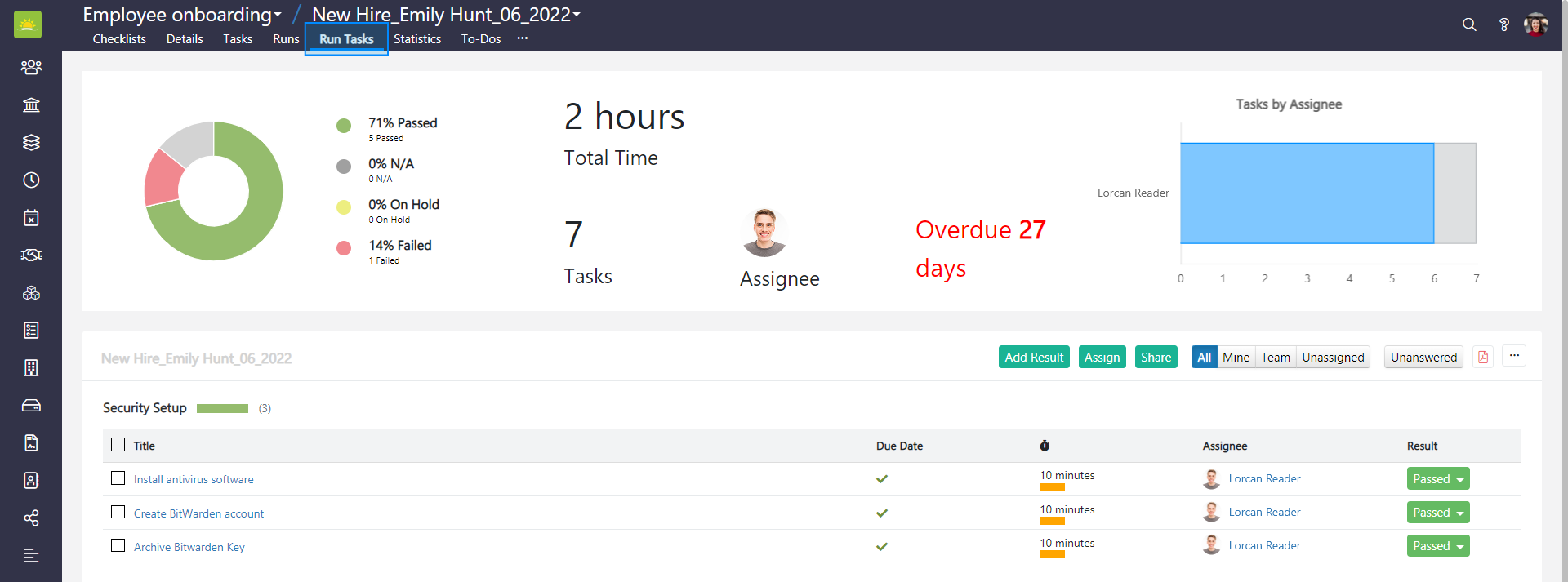
Open a checklist run of your choice. You can do this in two ways: open Checklists, click the Runs tab in the navigation header, and click on the Title of the run. Alternatively, select the run on the checklist details page and click on its Title to open it. You will be navigated to the Run Tasks tab.
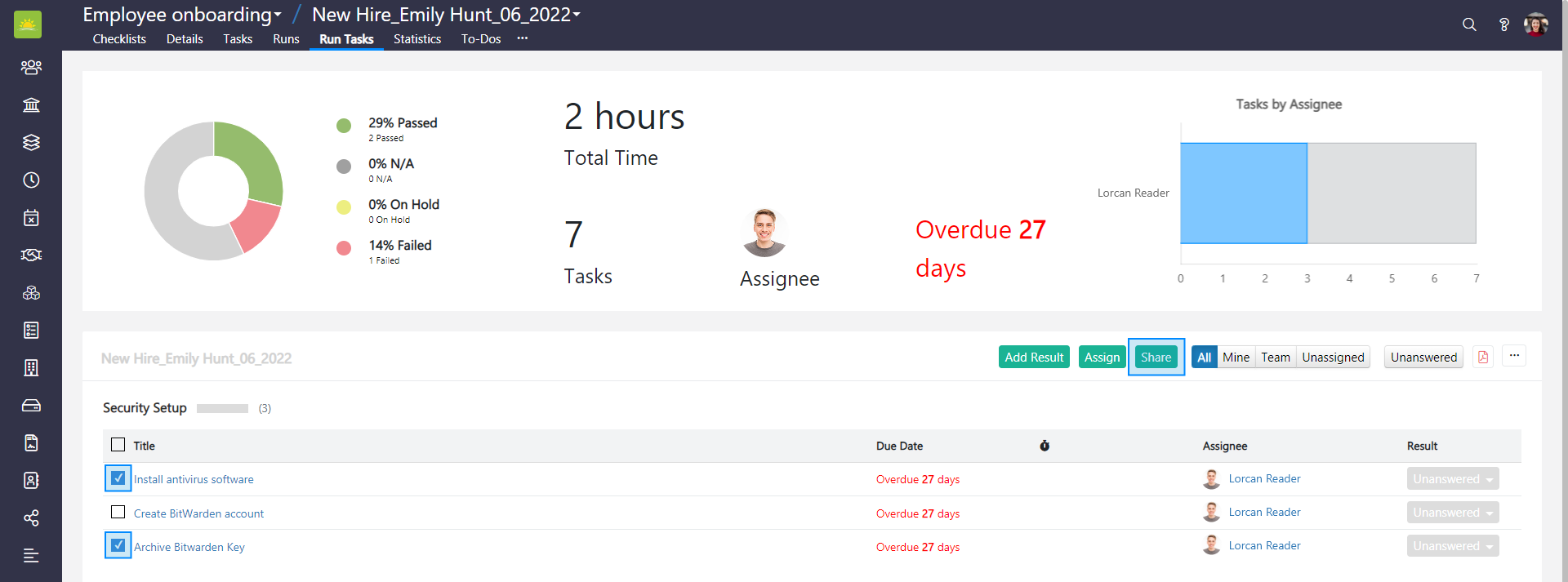
Check boxes next to selected tasks or check the Title box to select all. Next, click Share in the run’s title line.
A modal Share with External Participant window will pop up.
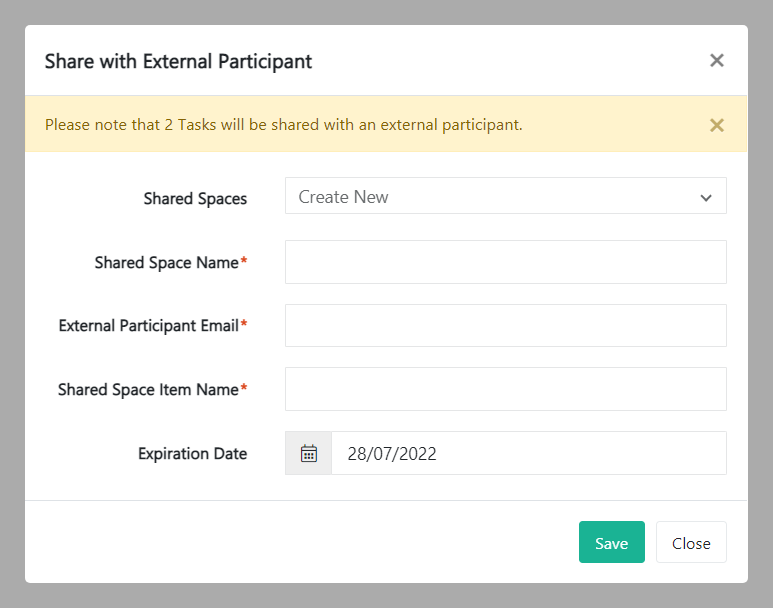
Fill out the following fields:
- Shared Spaces – Select a shared space from the dropdown list or create a new one.
- Shared Space Name – Give the shared space a name.
- External Participant Email – Enter the external participant email address here.
- Shared Space Item Name – This is the name of the item(s) you want to share.
- Expiration Date – Use the calendar picker to set an expiration date.
Once you are finished, click Save. Click Close to abort sharing and to return to Runs Tasks.
Was this article helpful?
Didn’t find what you were looking for?
Contact us and we’ll build the right solution for you. Vault Synapse can be fully customized based on your business needs.